What Is Ram And How It Boosts Your Computer Performance
RAM is your computer’s short-term memory that handles everything you do right now. When you open apps, browse the web, or edit files, RAM keeps that data instantly accessible. Understanding what is ram helps you choose the right amount for your needs and boost your system speed significantly.
Have you ever wondered why your computer slows down when you have too many tabs open? The answer is simple. Your machine needs what is ram to juggle all those tasks at once. Think of RAM as your desk space. The bigger the desk, the more papers you can spread out and work on simultaneously. Without enough space, everything gets cluttered and slow.
RAM stands for Random Access Memory. It is one of the most important parts of any computer. Whether you use a laptop or a desktop PC, RAM affects how fast and smoothly everything runs. In this guide, we will break down exactly what computer memory does, how it works, and how you can use it to get the best performance from your machine.
Key Takeaways
- RAM stands for Random Access Memory and acts as your computer’s short-term workspace for active tasks.
- More RAM means smoother multitasking and faster performance in demanding applications.
- DDR4 and DDR5 are the current RAM types, with DDR5 offering newer and faster technology.
- 8GB is the minimum for most users, while 16GB or more is ideal for gaming and creative work.
- RAM is volatile memory, meaning it clears when you turn off your computer.
- Upgrading RAM is one of the easiest and cheapest ways to speed up an older PC.
📑 Table of Contents
What Is RAM and Why Does It Matter?
RAM is your computer’s short-term memory. It stores the data your processor needs right now. When you open a program, that program loads from your hard drive into RAM. This makes everything feel instant and responsive. Without RAM, your computer would need to fetch data from your storage drive every single time you clicked something. That would make your system painfully slow.
Here is a simple way to think about it. Your hard drive or SSD is like a filing cabinet. It holds everything permanently. RAM is like the top of your desk. It holds only what you are working on at this moment. When you close a program, that data leaves RAM and goes back to the filing cabinet. This is why RAM is volatile memory. It does not keep your files when the power is off.
How RAM Boosts System Performance
When you have enough memory capacity, your computer can keep many apps running at the same time. You can switch between a browser, a music app, and a Word document without any lag. This is multitasking at its best. But when your RAM fills up, your computer starts using your storage drive as a temporary replacement. This is called virtual memory. It is much slower than real RAM, and that is when things start to crawl.
More RAM also helps with system performance in other ways. Games load faster. Video editing software runs more smoothly. Your browser handles dozens of tabs without crashing. Basically, every task you do benefits from having enough computer memory available.
Types of RAM: DDR4 and DDR5
Not all RAM is the same. There are different generations, and each one brings improvements in speed and efficiency. The two types you will see in most computers today are DDR4 RAM and DDR5 RAM.
DDR4 RAM
DDR4 has been the standard for several years now. It offers solid speeds and works well for everyday tasks. Most laptops and desktops built in the last few years use DDR4. It runs at speeds typically between 2133 MHz and 3200 MHz. For most users, DDR4 provides more than enough memory bandwidth for smooth performance.
DDR5 RAM
DDR5 is the newest generation. It is faster, more efficient, and designed for demanding workloads. DDR5 starts at higher speeds than DDR4 and can reach much higher clock speeds. If you are building a new PC or upgrading a modern motherboard, DDR5 is the way to go. It gives you better memory speed and improved power efficiency. However, it does cost a bit more than DDR4 right now.
| Feature | DDR4 RAM | DDR5 RAM |
|---|---|---|
| Release Year | 2014 | 2020 |
| Base Speed | 2133 MHz | 4800 MHz |
| Max Speed (Common) | 3200 MHz | 7200 MHz |
| Power Efficiency | 1.2V | 1.1V |
| Best For | Everyday use, budget builds | Gaming, creative work, future-proofing |
How Much RAM Do You Actually Need?
The right amount of RAM capacity depends on what you do with your computer. Different tasks demand different levels of computer memory. Here is a simple breakdown to help you decide.
4GB RAM
Four gigabytes is the bare minimum. It works for very basic tasks like web browsing on a few tabs and using simple apps. However, 4GB fills up fast. If you try to do anything more, your computer will struggle. This amount is really only suitable for older or very budget machines.
8GB RAM
Eight gigabytes is the sweet spot for most everyday users. It handles office work, web browsing, streaming, and light photo editing with ease. If you are a student or someone who uses a laptop for general tasks, 8GB is a great starting point. Many popular laptops come with this amount, and it keeps things running smoothly for the average person.
If you are wondering whether 8GB is enough for your needs, check out this detailed guide on is 8 Gb Ram Good For A Laptop to see if it fits your workflow.
16GB RAM
Sixteen gigabytes is ideal for power users. Gamers, video editors, and anyone running demanding software will love the extra headroom. With 16GB, you can run multiple heavy apps at the same time without slowdowns. It is also a great choice for people who want their PC to stay fast for years to come.
32GB and Above
Thirty-two gigabytes or more is for professionals. Video editors working with 4K footage, 3D modelers, and software developers benefit greatly from this much memory. It is also excellent for future-proofing your build. If you want your computer to handle anything you throw at it, 32GB gives you peace of mind.
RAM Speed and Latency Explained
When shopping for RAM, you will see numbers like 3200MHz and CL16. These refer to RAM speed and latency. Speed, measured in megahertz (MHz), tells you how fast data moves. Higher MHz means faster data transfer. Latency, measured in CAS Latency (CL), tells you the delay before data starts flowing. Lower latency is better.
For most users, the difference between fast and slow RAM is subtle. You will notice it more in games and heavy workloads. For everyday tasks, having enough capacity matters more than raw speed. But if you want to squeeze out every bit of performance, look for a balance of high speed and low latency.
Quick Tips for Choosing RAM Speed
- Match your RAM to your CPU. Some processors work better with certain speeds. Check your motherboard and CPU specs before buying.
- Buy in pairs for dual-channel mode. Two 8GB sticks perform better than one 16GB stick in most cases.
- Do not overbuy. If your tasks do not need it, very fast RAM will not give you a noticeable boost.
How to Check Your Current RAM
Not sure how much memory your computer currently has? Checking is easy and takes just a few seconds. On Windows, press Ctrl + Shift + Esc to open Task Manager. Click the Performance tab and look for Memory. You will see how much RAM you have and how much you are using.
On a Mac, click the Apple menu and choose About This Mac. You will see your total memory right there. If you want to learn more about what RAM means for your laptop specifically, this guide on What Does Ram Mean For A Laptop goes into more detail about how memory affects your daily use.
Upgrading Your RAM for Better Performance
One of the easiest and most affordable upgrades you can make is adding more RAM. Before you buy anything, you need to know what is compatible with your system. Check your motherboard manual for supported RAM types and maximum capacity. You also need to know how many RAM slots are available on your board.
Steps to Upgrade Your RAM
- Check your current RAM. Use the tools mentioned above to see what you have now.
- Find compatible RAM. Match the type (DDR4 or DDR5), speed, and form factor.
- Open your computer. Make sure it is powered off and unplugged.
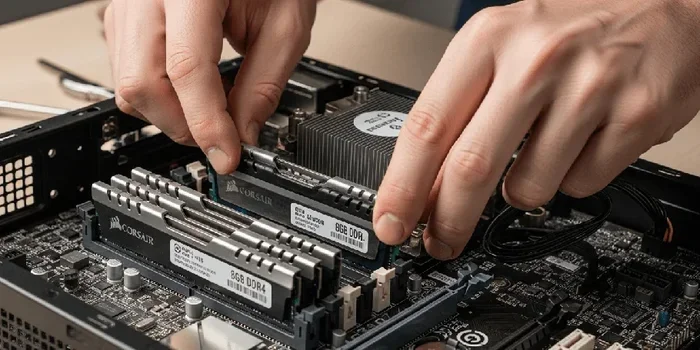
- Remove old RAM if needed. Press the clips on either side and gently pull the sticks out.
- Install the new RAM. Align the notch and press firmly until the clips click.
- Test your system. Boot up and verify the new memory is recognized.
If you are unsure about compatibility, this guide on How To Know What Ram Is Compatible With My Laptop walks you through everything step by step.
Common RAM Mistakes to Avoid
Even with good intentions, people make mistakes when it comes to memory upgrades. Here are the most common ones and how to avoid them.
- Buying the wrong type. DDR4 and DDR5 are not interchangeable. Always double-check your motherboard supports the RAM you buy.
- Ignoring capacity for speed. Faster RAM does not help much if you do not have enough of it. Prioritize capacity first.
- Mixing RAM sticks carelessly. While it is possible to mix different sticks, matching brands, speeds, and sizes gives the best results.
- Overlooking your operating system. A 32-bit operating system can only use about 4GB of RAM. Make sure your OS is 64-bit to use more memory fully.
Final Thoughts
Understanding what is ram is the first step toward making your computer faster. RAM handles all the active work your computer does every second. More memory means smoother multitasking, faster app loading, and a much better overall experience. Whether you are a casual user or a power professional, choosing the right RAM capacity and type makes a real difference.
Upgrading your computer memory is simple, affordable, and one of the best returns on investment you can get. Take a look at your current setup, figure out what you need, and make the upgrade. Your computer will thank you with faster speeds and smoother performance every single day.
Frequently Asked Questions
What does RAM stand for?
RAM stands for Random Access Memory. It is the short-term memory your computer uses to store data for active tasks. Unlike your hard drive, RAM is much faster and clears when you turn off your computer.
Is 8GB RAM enough for everyday use?
Yes, 8GB is plenty for most everyday tasks like browsing, streaming, and office work. It handles multitasking well for average users. If you do heavy gaming or video editing, you may want 16GB or more.
Can I mix different RAM sticks?
You can mix RAM, but it is best to match sticks by type, speed, and size. Mismatched RAM can still work but may run at the slower stick’s speed. Using identical pairs gives the best system performance.
What is the difference between RAM and storage?
RAM is your computer’s short-term workspace for active tasks. Storage, like an SSD or hard drive, holds your files permanently. RAM is much faster but temporary, while storage keeps your data even when the power is off.
Does more RAM always make a computer faster?
More RAM helps when you are running many apps or heavy programs. But if you already have enough for your tasks, adding more will not make a noticeable difference. Balance your RAM with your actual needs.
How do I know if I need a RAM upgrade?
If your computer feels slow when multitasking, apps take long to open, or you see your memory usage maxed out in Task Manager, it is time to upgrade. Checking your current usage is the first step toward choosing the right memory upgrade.