Hp Prodesk 400 G5 Dm Ram Ssd Upgrade Complete Guide

The HP ProDesk 400 G5 DM is a solid business desktop that can be transformed with a RAM and SSD upgrade. This complete guide walks you through choosing compatible parts, installing them safely, and enjoying a faster, more responsive system. You will learn everything from selecting the right DDR4 memory to picking the best SSD for your needs, all in simple, clear steps.
Key Takeaways
- Easy DIY Upgrade: Upgrading RAM and SSD in the HP ProDesk 400 G5 DM is straightforward and requires only basic tools.
- Significant Performance Boost: More RAM and a fast SSD dramatically improve boot times, multitasking, and daily responsiveness.
- Compatible Parts Matter: DDR4 SODIMM RAM and 2.5-inch or M.2 SSDs are the correct choices for this model.
- Affordable Investment: A RAM and SSD upgrade costs a fraction of a new desktop while delivering similar speed gains.
- Avoid Common Mistakes: Double-check compatibility, handle components carefully, and back up data before starting.
- Long-Lasting Results: A proper upgrade extends your desktop’s useful life by several more years.
📑 Table of Contents
Hp Prodesk 400 G5 Dm Ram Ssd Upgrade Complete Guide
The Hp Prodesk 400 G5 Dm Ram Ssd Upgrade is one of the smartest moves you can make for your business desktop. If your HP ProDesk 400 G5 DM feels slow or runs out of storage, adding memory and swapping in a faster drive can make a world of difference. This guide covers everything you need to know, from choosing the right parts to finishing the installation with confidence.
Many people assume upgrading a desktop is complicated or expensive. In reality, the process is simple, affordable, and incredibly rewarding. With just a screwdriver and a little patience, you can transform your HP ProDesk 400 G5 DM into a faster, more capable machine. Let us walk you through every step.
We will cover why this upgrade matters, which parts you need, how to install them, and what to expect afterward. You will also find tips to avoid common mistakes and answers to frequently asked questions. By the end, you will have all the knowledge you need to complete this upgrade yourself.
Why Upgrade the HP ProDesk 400 G5 DM?
Over time, any desktop computer starts to feel sluggish. Programs take longer to open, switching between tasks becomes frustrating, and storage space fills up quickly. Upgrading your system memory and storage is the most effective way to bring your HP ProDesk 400 G5 DM back to life.
Better Performance with More RAM
The HP ProDesk 400 G5 DM comes with a base amount of desktop RAM, but adding more gives your system room to handle demanding tasks. More memory means your computer can run multiple applications, browser tabs, and background processes without slowing down.
If you use office productivity tools, video conferencing software, or light creative applications, extra RAM makes a noticeable difference. The system uses memory as short-term working space. When that space is limited, everything slows down. Adding more RAM is like expanding a busy workspace so every task has its own desk.
The HP ProDesk 400 G5 DM supports DDR4 SODIMM modules. Most configurations have two memory slots and can handle up to 64GB of total system memory. Check your specific model to confirm how many slots are available and what system requirements your motherboard supports.
Faster Boot and Load Times with an SSD
Replacing an old mechanical hard drive with a solid-state drive is one of the most impactful upgrades you can perform. An SSD uses flash memory instead of spinning disks, which means your operating system, applications, and files load much faster.
With a new SSD installed, your HP ProDesk 400 G5 DM can boot in seconds instead of minutes. Programs open almost instantly, and file transfers happen at remarkable speeds. The difference is especially dramatic if you have been using an older mechanical drive for years.
You have two main options for SSDs in the HP ProDesk 400 G5 DM. A SATA SSD fits in the 2.5-inch drive bay and is easy to install. An M.2 NVMe SSD plugs directly into the motherboard and offers even faster speeds. Both options provide a massive improvement over traditional hard drives.
If you want ideas on how much memory and storage combinations work best, you can explore our guide on Upgrade Ram On Hp Laptop for additional tips that apply to HP systems in general.
What Parts Do You Need?
Before you start the upgrade process, make sure you have the correct components. Using the wrong parts can cause issues or simply not work. Here is a breakdown of what you need for each component.
Choosing the Right RAM
The HP ProDesk 400 G5 DM uses DDR4 SODIMM modules. Here are some quick tips for selecting the best compatible RAM:
- Speed: DDR4-3200 MHz modules offer excellent performance for most users.
- Capacity: 8GB or 16GB sticks are widely available and affordable.
- Type: Make sure you buy SODIMM form factor modules, not full-size desktop DIMMs.
- Brand: Kingston, Crucial, and Corsair are reliable and well-tested brands.
- Matching Pairs: Buying RAM in matched pairs enables dual-channel mode for a small performance boost.
Always check the HP support website for your specific model number to confirm compatibility. The system requirements section on the HP page will list tested and approved memory modules. This saves you from buying parts that do not work with your desktop.
Choosing the Right SSD
The HP ProDesk 400 G5 DM offers flexibility with storage options. It has both a 2.5-inch drive bay and an M.2 slot on the motherboard. Here is what to consider:
- SATA SSD: The easiest to install and slightly more affordable. Great for most everyday users.
- M.2 NVMe SSD: The fastest option and more compact. Best if you want maximum speed.
- Capacity: 256GB, 512GB, and 1TB options are all widely available at different price points.
- Endurance: Look for drives with good TBW (terabytes written) ratings for long-term reliability.
Think carefully about how much storage you actually need. If you mainly store documents, spreadsheets, and a few photos, 256GB may be sufficient. But if you work with large files, install many programs, or store media libraries, 512GB or 1TB is a better choice.
Step-by-Step Upgrade Process
Now comes the hands-on part. Installing RAM and an SSD in the HP ProDesk 400 G5 DM is straightforward. You do not need to be a tech expert. Just follow these steps carefully and you will be done in no time.
Step 1: Prepare Your Workspace
Before you touch any internal components, set up a clean, well-lit workspace. Here is what you need:
- A Phillips-head screwdriver
- An anti-static wrist strap (optional but recommended)
- Your new RAM and SSD
- A soft, clean cloth to place parts on
Power off your desktop completely and unplug it from the wall outlet. Wait a few minutes for any remaining electrical charge to dissipate. This simple step protects your components from static electricity damage, which can silently harm sensitive electronics.
Step 2: Open the Case
The HP ProDesk 400 G5 DM uses a side panel that either slides off or is held in place by screws. Remove any screws first, then gently slide the panel to the left and lift it off. Set the panel aside in a safe place.
Once inside, take a moment to familiarize yourself with the layout. Locate the RAM slots near the CPU area, the 2.5-inch drive bay, and the M.2 slot on the motherboard. Knowing where everything is before you start makes the process smoother and faster.
Step 3: Install the RAM
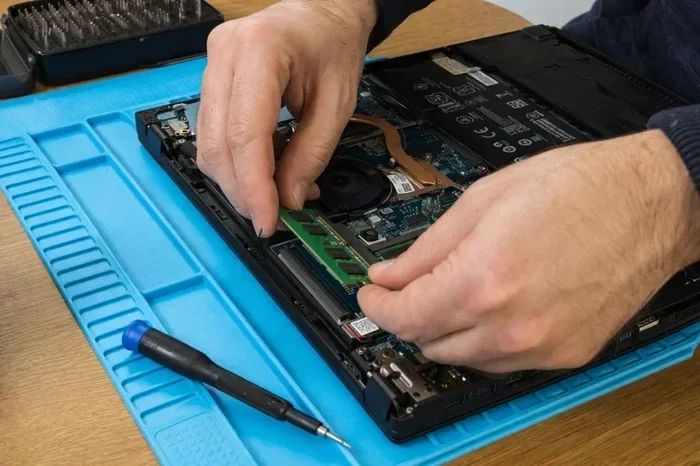
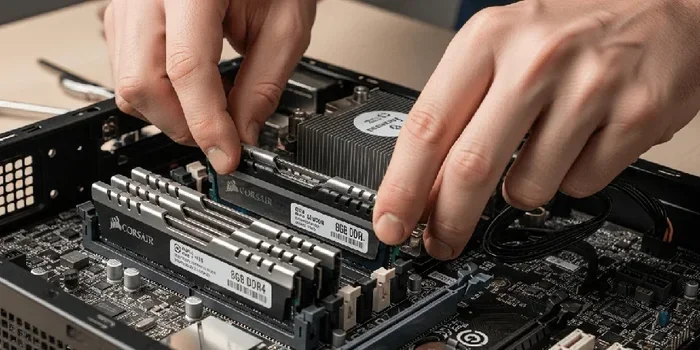
Installing RAM is one of the easiest upgrades you can do. Follow these steps carefully:
- Locate the RAM slots on the motherboard. They are long, thin slots near the CPU area.
- Press the clips on each end of the slot outward gently. The existing RAM module will angle up slightly.
- Remove the old RAM stick by pulling it straight up at an angle.
- Align the notch on your new RAM stick with the key in the slot.
- Press the RAM firmly into the slot at a 45-degree angle.
- Push it down until the side clips click into place with a satisfying snap.
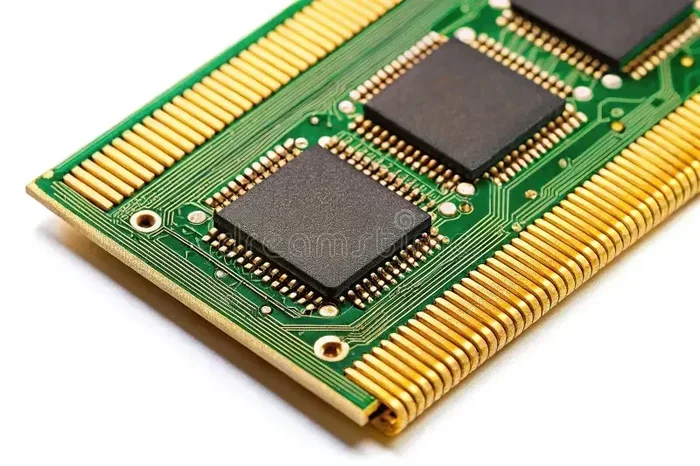
Repeat these steps for each RAM stick you want to install. Always handle RAM by the edges and avoid touching the gold contacts. If the clip does not click, the module may not be fully seated. Gently press down again until it locks in place.
For more detailed guidance on the upgrade process for HP systems, you can refer to our resource on How To Upgrade Ram On Hp Laptop. Many of the same principles apply to desktop installations.
Step 4: Install the SSD
If you are installing a 2.5-inch SATA SSD, follow these steps:
- Locate the 2.5-inch drive bay inside the case.
- Slide the SSD into the bay with the connectors facing the correct direction.
- Use screws to secure the drive firmly in place.
- Connect the SATA data cable from the SSD to an available port on the motherboard.
- Connect the SATA power cable from the power supply to the SSD.
If you are installing an M.2 NVMe SSD instead, the process is even simpler:
- Find the M.2 slot on the motherboard.
- Remove the small mounting screw near the slot.
- Insert the M.2 SSD at a 30-degree angle into the slot.
- Press the SSD down flat and secure it with the mounting screw.
M.2 SSDs do not need cables, which makes them the cleaner and faster option. Make sure the SSD is fully seated before tightening the screw.
Step 5: Close the Case and Power On
Once all components are installed, double-check that everything is seated properly. Make sure RAM modules are locked in by their clips and SSDs are connected securely. Replace the side panel, plug your desktop back into the wall, and power it on.
The system should recognize the new RAM and SSD automatically. Enter your BIOS or UEFI settings by pressing the appropriate key during startup, usually F10 or DEL. Confirm that the new memory and storage are detected correctly. Save your settings and exit. Your HP ProDesk 400 G5 DM is now ready to run faster than ever.
What to Expect After the Upgrade
The results of completing the Hp Prodesk 400 G5 Dm Ram Ssd Upgrade are immediately noticeable. Here is what you should experience with your HP ProDesk 400 G5 DM after finishing the installation.
Faster Everyday Use
Your desktop will feel noticeably quicker from the moment you turn it on. Applications launch faster, switching between windows is smoother, and the system responds almost instantly to your clicks. Even simple tasks like opening a web browser or starting a spreadsheet feel snappier and more satisfying.
Improved Multitasking
With additional desktop RAM, you can run several programs at the same time without any slowdowns. You can have a web browser with many tabs open, a video call running, and a document editing tool all active simultaneously. The system handles all of this without breaking a sweat or freezing up.
More Storage Space
A new SSD storage upgrade gives you plenty of room for your files, programs, and operating system. You will no longer receive annoying “storage full” warnings. Everything stays organized and accessible, and your files load much faster than they did on an old mechanical drive.
Better Reliability
SSDs have no moving parts, which means they are less prone to mechanical failure than traditional hard drives. This adds an extra layer of reliability to your HP ProDesk 400 G5 DM. Your data is safer, and your system is more likely to run smoothly for years to come.
Common Mistakes to Avoid
Even simple upgrades can go wrong if you are not careful. Here are some common mistakes to watch out for during your Hp Prodesk 400 G5 Dm Ram Ssd Upgrade.
- Buying the wrong RAM type: The HP ProDesk 400 G5 DM uses DDR4 SODIMM. Do not buy DDR3 or full-size DIMM modules by mistake.
- Forcing components into place: If a part does not fit easily, stop and check the alignment. Forcing it can damage the slot or break the component.
- Skipping BIOS updates: After making hardware changes, a BIOS update from HP can improve stability and compatibility. Visit the HP support site for your model.
- Not backing up your data: Before replacing any drive, always back up your important files. Even with careful work, unexpected issues can occur.
- Touching gold contacts: Always handle RAM and SSDs by their edges. Oils from your fingers can cause connection problems over time.
Taking a few extra minutes to prepare can save you hours of frustration. Patience and careful attention to detail go a long way during any upgrade process. If something does not feel right, pause and double-check before proceeding.
How Does This Upgrade Compare to Other Options?
Upgrading RAM and SSD is often more affordable than buying a brand-new desktop. Let us look at how this upgrade compares to other options for improving your HP ProDesk 400 G5 DM.
| Option | Cost Range | Performance Boost | Effort Required |
|---|---|---|---|
| RAM and SSD Upgrade | $50 – $150 | High | Low |
| Buy a New Desktop | $500 – $1500 | Very High | None |
| External SSD Only | $40 – $100 | Medium | Very Low |
| Replace Hard Drive with SSD | $40 – $80 | Medium-High | Low |
As you can see, upgrading the RAM and SSD in your HP ProDesk 400 G5 DM offers excellent value. You get a significant performance boost without the high cost of a new machine. For most users, this is the best way to extend the useful life of a reliable desktop. The upgrade cost is minimal compared to the performance gains you will enjoy every day.
If you are interested in exploring fully loaded configurations, you can check out our recommendations for Ram Upgrade For Hp Laptop which also covers compatible part selection strategies that apply broadly to HP systems.
Final Thoughts on the HP ProDesk 400 G5 DM Upgrade
The Hp Prodesk 400 G5 Dm Ram Ssd Upgrade is a smart investment for anyone who wants better performance from their business desktop. The process is straightforward, the parts are affordable, and the results are genuinely impressive. You do not need special tools or advanced technical skills to complete this upgrade successfully.
Start by choosing compatible DDR4 RAM and an SSD that fits your storage needs. Follow the installation steps carefully, test your system afterward, and enjoy the results. You will be amazed at how much faster and more responsive your HP ProDesk 400 G5 DM feels compared to before.
Whether you are a student, a remote worker, or a small business owner, this upgrade delivers real value. Your desktop will handle modern workloads with ease, and you will get several more years of reliable use from your machine. Take the time to do this upgrade right, and your HP ProDesk 400 G5 DM will feel like a new computer.
The satisfaction of improving your own system is hard to beat. Start your Hp Prodesk 400 G5 Dm Ram Ssd Upgrade today and enjoy a faster, more capable desktop every single day.
Frequently Asked Questions
What type of RAM does the HP ProDesk 400 G5 DM support?
The HP ProDesk 400 G5 DM uses DDR4 SODIMM RAM modules. It typically supports up to 64GB of total memory across two slots. Always check the HP support page for your specific model number to confirm exact compatibility and supported speeds.
Can I install an NVMe SSD in the HP ProDesk 400 G5 DM?
Yes, the HP ProDesk 400 G5 DM has an M.2 slot that supports NVMe SSDs. This provides the fastest storage option available for this model. Make sure to check your specific configuration, as some units may only have a 2.5-inch SATA bay.
How long does the RAM and SSD upgrade take?
Most users can complete the entire upgrade in about 15 to 30 minutes. Installing RAM takes only a few minutes, and adding an SSD is similarly quick. The only extra time is spent on data migration if you are transferring files from an old drive.
Do I need to reinstall Windows after the upgrade?
If you are adding RAM, you do not need to reinstall Windows. If you are replacing your main boot drive with a new SSD, you will need to either clone your existing drive or perform a fresh Windows installation. Cloning is usually the easier option for most users.
Is it worth upgrading an older HP ProDesk 400 G5 DM?
Absolutely. The HP ProDesk 400 G5 DM is a well-built business desktop that benefits greatly from additional RAM and a faster SSD. The upgrade cost is low compared to buying a new machine, and the performance improvement is dramatic for everyday use.
What is the maximum RAM for the HP ProDesk 400 G5 DM?
Most configurations of the HP ProDesk 400 G5 DM support up to 64GB of DDR4 RAM across two slots. This means you can install two 32GB sticks for the maximum capacity. Check your specific model number on the HP website to confirm the exact limit.