Upgrade Dell Xps 17 9730 Ram Ssd Without Any Hassle

Upgrading the Dell Xps 17 9730 Ram Ssd is one of the best ways to breathe new life into your laptop. This guide walks you through the entire process in simple steps, from choosing compatible RAM to installing a faster NVMe SSD. You will learn exactly what parts work, how to swap them safely, and what to expect after the upgrade.
Upgrading your Dell Xps 17 9730 Ram Ssd can feel like a big task, but it really is not as scary as it sounds. Many people avoid opening up their laptops because they fear breaking something. The truth is, with the right guidance, this is one of the simplest upgrades you can do at home. In this article, we break everything down into easy steps so anyone can follow along.
The Dell Xps 17 9730 is a powerful machine, but even the best laptops benefit from more memory and faster storage. Whether you use your computer for work, gaming, or creative projects, upgrading the Dell Xps 17 9730 Ram Ssd will make everything feel snappier. You will notice faster load times, smoother multitasking, and fewer slowdowns. Let us dive into exactly how to do this.
Key Takeaways
- Easy Upgrade Path: The Dell Xps 17 9730 supports both RAM and SSD upgrades, making it a flexible machine for performance boosts.
- Compatible RAM Matters: You need DDR5 SODIMM modules that match your system’s speed and capacity limits.
- SSD Installation Is Straightforward: Swapping in a new M.2 NVMe SSD takes just a few minutes with basic tools.
- Performance Gains Are Real: More RAM and a faster SSD mean quicker boot times, smoother multitasking, and better gaming.
- Backup First: Always back up your data before opening the laptop to avoid any data loss.
- Warranty Considerations: Check Dell’s warranty policy before performing any internal upgrades yourself.
📑 Table of Contents
Why Upgrade the RAM and SSD on Your Dell Xps 17 9730?
Over time, laptops slow down. This happens because modern software gets heavier and demands more from your hardware. The Dell Xps 17 9730 Ram Ssd upgrade solves this problem at its root. More RAM lets your laptop handle more apps at once without freezing. A faster SSD cuts down boot times and file loading dramatically.
Here are some clear reasons to consider this upgrade:
- Better multitasking: Run multiple browser tabs, apps, and tools without lag.
- Faster boot and load times: Your system starts up and opens files in seconds.
- Improved gaming performance: Games load quicker and run more smoothly.
- Longer usable life: Keep your laptop relevant for years without buying a new one.
- Cost savings: Upgrading parts is far cheaper than replacing an entire laptop.
If you have ever wondered whether your Xps 17 can handle a memory boost, the answer is a clear yes. The Dell Xps 17 9730 Ram Ssd upgrade path is well supported by Dell, and the process is user-friendly enough for beginners.
Understanding the Dell Xps 17 9730 Hardware
Before you start buying parts, it helps to know what your laptop currently has and what it can support. The Dell Xps 17 9730 comes with specific RAM and storage specs that guide your upgrade choices.
RAM Specifications
The Dell Xps 17 9730 uses DDR5 SODIMM memory modules. It typically comes with 16GB or 32GB of RAM soldered onto the motherboard, but it also has open slots for additional memory. The laptop supports dual-channel memory configurations, which means matching RAM sticks work together for better performance. If you want to push the limits, you can look into models like the Dell Xps 32Gb Ram Laptop to see what maximum capacity looks like in practice.
Here are the key RAM specs to keep in mind:
- Type: DDR5 SODIMM
- Speed: Up to 4800 MHz or higher depending on configuration
- Slots: At least one open slot for additional memory
- Max Capacity: Up to 64GB total with compatible modules
SSD Specifications
The storage in the Dell Xps 17 9730 uses an M.2 NVMe PCIe SSD. This is the small, flat chip that plugs directly into the motherboard. The laptop supports NVMe Gen 4 drives, which offer blazing fast read and write speeds. When choosing a new SSD, look for 1TB or 2TB options from reliable brands like Samsung, Western Digital, or Crucial.
Installing a new SSD is straightforward, but it helps to follow a proper guide. You can refer to our detailed walkthrough on Dell M 2 Nvme Ssd Install for step-by-step instructions that apply to this model as well.
How to Upgrade the RAM in Your Dell Xps 17 9730
Upgrading the RAM is the first part of the Dell Xps 17 9730 Ram Ssd Upgrade process. It is quick, safe, and requires very few tools. Follow these steps carefully, and you will have your new memory installed in no time.
Step 1: Gather Your Tools
You will need just a few things before you start:
- A small Phillips-head screwdriver
- An anti-static wrist strap (optional but recommended)
- Your new DDR5 SODIMM RAM modules
- A clean, flat workspace
Step 2: Power Down and Disconnect
Shut down your laptop completely. Unplug the power adapter and remove any connected peripherals. If your laptop has a battery that is removable, take it out. For built-in batteries, simply make sure the laptop is powered off and unplugged.
Step 3: Open the Back Panel
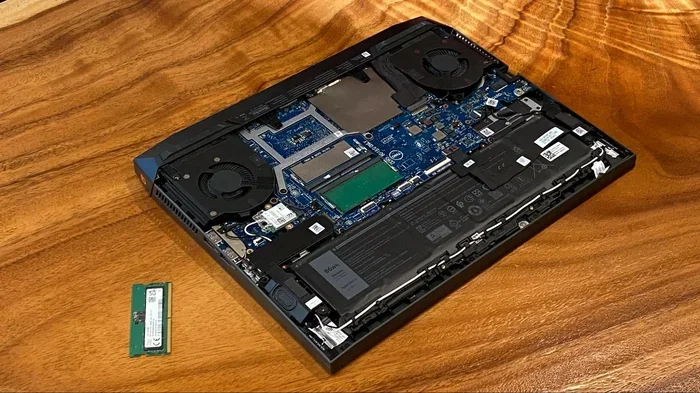
Flip your laptop over and locate the screws on the bottom panel. Use your screwdriver to carefully remove them. Keep the screws in a small container so they do not get lost. Gently pry the panel off using a plastic spudger or your fingernail. Avoid using metal tools that could scratch the chassis.
Step 4: Locate the RAM Slots
Once the panel is off, you will see the internal components. The RAM slots are easy to spot because they are long and thin with small clips on each end. If there is an existing RAM stick in the open slot, gently push the clips outward to release it at an angle. The stick will pop up, and you can pull it straight out.
Step 5: Insert the New RAM
Take your new DDR5 SODIMM module and align the notch on the gold connector with the slot. Press the module firmly at a 45-degree angle until the clips snap into place. The RAM should sit flat and feel secure. Do not force it, but apply firm, even pressure.
For a more detailed guide on the entire RAM upgrade process, check out our article on How To Upgrade The Ram Of A Laptop. It covers universal steps that apply to the Xps 17 as well.
Step 6: Close Up and Test
Replace the bottom panel and screw it back in. Plug in your power adapter and turn on the laptop. Enter the BIOS by pressing F2 during startup to confirm the new RAM is recognized. You can also check this in Windows through Task Manager under the Performance tab.
How to Upgrade the SSD in Your Dell Xps 17 9730
The SSD upgrade is the second half of the Dell Xps 17 9730 Ram Ssd Upgrade journey. It is just as simple as the RAM swap, and the results are immediately noticeable.
Step 1: Choose Your New SSD
Pick an M.2 NVMe PCIe Gen 4 SSD with the capacity you need. 1TB drives offer plenty of space for most users, while 2TB drives are great for those who store large files, games, or video projects. Make sure the SSD has a 2280 form factor, which is the standard size for the Xps 17.
Step 2: Prepare for Installation
Back up all your important data before starting. You can clone your existing drive to the new one using free software like Macrium Reflect or Samsung Data Migration. This way, you do not have to reinstall Windows and all your programs from scratch.
Step 3: Open the Laptop and Locate the SSD
Follow the same steps to remove the bottom panel as you did for the RAM. The SSD is mounted in a small slot near the center of the motherboard. It is held in place by a single screw. Remove the screw and carefully slide the old SSD out at a slight angle.
Step 4: Install the New SSD
Insert your new NVMe SSD into the slot at a 30-degree angle. Press it down gently until it sits flush with the motherboard. Secure it with the screw you removed earlier. Make sure the SSD is seated properly and does not wiggle.
Step 5: Restore Your Data and Boot Up
Replace the bottom panel, plug in your laptop, and power it on. If you cloned your drive, Windows should boot right up on the new SSD. If you installed a blank drive, you will need to reinstall Windows using a bootable USB drive. The difference in speed is immediate, and you will wonder why you did not do this sooner.
What to Expect After the Upgrade
The moment you complete the Dell Xps 17 9730 Ram Ssd Upgrade, you will notice a difference. The boot time drops significantly, apps launch faster, and switching between tasks feels effortless. Here is what you can realistically expect:
- Boot time: Under 10 seconds from cold start to desktop.
- App launch speed: Programs open almost instantly.
- Multitasking: Running 20+ browser tabs with other apps feels smooth.
- File transfers: Copying large files to the new SSD is dramatically faster.
- Gaming: Load times in games are cut in half or more.
These improvements make the upgrade well worth the time and money. Even a modest RAM increase from 16GB to 32GB can transform how you use your laptop daily. Pair that with a fast NVMe SSD, and you have a machine that feels brand new again.
Common Mistakes to Avoid
While upgrading the Dell Xps 17 9730 Ram Ssd is simple, there are a few mistakes that can cause problems. Here are the ones to watch out for:
- Forgetting to back up data: Always clone or back up your drive before swapping SSDs. A single mistake can cost you important files.
- Using incompatible RAM: Not all DDR5 modules work in every laptop. Double-check the speed and form factor before purchasing.
- Skipping the anti-static precaution: Static electricity can damage sensitive components. Wear an anti-static wrist strap or touch a metal surface before handling parts.
- Over-tightening screws: Screwing in the bottom panel too tightly can crack it. Hand-tighten and then give it a quarter turn at most.
- Not checking BIOS settings: After the upgrade, make sure the BIOS recognizes both the new RAM and SSD. Sometimes you need to enable XMP profiles for full RAM speed.
Avoiding these simple mistakes will save you headaches and ensure your upgrade goes smoothly. If you run into any issues, Dell support and online communities are great resources for troubleshooting.
Expert Tips for Maximum Performance
Once you have completed the Dell Xps 17 9730 Ram Ssd Upgrade, there are a few extra steps you can take to squeeze out every bit of performance. First, make sure your Windows is fully updated. Microsoft regularly releases optimizations for newer hardware configurations. Second, enable XMP or DOCP profiles in your BIOS to run your RAM at its rated speed instead of the default slower speed.
Third, consider using your new SSD as the primary boot drive and keeping your old SSD or HDD as a secondary storage drive. This setup gives you the best of both worlds: blazing speed for your operating system and apps, plus plenty of space for files and media. You can also explore high-performance configurations like those found in the Dell Xps 32Gb Ram Laptop guide for inspiration on pushing your memory to its limits.
Finally, keep your laptop’s cooling in check. Upgraded components can generate more heat, so make sure the vents are clear and consider using a cooling pad during heavy workloads. A well-cooled laptop runs faster and lasts longer.
Conclusion
The Dell Xps 17 9730 Ram Ssd Upgrade is one of the most rewarding things you can do for your laptop. It is affordable, easy to do, and delivers immediate, noticeable improvements. Whether you are a student, a professional, or a gamer, more RAM and a faster SSD will change how you use your computer every single day.
You do not need to be a tech expert to pull this off. With a screwdriver, a little patience, and this guide, you can upgrade your Dell Xps 17 9730 in under an hour. The satisfaction of opening up your machine and making it faster with your own hands is unbeatable. So grab those parts, follow the steps, and enjoy a laptop that feels faster and more capable than ever before.
Frequently Asked Questions
Can I upgrade the RAM in the Dell Xps 17 9730 myself?
Yes, absolutely. The Dell Xps 17 9730 is designed to be user-upgradeable. You just need a Phillips-head screwdriver and a compatible DDR5 SODIMM module. The process takes about 15 to 20 minutes, and our guide walks you through every step clearly.
What type of SSD works in the Dell Xps 17 9730?
The Dell Xps 17 9730 uses an M.2 NVMe PCIe Gen 4 SSD in the 2280 form factor. Popular choices include Samsung 980 Pro, Western Digital Black SN850X, and Crucial T500. Make sure to check the capacity and compatibility before purchasing.
Will upgrading the RAM void my Dell warranty?
Dell generally allows RAM and SSD upgrades without voiding the warranty, but it is always best to check the specific terms of your warranty. Keep all original parts in case you need to return the laptop for service.
How much RAM can the Dell Xps 17 9730 support?
The Dell Xps 17 9730 can support up to 64GB of RAM with compatible DDR5 SODIMM modules. Most users find that 32GB is the sweet spot for performance and value.
Do I need to reinstall Windows after upgrading the SSD?
Not necessarily. If you clone your existing drive to the new SSD using migration software, Windows and all your programs will transfer over automatically. If you install a blank drive, you will need to reinstall Windows using a bootable USB.
How long does the Dell Xps 17 9730 Ram Ssd Upgrade take?
The entire process typically takes about 30 to 45 minutes. This includes opening the laptop, installing the new RAM and SSD, closing everything up, and verifying that the new components are recognized by the system.