How To Upgrade Asus Rog Ram Ssd And Boost Performance
Upgrading your Asus Rog Ram Ssd is one of the best ways to breathe new life into your gaming laptop. This guide walks you through choosing the right memory and storage, then installing them with confidence. You will learn compatibility tips, step-by-step instructions, and performance tuning tricks that deliver real results.
Your Asus Rog Ram Ssd setup plays a huge role in how smooth your gaming experience feels. If your laptop takes forever to boot, stutters in heavy games, or struggles with multiple apps at once, it might be time for an upgrade. The good news is that upgrading both RAM and storage on an ASUS ROG laptop is one of the most rewarding things you can do.
This guide breaks everything down into simple, actionable steps. You do not need to be a tech expert to follow along. Whether you are adding more memory or swapping in a faster solid state drive, you will find clear instructions that make the process easy. Let us dive in and get your ROG running at its best.
Key Takeaways
- Know Your Specs: Understanding your current RAM type and SSD interface prevents costly mistakes before you buy anything.
- Choose Compatible Parts: DDR4 or DDR5 RAM and NVMe M.2 SSDs are the standard for most ASUS ROG models.
- Installation Is Manageable: With the right tools and patience, you can upgrade both RAM and SSD at home in under an hour.
- Performance Gains Are Significant: Faster memory and storage reduce load times and improve multitasking during gaming sessions.
- Post-Installation Setup Matters: Proper BIOS configuration and SSD formatting ensure your new components work at full potential.
📑 Table of Contents
- Why Upgrading Your Asus Rog Ram Ssd Makes A Big Difference
- Understanding RAM Types For ASUS ROG Laptops
- Choosing The Right SSD For Your Asus Rog
- Step By Step Guide To Upgrading RAM In Your Asus Rog
- Step By Step Guide To Installing A New SSD In Your Asus Rog
- Optimizing Performance After Your Upgrade
- Common Mistakes To Avoid During Upgrades
- Expert Tips For Maximizing Your Asus Rog Performance
- Conclusion
Why Upgrading Your Asus Rog Ram Ssd Makes A Big Difference
Most ASUS ROG laptops come with decent baseline specs, but they are rarely optimized for long-term use. Games and creative software keep getting heavier every year. What felt fast two years ago can feel sluggish today. Upgrading your memory and storage directly addresses the most common bottlenecks.
RAM handles active tasks. Every open browser tab, background process, and game texture loads into memory first. When you run out of space, your system slows down dramatically. Storage affects how fast your system boots, how quickly games load, and how fast files transfer. An older hard drive or a slow SATA SSD will hold back even the most powerful processor.
Together, a RAM upgrade and a new NVMe M.2 SSD transform the entire feel of your laptop. You get faster boot times, smoother gameplay, and the ability to run demanding applications without frustration. It is also one of the most cost-effective upgrades you can make compared to buying a whole new machine.
Signs Your Asus Rog Needs An Upgrade
Not sure if your laptop needs new memory or storage? Watch for these warning signs:
- Your laptop takes more than 30 seconds to wake from sleep mode.
- Games stutter or drop frames during intense scenes.
- You cannot run more than a few apps without slowdowns.
- Boot times feel painfully slow even with an SSD.
- Your task manager shows memory usage constantly above 80 percent.
If any of these sound familiar, it is definitely worth upgrading your Asus Rog Ram Ssd. The improvements are noticeable right away.
Understanding RAM Types For ASUS ROG Laptops
Before you buy any memory, you need to understand what type your laptop supports. Not all RAM works in every model, and choosing the wrong type means wasted money.
DDR4 vs DDR5 RAM
Most older ASUS ROG models use DDR4 RAM, while newer ones support DDR5 RAM. DDR5 is faster and more efficient, but it also costs more. Check your specific model to see which type it uses. You can find this information in your laptop manual or by checking the specs on the ASUS support page.
How Much RAM Do You Actually Need?
For gaming in 2024 and beyond, 16 GB is the sweet spot. If you do content creation or run virtual machines, 32 GB gives you room to grow. Here is a quick comparison:
- 8 GB: Enough for basic tasks, but gaming will feel limited.
- 16 GB: The ideal balance for most gamers and general users.
- 32 GB: Best for heavy multitasking, video editing, and future-proofing.
If your current setup has 8 GB, upgrading to 16 GB or 32 GB will make the biggest difference in day-to-day performance. You can also check how to find RAM DDR type if you are unsure about your current configuration.
RAM Speed And Dual Channel
RAM speed is measured in megahertz (MHz). Higher numbers mean faster data transfer. Most ASUS ROG laptops benefit from running memory in dual channel mode, which means using two sticks instead of one. Dual channel can boost performance by up to 20 percent in some scenarios. Always try to match the speed and size of your RAM sticks for the best results.
Choosing The Right SSD For Your Asus Rog
Storage upgrades often deliver the most noticeable improvement. If you are still using a traditional hard drive, switching to an NVMe M.2 SSD is a game changer. Your ASUS ROG likely has an M.2 slot built in, which makes installation straightforward.
NVMe vs SATA SSD
NVMe drives use the PCIe interface and are much faster than SATA SSDs. A typical NVMe drive reads at 3,500 MB/s or more, while a SATA SSD tops out around 550 MB/s. For gaming laptops, NVMe is the clear choice. Load times drop significantly, and file transfers happen in a fraction of the time.
Storage Capacity Recommendations
For gaming, 1 TB is the minimum recommended capacity. Modern AAA games can take up 100 GB or more each. If you store a large library, consider a 2 TB drive. Here is what most users choose:
- 500 GB: Minimum for a handful of games, but fills up fast.
- 1 TB: The sweet spot for most gamers.
- 2 TB: Ideal for large game libraries and creative work.
Popular brands like Samsung, WD Black, and Crucial offer reliable NVMe options that work well with ASUS ROG laptops. After installing your new drive, you will need to format new NVMe SSD before you can use it. This ensures the drive is clean and ready for your operating system and games.
Step By Step Guide To Upgrading RAM In Your Asus Rog
Upgrading RAM on an ASUS ROG laptop is straightforward if you follow the right steps. Let us walk through the process carefully.
Step 1: Prepare Your Workspace
Find a clean, flat surface with good lighting. Gather a small Phillips head screwdriver and an anti-static wrist strap if you have one. Power off your laptop completely and unplug the charger. Removing the battery, if possible, adds an extra layer of safety.
Step 2: Back Up Your Data
Before you touch any internal components, back up your important files. While RAM upgrades do not affect your stored data, it is always better to be safe. Use an external drive or cloud storage for this step.
Step 3: Open The Laptop Panel
Flip your laptop over and locate the bottom panel screws. Remove them carefully and keep them in a safe spot. Use a plastic prying tool to gently lift the panel off. Avoid using metal tools that could scratch the chassis.
Step 4: Remove The Existing RAM
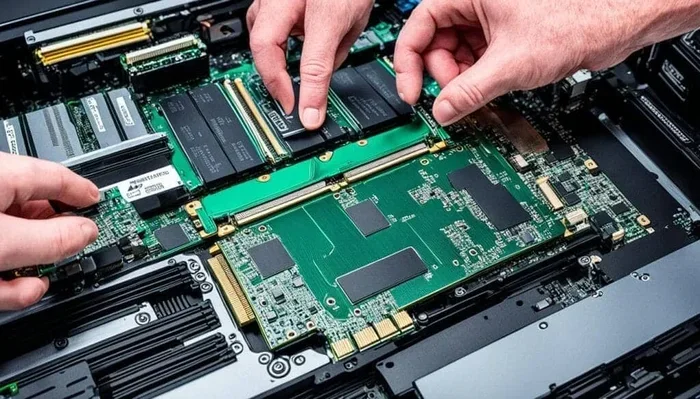
Locate the RAM sticks on the motherboard. You will see small metal clips on either side of each stick. Gently push these clips outward, and the RAM module will pop up at an angle. Slide it out carefully. If you are replacing existing sticks, repeat this for each module.
If you are unsure about the removal process, you can refer to a detailed guide on how to remove laptop RAM for visual instructions that make the process even clearer.
Step 5: Install The New RAM
Take your new RAM stick and align the notch on the gold connector with the slot on the motherboard. Insert it at a 30 to 45 degree angle and press down firmly until the side clips click into place. Make sure the RAM is fully seated and secure.
Step 6: Close Everything Up And Test
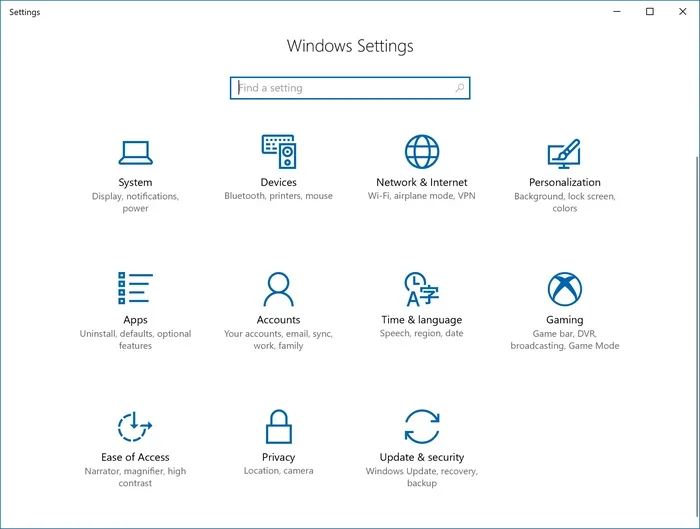
Replace the bottom panel and screw it back in. Plug in your charger and power on the laptop. Enter the BIOS by pressing F2 or DEL during startup. Check that the system recognizes your new memory correctly. You can also verify the total memory in Windows by right clicking This PC and selecting Properties.
Step By Step Guide To Installing A New SSD In Your Asus Rog
Adding or replacing an SSD in your ASUS ROG laptop is just as manageable as a RAM upgrade. Follow these steps carefully.
Step 1: Identify The SSD Slot
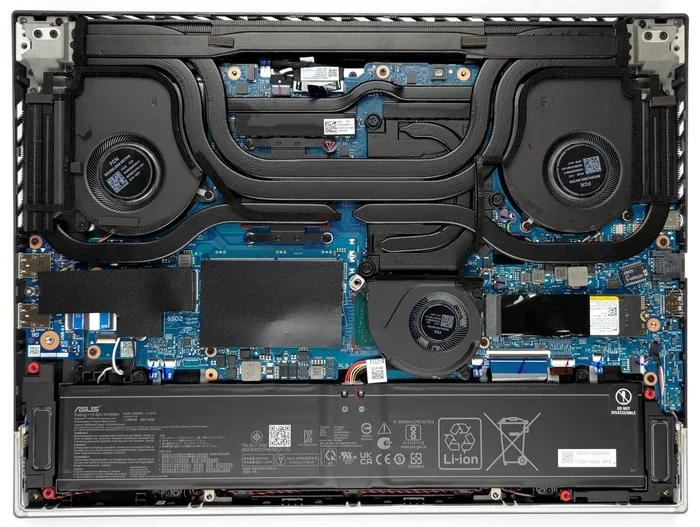
Most ASUS ROG models have at least one M.2 slot available. Some newer models have two slots, which lets you keep your existing drive and add a new one. Open your laptop panel and locate the M.2 SSD slot. It looks like a small horizontal slot with a single screw holding the drive in place.
Step 2: Remove The Old Drive (If Applicable)
If you are replacing an existing SSD, use a screwdriver to remove the mounting screw. Slide the old drive out at a slight angle. Set it aside safely. If you are adding a second drive, you can skip this step entirely.
For more details on the removal process, check out how to remove RAM from a laptop, which covers similar disassembly steps that apply to SSD removal as well.
Step 3: Install The New NVMe SSD
Take your new NVMe M.2 drive and align it with the slot. Insert it at a 30 degree angle and press it down gently. Secure it with the mounting screw. Do not overtighten, as this can damage the slot.
Step 4: Close The Laptop And Boot Up
Replace the bottom panel, screw it back in, and power on your laptop. Enter the BIOS and confirm the new SSD is detected. If you are installing a fresh operating system, you will need to boot from a USB installer. If you are adding a second drive, you can use it as extra storage right away.
After the first boot, you will need to initialize and format the new drive. Head to Disk Management in Windows, right click the new drive, and select Format. Choose NTFS for the file system and give it a drive letter. Your new SSD is now ready to use.
Optimizing Performance After Your Upgrade
Once your new Asus Rog Ram Ssd is installed, a few extra steps help you get the most out of the upgrade.
Enable XMP In The BIOS
Most modern RAM modules support XMP profiles, which allow them to run at their advertised speeds instead of the default slower speeds. Enter your BIOS during startup, find the XMP or DOCP setting under the memory section, and enable it. Save and exit. This single change can noticeably improve memory performance.
Update Your BIOS And Drivers
After any hardware change, update your BIOS to the latest version from the ASUS support website. Also update your chipset and storage drivers. Fresh drivers ensure full compatibility and help your new components perform at their best.
Move Your Games And Applications To The New SSD
If you installed a new drive, move your games and frequently used applications to it. This reduces load times and frees up space on your original drive. You can use Steam, GeForce Experience, or the Microsoft Store to change installation folders easily.
Monitor Your System Performance
Use built-in tools like Task Manager or third-party apps like HWiNFO to monitor your RAM usage and SSD health after the upgrade. You should see lower memory usage during gaming and faster read/write speeds on your new drive. These improvements confirm that your upgrade was successful.
Common Mistakes To Avoid During Upgrades
Even with clear instructions, mistakes can happen. Here are the most common ones and how to avoid them:
- Buying incompatible RAM: Always double check your laptop model and DDR type before purchasing. Using the wrong RAM can cause boot failures.
- Forgetting to ground yourself: Static electricity can damage sensitive components. Use an anti-static wrist strap or touch a metal surface before handling parts.
- Overtightening screws: M.2 SSDs and RAM modules do not need a lot of force. Hand tight is usually enough.
- Skipping the BIOS update: An outdated BIOS can cause compatibility issues with new hardware. Always update after a major upgrade.
- Not formatting the new SSD: A new drive will not show up in File Explorer until you format it in Disk Management.
Taking your time and following each step carefully prevents most problems. If something does not work right away, do not panic. Double check your connections and try again.
Expert Tips For Maximizing Your Asus Rog Performance
Beyond RAM and SSD upgrades, a few extra tweaks can squeeze more performance out of your ASUS ROG:
- Clean your fans regularly: Dust buildup causes thermal throttling, which slows down your CPU and GPU during gaming sessions.
- Use a cooling pad: External cooling helps maintain lower temperatures, which keeps your components running at full speed for longer.
- Adjust Windows power settings: Switch to High Performance mode for gaming and Balanced mode for everyday use to optimize battery and speed.
- Disable unnecessary startup programs: Fewer background apps means more resources available for the games and apps you actually use.
- Keep your drivers updated: ASUS regularly releases optimized drivers for their ROG lineup. Check for updates monthly.
These small habits compound over time and keep your laptop running like new, even months after your Asus Rog Ram Ssd upgrade.
Conclusion
Upgrading your Asus Rog Ram Ssd is one of the simplest and most impactful things you can do for your gaming laptop. Better memory means smoother multitasking and faster load times. A new NVMe SSD brings instant boot speeds and quick game launches. Together, these upgrades transform your experience in ways that feel immediate and noticeable.
Follow the steps in this guide carefully, take your time, and you will have a faster, more responsive machine in no time. The process is easier than most people think, and the results are well worth the effort. Start your upgrade today and enjoy the difference that better RAM and storage make in your daily gaming and work routines.
Frequently Asked Questions
Can I upgrade the RAM on any ASUS ROG laptop?
Most ASUS ROG laptops allow RAM upgrades, but some ultra-thin models have soldered memory. Check your specific model on the ASUS support website to confirm whether your RAM is replaceable. If it is upgradeable, the process is straightforward and takes less than an hour.
Do I need to remove the old SSD before installing a new one?
Not necessarily. Many ASUS ROG laptops have two M.2 slots, which lets you keep your existing drive and add a new one. If you only have one slot, you will need to remove the old drive first. Check your laptop model to see how many slots are available.
What happens if I install the wrong type of RAM?
Installing incompatible RAM can prevent your laptop from booting or cause instability. Always verify the DDR type, speed, and maximum supported capacity before purchasing. If you are unsure, consult the ASUS manual for your specific ROG model.
How do I know if my new SSD is working properly?
After installation, enter the BIOS to confirm the drive is detected. In Windows, open Disk Management to see the new drive and ensure it is formatted correctly. You can also run a speed test using a free tool like CrystalDiskMark to verify read and write speeds match the drive specifications.
Will upgrading my RAM and SSD void my ASUS warranty?
In most cases, upgrading RAM and SSD does not void your warranty because these are user-replaceable components. However, it is always a good idea to check the specific warranty terms from ASUS for your region. Keep your original parts in case you need to return the laptop for service.
How long does the entire upgrade process take?
A typical RAM and SSD upgrade takes between 30 and 60 minutes. If you are replacing both components and reinstalling your operating system, it may take a bit longer. The actual hardware installation is quick, but planning and preparation make the process smooth and stress-free.