Windows Settings Made Easy Your Complete Guide to Mastering
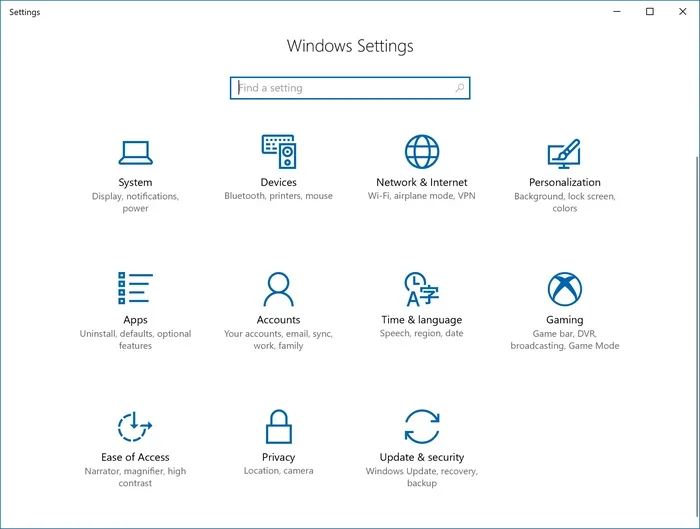
Windows Settings is the central hub for customizing your PC experience. This guide walks you through every major section, from display and privacy to performance and updates. You will learn how to tweak each setting to boost speed, improve security, and make your computer feel like it was built just for you.
Have you ever opened Windows Settings and felt completely lost? You are not alone. The menu is packed with options, and it can feel overwhelming at first glance. But here is the good news. Once you understand how it is organized, you will wonder how you ever lived without it.
Windows Settings is the control center for your entire computer. It lets you change everything from your wallpaper to your network password. Whether you are using a Windows 11 8GB RAM laptop or an older machine, the Settings app is your best friend. This guide breaks it all down into simple, easy-to-follow steps.
You do not need to be a tech expert. You just need a little patience and the right information. So let us dive in and explore every corner of Windows Settings together.
Key Takeaways
- System Settings: Understanding the core areas of Windows Settings helps you control your PC with confidence.
- Display and Personalization: You can easily change themes, resolutions, and scale to make your screen look and feel right.
- Privacy Controls: Windows Settings gives you powerful tools to manage what data your PC shares.
- Performance Tweaks: Small changes in settings can make a big difference in speed and responsiveness.
- Update Management: Keeping Windows updated through Settings ensures security and stability.
- Network and Connectivity: You can troubleshoot and optimize Wi-Fi, Bluetooth, and other connections from one place.
- Accessibility Features: Windows Settings includes tools that make your PC easier to use for everyone.
📑 Table of Contents
- What Is Windows Settings and Why Does It Matter?
- Navigating the Main Sections of Windows Settings
- Customizing Windows Settings for Better Performance
- Keeping Your PC Safe Through Windows Settings
- Troubleshooting Common Windows Settings Problems
- Quick Tips for Mastering Windows Settings
- Final Thoughts
What Is Windows Settings and Why Does It Matter?
Windows Settings is a built-in app that lets you control how your computer works. Think of it as the brain of your PC. Every time you want to change something, this is where you go. It replaced the old Control Panel in newer versions of Windows, though some legacy options still live there.
The app is divided into clear categories. Each one handles a different part of your system. You can adjust display settings, manage privacy options, set up network connections, and much more. The beauty of it is that everything lives in one place.
For users running older hardware, Windows Settings still works great on a Windows 10 laptop with 8GB RAM. You may not get every flashy new feature, but the core tools remain the same. Understanding these settings gives you power over your machine.
Why You Should Spend Time Learning It
Many people skip learning about Settings because it seems boring. That is a big mistake. A few small tweaks can transform your experience. You can make your PC faster, safer, and more enjoyable to use every single day.
Here are a few reasons to care:
- Speed: The right settings can make your PC run smoother.
- Security: Privacy controls protect your personal data.
- Customization: Make your PC look and feel exactly how you want.
- Troubleshooting: Many common problems are solved right inside Settings.
- Battery Life: On laptops, tweaking power settings saves hours of use.
Navigating the Main Sections of Windows Settings
When you open Windows Settings, you see a clean left sidebar. Each item leads to a different group of options. Let us walk through the most important ones.
System Settings
The System section is the largest category. It covers display, sound, notifications, and power. This is your starting point for most changes. If your screen looks too bright or too dim, this is where you fix it.
Under System, you will also find Storage and About. Storage shows you what is taking up space on your hard drive. About gives you details about your PC model, processor, and installed memory. These tools are handy when you are trying to figure out if your system can handle a new app.
For example, if you are shopping for upgrades, you might compare a Windows 11 16GB RAM laptop against your current machine. The About section tells you exactly what you have now.
Devices Settings
The Devices section handles anything you plug into your computer. This includes mice, keyboards, printers, and external drives. You can also manage your touchpad settings here.
If your mouse speed is not changing in laptop Windows 11, this section is where you adjust it. You can change pointer speed, scroll behavior, and even assign custom buttons. It is a small thing, but it makes a huge difference in daily comfort.
Network and Internet Settings
Your connection is handled in this section. You can switch between Wi-Fi and Ethernet, manage VPNs, and set up proxy servers. It also shows your current network status and speed.
If you are having trouble connecting, the Network and Internet tab has a built-in troubleshooter. It will try to diagnose and fix common problems automatically. This saves you from calling support or guessing at solutions.
Personalization Settings
Want to make your PC look unique? Personalization is the place to do it. You can change your background, theme colors, lock screen image, and font size. You can even set up a slideshow of your favorite photos.
This section also controls your taskbar. You can move it to the bottom, top, or sides of the screen. You can hide it automatically or keep it always visible. Small changes like these make your workflow feel more natural.
Privacy Settings
Privacy Settings is one of the most important sections in Windows. It controls what your PC shares with Microsoft and other apps. You can turn off location tracking, camera access, microphone permissions, and more.
Take a few minutes to review each privacy category. Ask yourself whether every app really needs access to your contacts or browsing history. Being selective here keeps your data safer.
Customizing Windows Settings for Better Performance
Performance matters, especially if your PC is not brand new. The good news is that Windows Settings gives you several tools to squeeze out more speed.
Adjusting Visual Effects
Windows comes with fancy animations and transparency effects. They look great, but they use processing power. If you have a basic machine, like a Windows 10 8GB RAM laptop, you may want to tone these down.
Go to System, then About, then Advanced System Settings. From there, you can choose the “Adjust for best performance” option. This disables animations and gives your PC a snappier feel. You can always turn them back on if you miss the look.
Managing Startup Programs
Every time you turn on your PC, many programs start running in the background. This slows down boot time. You can manage startup apps through the Task Manager, but Settings also plays a role.
Go to Apps, then Installed Apps. Sort by size or install date. Remove anything you no longer use. This frees up disk space and reduces background activity. Your PC will thank you.
Power and Battery Settings
If you use a laptop, power settings are critical. Windows offers Balanced, Power Saver, and High Performance modes. Each one changes how your processor and display behave.
For maximum battery life, choose Power Saver. For heavy tasks like gaming or video editing, High Performance works better. You can also create a custom plan that fits your exact needs. This is one of the most overlooked ways to improve daily use.
Keeping Your PC Safe Through Windows Settings
Security is not something you should ignore. Windows Settings includes several built-in tools that help keep your PC protected.
Windows Security and Defender
Windows comes with a built-in antivirus called Windows Security. You can manage it from the Privacy & Security section. It handles real-time protection, firewall settings, and virus scans.
Make sure real-time protection is turned on. Check for updates regularly. These small habits go a long way toward keeping your system safe from threats.
Account and Sign-In Options
The Accounts section lets you manage how you sign in. You can set up a PIN, use Windows Hello with your face or fingerprint, or stick with a password. Each option has trade-offs between convenience and security.
Using a PIN is faster than typing a password every time. Windows Hello adds even more convenience. For shared PCs, setting up separate accounts keeps each user’s data private and organized.
Update and Security
Keeping Windows updated is one of the most important things you can do. Updates patch security holes and fix bugs. The Update & Security section makes this process simple.
Set your PC to download updates automatically. Check for updates manually once a week if you prefer. Either way, staying current protects your system from the latest threats.
Troubleshooting Common Windows Settings Problems
Sometimes things go wrong. A setting gets stuck, or a change causes unexpected behavior. Windows Settings includes tools to help you fix these issues.
Using the Built-In Troubleshooter
Windows has a troubleshooter for almost every major category. Go to System, then Troubleshoot, then Other troubleshooters. You will find options for audio, network, display, and more.
Run the troubleshooter that matches your problem. It will scan for common causes and suggest fixes. In many cases, it resolves the issue without any extra steps.
Resetting or Restoring Settings
If a change breaks something, you can reset it. Go to System, then Recovery. You have options to restore your PC to an earlier state. This is a great safety net when experimenting with new settings.
Always create a restore point before making big changes. That way, you can undo anything that goes wrong. It takes two minutes and saves hours of frustration.
Quick Tips for Mastering Windows Settings
Here are some fast tips that will level up your Settings game:
- Use the search bar. Type what you need, and Settings will find it instantly.
- Pin Settings to your Start menu. This makes it one click away.
- Explore the Notifications section. Control which apps can alert you.
- Check Storage regularly. Free up space by removing temp files and unused apps.
- Customize your keyboard shortcuts. Some settings allow quick access to common tasks.
- Review app permissions often. Keep your privacy tight by revoking access you no longer need.
These tips might seem small, but they add up. Over time, you will navigate Windows Settings like a pro. You will make changes faster and avoid common pitfalls.
Final Thoughts
Windows Settings is more than just a menu. It is the key to unlocking your PC’s full potential. From performance tweaks to privacy controls, every section serves a purpose. Taking the time to explore it pays off in a big way.
You do not need to change everything at once. Pick one section, spend ten minutes, and see what you find. Before long, you will be customizing your PC with confidence. Whether you are on a basic machine or a powerful Windows 11 16GB RAM laptop, these skills apply to every system.
Start today. Open Settings, pick a category, and make one small improvement. You will be surprised how good it feels to take control of your computer.
Frequently Asked Questions
How do I open Windows Settings?
Press the Windows key plus I on your keyboard. You can also click the Start menu and select the gear icon. Both methods open the Settings app instantly.
Can I undo changes I make in Windows Settings?
Yes. Most changes can be reversed by going back to the same setting and toggling it off. For bigger changes, use the Recovery options to restore your PC to a previous state.
Why is my Windows Settings not opening?
This can happen if a system file is corrupted. Try restarting your PC first. If that does not work, run the built-in troubleshooter or use the SFC scan command in Command Prompt.
Is it safe to change settings in Windows?
Most settings are safe to adjust. However, avoid changing advanced system settings unless you know what they do. Always create a restore point before making major changes.
How often should I check Windows Settings?
A quick check once a week is a great habit. Review updates, storage, and privacy settings regularly. Small adjustments keep your PC running smoothly over time.
Can I customize Windows Settings for a student laptop?
Absolutely. Students can optimize Windows Settings by adjusting power plans, managing storage, and setting up parental controls. These tweaks help create a focused and efficient learning environment.