Should You Upgrade Ram Or Ssd First For Better Performance
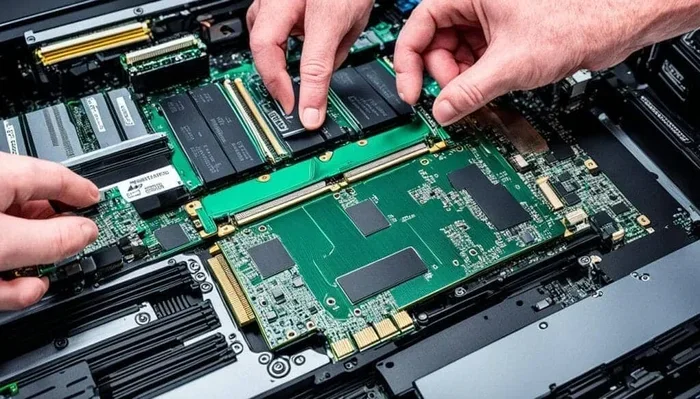
Upgrading your SSD first delivers the biggest noticeable speed boost for most users, especially if your system still uses a hard drive. RAM upgrades shine when you multitask heavily or run memory-hungry apps. The right choice depends on your current setup, usage habits, and budget.
Your computer feels slow. It takes forever to start up. Apps lag when you open a few tabs. You are thinking about an upgrade, but you are not sure where to start. Should you upgrade RAM or SSD first? That is the question many PC users face, and the answer is not always obvious.
The good news is that this guide will walk you through everything you need to know. We will break down what each upgrade does, how much speed you can expect, and which one gives you the most value for your money. By the end, you will know exactly what to do next.
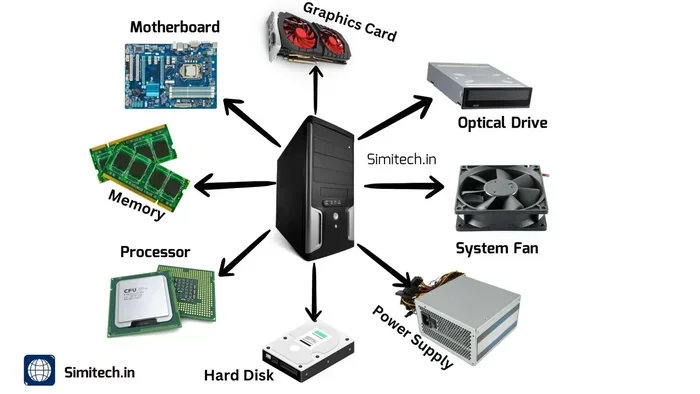
Let us start with the basics. Your PC uses two key components for speed. The RAM handles short-term tasks while the computer is running. The SSD stores your files and programs and loads them when needed. Both matter, but they solve different problems.
Key Takeaways
- SSD upgrades give the most immediate speed improvement: Faster boot times, quicker app launches, and snappier file access.
- RAM upgrades help with multitasking: More memory means smoother performance when running many apps at once.
- Check your current specs first: Knowing what you have helps you pick the right upgrade path.
- Budget matters: SSDs are often more affordable and deliver bigger bang for the buck.
- Both upgrades work together: A balanced system needs enough RAM and fast storage for the best experience.
- Upgrade order depends on your bottleneck: Identify what is slowing you down before spending money.
📑 Table of Contents
- What Does RAM Do and Why Does It Matter?
- What Does an SSD Do and Why Is It So Important?
- Upgrade RAM or SSD First: Which One Wins?
- How Much Does Each Upgrade Cost?
- Can You Upgrade Both? And Should You?
- Common Mistakes to Avoid When Upgrading
- Expert Insight: What Do Professionals Recommend?
- Final Verdict: Upgrade RAM or SSD First?
What Does RAM Do and Why Does It Matter?
RAM stands for Random Access Memory. Think of it as your computer’s short-term workspace. When you open a program, browse the web, or edit a document, the data lives in RAM. The more RAM you have, the more tasks your computer can handle at the same time.
Here is a simple way to think about it. RAM is like the size of your desk. A bigger desk lets you spread out more papers and work on several things at once. A small desk means you have to keep swapping things in and out, which slows you down.
Most modern laptops come with 8GB of RAM. That is fine for basic tasks like web browsing and word processing. But if you run many apps at once, edit videos, or play games, you may feel the strain. When RAM runs low, your system starts swapping data to the storage drive, which causes lag and slowdowns.
Signs You Need More RAM
How do you know if your RAM is holding you back? Watch for these common signs:
- Your computer slows down when you open many browser tabs.
- Apps take a long time to respond or freeze up often.
- You get messages saying your memory is full.
- Your system struggles when you switch between programs.
- Video editing or gaming performance drops unexpectedly.
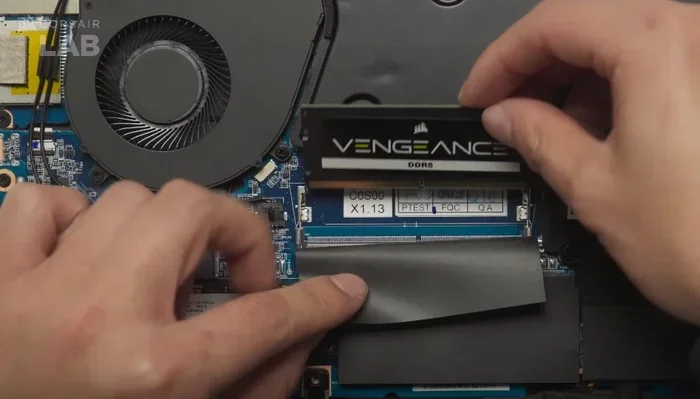
If you notice these issues, a RAM upgrade could help a lot. The good news is that upgrading RAM is usually simple and affordable. You can learn how to do it yourself by checking out a guide on how to upgrade the RAM of a laptop. It is a straightforward process that even beginners can handle.
What Does an SSD Do and Why Is It So Important?
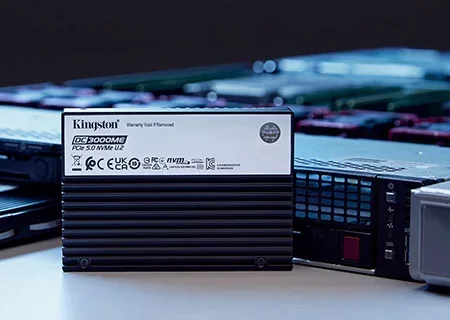
An SSD, or Solid State Drive, is where your operating system, programs, and files live. Unlike old-fashioned hard drives with spinning disks, an SSD has no moving parts. It uses flash memory, which makes it much faster at reading and writing data.
The difference between an HDD and an SSD is night and day. An SSD can make your computer feel brand new, even if it is several years old. Boot times drop from minutes to seconds. Apps launch almost instantly. Files copy much faster. If you are still using a traditional hard drive, switching to an SSD is the single best upgrade you can make.
Think of it this way. RAM is your workspace, and the SSD is the filing cabinet. Even with a big desk, you still need to pull files from the cabinet quickly. A slow cabinet defeats the purpose of having a large desk. That is why storage speed matters so much for overall system feel.
When an SSD Upgrade Makes the Biggest Difference
An SSD upgrade is most impactful when your current drive is a traditional spinning hard drive. Here are the situations where you will see the biggest improvement:
- Your PC takes more than a minute to boot up.
- Apps and games take a long time to load.
- File transfers crawl along at slow speeds.
- Your system stutters during everyday tasks.
- You want a noticeable speed boost without spending much money.
Even if you already have some RAM, a slow hard drive will hold back your entire system. This is why many experts recommend starting with an SSD. It transforms the user experience in a way that RAM alone cannot match.
Upgrade RAM or SSD First: Which One Wins?
This is the big question, and the answer depends on your situation. Let us compare both upgrades head to head so you can make the best decision.
| Factor | RAM Upgrade | SSD Upgrade |
|---|---|---|
| Best for | Multitasking and heavy apps | Overall system speed and responsiveness |
| Speed impact | Helps with running many programs | Speeds up boot, load times, and file access |
| Cost range | Moderate ($20-$80 typical) | Low to moderate ($30-$100 typical) |
| Ease of installation | Easy to moderate | Easy to moderate |
| Noticeability | Depends on usage | Very noticeable for most users |
| Who benefits most | Power users, gamers, creators | Everyone, especially HDD users |
For most people, the SSD should come first. The speed difference is immediate and dramatic. You will notice it every time you turn on your laptop or open an app. RAM upgrades are also valuable, but the benefits are more subtle unless you are pushing your system to its limits.
That said, if your current RAM is very low (4GB or less), upgrading RAM first might make sense. Low RAM causes constant swapping to the drive, which creates a bottleneck even on an SSD. In that case, boosting memory first removes a major performance block.
How to Decide Based on Your Current Setup
Here is a simple way to figure out your upgrade order:
- Check your current RAM. If you have 4GB or less, RAM is your priority.
- Check your storage type. If you still use an HDD, SSD comes first.
- Think about your usage. Heavy multitasking? RAM. Slow boot times? SSD.
- Set a budget. SSDs often cost less and deliver bigger results per dollar.
- If both are needed and budget allows, do both. They complement each other perfectly.
Many users find that they learn how to upgrade a laptop’s RAM as a simple DIY project, while SSD installation is equally manageable with a bit of guidance. Both upgrades are well within the reach of most computer owners.
How Much Does Each Upgrade Cost?
Cost is a big factor when choosing between RAM and SSD upgrades. Let us look at what you can expect to pay.
RAM prices vary based on capacity and speed. An 8GB DDR4 stick typically costs between $20 and $40. A 16GB kit runs around $40 to $80. Higher speeds and newer standards like DDR5 can cost a bit more. The good news is that RAM is a one-time purchase and lasts for years.
SSD prices have dropped significantly in recent years. A 256GB SATA SSD costs around $25 to $40. A 512GB NVMe SSD runs $40 to $70. A 1TB NVMe SSD can be found for $60 to $100. The price per gigabyte keeps falling, making SSDs one of the best value upgrades available.
When you compare the cost to the performance gain, SSDs often come out ahead. The entire feel of your computer changes with an SSD. RAM upgrades improve specific tasks but may not transform the overall experience as dramatically.
If you are worried about the cost of RAM upgrade on a laptop, keep in mind that prices have remained stable and competitive. For most budgets, both upgrades are very affordable and well worth the investment.
Can You Upgrade Both? And Should You?
The short answer is yes. Upgrading both RAM and SSD is the ideal path for most users. They work together to create a much smoother computing experience. Think of it as fixing the two biggest bottlenecks in any older computer.
Here is why they work so well together. The SSD makes everything load faster. The RAM keeps everything running smoothly while you use those fast-loaded programs. Together, they eliminate the most common causes of slow performance.
If you are on a tight budget, start with the SSD. It gives you the most noticeable improvement for the least money. Then add RAM when you need it or when your budget allows. This phased approach keeps costs manageable while still delivering great results.
For users who want to plan ahead, check out guides on how to upgrade RAM on a laptop so you are ready when the time comes. Being prepared makes the process smooth and stress-free.
Common Mistakes to Avoid When Upgrading
Upgrading your PC is exciting, but there are a few pitfalls to watch out for. Avoiding these mistakes saves you time, money, and frustration.
- Buying the wrong RAM type: Not all RAM fits all laptops. Check your motherboard specs before buying.
- Ignoring compatibility: Some older laptops do not support certain SSD sizes or interfaces.
- Skipping the backup: Always back up your data before opening up your computer.
- Overbuying RAM: If you only use basic apps, 32GB of RAM is overkill. Match the upgrade to your real needs.
- Choosing the cheapest SSD: Very cheap SSDs may use slower NAND or have lower endurance. Stick with reputable brands.
- Forgetting to clone your drive: If you are replacing an HDD with an SSD, clone your existing drive to avoid reinstalling everything.
Taking a few extra minutes to research your specific model can save a lot of headaches. Every laptop is different, and knowing your exact specs before you shop makes a big difference.
Expert Insight: What Do Professionals Recommend?
Most PC professionals agree on a simple rule: fix the biggest bottleneck first. For the majority of users today, that means upgrading from an HDD to an SSD. The speed transformation is simply unmatched by any other single upgrade.
That said, professionals also emphasize that RAM and SSD upgrades are not competing choices. They are complementary. A PC with 16GB of RAM and a fast NVMe SSD will outperform a system with only one of those upgrades in almost every scenario.
If you are unsure where your current system stands, check your task manager or system information. Look at your RAM usage during typical use and check what type of drive you have. This quick check tells you exactly where to focus your efforts.
Final Verdict: Upgrade RAM or SSD First?
So, what is the final answer to the question of whether you should upgrade RAM or SSD first? For most users, the SSD wins as the first upgrade. It delivers faster boot times, quicker app launches, and an overall snappier experience that is hard to beat. The cost is reasonable, the installation is simple, and the results are immediate.
RAM upgrades are the second priority for most people. They shine when you need to run many applications at once or work with memory-heavy tasks like video editing or gaming. If your RAM is already at 8GB or above, you may not need an upgrade right away.
The best strategy is to assess your current system, identify the weakest link, and upgrade accordingly. In many cases, doing both upgrades over time gives you the best overall result. A fast SSD combined with enough RAM creates a PC that feels fast, responsive, and ready for anything.
Start with the upgrade that solves your most pressing problem. Then build from there. Your computer will thank you with better speed, smoother performance, and a longer useful life.
Frequently Asked Questions
Can upgrading my SSD alone make my old laptop feel new again?
Yes, absolutely. Replacing an old hard drive with an SSD is one of the most dramatic upgrades you can do. Boot times, app launches, and everyday tasks all feel much faster. Many users say their old laptop feels like a new machine after an SSD swap alone.
How much RAM do I really need for everyday use?
For most everyday tasks like browsing, email, and office work, 8GB of RAM is the sweet spot. If you multitask heavily or use creative apps, 16GB gives you more breathing room. Going beyond 16GB is usually only needed for specialized workloads like video editing or virtual machines.
Is it better to upgrade RAM or SSD if I only have a small budget?
An SSD usually gives more bang for your buck on a small budget. The speed improvement is noticeable in almost everything you do. However, if your RAM is below 4GB, upgrading memory first can solve more immediate problems like constant slowdowns and freezing.
How long does it take to upgrade an SSD or RAM?
Both upgrades are quick. Swapping in an SSD typically takes 15 to 30 minutes, especially if you clone your existing drive. RAM upgrades are even faster, often taking just 5 to 10 minutes. Most people can do either upgrade without any special tools or technical skills.
Will upgrading both RAM and SSD at the same time cause any issues?
No, upgrading both at the same time is perfectly safe and actually recommended. They work on different parts of your system and do not interfere with each other. Just make sure both components are compatible with your laptop model before purchasing.
Should I upgrade RAM or SSD first if I am a gamer?
Gamers benefit from both upgrades, but start with the SSD. Faster load times and quicker game launches make a huge difference. Then add RAM if you find your system struggling during gameplay or while running a game alongside a browser and streaming software. Most modern games run well with 16GB of RAM and a fast SSD.