Xmp Expo Ram Profiles Explained And What They Do For You
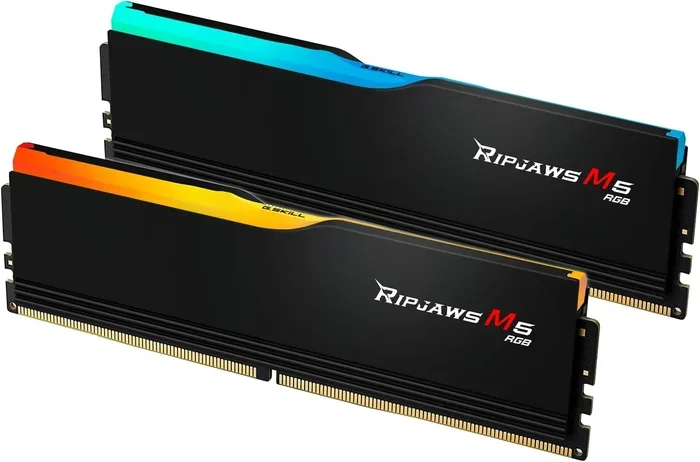
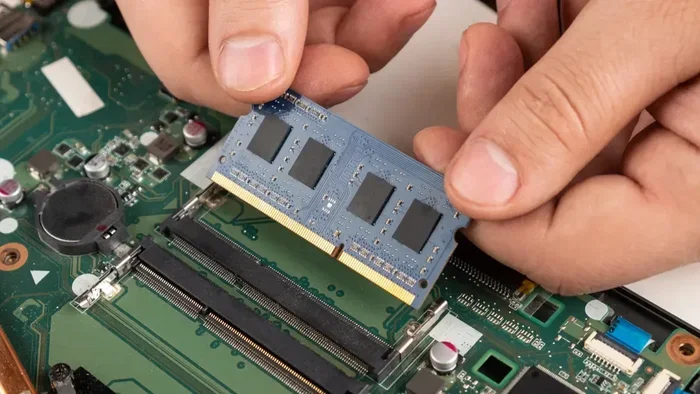
XMP and EXPO RAM profiles are preset configurations that let you boost your memory speed with just one click in your BIOS. They save you from manual tuning and help your PC run faster for gaming, editing, and multitasking. This guide breaks down exactly what these profiles do, how to use them, and whether they are worth enabling on your system.
Your computer’s RAM runs at a default speed when you first turn it on. That speed is safe and stable, but it is often far below what your memory can actually do. This is where XMP and EXPO RAM profiles come in. These tiny but powerful settings unlock your RAM’s true potential with minimal effort.
If you have ever wondered why your DDR4 or DDR5 memory is running slower than the box claims, the answer is simple. Your PC boots at a baseline speed to ensure everything works. XMP and EXPO profiles change that. They tell your motherboard to run your memory at its rated speed, tighter timings, and higher frequency. The result is a faster, more responsive system.
In this guide, we will walk you through exactly what these profiles are, how they work, and whether you should use them. We will also cover common mistakes, troubleshooting tips, and how they compare to manual overclocking. By the end, you will know everything you need to get the most out of your memory.
Key Takeaways
- XMP and EXPO profiles are easy ways to run your RAM faster than default JEDEC speeds without manual tweaking.
- Intel XMP and AMD EXPO serve the same purpose but work on different platforms.
- Enabling a profile takes seconds in BIOS and can noticeably improve gaming and multitasking performance.
- Not all motherboards support every profile, so checking compatibility first is essential.
- Using XMP or EXPO does not void your warranty in most cases, but stability issues can still occur.
- Manual overclocking goes beyond preset profiles but requires deeper knowledge and testing.
📑 Table of Contents
What Are XMP and EXPO RAM Profiles
XMP stands for Extreme Memory Profile. It was created by Intel to simplify RAM overclocking. EXPO stands for Extended Profiles for Overclocking. AMD developed it as their own version. Both serve the same core purpose. They let you apply pre-tested memory settings instantly.
When you buy RAM rated at, say, 3600 MHz, your system usually runs it at 2133 MHz or 2400 MHz. That is the default JEDEC standard speed. XMP and EXPO profiles store the higher speed settings right on the RAM module itself. Your motherboard reads those settings and applies them when you enable the profile.
How XMP and EXPO Differ
The main difference comes down to platform. Intel XMP works with Intel motherboards and processors. AMD EXPO works with AMD Ryzen systems. While they function similarly, they are not interchangeable. An XMP profile on an AMD system will not work, and an EXPO profile on an Intel board will not apply either.
Both profiles are stored in a small section of the RAM module’s SPD chip. The SPD chip holds all the memory’s specifications. When your PC boots normally, it reads the JEDEC profile from that chip. When you enable XMP or EXPO, your motherboard reads the alternative profile instead.
How XMP and EXPO Profiles Work
Understanding how these profiles work helps you troubleshoot issues later. A RAM profile contains several key settings. These include the memory frequency, voltage, and timings. Each of these values works together to push your memory to its rated speed.
Memory Frequency
The frequency is the big number you see on RAM boxes, like 3200 MHz or 6000 MHz. This determines how many data transfers happen per second. Higher frequency means more data moves through your memory each second. This directly impacts tasks like gaming, video editing, and 3D rendering.
Timings and Latency
Timings are a set of numbers like 16-18-18-36. They control the delay between commands sent to the memory. Lower timings mean faster response. When combined with higher frequency, tighter timings give you the best real-world performance. The profile handles all of this automatically, which is the whole point.
Voltage Settings
Every profile also includes a voltage setting. This is the power sent to the memory modules. Default JEDEC speeds use around 1.1 to 1.2 volts. XMP and EXPO profiles may bump this up to 1.3 or 1.4 volts depending on the speed. This extra power keeps the modules stable at higher frequencies.
Benefits of Using XMP and EXPO Profiles
Using a RAM profile offers several real-world benefits. Most users will notice improvements in daily tasks and demanding workloads. Here is what you can expect.
- Faster game loading times and smoother frame rates in memory-intensive titles.
- Better multitasking performance when running many applications at once.
- Quicker file transfers and data processing for creative professionals.
- No manual tuning required. The profile applies all settings in one step.
- Verified stability. The settings have been tested by the RAM manufacturer.
One of the biggest advantages is simplicity. You do not need to be a PC expert to get faster memory. You simply enter your BIOS, find the profile option, and select it. Your system handles the rest. This is much easier than manually adjusting each timing and voltage value.
How to Enable XMP or EXPO Profiles
Enabling a profile is straightforward, but the exact steps vary slightly depending on your motherboard brand. Here is a general walkthrough that applies to most systems.
Step-by-Step Guide
- Restart your PC and enter the BIOS by pressing the designated key during boot. This is usually Del, F2, or F12.
- Navigate to the memory or overclocking section. On ASUS boards, this is often called AI Tweaker. On MSI, it is the OC menu.
- Look for the XMP or EXPO option. It may be listed as a profile selector with options like Profile 1 or Profile 2.
- Select the desired profile and save your changes. The system will reboot with the new settings applied.
- Verify the settings using a tool like CPU-Z or your system information panel to confirm the new frequency is active.
If you are unsure whether your system supports these features, check your motherboard manual. Most modern boards from the last five years support at least one XMP or EXPO profile. Also, keep in mind that DDR5 RAM and DDR4 RAM boards may handle profiles differently, so always double-check compatibility.
Which Profile Should You Choose
Many RAM kits come with two XMP or EXPO profiles. Profile 1 is usually the moderate speed setting. Profile 2 often pushes the frequency higher. If you are new to this, start with Profile 1. It offers a good balance of speed and stability. You can always try Profile 2 later if your system handles it well.
Common Issues and Troubleshooting
While XMP and EXPO profiles are designed to be plug-and-play, problems can still happen. Here are the most common issues and how to fix them.
System Boots but Is Unstable
If your PC turns on but crashes randomly or gives blue screens, the profile settings may be too aggressive for your hardware. Try lowering the frequency slightly or increasing the voltage by one notch. Running a memory test with tools like MemTest86 can help identify instability.
Profile Option Is Missing in BIOS
This usually means your motherboard does not support XMP or EXPO, or the feature is disabled at the firmware level. Some budget boards lock memory overclocking. In that case, your RAM will run at its default JEDEC speed regardless of what the box says.
PC Will Not Boot After Enabling a Profile
This is rare but can happen. If your system fails to POST, try clearing your CMOS. This resets the BIOS to factory settings. You can usually do this by removing the motherboard battery for a few minutes or using the CMOS clear jumper. After resetting, try the profile again with adjusted settings.
XMP and EXPO Versus Manual Overclocking
Some enthusiasts prefer to manually overclock their RAM instead of using preset profiles. Manual overclocking gives you full control over every setting. You can fine-tune frequency, voltage, and timings to squeeze out every last bit of performance.
However, this approach has downsides. It takes time, patience, and a solid understanding of memory controllers. Manual overclocking also increases the risk of instability. XMP and EXPO profiles give you 90 to 95 percent of the benefit with 10 percent of the effort. For most users, they are the clear winner.
If you want even more performance beyond what a profile offers, you can start with the profile as a base and then manually adjust from there. This hybrid approach gives you a stable starting point while allowing further optimization.
Who Should Use XMP and EXPO Profiles
Almost every PC user can benefit from enabling a RAM profile. Whether you are a casual gamer, a content creator, or a student juggling multiple apps, faster memory improves your experience.
For gamers, enabling XMP or EXPO can lead to higher frame rates and reduced stuttering in demanding titles. For video editors and 3D artists, faster memory speeds up rendering times and file exports. Even for general office use, you may notice snappier application launches and smoother multitasking.
The only group that should think twice is users with very old or budget systems. Some older motherboards may not support higher memory speeds even with a profile enabled. In those cases, your RAM will simply run at whatever speed the board supports natively.
Before enabling any profile, it is always a good idea to check whether your processor and motherboard can handle the speeds. For example, some Intel Core i5 or AMD Ryzen 5 chips have memory controllers that cap out at certain frequencies. Going beyond that limit will not give you any extra benefit and may cause instability.
Final Thoughts
XMP and EXPO RAM profiles are one of the easiest ways to get more performance out of your PC. They take seconds to enable, require zero technical expertise, and deliver real, measurable improvements. Whether you are building a new system or upgrading an existing one, turning on these profiles should be on your checklist.
Remember to always verify compatibility before purchasing RAM. Check that your motherboard and processor support the speeds you want. Once you have the right hardware, simply pop in the sticks, enable the profile in BIOS, and enjoy the boost. Your system will thank you.
If you are curious about how much of a performance difference this actually makes, check out our article on does overclocking RAM increase FPS to see real benchmark results.
Frequently Asked Questions
What is the difference between XMP and EXPO?
XMP is Intel’s technology for memory overclocking, while EXPO is AMD’s equivalent. Both do the same thing, but they are designed for their respective platforms. XMP works on Intel motherboards, and EXPO works on AMD Ryzen systems.
Is it safe to enable XMP or EXPO profiles?
Yes, it is generally safe. These profiles use settings tested by the RAM manufacturer. Your memory will run faster and may use slightly more voltage, but it should remain stable. If you experience crashes, try a lower profile or adjust the voltage slightly.
Will enabling XMP void my RAM warranty?
Most RAM manufacturers do not void warranties simply for enabling XMP or EXPO profiles. These are officially supported features. However, if you push speeds beyond what the profile offers and cause damage, that could be a different story. Always check your specific RAM warranty terms.
Can I create my own XMP or EXPO profile?
XMP and EXPO profiles are created by the RAM manufacturer and stored on the module’s SPD chip. Regular users cannot create official profiles. However, you can manually adjust settings in BIOS to achieve similar results, which is essentially manual overclocking.
Why does my RAM run slower than advertised without XMP or EXPO?
Without an XMP or EXPO profile, your system defaults to the JEDEC standard speed. This is a safe baseline speed that all systems support. The advertised speed on the RAM box only kicks in when you enable the profile in your BIOS settings.
Do I need to enable XMP or EXPO for every game or app?
No. Once you enable a profile in BIOS, it applies system-wide. Every game, application, and task will benefit from the faster memory speed. You do not need to do anything per application. Just enable it once and your system runs at the faster speed all the time.
=== CONCLUSION ===
XMP and EXPO RAM profiles are a simple yet powerful way to unlock your memory’s full potential. They remove the complexity of manual overclocking and deliver faster speeds with just a few clicks. Whether you are a gamer chasing higher frame rates or a creator looking for quicker render times, enabling these profiles is one of the best upgrades you can make.
Take a few minutes to check your BIOS today. You might be surprised at how much better your system feels with your memory running at its true speed. For more tips on getting the most from your PC, explore our other guides on RAM, overclocking, and system optimization.