How To Enable Xmp Expo Ram For Maximum Performance
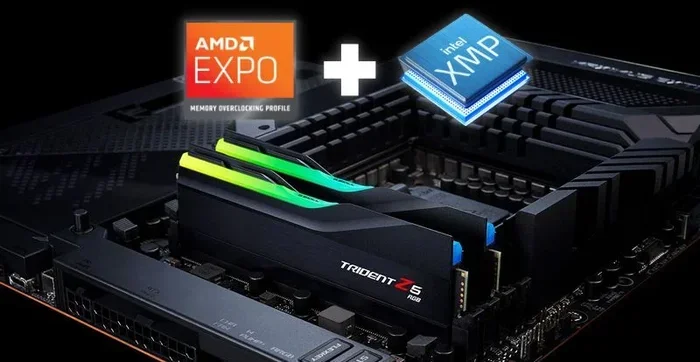
Enabling XMP EXPO RAM unlocks your memory’s true speed potential, delivering faster data transfer and smoother multitasking. This guide walks you through every step, from accessing BIOS to verifying your settings. Whether you use Intel XMP or AMD EXPO, you will learn how to get the most out of your RAM in just a few clicks.
Your computer’s RAM is capable of running much faster than it does right now. By default, most memory sticks operate at their slowest JEDEC standard speed. This keeps things stable but leaves serious performance on the table. That is where XMP EXPO RAM comes in.
XMP stands for Extreme Memory Profile, and EXPO stands for Extended Profiles for Overclocking. Both are technologies designed to let you unlock your RAM’s full potential with a single click. Instead of manually tweaking every memory timing and frequency value, you simply load a pre-tested profile. Your memory runs faster, your system responds quicker, and your overall experience improves dramatically.
In this guide, we will walk you through exactly how to enable XMP EXPO RAM on your system. We cover what these profiles are, why they matter, and the step-by-step process for both Intel and AMD platforms. By the end, you will know how to squeeze every drop of performance from your memory.
Key Takeaways
- XMP and EXPO are profiles that boost your RAM speed beyond default JEDEC standards.
- Enabling these profiles takes just a few minutes inside your BIOS or UEFI settings.
- Both Intel and AMD platforms support memory overclocking through their own branded technologies.
- Always verify your RAM is running at the boosted speed after enabling the profile.
- Common issues like boot loops can usually be fixed by resetting CMOS or updating BIOS.
- Compatibility with your motherboard and CPU is essential before enabling any XMP or EXPO profile.
📑 Table of Contents
What Is XMP And EXPO RAM?
Before you change any settings, it helps to understand what XMP and EXPO actually are. Both are memory overclocking profiles created by hardware manufacturers. They store optimized settings for your RAM modules so you do not have to configure everything manually.
Understanding XMP (Intel)
Intel introduced XMP in 2007. It stands for Extreme Memory Profile. When you buy high-speed RAM, the manufacturer tests it at faster speeds than the standard JEDEC specifications. They save those tested settings into an XMP profile on the memory module’s SPD chip. When you enable XMP in your BIOS, your motherboard applies those saved settings automatically.
This means your RAM might be rated for 3200 MHz by default but is actually capable of 4800 MHz or higher. XMP simply tells your system to run at that boosted speed. It also adjusts memory timings and voltage to match the profile.
Understanding EXPO (AMD)
AMD developed EXPO as its own answer to XMP. EXPO stands for Extended Profiles for Overclocking. It works in a very similar way but is optimized for AMD Ryzen processors. AMD Ryzen CPUs benefit greatly from faster memory speeds because the infinity fabric architecture ties memory performance directly to CPU responsiveness.
EXPO profiles are stored the same way as XMP profiles. They are saved on the SPD chip and loaded through the BIOS. The main difference is that EXPO profiles are tuned specifically for AMD platforms, though they often work fine on Intel systems too.
XMP vs EXPO: Key Differences
Both technologies serve the same purpose. They boost your RAM speed with minimal effort. Here is a quick comparison of the two:
- XMP is Intel’s technology and works best with Intel CPUs and motherboards.
- EXPO is AMD’s technology and is optimized for Ryzen processors.
- Both profiles are stored on the RAM module itself and are platform-agnostic in most cases.
- Performance gains from either are similar, but AMD systems tend to see larger improvements from memory speed boosts.
Why You Should Enable XMP EXPO RAM
Leaving your RAM at default JEDEC speeds is like driving a sports car in first gear. Your hardware is capable of so much more. Enabling XMP EXPO RAM gives you a noticeable performance boost in everyday tasks and demanding workloads alike.
Faster Data Transfer Speeds
When your RAM runs at its rated speed, data moves in and out of memory much faster. This means applications load quicker, files copy faster, and your system feels more responsive. For tasks like video editing, 3D rendering, and large data processing, the difference can be substantial.
Better Gaming Performance
Gamers benefit enormously from enabling XMP EXPO RAM. Higher memory speeds reduce frame time spikes and improve 1% lows in many games. This is especially true for AMD Ryzen systems where memory speed directly impacts gaming performance.
Improved Multitasking
If you regularly run multiple applications at once, faster RAM helps your system juggle tasks more efficiently. You will notice smoother switching between browser tabs, creative software, and background processes.
Future-Proofing Your System
As software becomes more demanding, having faster RAM ensures your system stays relevant longer. Enabling XMP EXPO is a simple way to future-proof your PC without spending any extra money.
How To Enable XMP EXPO RAM In BIOS
Now for the main event. Enabling XMP or EXPO is straightforward once you know where to look. The process is very similar across most motherboards, though the exact menu names may vary slightly.
Step 1: Access Your BIOS Or UEFI
Restart your computer and press the BIOS key during startup. This is usually Delete, F2, or F12 depending on your motherboard brand. You can also restart from Windows by holding the Shift key while clicking Restart, then selecting Troubleshoot > Advanced Options > UEFI Firmware Settings.
Step 2: Navigate To The Memory Or Overclocking Section
Once inside BIOS, look for a section related to memory or overclocking. On ASUS boards, this is often called AI Tweaker. On MSI boards, it is OC Settings or DRAM Settings. On Gigabyte boards, look for Frequency/Voltage Control. On ASRock boards, it is typically Overclocking.
Step 3: Locate The XMP Or EXPO Profile
Inside the memory settings, you should see an option for XMP or EXPO. It may be listed as a profile selector with options like Profile 1, Profile 2, or Disabled. Select the profile you want to enable. Profile 1 is usually the standard rated speed.
Step 4: Save And Exit
After selecting the profile, save your changes and exit BIOS. This is usually done by pressing F10 or selecting Save & Exit. Your computer will restart, and the new memory profile will be active.
Some users worry about enabling XMP EXPO because they fear instability. In most cases, these profiles are thoroughly tested by the RAM manufacturer. They are designed to be stable at the rated speed and voltage.
How To Verify XMP EXPO Is Working
After enabling the profile and restarting, you should confirm that your RAM is actually running at the boosted speed. It is not enough to simply enable the profile and assume everything is working correctly.
Check RAM Speed In Task Manager
On Windows, open Task Manager by pressing Ctrl + Shift + Esc. Go to the Performance tab and click on Memory. Look at the Speed value at the top right. It should show the boosted XMP or EXPO speed, not the default JEDEC speed.
Use Third-Party Tools For Detailed Info
For more detailed information, you can use free tools like CPU-Z or HWInfo. These programs show your exact memory frequency, timings, and voltage. Compare the readings against the rated XMP or EXPO profile to confirm everything is active.
Run A Memory Benchmark
If you want hard proof that your RAM is running faster, run a benchmark. Tools like AIDA64 or MaxxMEM test memory bandwidth and latency. Compare results before and after enabling XMP EXPO to see the real-world improvement.
Troubleshooting Common XMP EXPO Issues
Sometimes enabling XMP EXPO does not go smoothly. Here are the most common issues and how to fix them.
System Fails To Boot After Enabling XMP
If your computer does not post or gets stuck on the motherboard logo, the XMP profile may be pushing your memory beyond stable limits. The easiest fix is to clear your CMOS. This resets BIOS settings to default. You can do this by removing the CMOS battery for a few minutes or using the CMOS reset jumper on your motherboard.
Blue Screen Of Death (BSOD)
A blue screen after enabling XMP EXPO usually indicates instability. Try manually adjusting the DRAM voltage slightly higher. Increasing it by 0.05V to 0.1V can often resolve stability issues. If that does not work, try a less aggressive XMP profile if your RAM has multiple options.
XMP Profile Option Is Missing In BIOS
If you do not see an XMP or EXPO option in BIOS, there are a few possible reasons. First, check that your CPU and motherboard support memory overclocking. Not all processors and boards support XMP or EXPO. Second, ensure your BIOS is updated to the latest version. Third, some budget motherboards disable XMP by default and require you to enable it in a hidden menu.
RAM Runs At Different Speeds In Each Slot
If you have two sticks of RAM and they show different speeds, make sure both modules are installed in the correct slots. Consult your motherboard manual for the proper dual-channel configuration. Mismatched slots can cause one stick to run at a lower speed.
Best Practices For XMP EXPO RAM
To get the best results from XMP EXPO RAM, follow these proven tips and practices.
Always Check Compatibility First
Before buying or enabling XMP EXPO, make sure your components are compatible. Not all CPUs, motherboards, and RAM kits work well together. You can check which RAM is compatible with your laptop or desktop setup by consulting your motherboard’s Qualified Vendor List (QVL). This list contains tested RAM modules that are guaranteed to work with your board.
Update Your BIOS Regularly
Motherboard manufacturers frequently release BIOS updates that improve memory compatibility and stability. Always check for the latest BIOS version before enabling XMP or EXPO. A newer BIOS can often resolve issues that older versions cannot.
Monitor Temperatures After Enabling
Enabling XMP EXPO increases memory voltage slightly, which can raise temperatures. Use monitoring software to keep an eye on your RAM thermals, especially if you are running aggressive profiles. Most DDR4 and DDR5 modules operate safely within normal temperature ranges.
Do Not Stack Multiple Overclocks
If you are already overclocking your CPU or GPU, be cautious about also enabling aggressive XMP EXPO profiles. Stacking multiple overclocks can lead to instability. Try enabling one overclock at a time and testing stability before adding another.
Test Stability With Stress Tools
After enabling XMP EXPO, run a memory stress test to ensure stability. Tools like MemTest86 or TestMem5 can stress your RAM for hours and reveal hidden issues. A stable system should pass these tests without errors.
Conclusion
Enabling XMP EXPO RAM is one of the simplest and most effective ways to boost your PC’s performance. It takes just a few minutes in BIOS and delivers immediate results. Your memory runs faster, your system feels more responsive, and you get more value out of your existing hardware.
Whether you are a gamer looking for smoother frame rates, a content creator working with large files, or simply someone who wants a faster computer, enabling XMP EXPO is a must. Follow the steps in this guide, verify your settings, and troubleshoot any issues that come up. Your RAM was built to run faster. Give it the chance to do so.
Start today. Open your BIOS, load the XMP or EXPO profile, and experience the difference that faster memory speeds can make in your daily computing.
Frequently Asked Questions
What happens if I enable XMP EXPO RAM and my system becomes unstable?
If your system becomes unstable after enabling XMP or EXPO, the easiest fix is to clear your CMOS to reset BIOS settings to default. You can also try manually increasing the DRAM voltage slightly or selecting a less aggressive XMP profile. Most instability issues are resolved by updating your motherboard BIOS to the latest version.
Does enabling XMP EXPO RAM void my warranty?
Enabling XMP or EXPO profiles does not typically void your hardware warranty. These are pre-tested profiles provided by RAM and motherboard manufacturers. However, if you manually overclock beyond the XMP or EXPO settings and cause damage, warranty coverage may be affected. Always check your specific manufacturer’s warranty terms.
Can I use XMP EXPO on any motherboard?
No, not all motherboards support XMP or EXPO. Budget and entry-level boards sometimes disable memory overclocking features. Mid-range and high-end boards from ASUS, MSI, Gigabyte, and ASRock generally support these profiles. Check your motherboard specifications to confirm compatibility before purchasing RAM.
Is it safe to leave XMP EXPO enabled all the time?
Yes, it is completely safe to leave XMP or EXPO enabled permanently. These profiles are tested by the RAM manufacturer to be stable at the boosted speed and voltage. Millions of users run XMP EXPO profiles daily without any issues. Your system will run normally and reliably with the profile active.
Do I need to enable XMP EXPO for every new RAM stick I install?
Yes, you need to enable XMP or EXPO each time you install new RAM or reset your BIOS settings. When you clear CMOS or replace memory modules, the profile resets to default JEDEC speed. Simply enter BIOS again and re-enable the XMP or EXPO profile to restore the boosted speeds.
What is the difference between XMP 2.0 and XMP 3.0?
XMP 2.0 allows you to select one pre-set profile for your memory speed. XMP 3.0 introduced customizable profiles, giving you up to three profiles that you can name and adjust manually. XMP 3.0 offers more flexibility but requires a compatible motherboard and CPU that supports the newer standard.