Why Windows Media Player Not Opening And How To Fix

Windows Media Player not opening is a common frustration, but the fix is often simpler than you think. Whether you’re dealing with a black screen, an error message, or the app simply refuses to launch, this guide walks you through every proven solution. We cover the most common reasons Windows Media Player fails to open and give you step-by-step instructions to get it running again.
There are few things more annoying than double-clicking an app and watching nothing happen. You want to relax with your favorite song or catch up on a video, and Windows Media Player not opening ruins the moment. This problem hits people across all versions of Windows, from Windows 10 to the latest Windows 11 builds. The good news? In most cases, you can fix it yourself without calling a technician.
This guide breaks down every major reason Windows Media Player refuses to start. More importantly, it gives you clear, actionable fixes you can try right now. We keep things simple and practical, so even if you are not tech-savvy, you will find a solution that works. Let us dive in and get your media player back up and running.
Key Takeaways
- Corrupted files are the #1 cause: Damaged Windows Media Player components can prevent the app from launching entirely.
- Re-registering the app fixes most issues: A simple command in the Command Prompt resolves many opening problems.
- Windows updates matter: Outdated OS builds can cause compatibility conflicts with media playback features.
- Resetting the app works fast: Clearing app data often restores normal function without deep technical work.
- Use VLC as a backup: If Windows Media Player stays broken, a reliable alternative like VLC can fill the gap while you troubleshoot.
- Check your system requirements: Insufficient RAM or missing codecs can silently block media player from working properly.
📑 Table of Contents
- Why Windows Media Player Not Opening: The Most Common Causes
- How To Fix Windows Media Player Not Opening
- System Requirements: Is Your PC Ready for Windows Media Player?
- Quick Tips To Keep Windows Media Player Running Smoothly
- When Windows Media Player Is Not the Answer
- Common Mistakes People Make When Fixing This Problem
- Expert Insight: Why This Problem Keeps Coming Back
- Conclusion
Why Windows Media Player Not Opening: The Most Common Causes
Before jumping into fixes, it helps to understand what is going wrong. Windows Media Player relies on several system components working together. When one part breaks, the whole app can fail to open. Here are the top reasons this happens.
Corrupted Player Files
Over time, the files that make up Windows Media Player can become damaged. This might happen after a rough shutdown, a failed update, or even a minor system glitch. When key files go missing or get corrupted, the player simply cannot start. This is the single most common reason people search for why Windows Media Player not opening on their computer.
Missing or Outdated Codecs
Codecs are small programs that help your media player decode audio and video files. If a codec becomes outdated or goes missing, the player may crash the moment you try to open it. Some users report that Windows Media Player worked fine yesterday but suddenly stops today, and a missing codec is often the culprit behind this sudden behavior.
Windows Update Conflicts
Windows updates are designed to improve your system, but they sometimes break things along the way. A recent update might change how media components interact with each other. This can lead to Windows Media Player not responding or closing immediately after you try to launch it. If the problem started right after a Windows update, this is very likely the cause.
Insufficient System Resources
Your computer needs enough memory and processing power to run media applications smoothly. If your system is low on RAM or struggling with background tasks, Windows Media Player might fail to open. This is especially common on older laptops or machines running multiple programs at the same time. Checking your system specs, like your RAM and processor speed, can help you rule this out.
Third-Party Software Interference
Sometimes, other programs on your computer interfere with Windows Media Player. Antivirus software, media enhancement tools, or even recently installed applications can block the player from launching. This type of conflict often appears suddenly, leaving you confused about what changed on your system.
How To Fix Windows Media Player Not Opening
Now that you know the common causes, let us walk through the fixes. Try them in order, starting with the simplest solution. Most people find that one of the first few methods resolves the problem completely.
Fix 1: Re-register Windows Media Player
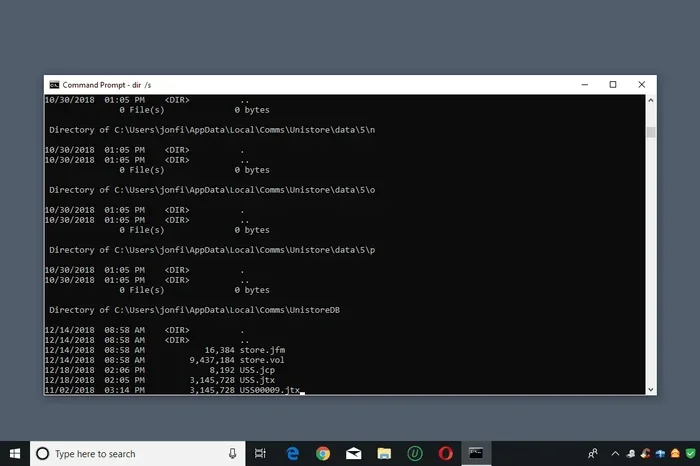
This is the most effective fix for most users. Re-registering tells Windows to rebuild the player’s registration in the system registry. Here is how to do it:
- Click the Start menu and type cmd.
- Right-click Command Prompt and select Run as administrator.
- Type the following command and press Enter:
regsvr32 wmp.dll
You should see a confirmation message saying the module loaded successfully. Restart your computer and try opening Windows Media Player again. This single step fixes the problem for a large number of users.
Fix 2: Reset Windows Media Player
If re-registering does not work, resetting the player can help. This clears all settings and returns the app to its default state. Follow these steps:
- Open the Control Panel on your computer.
- Navigate to Programs and then click Programs and Features.
- Find Windows Media Player in the list.
- Click on it and select Change.
- Choose the Reset option when prompted.
After the reset completes, restart your PC. This method is especially helpful when the player opens but immediately closes or shows a blank screen.
Fix 3: Run the Windows Troubleshooter
Windows comes with built-in tools that automatically detect and fix common problems. The Windows Store Apps troubleshooter can often resolve media player issues. Here is how to access it:
- Go to Settings and click on System.
- Select Troubleshoot from the left menu.
- Click on Other troubleshooters.
- Find and run the Windows Store Apps troubleshooter.
Follow the on-screen instructions and let the tool apply any fixes it finds. This is a low-effort method that often catches problems you might not notice on your own.
Fix 4: Update Windows
Running an outdated version of Windows can cause all sorts of compatibility issues, including media player failures. Updating your system ensures you have the latest patches and fixes. Here is what to do:
- Open Settings and go to Windows Update.
- Click Check for updates.
- Install any available updates.
- Restart your computer after the updates finish.
After the reboot, try launching Windows Media Player again. Many users report that simply updating their system resolved the opening problem entirely.
Fix 5: Reinstall Windows Media Player
If none of the above fixes work, reinstalling the player can help. This replaces any damaged files with fresh copies. To do this, you need to turn Windows Media Player off and then back on through the Windows Features menu. Go to Control Panel, select Programs, click Turn Windows Features on or off, uncheck Windows Media Player, restart your PC, and then check the box again to reinstall it.
System Requirements: Is Your PC Ready for Windows Media Player?
Before you spend hours troubleshooting, it is worth checking whether your computer meets the basic requirements to run Windows Media Player. On older or lower-spec machines, the player may fail to open simply because the hardware cannot support it. Here are the key things to check.
| Component | Minimum Requirement | Recommended |
|---|---|---|
| Processor | 1 GHz or faster | 2 GHz or faster |
| RAM | 2 GB (64-bit) | 4 GB or more |
| Storage | 1 GB free space | 4 GB or more free space |
| Graphics | DirectX 9 compatible | DirectX 11 or higher |
| OS | Windows 10 or later | Windows 11 |
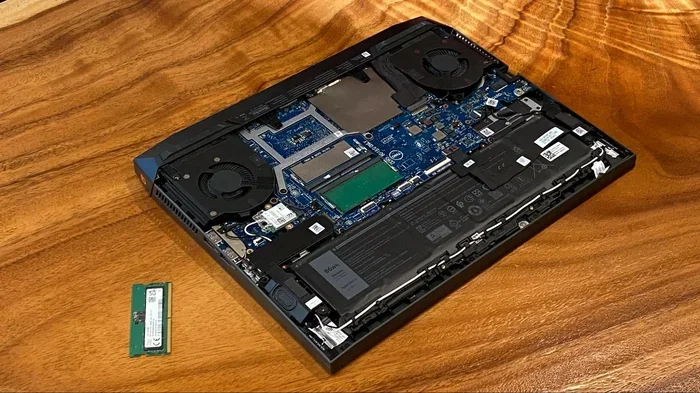
If your computer is running low on RAM, media applications like Windows Media Player can struggle to launch. For example, if you are running Windows 11 with only 4 GB of RAM and several background apps are open, the player might not have enough resources to start. In such cases, upgrading your RAM can make a noticeable difference. You can learn more about choosing the right memory configuration for your system by checking out resources on Windows 11 8GB RAM Laptop setups and Laptop 8Gb Ram Windows 11 configurations to see what works best for media tasks.
Quick Tips To Keep Windows Media Player Running Smoothly
Prevention is always better than fixing a broken app. Here are some simple habits that keep Windows Media Player working reliably:
- Keep Windows updated at all times. Updates fix bugs and improve compatibility with media components.
- Avoid force-closing the player. Always close it through the proper method to prevent file corruption.
- Scan for malware regularly. Malicious software can damage system files, including those used by media players.
- Clear temporary files periodically. Use Disk Cleanup to remove junk files that might interfere with app performance.
- Install a trusted codec pack. If you play a wide variety of media formats, a good codec pack prevents playback issues.
- Restart your PC weekly. A regular restart clears temporary glitches that can build up over time.
When Windows Media Player Is Not the Answer
Sometimes, despite your best efforts, Windows Media Player just will not cooperate. In these situations, it is perfectly fine to use an alternative media player. There are several excellent free options available that work just as well, if not better, than the built-in player.
VLC Media Player is the most popular alternative, and for good reason. It supports virtually every audio and video format, it is lightweight, and it rarely crashes. Before you switch to VLC, make sure your system meets the VLC Media Player system requirements so you get the best performance. Most modern laptops handle VLC without any issues at all.
Other great alternatives include MPC-HC (Media Player Classic – Home Cinema), which is fast and minimal, and PotPlayer, which offers a rich set of features. Having a backup media player installed means you are never stuck without a way to enjoy your music and videos.
Common Mistakes People Make When Fixing This Problem
While trying to solve Windows Media Player not opening, many people make mistakes that actually make the problem worse. Here are the ones to avoid:
- Downloading random fixer tools from the internet. Many of these are scams or contain malware. Stick to official Microsoft tools and trusted sources.
- Ignoring error messages. The error code or message you see is a valuable clue. Write it down and search for it specifically.
- Skipping Windows updates. Some users ignore update notifications, not realizing that these often contain critical fixes for media components.
- Giving up too quickly. The fix might be the second or third method on this list. Try each one before concluding the problem is unfixable.
Expert Insight: Why This Problem Keeps Coming Back
Technology experts often point to one underlying issue behind recurring media player problems: incomplete Windows updates. When an update does not finish properly, it can leave system files in a broken state. This affects many components, including Windows Media Player. Running the System File Checker tool (SFC /scannow) in an elevated Command Prompt can repair these damaged files and prevent the problem from returning.
Another expert recommendation is to keep your media library organized. Large libraries with thousands of files can sometimes overwhelm the player, causing it to hang or fail to open. If you have a massive collection, consider organizing it into folders or using a library management tool to reduce the load on the player.
Finally, always check your disk health. A failing hard drive or SSD can corrupt the files that Windows Media Player needs to function. Running a disk check (chkdsk) periodically helps you catch storage issues before they affect your media experience.
Conclusion
Windows Media Player not opening is a frustrating problem, but it is almost always fixable. Whether the cause is corrupted files, missing codecs, or a simple Windows update conflict, the solutions in this guide cover the most likely scenarios. Start with the simple fixes like re-registering the player or running the troubleshooter, and work your way down the list if needed.
Remember to keep your system updated, maintain good computing habits, and consider a reliable alternative like VLC if the built-in player continues to give you trouble. With a little patience and the right approach, you will be back to enjoying your favorite music and videos in no time. Do not let a media player issue ruin your day, take action today and get your Windows Media Player working again.
Frequently Asked Questions
Why does Windows Media Player keep closing right after I open it?
This usually happens because of corrupted player files or a codec conflict. Try re-registering the player using the regsvr32 command, or reset the app through the Control Panel. If the problem persists, running the System File Checker can repair any damaged system files that are causing the crash.
Can a virus or malware cause Windows Media Player not to open?
Yes, malware can target or damage system components including Windows Media Player. Running a full system scan with a trusted antivirus program is a good step if you suspect your media player was disabled by malicious software. Always keep your antivirus updated and run regular scans.
Is Windows Media Player available on Windows 11?
Windows Media Player is included in Windows 11, but some features may differ from older versions. If you cannot find it, you can enable it through the Windows Features menu. However, many users prefer to use alternative players like VLC on Windows 11 for better format support and reliability.
What should I do if Windows Media Player shows a black screen when I try to open it?
A black screen typically indicates a display or codec issue. First, try resetting the player through the Control Panel. If that does not work, update your graphics drivers and install a reliable codec pack. You can also try running Windows Media Player in compatibility mode by right-clicking the app icon and selecting Properties.
How do I know if my system is too old to run Windows Media Player?
Check the minimum system requirements, which include a 1 GHz processor, at least 2 GB of RAM for 64-bit systems, and 1 GB of free storage. If your computer falls below these specs, the player may struggle to open or run properly. Upgrading your RAM or switching to a lightweight alternative player can help in these cases.
Can I recover my media library if Windows Media Player stops working?
Yes, your media library files are stored separately from the player application itself. You can access them directly through File Explorer. To restore the library within Windows Media Player, go to the Library tab and click Manage Libraries. If you have backed up your media folder, you can easily rebuild your playlist and library in any media player.