How to Save Output Cmd Command Text File Clipboard Windows
Saving output from the CMD command prompt to a text file or clipboard is a simple but powerful skill for any Windows user. Whether you need to save cmd output for troubleshooting, share results with a tech support team, or keep a record of your commands, the methods are quick and built right into Windows. This guide shows you exactly how to save output cmd command text file clipboard Windows using the redirect operator, the clip command, and other easy techniques.
Working with the command prompt on Windows can feel intimidating at first. But once you learn a few simple tricks, it becomes one of the most efficient tools on your computer. One of the handiest skills you can pick up is knowing how to save output cmd command text file clipboard Windows. This lets you capture the results of any command and keep them for later use.
Maybe you are troubleshooting a network issue and need to share the results with a friend. Or perhaps you want to keep a log of the commands you run on your Windows 11 laptop with 8GB RAM. Whatever the reason, saving CMD output is incredibly useful. In this guide, we walk you through every method step by step.
Key Takeaways
- Use the redirect operator (>) to save CMD output to a text file instantly.
- The clip command lets you copy CMD results straight to your clipboard.
- You can append output to an existing file using (>>) instead of overwriting it.
- These methods work on Windows 10, Windows 11, and older versions alike.
- Saving command output helps with troubleshooting, documentation, and sharing results.
📑 Table of Contents
- What Is the CMD Command Prompt and Why Save Its Output?
- How to Save CMD Output to a Text File
- How to Copy CMD Output to the Clipboard
- Useful CMD Commands for Saving and Copying Output
- Common Mistakes When Saving CMD Output
- Tips for Getting the Most Out of CMD Output Saving
- When to Save Output to a File vs. the Clipboard
- Final Thoughts on Saving CMD Output
What Is the CMD Command Prompt and Why Save Its Output?
The Command Prompt, often called CMD or cmd.exe, is a built-in tool in Windows. It lets you interact with your computer using text commands instead of clicking through menus. Many users overlook it, but it can save you a lot of time. You can check network settings, manage files, run diagnostics, and much more.
When you run a command in CMD, the result appears on your screen. But what happens when you need that result later? You could manually type it out, but that is slow and error-prone. This is where saving output cmd command text file clipboard Windows comes in. You can redirect the text to a file or copy it directly to your clipboard. Both methods are fast and built into Windows.
Think about how often you run commands like ipconfig, ping, or systeminfo. Each of these produces output you might need again. Instead of retyping the command every time, just save the results once. It is a small habit that makes a big difference.
How to Save CMD Output to a Text File
Saving CMD output to a text file is the most common method. It uses a simple symbol called the redirect operator. Once you understand this, you can save the output of any command with just one extra character.
Using the Greater-Than Symbol (>) to Save Output
The greater-than symbol (>) tells Windows to take the output of a command and write it to a file instead of showing it on screen. Here is how it works:
- Open Command Prompt. Press the Windows key, type cmd, and hit Enter.
- Type your command followed by
>and the file name. For example:ipconfig > output.txt - Press Enter. The command runs, and the results go into a file called output.txt.
- Open the file in Notepad or any text editor to see the saved output.
This method creates a new file. If the file already exists, it gets overwritten. So be careful with your file names. You can also save the file to a specific folder by including the full path. For example: ipconfig > C:\Users\YourName\Desktop\output.txt.
Appending Output with Double Greater-Than (>>)
Sometimes you do not want to overwrite a file. Maybe you want to add new results to an existing log. In that case, use the double greater-than symbol (>>). This appends the output to the end of the file without deleting what is already there.
For example, type ping google.com >> output.txt to add ping results to your existing file. This is great for building a running log of command results over time. It works perfectly if you are tracking changes on a Windows 10 laptop with 8GB RAM or any other system.
Saving Output from Multiple Commands
You can also save output from multiple commands into one file. Just chain the commands together. Here is an example:
echo Starting Log > log.txtipconfig >> log.txtping google.com >> log.txtsysteminfo >> log.txt
This creates a single text file with all the results. You can then share this file or keep it for your records. It is a clean and organized way to document your work.
How to Copy CMD Output to the Clipboard
Saving to a file is great, but sometimes you just need the results in your clipboard so you can paste them into an email, a chat, or a document. Windows has a built-in way to do this too.
Using the clip Command
The clip command is a simple but powerful tool. It takes the output of any command and copies it directly to your clipboard. Here is how to use it:
- Open Command Prompt.
- Type your command followed by
| clip. For example:ipconfig | clip - Press Enter. The command runs, and the output goes straight to your clipboard.
- Now open any text editor or email and press Ctrl + V to paste.
The pipe symbol (|) sends the output of one command to another command. In this case, it sends the output to clip, which places it on the clipboard. This method is perfect when you need to quickly share results without creating a file.
If you are using a Windows 11 16GB RAM laptop or any other Windows machine, this method works exactly the same way. It is universal across all modern Windows versions.
Copying Only Part of the Output
What if you only want to copy a specific section of the output? You can use the find command to filter results before sending them to the clipboard. For example:
ipconfig | find "IPv4" | clip
This command filters the ipconfig results to show only lines containing “IPv4” and copies just that to the clipboard. It is a great trick for isolating the information you need.
Using the Mark Mode in CMD
Another way to copy output is by using the Select mode in Command Prompt. Right-click the title bar of the CMD window, choose Properties, and check “QuickEdit Mode.” Now you can click and drag to select text, and it automatically goes to your clipboard. This method works well for quick copies but is less precise than using the clip command.
Useful CMD Commands for Saving and Copying Output
Not all commands produce the same type of output. Here are some of the most useful commands that benefit from saving or copying their results.
ipconfig
The ipconfig command shows your network configuration. It is one of the most commonly used commands for troubleshooting internet issues. Save the output to a text file when you need to share your network details with a support team.
ping
The ping command tests your connection to a website or server. It is handy for checking if a website is down or if your network has issues. Saving ping results helps you track connection problems over time.
systeminfo
The systeminfo command gives you detailed information about your computer, including the OS version, RAM, and processor. This is especially useful when you are working on a system like a 16 GB RAM Windows laptop and need to document its specs.
dir
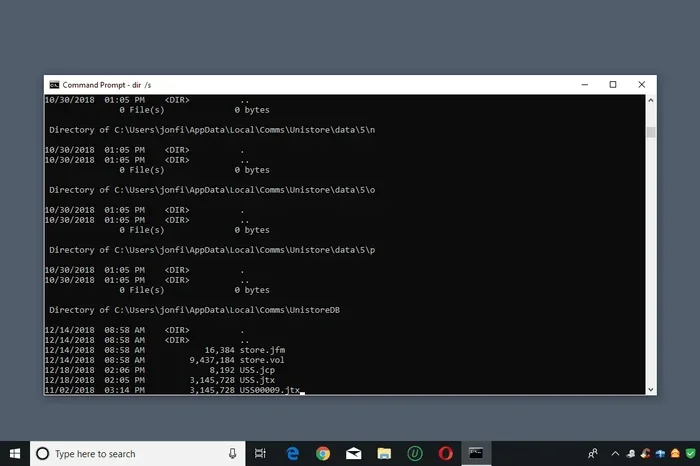
The dir command lists all files in a directory. You can save this list to a text file to keep an inventory of your files. This is great for organizing or backing up your data.
tasklist
The tasklist command shows all running processes. Save this output when you are troubleshooting slow performance or checking for unwanted programs running in the background.
Common Mistakes When Saving CMD Output
Even though saving CMD output is straightforward, people make a few common mistakes. Here are some pitfalls to avoid.
- Forgetting the space before the file name. Always put a space between the command, the redirect symbol, and the file name. Without it, the command will fail or behave unexpectedly.
- Using the wrong file path. If you do not specify a full path, the file saves in the current working directory. Make sure you know where it went so you can find it later.
- Overwriting important files. Using a single (>) will overwrite an existing file. Use (>>) to append instead if you want to keep the original content.
- Not running CMD as Administrator. Some commands require elevated permissions. If you get access denied errors, try running CMD as an Administrator by right-clicking and selecting “Run as administrator.”
- Ignoring encoding issues. If you open a saved text file and see garbled characters, the file encoding might be the issue. You can use the
/fflag with certain commands or save in a specific format to avoid this.
Avoiding these mistakes will save you a lot of frustration. It is worth taking a few extra seconds to double-check your syntax before pressing Enter.
Tips for Getting the Most Out of CMD Output Saving
Once you get comfortable with the basics, here are some pro tips to level up your workflow.
- Create a dedicated folder for CMD logs. Keep all your saved output files organized in one place. This makes them easy to find later.
- Use descriptive file names. Instead of calling a file “output.txt,” name it something like “network-diagnosis-2024-01-15.txt.” This helps you remember what is inside.
- Combine methods. You can save output to a file and also copy it to the clipboard. Use the redirect operator for long-term storage and the clip command for quick sharing.
- Use the DOSKEY macro feature. If you run the same commands often, create macros to automate the saving process. This saves time and reduces errors.
- Automate with batch files. You can write a simple batch file that runs several commands and saves all the output to a log file. This is perfect for regular system checks on your Windows 11 laptop 16GB RAM or any other setup.
These small habits add up over time. You will wonder how you ever managed without them.
When to Save Output to a File vs. the Clipboard
Both methods have their strengths. Here is a quick comparison to help you decide which to use.
- Save to a file when: You need a permanent record, you want to share a large amount of text, or you are logging results over time.
- Copy to clipboard when: You need the output right now, you are pasting into a chat or email, or you only need a small portion of the results.
In most cases, keeping both methods in your toolkit is the best approach. Use whichever fits the situation.
Final Thoughts on Saving CMD Output
Learning how to save output cmd command text file clipboard Windows is one of those small skills that makes a huge difference. It takes just a few minutes to learn, and it saves you countless hours of retyping and manual record-keeping. Whether you use the redirect operator to save to a file or the clip command to copy to your clipboard, both methods are simple and effective.
Start practicing these techniques today. Try saving the output of a few commands to a text file, and experiment with the clipboard method. Before long, it will become second nature. And if you ever need to revisit this guide, you know where to find it.
These skills pair well with general file management on your computer. If you are interested in learning more about managing files on your system, check out our guide on how to save files to your camera roll for additional tips on file handling across devices.
Also, if you are working on a specific machine, you might want to explore more about optimizing your setup. For instance, if you are using a Windows 11 laptop with 8GB RAM, understanding command-line tools helps you get the most out of your system.
Frequently Asked Questions
How do I save CMD output to a text file?
Open Command Prompt, type your command followed by > and a file name. For example, type ipconfig > output.txt and press Enter. The results will be saved to a text file in your current directory.
Can I copy CMD output directly to my clipboard?
Yes. Use the clip command by typing your command followed by | clip. For example, ipconfig | clip copies the output straight to your clipboard so you can paste it anywhere.
How do I append output to an existing file instead of overwriting it?
Use the double greater-than symbol (>>) instead of a single one. For example, ping google.com >> output.txt adds the results to the end of the file without deleting the existing content.
Does saving CMD output work on Windows 10 and Windows 11?
Yes, these methods work on all modern Windows versions including Windows 10 and Windows 11. Whether you are on a basic setup or a high-performance Windows 11 16GB RAM laptop, the commands function the same way.
What is the difference between saving to a file and copying to the clipboard?
Saving to a file creates a permanent record you can open later. Copying to the clipboard places the output in your temporary memory so you can paste it immediately into another app. Use files for long-term storage and the clipboard for quick sharing.
Can I filter CMD output before saving or copying it?
Yes. Use the find command to filter results. For example, ipconfig | find "IPv4" | clip copies only the lines containing “IPv4” to your clipboard. This is great for isolating specific information.
=== CONCLUSION ===
Mastering how to save output cmd command text file clipboard Windows is a valuable skill for anyone who uses the command line regularly. The redirect operator (>) saves output to a text file for permanent storage. The clip command copies output to your clipboard for quick sharing. The append operator (>>) lets you build logs over time without losing previous data. These techniques are simple, fast, and built right into Windows. Start using them today, and you will wonder how you ever managed without them.