M.2 SSD NVMe PCIe drives are the fastest storage option for modern PCs and laptops, leveraging the PCIe interface to deliver speeds far beyond traditional SATA SSDs. This compact, gumstick-shaped form factor connects directly to the motherboard, eliminating cables and offering significant performance boosts for gaming, content creation, and system responsiveness. Understanding the differences between PCIe generations (Gen3, Gen4, Gen5) and NAND types is crucial for choosing the right drive for your needs and motherboard compatibility.
Key Takeaways
- M.2 is the form factor, NVMe is the fast protocol, and PCIe is the highway it travels on. These three terms together define a specific, ultra-high-performance type of SSD that plugs directly into a motherboard slot.
- NVMe PCIe SSDs are exponentially faster than SATA SSDs. While SATA is capped around 550 MB/s, even Gen3 NVMe drives start at over 3,000 MB/s, and Gen4 doubles that, transforming load times and file transfers.
- Your motherboard must have a compatible M.2 slot that supports NVMe (not just SATA). Always check your motherboard’s manual or specifications to confirm the supported PCIe generation and whether the slot shares bandwidth with other ports.
- Heat is a real performance throttler for high-end NVMe drives. Many mid-to-high-end models benefit from a heatsink, either included with the drive, your motherboard, or an aftermarket add-on, to maintain peak speeds.
- PCIe generation (Gen3, Gen4, Gen5) dictates maximum speed potential. A Gen4 drive in a Gen3 slot will work but at Gen3 speeds. To use a Gen4 or Gen5 drive’s full potential, your CPU and motherboard must support that generation.
- For most users, a mid-range Gen3 or Gen4 NVMe drive offers the best price-to-performance ratio. The real-world difference between a high-end Gen4 and Gen5 drive in gaming or general use is often minimal compared to the cost difference.
📑 Table of Contents
- What Exactly Is an M.2 SSD NVMe PCIe? Demystifying the Jargon
- How It Works: The PCIe Highway and NVMe Traffic Cops
- The Tangible Benefits: Why You’ll Actually Notice the Difference
- Your Compatibility Checklist: Before You Buy That Shiny Drive
- Installation and Setup: It’s Easier Than You Think
- Debunking Common Myths and Misconceptions
- The Future-Proofing Question: Gen4 vs. Gen5 and Beyond
- Conclusion: Making the Right Choice for You
What Exactly Is an M.2 SSD NVMe PCIe? Demystifying the Jargon
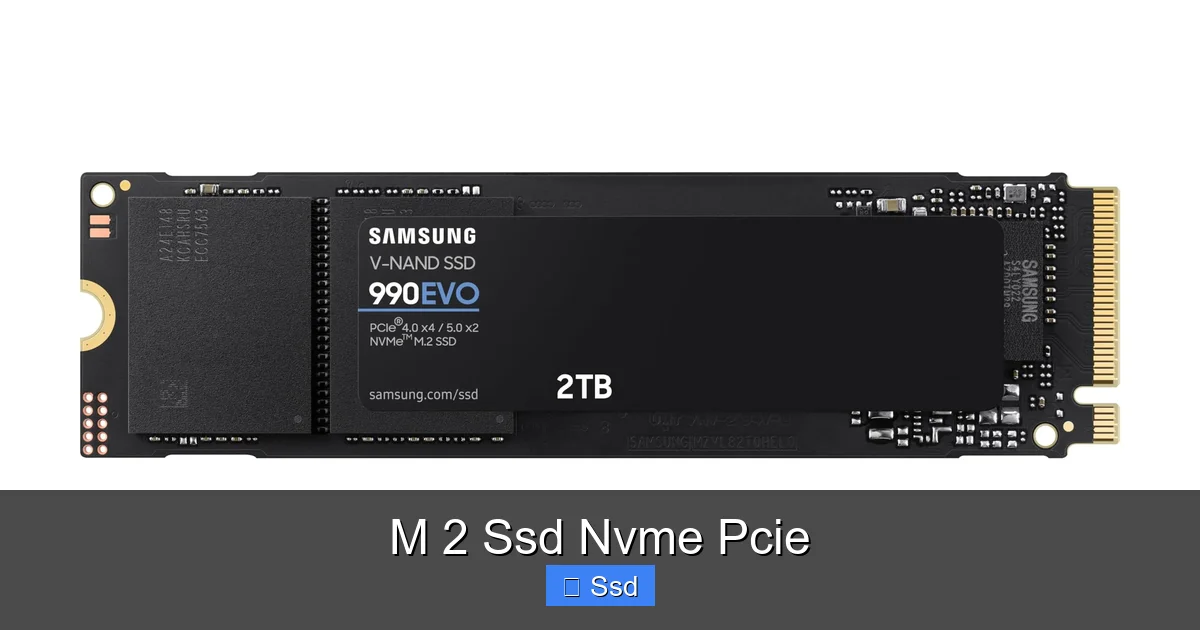
Let’s break this down, because the string of letters and numbers can be confusing. M.2 is simply the physical shape and size of the drive. It’s a tiny, elongated card, about the size of a stick of gum, that plugs into a dedicated slot on your motherboard. Gone are the days of 2.5-inch boxes and SATA cables. This form factor is all about space efficiency and direct connection.
NVMe stands for Non-Volatile Memory Express. This is the crucial piece—it’s the *communication protocol*, the language the drive uses to talk to your computer’s processor. The old protocol, AHCI, was designed for the much slower speeds of hard drives. NVMe was built from the ground up for flash memory, with a streamlined command queue and massively parallel processing. It’s like comparing a single-lane country road (AHCI/SATA) to an 8-lane superhighway (NVMe).
PCIe, or Peripheral Component Interconnect Express, is the actual electrical interface, the “superhighway” itself. It provides the lanes of data traffic. The number of lanes (usually x4 for an M.2 slot) and the generation (Gen3, Gen4, Gen5) determine the maximum speed limit of that highway. So, an M.2 SSD NVMe PCIe drive is a gumstick-shaped storage device that uses the ultra-efficient NVMe protocol to communicate over the high-bandwidth PCIe lanes directly on your motherboard.
The Evolution: From SATA to This
For years, the 2.5-inch SATA SSD was the gold standard for upgrading a PC. It offered a night-and-day improvement over mechanical hard drives. But SATA has a theoretical ceiling of 600 MB/s, and in practice, you’d see about 550 MB/s. That was fast enough for almost everything… until it wasn’t. Game engines started streaming assets in real-time, 4K/8K video editing became common, and professional applications chugged on massive files. The industry needed a leap. NVMe over PCIe was that leap, initially offering 3-4 times the speed of SATA and now, with PCIe 4.0 and 5.0, up to 10-15 times faster.
How It Works: The PCIe Highway and NVMe Traffic Cops
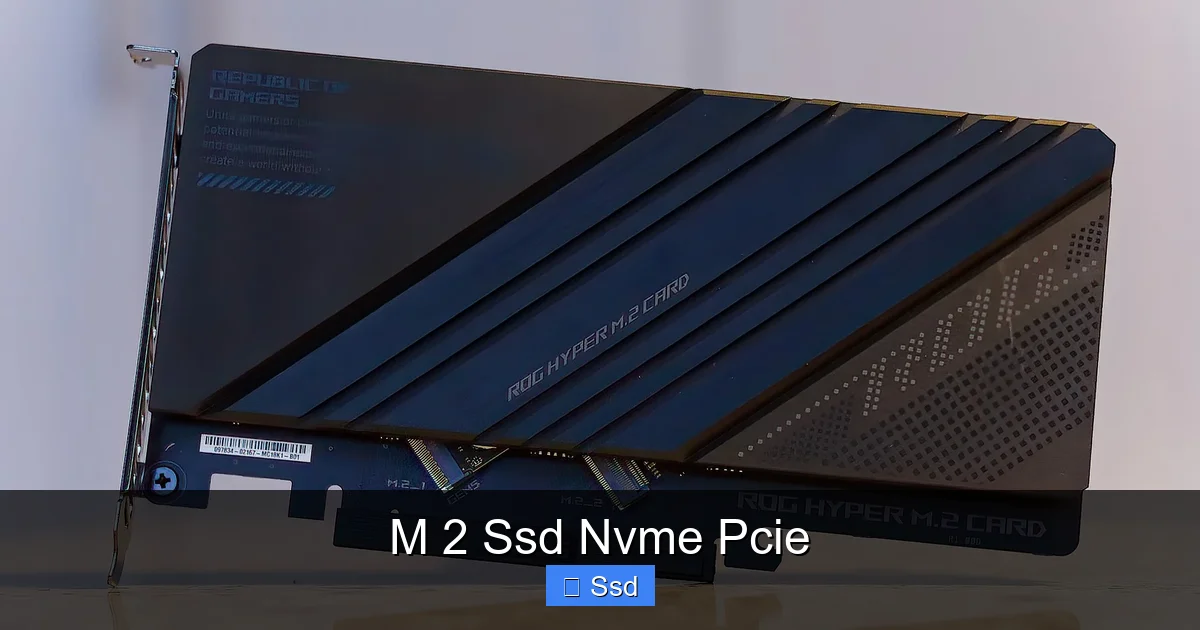
Imagine your computer’s CPU (the brain) needs data from storage. With an old SATA drive, it sends a request down a narrow, winding road (the SATA bus) to a storage controller, which then fetches the data from the NAND flash memory chips. This involves multiple steps and potential bottlenecks.
Visual guide about M 2 Ssd Nvme Pcie
Image source: thessdreview.com
With an NVMe drive, the CPU connects directly to the SSD’s controller via the PCIe lanes—a direct, high-bandwidth link. The NVMe protocol is like having a super-efficient traffic control system. It can handle an enormous number of simultaneous requests (up to 65,535 queues with 65,536 commands per queue, versus SATA’s one queue of 32 commands). This parallelism is why NVMe shines in multitasking and when loading complex scenes in games or projects in Adobe Premiere. The data doesn’t just flow faster; it’s organized and delivered in a much smarter way.
PCIe Generations: The Speed Limits
Each new PCIe generation roughly doubles the bandwidth per lane. An M.2 slot typically uses four lanes (x4). Here’s what that means for potential speeds:
- PCIe 3.0 x4: ~4,000 MB/s (3,940 MB/s theoretical). This is the baseline for “fast” NVMe. Drives like the Samsung 970 EVO Plus or WD Blue SN570 sit here.
- PCIe 4.0 x4: ~8,000 MB/s (7,877 MB/s theoretical). The current mainstream sweet spot. Drives like the Samsung 980 Pro, WD Black SN850X, and Crucial P5 Plus dominate here.
- PCIe 5.0 x4: ~16,000 MB/s (15,754 MB/s theoretical). The new frontier, available on Intel’s 12th/13th/14th Gen and AMD’s Ryzen 7000 series platforms. Drives like the Crucial T700 and Samsung 990 Pro (which uses a clever Gen4/Gen5 hybrid mode) are here, though real-world benefits for most are still emerging.
Important: Your system’s PCIe generation is determined by your CPU and chipset. A PCIe 4.0 SSD will work perfectly in a PCIe 3.0 slot, but it will be limited to Gen3 speeds. You don’t need to buy the fastest Gen5 drive if your motherboard only supports Gen3.
The Tangible Benefits: Why You’ll Actually Notice the Difference
Benchmark numbers are fun, but what does it mean for you? The benefits of moving from SATA to NVMe PCIe, and even from Gen3 to Gen4, are felt in specific, impactful ways.
Visual guide about M 2 Ssd Nvme Pcie
Image source: images-na.ssl-images-amazon.com
Gaming: Shorter Loads, Smoother Worlds
This is the most noticeable upgrade for enthusiasts. Modern open-world games like Cyberpunk 2077, Red Dead Redemption 2, or Starfield constantly stream textures, geometry, and audio from storage into memory. An NVMe drive reduces loading screen times dramatically—we’re talking from 15-20 seconds down to 5-8 seconds for a level load. More importantly, it can virtually eliminate or drastically reduce pop-in (textures and objects loading late) and stuttering caused by the storage subsystem struggling to keep up. For competitive gamers, getting into matches faster is a consistent, tangible advantage.
Content Creation & Professional Workloads
If you work with video, especially 4K/8K, high-resolution photos, or large datasets, time is money. Exporting a 10-minute 4K video from Adobe Premiere Pro might take 3 minutes on a fast SATA SSD but only 1.5 minutes on a top-tier Gen4 NVMe drive. Scrubbing through timelines in DaVinci Resolve becomes buttery smooth because high-bitrate footage can be read instantly. For software developers, compiling large codebases is faster. For data scientists, loading massive CSVs or model files is significantly quicker. The parallel nature of NVMe excels here.
General System Responsiveness
Even for web browsing, office work, and launching applications, the feel of a system with an NVMe boot drive is snappier. Windows boots in 5-10 seconds instead of 15-20. Browsers, Office suites, and other apps launch almost instantly. File transfers—moving a 50GB game folder or a huge project file—are completed in a fraction of the time. This overall “snappiness” is hard to quantify but incredibly satisfying in daily use.
Your Compatibility Checklist: Before You Buy That Shiny Drive
Buying an M.2 SSD is simple, but buying the *right* one for *your* system requires a little detective work. Here’s your pre-purchase checklist.
Visual guide about M 2 Ssd Nvme Pcie
Image source: images-na.ssl-images-amazon.com
Step 1: Does Your Motherboard Have an M.2 Slot?
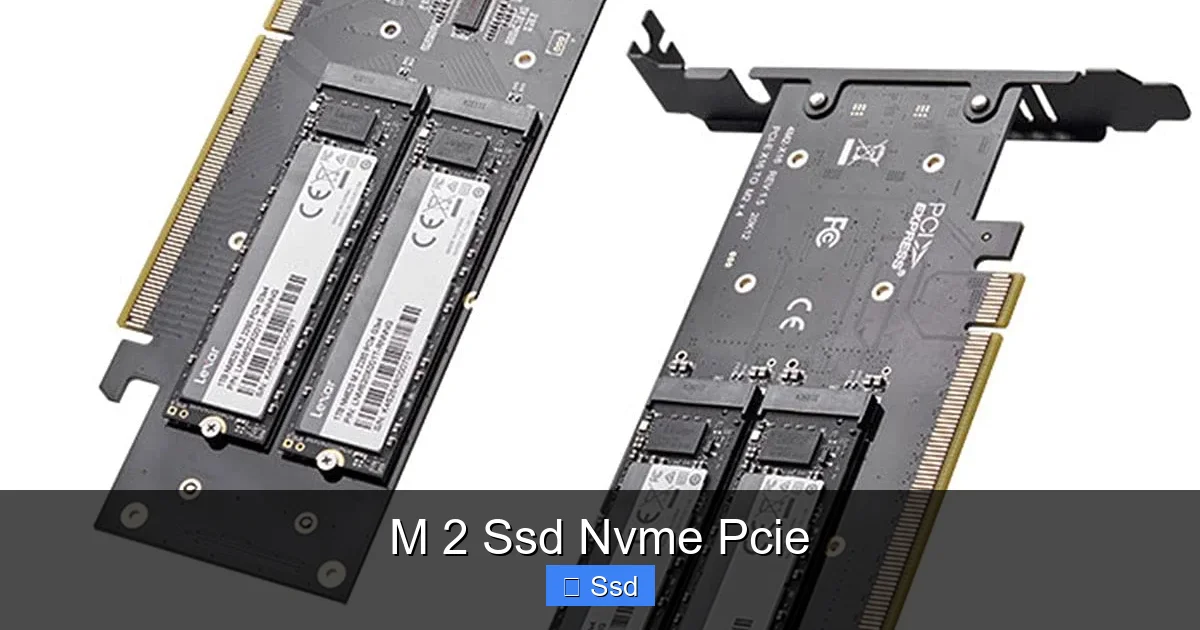
This sounds obvious, but it’s step one. Most motherboards from the last 6-7 years have at least one M.2 slot. Check your manual. Look for the slot—it’s usually labeled “M.2” and is often located between the PCIe slots or near the CPU. Some budget or very old boards might not have one. If you’re building new, any modern B660/Z790 (Intel) or B650/X670 (AMD) board will have multiple.
Step 2: What PCIe Generation Does It Support?
Find the specifications for your specific motherboard model. It will list something like “M.2 Socket 3 (Key M), supports PCIe 4.0 x4 & SATA.” Note the generation. If it says PCIe 3.0, buying a PCIe 4.0 drive is fine (it’s forward compatible), but you won’t get its top speed. If you have a PCIe 4.0/5.0 board, you can buy a drive to match. Don’t overspend on Gen5 if you have a Gen3 board.
Step 3: Is the Slot SATA or NVMe?
This is a critical distinction. Some older M.2 slots only support the SATA protocol (physically the same slot, but slower). They are rare now but still exist. Your motherboard specs will clearly state “supports NVMe” or “PCIe.” If it says “SATA & PCIe,” it means it can do both. You want the NVMe (PCIe) capability.
Step 4: Check for Bandwidth Sharing
This is the #1 cause of confusion. On many motherboards, the M.2 slots share bandwidth with other ports. For example, using the second M.2 slot might disable two SATA ports or some PCIe lanes from the primary graphics card slot. The manual will have a chart showing these conflicts. If you use multiple drives or a GPU, you need to plan your configuration to avoid accidentally disabling something.
Step 5: Physical Size and Single/Double-Sided
M.2 SSDs come in different lengths: 2242, 2260, 2280 (most common), and 22110. 2280 is the standard. Your motherboard slot will support a range (e.g., 2242/2260/2280). Also, some high-capacity drives are “double-sided,” with NAND chips on both sides. Ensure your M.2 slot’s mounting point (the screw hole) allows for the thickness, and that there’s no clearance issue with nearby components like a GPU or heatsink.
Installation and Setup: It’s Easier Than You Think
Physically installing an M.2 SSD is one of the simplest PC upgrades. Here’s a step-by-step guide.
- Power Down and Unplug: Shut down your PC completely and unplug the power cable. Press the power button once to discharge any residual power.
- Ground Yourself: Use an anti-static wrist strap or touch a grounded metal part of the case to discharge static electricity.
- Locate the Slot: Find the correct M.2 slot based on your motherboard manual and your bandwidth-sharing plan.
- Remove the Mounting Screw: There’s usually a small screw holding a standoff at the far end of the slot. Remove it and keep it safe.
- Insert the Drive: Hold the SSD by the edges. Align the notch on the drive’s connector with the keying notch in the M.2 slot. Insert it at a slight angle (about 30 degrees) until it clicks firmly into place.
- Secure the Drive: Lay the SSD flat against the motherboard standoff. Place the mounting screw through the SSD’s hole and into the standoff. Tighten it gently—do not overtighten.
- First Boot and Initialization: Power on your PC. Enter the BIOS/UEFI (usually by pressing Del or F2 during boot). You should see the new drive listed. Save and exit. In Windows, open Disk Management. You’ll see the new drive as “unallocated.” Right-click it and choose New Simple Volume. Follow the wizard to format it (use NTFS for Windows, APFS for macOS). It’s now ready!
Heat Management: Don’t Ignore It
High-performance NVMe drives, especially Gen4 and Gen5, can get very hot under sustained workloads (70-80°C+). Excessive heat causes thermal throttling, where the controller deliberately slows down to protect itself, erasing your speed advantage. Many motherboards now include M.2 heatsinks with metal plates and sometimes a small fan. Some drives (like the Samsung 980 Pro) come with a heatsink version. If your setup lacks one and you do heavy work, consider an aftermarket M.2 heatsink. Ensure there’s good airflow in your case. A warm drive is normal; a scorching one that throttles is a problem.
Debunking Common Myths and Misconceptions
Let’s clear up some persistent confusion in the storage world.
Myth 1: “All M.2 Drives Are NVMe and Fast.”
False. As mentioned, M.2 is just the shape. An M.2 drive can use the SATA protocol (max ~550 MB/s) or the NVMe protocol (many times faster). Always check the product specs for “Interface: PCIe NVMe” not just “Form Factor: M.2.” A cheap M.2 SATA SSD is still a great upgrade from a hard drive but is not an NVMe PCIe drive.
Myth 2: “More Cache (DRAM) Is Always Better.”
It’s complicated. DRAM cache on an SSD acts as a fast map for where data is stored on the NAND. Many modern NVMe drives, especially in the mid-range, use “Host Memory Buffer” (HMB) technology. HMB uses a small portion of your system’s RAM (typically up to 64MB) as a pseudo-cache, which is very effective. While a dedicated DRAM cache is nice, a well-designed HMB drive (like many Crucial and WD Blue models) can perform nearly as well in most tasks for less cost. DRAMless doesn’t automatically mean slow.
Myth 3: “You Need a Gen4 Drive for Gaming.”
Not necessarily. The biggest gaming benefit from NVMe comes from moving off SATA entirely. The jump from a SATA SSD to a good Gen3 NVMe drive (like a Crucial P3 or WD Blue SN570) is massive for load times. The jump from Gen3 to Gen4 is often measurable in benchmarks (5-8 seconds vs. 4-6 seconds in a game load) but less perceptible in actual gameplay. For pure gaming on a budget, a fast Gen3 drive offers phenomenal value. Gen4 becomes more relevant for professional, sustained-read workloads.
Myth 4: “NVMe SSDs Wear Out Faster.”
No. NAND flash memory wears out with program/erase cycles, not because of the interface. A 1TB NVMe drive and a 1TB SATA drive with the same type of NAND (e.g., TLC) will have nearly identical endurance ratings (measured in TBW – Terabytes Written). The NVMe interface just moves data to and from the NAND faster; it doesn’t inherently cause more wear.
The Future-Proofing Question: Gen4 vs. Gen5 and Beyond
You might be wondering if you should buy a cutting-edge PCIe 5.0 drive today. Here’s the pragmatic take.
PCIe 5.0 is here, but its benefits for consumer storage are currently muted. The first Gen5 drives are incredibly fast on paper (up to 14,000 MB/s read), but they require massive, active heatsinks to manage heat, making them bulky. Most real-world applications—games, OS boot, even 4K video editing—aren’t bottlenecked by the ~7,000 MB/s speeds of a top Gen4 drive yet. The sequential read/write gains (copying huge files) are impressive but not a daily driver necessity.
When will Gen5 matter? As game engines and professional software evolve to leverage those speeds, likely in the next 3-5 years. If you’re buying a motherboard and CPU that support Gen5 (like an AM5 or LGA1700 platform), you have the option to upgrade later. For now, a high-quality Gen4 drive offers the best balance of price, performance, and thermals. By the time you need Gen5 speeds, the drives will be cheaper, cooler, and more mature.
Look for other innovations: More important than raw speed for many is value and efficiency. Watch for QLC NAND in higher capacities (cheaper per GB), improved power management for laptops, and integrated hardware encryption. The “future” might be a fast, cool, and affordable 4TB Gen4 drive rather than a scorching hot, expensive 2TB Gen5 one.
Conclusion: Making the Right Choice for You
The M.2 SSD NVMe PCIe is not just a spec sheet victory; it’s a fundamental upgrade that reshapes your computing experience. From the instant boot times to the seamless loading of complex creative projects, the shift from SATA to NVMe is as significant as the shift from HDD to SSD was a decade ago. The key is to be a savvy buyer. Don’t get lost in the highest number on the box. Understand your motherboard’s capabilities, match the PCIe generation to your real needs, and prioritize a reputable brand with good reviews for reliability and sustained performance. For the vast majority of users building or upgrading a PC today, a 1TB or 2TB PCIe 4.0 NVMe drive from a trusted manufacturer is the perfect sweet spot—delivering tomorrow’s speed today, without paying for capabilities you won’t use. Do your compatibility homework, install it carefully, manage the heat, and enjoy the blistering-fast responsiveness that defines modern computing.
Frequently Asked Questions
Can I use an M.2 NVMe SSD in an older desktop or laptop that only has a 2.5-inch SATA bay?
No. The M.2 form factor and its NVMe/PICe interface are physically and electrically different from the 2.5-inch SATA connection. You would need a motherboard or laptop with a dedicated M.2 slot. Some older systems can be upgraded with an M.2 SSD only if they have an available M.2 slot.
Do I need a heatsink for my NVMe SSD?
It depends. For most Gen3 drives and lighter workloads, the built-in label or a case’s airflow is sufficient. However, for Gen4 and all Gen5 drives, especially during sustained tasks like video editing or large file transfers, a heatsink (either motherboard-provided, included with the SSD, or aftermarket) is highly recommended to prevent thermal throttling and maintain peak speeds.
Is a PCIe 4.0 SSD worth the extra cost over a good PCIe 3.0 SSD for gaming?
For pure gaming, the difference in actual level load times between a top-tier Gen3 and Gen4 drive is often 1-3 seconds, which is perceptible but may not justify the cost premium for everyone. The bigger jump is from SATA to any NVMe. If your budget is tight, a fast Gen3 drive is excellent. If you want the best and your platform supports Gen4, the price gap has narrowed enough that Gen4 is a great future-proof choice.
My motherboard has an M.2 slot, but the specs say it supports “PCIe and SATA.” How do I know which mode it will use?
When you install an NVMe (PCIe) M.2 SSD, the slot will automatically operate in PCIe mode. If you installed an M.2 SATA SSD, it would operate in SATA mode. The “and” in the spec means the slot is versatile and can accept either type of M.2 drive. You don’t need to configure this manually; the system detects the drive type.
Will my operating system (like Windows 11) recognize the full capacity and speed of a large NVMe drive?
Yes. Modern operating systems like Windows 10 and 11, and macOS, have full native support for NVMe drives and will recognize their full capacity. There are no artificial OS limits on speed for consumer NVMe SSDs. The drive will appear as a single, fast storage volume once initialized and formatted in Disk Management.
How long will an NVMe SSD last? Is the write endurance lower because it’s faster?
No, endurance is based on the type and amount of NAND flash memory (measured in TBW – Terabytes Written), not the interface speed. A 1TB NVMe drive with TLC NAND will have a similar TBW rating (e.g., 600 TBW) to a comparable 1TB SATA TLC drive. For average users, even a modest TBW rating translates to many years of use before the drive wears out. The lifespan is no different from a SATA SSD of the same capacity and NAND type.