Memory Ram for Hp Laptop
Looking to boost your HP laptop’s speed? This guide walks you through choosing the perfect RAM, checking compatibility, and installing it yourself—no tech wizardry required. Get practical tips, top recommendations, and FAQs to keep your laptop running like new.
Key Takeaways
- Know your specs: Identify your HP model’s RAM type, speed, and maximum capacity before buying.
- Match the form factor: Most HP laptops use SO-DIMM modules; DDR4 is common, DDR5 for newer models.
- Upgrade for performance: Adding RAM improves multitasking, gaming, and content‑creation tasks.
- DIY installation is easy: With a few tools and safety steps, you can install RAM in under 15 minutes.
- Future‑proof wisely: Choose modules that allow further upgrades without hitting the motherboard limit.
- Check warranties: Some upgrades may affect HP’s warranty; verify before you start.
- Use reputable brands: Kingston, Crucial, Corsair, and HP’s own kits deliver reliability and support.
📑 Table of Contents
- Introduction: Why RAM Matters for Your HP Laptop
- 1. Understanding HP Laptop RAM Specifications
- 2. How to Determine the Right RAM for Your HP Laptop
- 3. Top RAM Recommendations for Popular HP Laptops
- 4. Step‑by‑Step Guide to Installing RAM in an HP Laptop
- 5. Maximizing Performance After the Upgrade
- Conclusion: A Small Investment, Big Gains
Introduction: Why RAM Matters for Your HP Laptop
Imagine opening dozens of browser tabs, editing a video, and still having your HP laptop feel snappy. That smooth experience comes down to one key component: memory RAM. RAM (Random Access Memory) is the short‑term memory your computer uses to keep active programs and data ready for instant access. When RAM is short, your laptop starts swapping data to the slower hard drive, and everything lags.
Upgrading RAM is one of the most cost‑effective ways to extend the life of an HP laptop. Whether you own a budget Pavilion, a business‑grade ProBook, or a high‑performance Omen gaming machine, the right memory upgrade can make a noticeable difference. This article will guide you through every step—from checking compatibility to installing the new modules—so you can boost performance without breaking the bank.
1. Understanding HP Laptop RAM Specifications
1.1 Form Factor: SO‑DIMM vs. DIMM
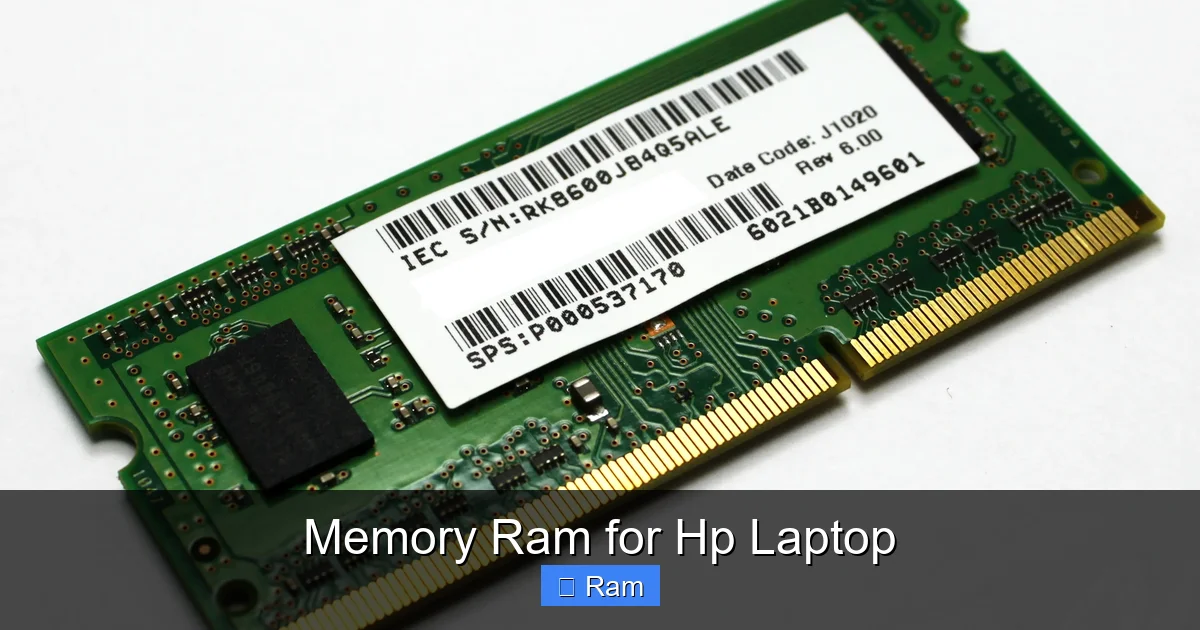
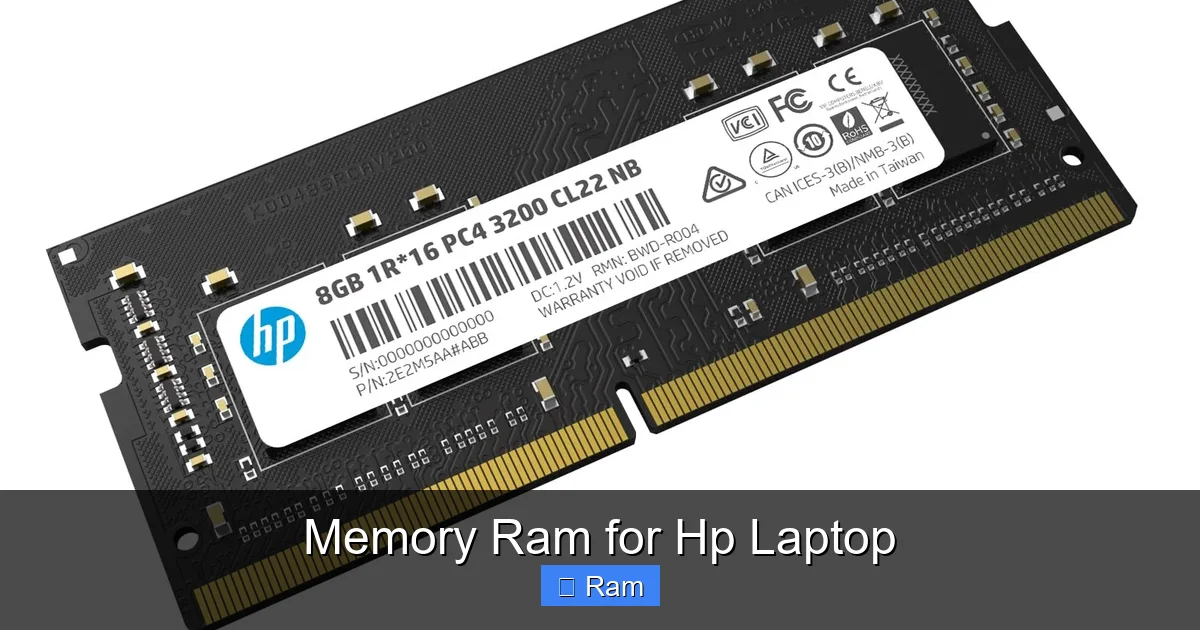
All modern HP laptops use the Small Outline Dual‑In‑Line Memory (SO‑DIMM) form factor. It is roughly half the size of the desktop DIMM module, allowing it to fit inside thin laptop chassis. If you ever bought a desktop RAM stick by mistake, it simply won’t fit.
Visual guide about Memory Ram for Hp Laptop
Image source: m.media-amazon.com
1.2 DDR Generation: DDR4 vs. DDR5
DDR4 has been the standard for most HP laptops released between 2016 and early 2023. DDR5 started appearing in HP’s 2023‑2024 models, especially the Omen and Envy lines. DDR5 offers higher bandwidth and lower power consumption, but it is not backward‑compatible with DDR4 slots.
1.3 Speed (MHz) and Latency (CL)
Speed is measured in megahertz (MHz). Common speeds for DDR4 in HP laptops are 2400 MHz, 2666 MHz, and 3200 MHz. Higher numbers mean faster data transfer, but the laptop’s motherboard may cap the effective speed. CAS latency (CL) shows how many clock cycles it takes to fetch data; lower numbers are better (e.g., CL16 vs. CL22).
1.4 Capacity Limits
Every HP model has a maximum RAM capacity, dictated by the chipset and the number of slots. Typical limits are:
- Entry‑level (Pavilion, Stream): 8 GB or 16 GB
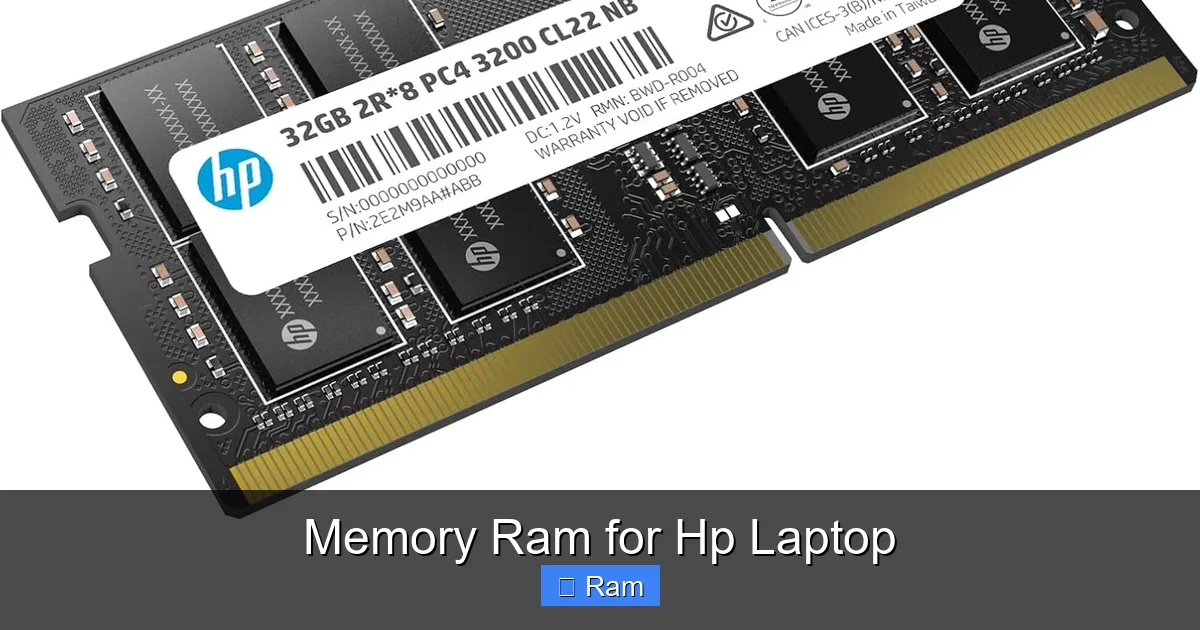
- Business (ProBook, EliteBook): 32 GB or 64 GB
- Gaming (Omen, Victus): 64 GB
Always check your specific model’s spec sheet on HP’s support site.
2. How to Determine the Right RAM for Your HP Laptop
2.1 Locate Your Model Number
Turn the laptop over and find the sticker with the model number (e.g., HP 15‑ef2000, HP Envy 13‑aq0010). You can also type msinfo32 in Windows Run dialog to see the “System Model.”
Visual guide about Memory Ram for Hp Laptop
Image source: m.media-amazon.com
2.2 Use HP’s Official Memory Configurator
HP provides an online tool called “Memory and Storage Configurator.” Enter your model number, and it will list supported RAM types, speeds, and max capacity. This step removes guesswork.
2.3 Check the Existing RAM
Open Task Manager → Performance → Memory. You’ll see total size, speed, and how many slots are in use. If you have a single 8 GB stick in a two‑slot laptop, you can add another identical stick for dual‑channel performance.
2.4 Decide Between Upgrading or Replacing
If your laptop has an empty slot, simply add a matching module. If both slots are occupied, you’ll need to replace the existing sticks with higher‑capacity ones. Replacing gives you a clean slate but requires you to match speed and latency across both modules.
3. Top RAM Recommendations for Popular HP Laptops
3.1 HP Pavilion 15 (2022‑2023)
- Recommended: 16 GB (2 × 8 GB) DDR4‑2666 CL19 SO‑DIMM
- Why: The Pavilion supports up to 32 GB, but 16 GB offers a sweet spot for everyday multitasking and light photo editing.
3.2 HP Envy 13 (2023)
- Recommended: 16 GB (2 × 8 GB) DDR4‑3200 CL16 SO‑DIMM
- Why: The Envy’s Intel 12th‑gen chipset runs best with 3200 MHz RAM, delivering smoother video playback and faster app launches.
3.3 HP EliteBook 850 G9
- Recommended: 32 GB (2 × 16 GB) DDR4‑3200 CL16 SO‑DIMM
- Why: Business users often run virtual machines; 32 GB ensures enough headroom for multiple VMs and large spreadsheets.
3.4 HP Omen 16 (2023)
- Recommended: 32 GB (2 × 16 GB) DDR5‑4800 CL40 SO‑DIMM
- Why: DDR5 provides the bandwidth needed for modern AAA games and GPU‑intensive tasks.
3.5 Budget Option for Older Models
- Recommended: 8 GB (1 × 8 GB) DDR4‑2400 CL22 SO‑DIMM
- Why: If your HP laptop only supports 8 GB total, a single 8 GB stick maximizes the available memory without extra cost.
4. Step‑by‑Step Guide to Installing RAM in an HP Laptop
4.1 Gather Your Tools
All you need is a small Phillips #0 screwdriver, an anti‑static wrist strap (optional but recommended), and a clean, static‑free workspace.
Visual guide about Memory Ram for Hp Laptop
Image source: tsikart.in
4.2 Power Down and Disconnect
Shut down Windows, unplug the power adapter, and remove any attached peripherals. Flip the laptop over and locate the bottom panel screws.
4.3 Remove the Bottom Cover
Unscrew the panel—usually 4 to 6 screws. Some HP models have a single latch; gently pry it open with a plastic spudger. Keep the screws in a small container.
4.4 Locate the RAM Slots
You’ll see one or two rectangular slots with clips on either side. If a slot is empty, the clips will be open. Existing modules will have a small notch aligning with the slot key.
4.5 Install the New Module
- Hold the RAM module by the edges, aligning the notch with the slot.
- Insert at a 30‑degree angle until the gold contacts are fully seated.
- Press down gently until the side clips click into place.
For a replacement, release the existing module by pushing the clips outward, then lift the stick out before inserting the new one.
4.6 Reassemble and Test
Replace the bottom cover, screw it back, reconnect power, and boot the laptop. Immediately open BIOS (usually Esc then F10) to verify the new memory is recognized. In Windows, open Task Manager → Performance → Memory to double‑check the total size.
4.7 Troubleshooting Common Issues
- RAM not recognized: Reseat the module, ensure it’s fully inserted, and verify you used the correct DDR type.
- System won’t boot: Remove the new stick and test the original one. If the original works, the new module may be defective.
- Blue screen or crashes: Run Windows Memory Diagnostic to check for errors.
5. Maximizing Performance After the Upgrade
5.1 Enable Dual‑Channel Mode
When you have two identical sticks, the laptop automatically runs in dual‑channel mode, doubling memory bandwidth. Verify in BIOS or use a tool like CPU‑Z to confirm “Dual‑Channel” is active.
5.2 Update BIOS and Chipset Drivers
HP periodically releases BIOS updates that improve memory compatibility. Visit the HP Support site, enter your model, and download the latest BIOS and chipset driver package.
5.3 Adjust Power Settings
In Windows Power Options, choose “High performance” or “Balanced” (with “Maximum performance” for the processor). This prevents the system from throttling RAM speed to save power.
5.4 Clean Up Software
More RAM won’t help if you have background bloat. Uninstall unused programs, limit startup apps, and run a disk cleanup. Pairing a RAM upgrade with a fresh SSD can deliver near‑new laptop speed.
Conclusion: A Small Investment, Big Gains
Upgrading the memory RAM in your HP laptop is a straightforward, low‑cost way to breathe new life into an older machine or to unlock the full potential of a recent purchase. By confirming the correct DDR type, speed, and capacity, and following the simple installation steps, you can enjoy smoother multitasking, faster game loads, and a more responsive everyday experience. Remember to keep your laptop’s warranty terms in mind, choose reputable brands, and pair the upgrade with software clean‑up for the best results. Happy upgrading!
Frequently Asked Questions
Will adding RAM void my HP laptop warranty?
In most cases, installing RAM does not void the warranty, as long as you do not damage the device. However, it’s wise to check your specific warranty terms or contact HP support before opening the laptop.
How do I know if my HP laptop uses DDR4 or DDR5?
Check the product specifications on HP’s website, look at the existing RAM label, or run a tool like CPU‑Z. DDR5 modules have a different notch placement and are only compatible with newer models.
Can I mix different RAM sizes, like 8 GB + 16 GB?
Yes, you can mix sizes, but the laptop will run in single‑channel mode for the mismatched portion, which may slightly reduce performance. For optimal speed, use identical modules.
What is the benefit of dual‑channel memory?
Dual‑channel memory doubles the data path between RAM and the CPU, effectively increasing bandwidth. This leads to faster loading times and smoother multitasking, especially in games and creative apps.
Do I need to reinstall Windows after upgrading RAM?
No. Windows automatically detects the new memory at boot. You may need to adjust virtual memory settings if you significantly increase RAM, but a reinstall is unnecessary.
Is there any advantage to buying HP‑branded RAM over third‑party brands?
HP‑branded RAM guarantees compatibility and may come with a warranty that aligns with your laptop’s support plan. Reputable third‑party brands like Crucial, Kingston, and Corsair also offer high reliability and often better price‑to‑performance ratios.