How to Check Which Ram Is Compatible with My Laptop

Finding the right RAM for your laptop starts with knowing your system specs. This guide shows you exactly how to check which RAM is compatible with your laptop using built-in tools and simple online research. You will learn about DDR types, speed requirements, and maximum capacity limits so you can upgrade with confidence.
Upgrading your laptop memory can breathe new life into a slow machine. But before you buy any RAM, you need to know exactly what works with your system. Putting the wrong type of memory into your laptop can cause problems or simply not work at all.
This guide walks you through every step of checking which RAM is compatible with your laptop. Whether you are a beginner or have some tech experience, you will find clear and practical advice here. Let us get started so you can upgrade with full confidence.
Key Takeaways
- Check your current RAM first: Use Task Manager or System Information to see what type and speed your laptop uses.
- Know your RAM type: DDR4 and DDR5 are the most common types today, and they are not interchangeable.
- Check maximum capacity: Every laptop has a limit on how much RAM it can support.
- Speed matters: Your laptop will only run RAM at its supported speed, even if you install faster modules.
- Use reliable tools: Free software like Crucial Scanner or CPU-Z makes finding compatible RAM easy.
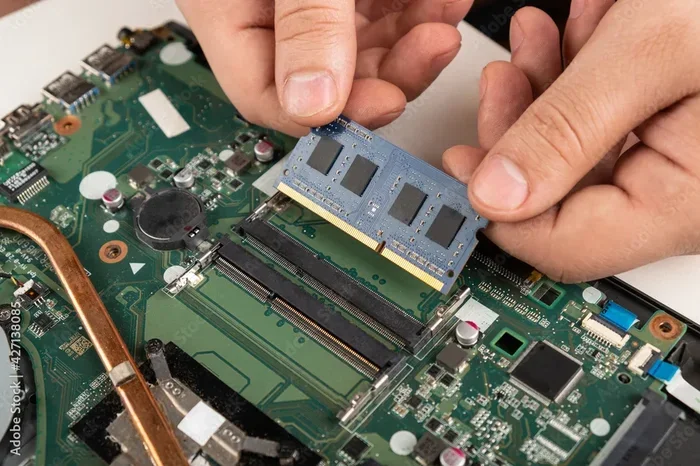
- Match the form factor: Laptops use SODIMM modules, which are smaller than desktop RAM sticks.
📑 Table of Contents
Why RAM Compatibility Matters
Not all RAM sticks are the same. Laptops have strict requirements for the type of memory they accept. If you ignore these requirements, your new RAM simply will not work.
Here is why compatibility matters so much:
- Different RAM generations do not mix. A DDR4 module will not fit into a DDR3 slot. The physical notches are in different places.
- Speed must match your laptop’s limits. If your laptop supports 3200 MHz RAM, installing 4800 MHz RAM will not break anything. It will just run at 3200 MHz.
- Capacity has a ceiling. Your laptop motherboard can only handle so much memory. Going over that limit wastes money.
- Form factor is different. Laptop RAM is called SODIMM. It is much smaller than desktop RAM. You cannot swap them.
When you understand these basics, you avoid costly mistakes. You also save time by buying the right part the first time. For more on how much memory your laptop actually needs, check out our guide on how much RAM you need on your laptop.
How to Check Your Current RAM
Before buying anything new, find out what your laptop currently has installed. This tells you the type, speed, and how many slots are available.
Use Task Manager on Windows
Press Ctrl + Shift + Esc to open Task Manager. Click the Performance tab, then select Memory. You will see several important details:
- Type: Shows whether you have DDR4, DDR5, or an older type like DDR3.
- Speed: Displays the current RAM speed in MHz.
- Used and Total: Tells you how much memory is installed and how much is in use.
- Slots used: Shows how many of your total slots are occupied.
Use System Information
Press the Windows key, type System Information, and press Enter. Look for Memory Installed in the System Summary. This gives you the total amount of RAM your laptop recognizes.
For a deeper look at your memory modules, you can also check how to view your laptop RAM details. Our article on how to check laptop RAM covers these methods in more detail.
Check on macOS
If you use a MacBook, click the Apple menu and choose About This Mac. The memory section shows the type, speed, and total amount of RAM installed.
Understanding RAM Types and Specifications
Once you know what your laptop currently has, you need to understand the key specifications. These determine which RAM you can buy.
DDR Generation
The DDR generation is the most important factor. Here is a quick look at the common types:
- DDR3: Older but still found in some legacy laptops. It runs at lower speeds and is being phased out.
- DDR4: The most common type today. It offers good speeds and is widely available at affordable prices.
- DDR5: The newest standard. It provides faster speeds and better efficiency. Not all laptops support it yet.
You cannot mix DDR generations. Your laptop motherboard only supports one type. Always match the generation exactly.
RAM Speed and Frequency
RAM speed is measured in megahertz (MHz). Higher numbers mean faster data transfer. But here is the key point: your laptop will only run RAM at the speed its motherboard supports. If you buy faster RAM, it will downclock to match your laptop’s maximum supported speed.
Latency and Timings
CAS latency (CL) is a secondary spec that affects responsiveness. Lower latency numbers can mean slightly better performance. However, for most laptop users, this matters less than matching the DDR type and speed correctly.
Dual Channel vs Single Channel
Many laptops benefit from dual channel memory. This means using two matching RAM sticks instead of one. Dual channel can improve memory bandwidth and overall system responsiveness. If your laptop has two slots, consider buying a matched pair of sticks for the best results.
Step-by-Step: Finding Compatible RAM for Your Laptop
Now that you understand the basics, here is a clear step-by-step process to find the right RAM for your laptop.
Step 1: Identify Your Laptop Model
Find your exact laptop model number. You can usually find this on a sticker on the bottom of the laptop. You can also check in your system settings. The model number is essential because RAM compatibility depends on it.
Step 2: Visit the Manufacturer Website
Go to the official support page for your laptop brand. Enter your model number and look for the specifications section. This will list the supported RAM type, maximum capacity, number of slots, and speed.
Step 3: Use a Memory Scanner Tool
Several trusted websites offer free RAM scanner tools. These tools analyze your system and recommend compatible upgrades. They take the guesswork out of the process. You can also use tools like CPU-Z to read detailed information about your current memory modules.
Step 4: Check Your Maximum Upgrade Path
Some laptops have soldered RAM, meaning you cannot upgrade them at all. Others have one free slot or two. Knowing your upgrade path helps you decide whether an upgrade is even possible.
Once you have all this information, you can shop with confidence. If you are ready to install the new memory, our guide on how to install RAM into a laptop will walk you through the process safely.
Step 5: Purchase from a Trusted Source
Buy RAM from reputable brands like Kingston, Corsair, Crucial, or Samsung. Avoid generic or unbranded modules. Quality memory is more reliable and often comes with a lifetime warranty.
Common Mistakes When Choosing Laptop RAM
Even experienced users sometimes make mistakes when upgrading laptop memory. Here are the most common ones to avoid.
- Buying the wrong DDR type: This is the number one mistake. Always double-check whether your laptop needs DDR4 or DDR5 before purchasing.
- Ignoring the maximum capacity: Your laptop may only support 16 GB or 32 GB total. Buying 64 GB will not work.
- Mismatching RAM sticks: Using two different RAM sticks can cause instability. Try to match the brand, speed, and size when buying a pair.
- Forgetting about SODIMM size: Laptop RAM is not the same size as desktop RAM. Make sure you are buying SODIMM modules.
- Not checking slot availability: If both slots are already filled, you may need to replace the existing sticks rather than add new ones.
Avoiding these simple mistakes saves you time, money, and frustration. If you are considering a larger upgrade, our article on how to upgrade RAM on your laptop provides additional helpful tips and guidance.
Quick Tips for a Successful RAM Upgrade
Follow these practical tips to make your RAM upgrade smooth and trouble-free.
- Always power off your laptop and unplug it before opening the case.
- Ground yourself to prevent static damage to the memory modules.
- Watch a video specific to your laptop model before opening the back panel.
- Handle RAM sticks by the edges. Never touch the gold contacts.
- After installing, run a memory test to confirm the new RAM is recognized properly.
- Keep your old RAM in a safe place. You may need it if you want to revert.
These small precautions make a big difference. They protect your laptop and ensure your new memory works exactly as it should.
Final Thoughts
Checking which RAM is compatible with your laptop does not have to be complicated. By following the steps in this guide, you can confidently identify the right memory for your system. Start by checking your current RAM, then verify the DDR type, speed, and maximum capacity your laptop supports.
Use trusted tools and manufacturer websites to confirm your findings. Avoid common mistakes like buying the wrong RAM type or ignoring slot limitations. When you do everything right, the upgrade process is simple and rewarding.
Your laptop will feel faster and more responsive after a successful RAM upgrade. Take your time, do your research, and enjoy the results. For more information on putting RAM into your laptop, check out our guide on how to put RAM in a laptop.
Frequently Asked Questions
Can I mix different brands of RAM in my laptop?
Yes, you can mix brands as long as the DDR type, speed, and form factor match. However, using identical sticks from the same brand is always recommended for the best stability and performance.
What happens if I install RAM that is too fast for my laptop?
Your laptop will simply run the RAM at the maximum speed it supports. The faster module will not cause any damage. It just will not run at its full speed potential.
How do I know if my laptop has soldered RAM?
Check your laptop’s specifications on the manufacturer website. If the RAM is listed as non-upgradeable or soldered, you cannot add or replace it. Some laptops have a mix of soldered and socketed RAM, so check carefully.
Do I need to reinstall my operating system after a RAM upgrade?
No, you do not need to reinstall anything. Windows and macOS automatically detect new RAM after a restart. Your system should recognize the upgraded memory immediately.
Can I upgrade my laptop RAM myself?
Yes, most laptops allow user-accessible RAM upgrades. You just need a small screwdriver and a little patience. If you are unsure, our guide on how to install RAM into a laptop provides detailed step-by-step instructions.
Is 16 GB of RAM enough for everyday laptop use?
For most users, 16 GB is the sweet spot for everyday tasks, browsing, and light creative work. If you run heavy applications or games, you may benefit from 32 GB. Check our guide on how much RAM you need on your laptop for more details.