Ram for Hp Notebook Laptop
Looking to boost your HP notebook laptop’s speed? This guide walks you through choosing the perfect RAM, checking compatibility, and installing it yourself—no tech wizardry required. Get faster boot times, smoother multitasking, and a longer device life today.
Key Takeaways
- Match the specs: Always verify DDR type, speed, and voltage before buying.
- Maximum capacity matters: Know your notebook’s RAM ceiling to avoid wasted upgrades.
- Dual‑channel advantage: Paired sticks deliver better performance than a single module.
- Installation is simple: Most HP notebooks allow RAM upgrades with just a screwdriver.
- Best value picks: Brands like Crucial, Kingston, and Corsair offer reliable, affordable options.
- BIOS update tip: Updating the BIOS can unlock higher memory support on some models.
- Future‑proofing: Choose RAM that leaves room for further upgrades down the line.
📑 Table of Contents
- Introduction: Why RAM Matters for Your HP Notebook Laptop
- 1. Understanding RAM Types and What Your HP Notebook Needs
- 2. Determining Compatibility: How Much RAM Can Your HP Notebook Support?
- 3. Choosing the Right RAM for Your HP Notebook Laptop
- 4. Step‑By‑Step Guide: Installing RAM in Your HP Notebook Laptop
- 5. Optimizing Performance After the Upgrade
- Conclusion: Get the Most Out of Your HP Notebook Laptop
Introduction: Why RAM Matters for Your HP Notebook Laptop
When you hear people complain that their HP notebook feels slow, the first thing they usually blame is the processor. In reality, the real bottleneck is often the memory—RAM. Random Access Memory is the short‑term storage that your laptop uses to keep active programs and data ready for instant access. The more RAM you have, the more information your notebook can juggle at once, which translates to faster boot times, smoother multitasking, and less lag when you open heavy applications like Photoshop or gaming titles.
HP offers a wide range of notebook models—from ultra‑light business ultrabooks to rugged gaming rigs. Each series has its own memory requirements and upgrade limits. This article is designed to take the guesswork out of upgrading ram for hp notebook laptop users. Whether you own a Pavilion, Envy, Spectre, or a ProBook, you’ll find the exact steps, compatible RAM types, and product recommendations you need to give your notebook a noticeable speed boost.
1. Understanding RAM Types and What Your HP Notebook Needs
1.1 DDR Generations: DDR3 vs DDR4 vs DDR5
HP notebooks released after 2015 almost exclusively use DDR4 memory. Older models, especially those before 2014, may still run on DDR3. DDR5 is just starting to appear in the newest 2023‑2024 HP models, but it’s rare for most current users.

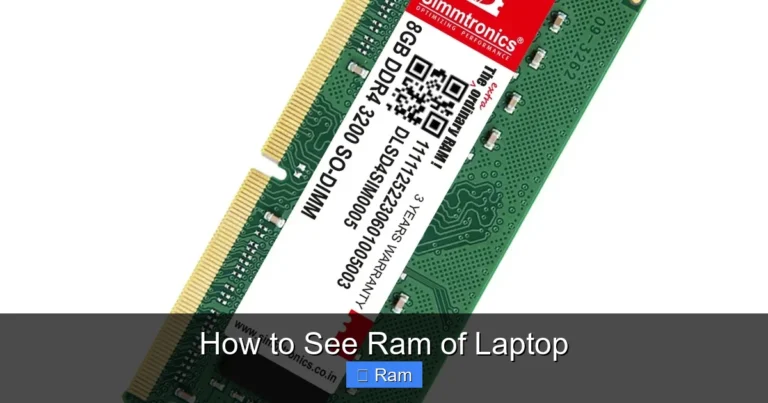
Visual guide about Ram for Hp Notebook Laptop
Image source: trickiknow.com
- DDR3: Operates at 1.5 V, speeds of 1333 MHz–1866 MHz. Limited to a maximum of 16 GB per slot.
- DDR4: Operates at 1.2 V, speeds of 2133 MHz–3200 MHz (some HP laptops support up to 3600 MHz). Typically allows 32 GB per slot.
- DDR5: Operates at 1.1 V, speeds start at 4800 MHz. Currently found only in premium, high‑end HP ZBook or Omen models.
Before you buy any ram for hp notebook laptop, check your model’s specifications on HP’s support site or in the manual. Installing DDR4 in a DDR3‑only notebook will simply not work.
1.2 Form Factor: SO-DIMM vs DIMM
Desktop computers use full‑size DIMM modules, but laptops—including every HP notebook—use the smaller SO‑DIMM (Small Outline Dual Inline Memory Module). The most common sizes are 204‑pin for DDR4 and 260‑pin for DDR5. Make sure the module you purchase matches the pin count of your notebook.
1.3 Speed and Latency
Speed is measured in megahertz (MHz). Higher numbers mean faster data transfer. Latency (CL, or CAS latency) indicates the number of clock cycles needed to access data. For everyday use, a DDR4‑2666 MHz CL19 module works fine; power users may prefer DDR4‑3200 MHz CL15 for a noticeable edge in heavy multitasking.
2. Determining Compatibility: How Much RAM Can Your HP Notebook Support?
2.1 Check the Official HP Specification Sheet
The quickest way to know the maximum RAM is to locate the “Memory” section of your notebook’s spec sheet on HP’s website. Look for entries such as “Maximum memory: 32 GB” or “Supports up to 2 × 16 GB DDR4‑2666 MHz SO‑DIMM.”

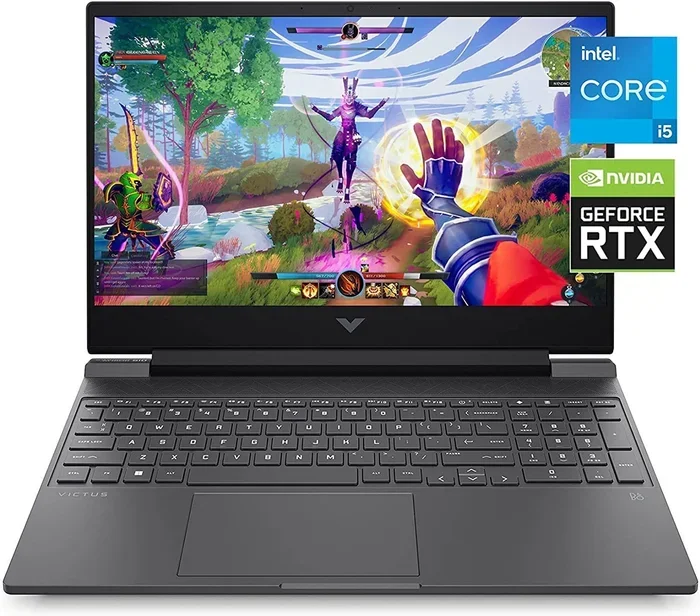
Visual guide about Ram for Hp Notebook Laptop
Image source: content.propertyroom.com
2.2 Use Third‑Party Tools
Tools like CPU-Z (Windows) or MacTracker (macOS) can read the SPD (Serial Presence Detect) data from existing memory modules and reveal the maximum supported size. Another handy utility is Crucial System Scanner, which scans your laptop and suggests compatible upgrades.
2.3 Common Limits for Popular HP Series
- Pavilion 14‑xxxx: Up to 16 GB (2 × 8 GB) DDR4‑2666 MHz.
- Envy 13‑xxxx: Up to 32 GB (2 × 16 GB) DDR4‑3200 MHz.
- Spectre x360 15‑xxxx: Up to 32 GB (2 × 16 GB) DDR4‑3200 MHz.
- ProBook 440 G7: Up to 64 GB (2 × 32 GB) DDR4‑3200 MHz.
- ZBook Fury 15 G8: Up to 128 GB (4 × 32 GB) DDR4‑3200 MHz.
2.4 BIOS Updates Can Unlock Higher Capacities
Some HP notebooks were released with a lower official RAM limit, but a BIOS update later raised the ceiling. Before buying, search HP’s support portal for any BIOS releases that mention “memory support” or “RAM upgrade.”
3. Choosing the Right RAM for Your HP Notebook Laptop
3.1 Brand Reliability
While many generic modules claim compatibility, reputable brands provide better warranty coverage and higher quality control. The top three brands for ram for hp notebook laptop upgrades are:

Visual guide about Ram for Hp Notebook Laptop
Image source: ssl-product-images.www8-hp.com
- Crucial (Micron): Known for strict compatibility testing and a lifetime warranty.
- Kingston Technology: Offers the “ValueRAM” line for budget builds and “HyperX” for performance.
- Corsair: Provides “Vengeance” series modules with aggressive timings for power users.
3.2 Capacity Planning
If you currently have 4 GB and run Office, web browsing, and occasional video playback, moving to 8 GB will feel like a brand‑new laptop. For developers, designers, or gamers, 16 GB is the sweet spot. Users who run virtual machines or heavy 3D rendering may need 32 GB or more.
3.3 Dual‑Channel vs Single‑Channel
Most HP notebooks have two memory slots. Installing two identical sticks (e.g., 2 × 8 GB) enables dual‑channel mode, effectively doubling the data bandwidth. If you can only afford one stick now, buy a module that matches the existing one’s speed and latency, and plan to add a second later.
3.4 ECC vs Non‑ECC
Error‑Correcting Code (ECC) memory is used in servers and workstations that require data integrity. HP consumer notebooks do not support ECC, so stick with standard non‑ECC modules.
3.5 Example Upgrade Scenarios
- Scenario A – Budget Student: HP Pavilion 14‑xxxx with 4 GB DDR4‑2666. Upgrade to 8 GB (2 × 4 GB) for $35.
- Scenario B – Graphic Designer: HP Envy 15‑xxxx with 8 GB DDR4‑3200. Upgrade to 16 GB (2 × 8 GB) for $70.
- Scenario C – Mobile Engineer: HP ZBook 15 G7 with 16 GB DDR4‑3200. Upgrade to 32 GB (2 × 16 GB) for $130.
4. Step‑By‑Step Guide: Installing RAM in Your HP Notebook Laptop
4.1 What You’ll Need
- Compatible RAM module(s) – verified using the steps above.
- Small Phillips‑head screwdriver (usually #0 or #1).
- Anti‑static wrist strap or a grounded surface.
- Clean, well‑lit workspace.
4.2 Preparation and Safety
1. Shut down the notebook completely. Do not just hibernate.
2. Unplug the power adapter and any peripheral cables.
3. Flip the laptop over and locate the memory compartment. On most HP models it’s a rectangular panel secured by one or two screws.
4. If you have a removable battery, take it out. If not, you can proceed without removal—just be extra careful.
4.3 Removing the Old Module (If Replacing)
1. Use the screwdriver to remove the securing screw(s) on the memory cover.
2. Gently pry the cover off with your fingers or a plastic spudger.
3. The existing module is held at a 45‑degree angle. Push the side clips outward to release it.
4. Lift the module away by the edges. Avoid touching the gold contacts.
4.4 Installing the New Module
1. Align the notch on the RAM’s connector with the ridge in the slot. The module only fits one way.
2. Insert the module at a 45‑degree angle until the gold pins are fully seated.
3. Press down gently until the side clips click into place.
4. If you’re adding a second stick, repeat the process in the second slot.
4.5 Reassembly and First Boot
1. Replace the memory cover and screw it back securely.
2. Re‑insert the battery (if removed) and plug the power adapter back in.
3. Power on the notebook. The BIOS should automatically detect the new memory. You can press F10 (or the appropriate key for your model) to enter BIOS and verify the total RAM under “System Information.”
4. Boot into Windows (or your OS). Open the “Task Manager” → “Performance” tab to confirm the upgraded amount.
4.6 Troubleshooting Common Issues
- Notebook won’t power on: Reseat the modules; ensure they’re fully clicked in.
- Memory not recognized: Verify you installed the correct DDR type and speed. Check BIOS for any “Memory Remap” options.
- Random crashes or blue screens: Run a memory diagnostic (Windows Memory Diagnostic or MemTest86) to rule out a defective module.
5. Optimizing Performance After the Upgrade
5.1 Update Drivers and BIOS
Even though RAM works at the hardware level, newer BIOS versions can improve compatibility and enable higher speeds. Visit HP’s support page for your exact model and download the latest BIOS and chipset drivers.
5.2 Adjust Windows Settings for Best Use of RAM
- Virtual Memory (Paging File): Let Windows manage it automatically, or set a custom size (1.5× your RAM) if you run memory‑intensive apps.
- Startup Programs: Disable unnecessary startup items to free up RAM for active tasks.
- Power Plan: Choose “High Performance” to keep the CPU and memory running at full speed.
5.3 Software Tools to Monitor Memory Usage
Apps like RAMMap, Process Explorer, or built‑in Task Manager give real‑time insights into which programs consume the most memory. Use them to fine‑tune your workflow.
5.4 When to Consider Further Upgrades
If you’re already at the maximum supported RAM and still feel sluggish, the bottleneck may be the storage drive. Upgrading to an NVMe SSD or cleaning up the OS can yield additional speed gains.
Conclusion: Get the Most Out of Your HP Notebook Laptop
Upgrading ram for hp notebook laptop is one of the most cost‑effective ways to breathe new life into an aging machine. By understanding the type of memory your notebook uses, confirming the maximum supported capacity, and following a simple installation process, you can enjoy faster boot times, smoother multitasking, and a more responsive system—all without spending a fortune.
Remember to choose reputable brands, install in dual‑channel configuration when possible, and keep your BIOS up to date. With the right RAM, your HP notebook will feel like a brand‑new device, ready to tackle work projects, creative tasks, and entertainment with confidence.
Frequently Asked Questions
Can I mix different RAM sizes (e.g., 4 GB + 8 GB) in an HP notebook?
Yes, you can mix sizes, but the system will run in single‑channel mode for the mismatched pair, which reduces performance. For optimal speed, use two identical sticks.
Do I need to buy RAM that matches the exact speed of my existing module?
Ideally, yes. When you add a new module, the notebook will run all memory at the speed of the slowest stick. Matching speed and latency ensures stable performance.
Is it safe to upgrade RAM on a warranty‑protected HP notebook?
Most HP laptops have a “user‑upgradeable” policy, meaning RAM upgrades won’t void the warranty. However, always check the warranty terms for your specific model before opening the case.
How do I know if my HP notebook uses DDR4 or DDR3?
Check the product specifications on HP’s website, look at the existing module’s label, or run a system scanner like Crucial’s to automatically detect the memory type.
Will adding more RAM improve gaming performance on my HP Omen?
Yes, especially if you’re currently at 8 GB or less. Moving to 16 GB or 32 GB reduces texture loading times and prevents frame drops in memory‑intensive games.
Can I install RAM myself, or should I go to a service center?
Installing RAM in most HP notebooks is a straightforward DIY task that takes under 15 minutes with basic tools. If you’re uncomfortable opening your laptop, a professional service can do it for a small fee.