What Is the Ram in a Laptop
RAM in a laptop is the short‑term memory that stores data your computer needs right now. It determines how fast apps launch, how many programs you can run together, and how smooth games feel. Understanding RAM size, speed, and upgrade options helps you pick the right machine and keep it speedy for years.
Key Takeaways
- RAM is short‑term memory: It holds active data for the CPU, unlike long‑term storage.
- Size matters for multitasking: More gigabytes let you run more apps without slowdown.
- Speed influences performance: Higher MHz and lower latency make data transfer quicker.
- SODIMM form factor: Laptops use small, low‑profile modules that differ from desktop DIMMs.
- Upgradeability varies: Some laptops have soldered RAM, others offer easy access slots.
- Match RAM to your needs: Gaming, video editing, and casual browsing each have different sweet spots.
- Future‑proofing: Choosing higher capacity now can extend the laptop’s useful life.
📑 Table of Contents
- Introduction: Why RAM Matters in a Laptop
- What Is RAM? The Basics Explained
- Types of Laptop RAM: From DDR4 to DDR5
- How Much RAM Do You Really Need?
- Upgrading Laptop RAM: What to Check First
- RAM Speed vs. Capacity: Which Matters More?
- Practical Tips to Optimize RAM Usage
- Conclusion: Making the Right Choice About RAM
Introduction: Why RAM Matters in a Laptop
Imagine you’re cooking a meal. The pantry holds all the ingredients you might ever need—that’s your hard drive or SSD. The countertop is where you actually work with the ingredients while the stove is cooking—that’s RAM. If the countertop is too small, you’re constantly shuffling pots and pans, and the cooking slows down. The same idea applies to laptops.
When you hear the phrase “what is the RAM in a laptop,” most people think of a number like 8 GB or 16 GB and move on. But behind that number is a whole ecosystem of speed, latency, and compatibility that directly affects how snappy your laptop feels. Whether you’re a student juggling research papers, a gamer chasing high frame rates, or a professional editing 4K video, understanding RAM lets you make smarter buying decisions and avoid costly bottlenecks.
What Is RAM? The Basics Explained
Definition and Role
RAM stands for Random‑Access Memory. It is a type of volatile memory that stores data the CPU needs right now. “Volatile” means the information disappears when power is cut, unlike a hard drive that keeps data forever.
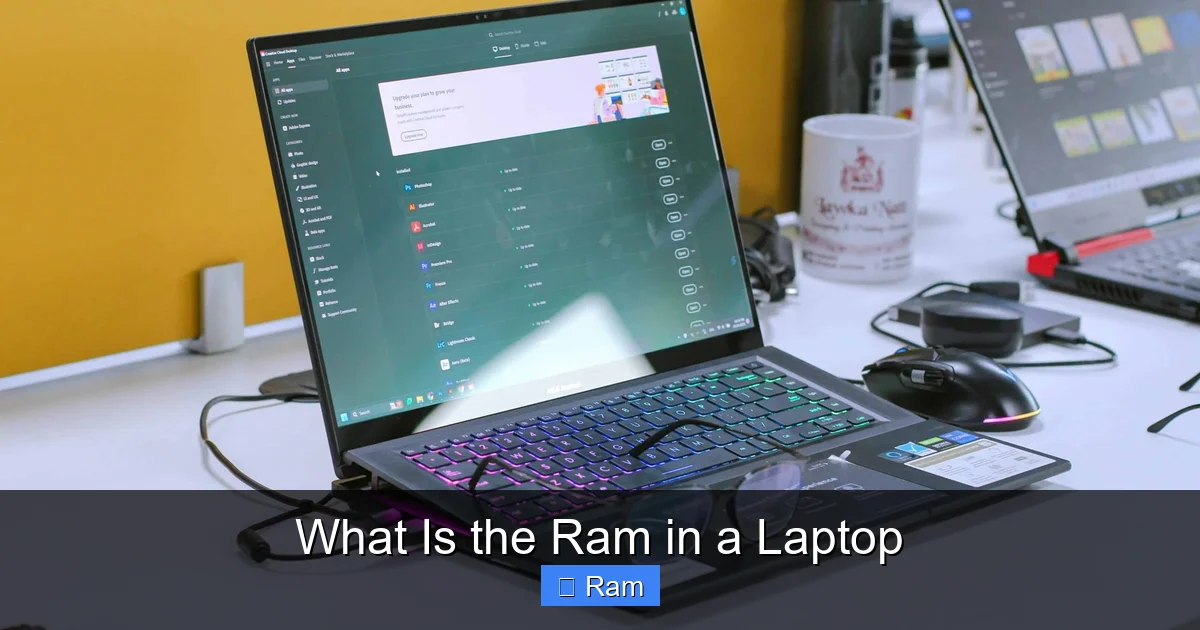
Visual guide about What Is the Ram in a Laptop
Image source: maxframe.dz
How It Works With the CPU
The CPU (central processing unit) is the brain of the laptop. It can only work on data that’s already in RAM. When you open a program, the operating system copies the necessary files from storage into RAM. The CPU then reads and writes to that memory many times per second. The faster the RAM, the quicker the CPU can get the data it needs, and the smoother everything runs.
Key Terms: Capacity, Speed, Latency
- Capacity (GB): How much data can be stored at once. Common laptop sizes are 4 GB, 8 GB, 16 GB, and 32 GB.
- Speed (MHz): How fast the memory can transfer data. Typical laptop speeds range from 2400 MHz to 5600 MHz.
- Latency (CL): The delay between a request and the data being available. Lower numbers (e.g., CL14) are better.
Types of Laptop RAM: From DDR4 to DDR5
DDR Generations
DDR stands for Double Data Rate. Each new generation doubles the data transferred per clock cycle, improving speed and efficiency.
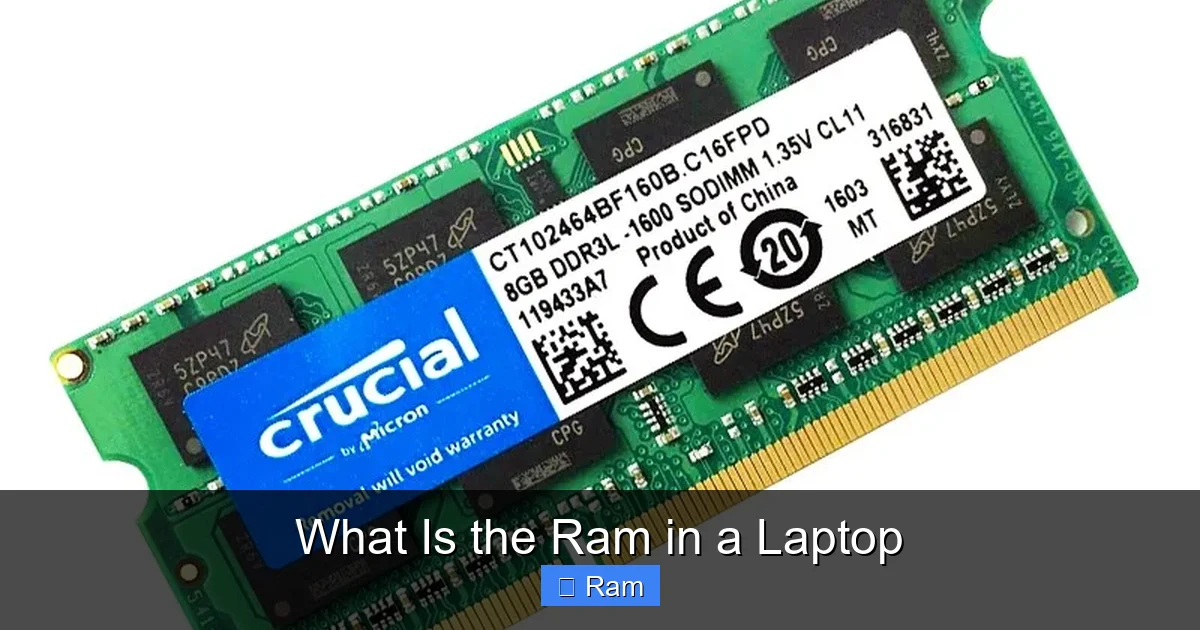
Visual guide about What Is the Ram in a Laptop
Image source: robots.net
- DDR3: Rare in modern laptops, maxes out around 1600 MHz.
- DDR4: Still common in mid‑range machines, speeds from 2133 MHz to 3200 MHz.
- DDR5: The newest standard, offering 4800 MHz and higher, plus better power efficiency.
Form Factor: SODIMM
Laptops use SODIMM (Small Outline Dual In‑Line Memory Module) instead of the larger DIMM modules found in desktops. SODIMMs are about half the length, allowing them to fit in thin chassis.
Dual‑Channel vs. Single‑Channel
Most laptops support dual‑channel memory, which means two identical sticks work together to double the data path. If you install two 8 GB sticks, you’ll get better performance than a single 16 GB stick, assuming the laptop’s motherboard supports it.
How Much RAM Do You Really Need?
Basic Use (Web Browsing, Office Apps)
For everyday tasks—email, web browsing, word processing—4 GB to 8 GB is usually enough. Modern browsers can be memory‑hungry, so 8 GB offers a comfortable buffer.

Visual guide about What Is the Ram in a Laptop
Image source: robots.net
Creative Work (Photo/Video Editing, 3D Modeling)
Editing high‑resolution photos or 4K video benefits from 16 GB or more. Rendering 3D scenes can push memory usage even higher, making 32 GB a safe choice for professionals.
Gaming and VR
Most current games recommend 16 GB for optimal performance, especially when paired with high‑end GPUs. Some titles run fine on 8 GB, but you’ll notice stutter in open‑world or VR experiences if you cut corners.
Future‑Proofing
Software trends point toward larger RAM footprints. If you plan to keep a laptop for 4‑5 years, opting for the highest capacity your budget allows (often 16 GB) is a smart move.
Upgrading Laptop RAM: What to Check First
Is the RAM Soldered?
Some ultrabooks and thin‑and‑light laptops have RAM directly soldered to the motherboard. In those cases, you cannot upgrade after purchase. Check the manufacturer’s specs or teardown videos.
Number of Slots and Maximum Capacity
Most laptops have one or two SODIMM slots. The motherboard’s chipset sets a maximum total—often 32 GB or 64 GB. Look up the exact model to see the limit.
Matching Speed and Timing
If you’re adding a second stick, try to match the speed (MHz) and latency (CL) of the existing module. Mixing different speeds works, but the system will default to the slowest module.
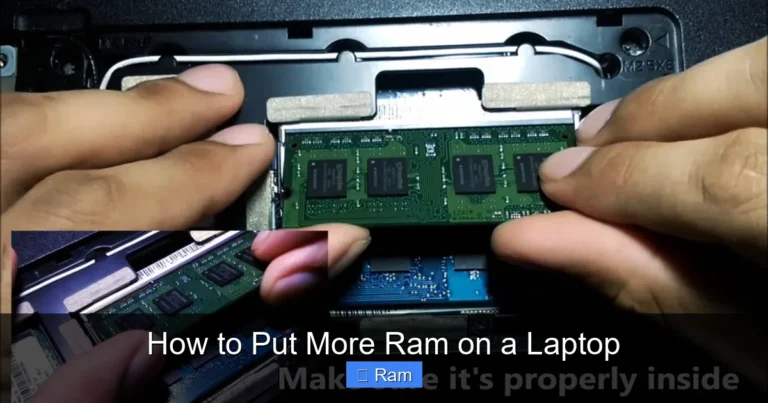
Practical Upgrade Steps
- Power down and unplug the laptop.
- Remove the bottom panel—usually a few Phillips screws.
- Locate the RAM slot(s); they’re easy to spot.
- Release the clips on each side and slide the module out at a 30‑degree angle.
- Insert the new SODIMM, aligning the notch, and press down until the clips click.
- Replace the panel, screw it back, and power on.
Testing After Upgrade
Boot into the BIOS or use a tool like CPU‑Z to verify the new capacity and speed. Run a memory stress test (e.g., MemTest86) to ensure stability.
RAM Speed vs. Capacity: Which Matters More?
Real‑World Impact of Speed
Higher MHz can shave a few milliseconds off loading times, but the effect is most noticeable in memory‑intensive tasks like large data sets or scientific simulations.
When Capacity Wins
If your system constantly hits the RAM limit, it will start swapping to the SSD—a massive slowdown. Adding more capacity eliminates this bottleneck and yields a far bigger performance boost than a modest speed increase.
Balancing Both
For most users, aim for a sweet spot: 16 GB of DDR4‑3200 or DDR5‑4800. Gamers might prioritize a dual‑channel 16 GB kit at the highest speed their motherboard supports.
Practical Tips to Optimize RAM Usage
Close Unused Applications
Even background apps consume RAM. Use the task manager to end processes you don’t need.
Adjust Virtual Memory (Page File)
Windows uses a page file on the SSD as overflow memory. Setting it to “System Managed” works for most, but on low‑RAM systems you can increase the size manually.
Disable Startup Programs
Too many programs launching at boot can eat precious RAM before you even start working. Trim the list in the startup settings.
Use Lightweight Software Alternatives
For example, switch from Adobe Photoshop to Affinity Photo or from Chrome to Edge if you’re low on RAM. Lighter apps free up memory without sacrificing core features.
Conclusion: Making the Right Choice About RAM
Knowing what is the RAM in a laptop and how it interacts with the rest of the system empowers you to buy smarter and upgrade confidently. Capacity, speed, and form factor all play a role, but the most critical factor is matching RAM to your actual usage patterns. If you’re a casual user, 8 GB will feel fast. If you edit video, game, or run virtual machines, aim for 16 GB or more, and consider dual‑channel kits for the best performance.
Remember, RAM is not the only piece of the performance puzzle—CPU, GPU, and storage matter too. But a well‑chosen RAM configuration often provides the most noticeable day‑to‑day speed boost. So next time you’re asked “what is the RAM in a laptop?” you can answer with confidence, and you’ll know exactly how to get the most out of it.
Frequently Asked Questions
What does RAM stand for and why is it important?
RAM stands for Random‑Access Memory. It stores data that the CPU needs right now, making apps launch faster and allowing smooth multitasking.
Can I upgrade the RAM in any laptop?
Not all laptops are upgradeable. Thin ultrabooks often have soldered RAM, while most mainstream models have one or two SODIMM slots that you can replace or add.
Is more RAM always better?
More RAM helps until you reach the point where your tasks no longer need extra memory. After that, a faster CPU or SSD will give a bigger performance boost.
What is the difference between DDR4 and DDR5?
DDR5 offers higher transfer rates (starting around 4800 MHz) and better power efficiency compared to DDR4, which tops out near 3200 MHz. DDR5 is newer and usually more expensive.
How do I know how much RAM my laptop currently has?
On Windows, open Task Manager > Performance > Memory. On macOS, click the Apple menu > About This Mac > Memory. Both show total capacity and speed.
Will adding more RAM make my laptop run games at higher frame rates?
It can, especially if the game was previously limited by memory. However, the GPU is the primary factor for frame rates; RAM helps avoid stutters and texture pop‑ins.