Acer Aspire Laptop Ram Upgrade
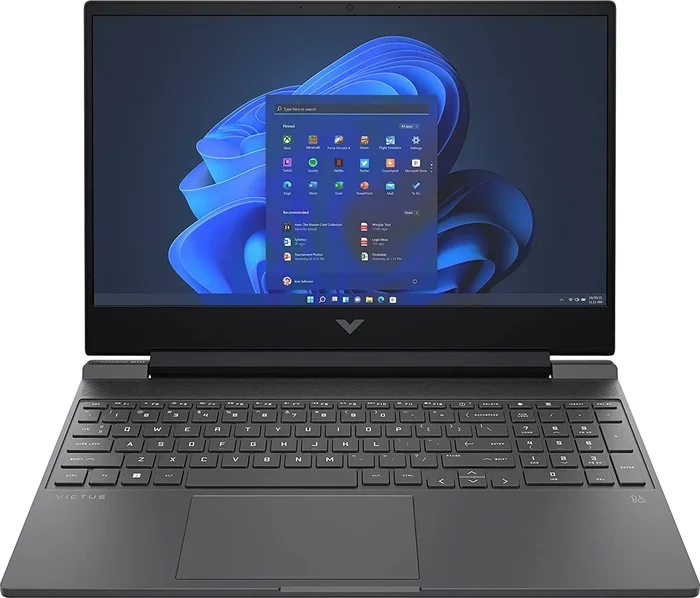
The acer aspire laptop ram upgrade is one of the easiest and most affordable ways to breathe new life into your laptop. Whether you have an Acer Aspire 5 or another model, adding more RAM can dramatically improve multitasking, speed up heavy apps, and make your system feel brand new. This guide covers everything from checking your current setup to choosing the right memory and completing the upgrade yourself.
If your Acer Aspire feels slow when you open multiple browser tabs or run demanding software, a ram upgrade might be the fix you need. Many people overlook this simple upgrade, but it can transform an aging laptop into a speedy machine. In this guide, I will walk you through everything you need to know about upgrading the memory in your Acer Aspire laptop.
The acer aspire laptop ram upgrade process is simpler than most people think. You do not need to be a tech expert. With a few basic tools and about twenty minutes, you can add more memory and notice an immediate difference. Let us dive into the details.
Key Takeaways
- Easy Process: Upgrading RAM on an Acer Aspire is straightforward and usually requires just a screwdriver.
- Big Performance Boost: More RAM means smoother multitasking, faster app loading, and better overall responsiveness.
- Check Compatibility First: Not all Acer Aspire models support the same type or amount of RAM.
- Cost Effective: A ram upgrade costs far less than buying a new laptop.
- DIY Friendly: Most users can complete the upgrade in under 30 minutes without professional help.
- Right RAM Matters: Choosing the correct DDR type, speed, and capacity ensures optimal performance.
📑 Table of Contents
- Why Upgrade RAM on Your Acer Aspire?
- Check Your Current RAM and Compatibility
- How Much RAM Do You Actually Need?
- Choosing the Right RAM for Your Acer Aspire
- Step-by-Step Guide to Upgrading Your Acer Aspire RAM
- Common Mistakes to Avoid During a RAM Upgrade
- How Much Does an Acer Aspire RAM Upgrade Cost?
- Final Thoughts
Why Upgrade RAM on Your Acer Aspire?
Random Access Memory plays a huge role in how your laptop performs every day. Think of RAM as your laptop’s short-term memory. When you open apps, browse the web, or edit documents, your system relies on RAM to keep everything running smoothly.
If your current RAM is maxed out, your laptop starts using your hard drive or SSD as temporary storage. This slows everything down dramatically. An acer aspire laptop ram upgrade gives your system more breathing room to handle multiple tasks at once.
Here are the main benefits you can expect after a memory upgrade:
- Faster multitasking: Switch between apps without lag or freezing.
- Smoother browsing: Keep dozens of browser tabs open without slowdowns.
- Better gaming performance: Games load faster and run more consistently.
- Quicker file handling: Large documents and spreadsheets open and respond faster.
- Improved video editing: Rendering and playback become much smoother.
Even if your Acer Aspire is a few years old, adding RAM can make it feel almost like a new machine. The cost of a ram upgrade is a small fraction of what you would spend on a brand new laptop.
Check Your Current RAM and Compatibility
Before buying any new memory, you need to know what your Acer Aspire currently has and what it can support. This step saves you money and prevents buying the wrong type of RAM.
How to Check Your Current RAM
Checking your current memory is quick and easy. On Windows, right-click the taskbar and select Task Manager. Click the Performance tab and then select Memory. You will see how much RAM is installed, what type it is, and how many slots are in use.
You can also use the System Information tool. Press Windows key plus R, type msinfo32, and hit Enter. Look for Installed Physical Memory to see your total RAM.
Understanding Acer Aspire RAM Compatibility
Different Acer Aspire models support different types of memory. Some older models use DDR3 RAM, while newer ones use DDR4 or even DDR5. The maximum capacity also varies by model. Most Acer Aspire 5 laptops support up to 16 GB or 32 GB of total memory.
Before purchasing RAM, check your specific model’s specifications on the Acer website or in your user manual. Look for these key details:
- RAM type: DDR3, DDR4, or DDR5
- Maximum capacity: How much RAM your laptop can handle
- Number of slots: How many RAM slots are available
- Speed rating: Measured in MHz, such as 3200 MHz or 4800 MHz
- Form factor: SO-DIMM is standard for laptops
Knowing these details ensures you buy the right memory for your system. If you are unsure, the Acer support page for your specific model is the best place to start.
How Much RAM Do You Actually Need?
This is one of the most common questions people ask before an acer aspire laptop ram upgrade. The answer depends on how you use your laptop.
For basic tasks like web browsing, email, and word processing, 8 GB of RAM is usually enough. However, if you multitask heavily or use resource-intensive applications, 16 GB is the sweet spot for most users. Power users who run virtual machines, video editing software, or modern games should consider 32 GB.
Here is a quick breakdown of RAM needs by use case:
- Basic use (8 GB): Web browsing, streaming, document editing, email
- Intermediate use (16 GB): Multitasking, light photo editing, casual gaming, coding
- Advanced use (32 GB): Video editing, 3D rendering, running multiple VMs, heavy gaming
If your Acer Aspire came with only 4 GB of RAM, upgrading to 8 GB or 16 GB will make the most noticeable difference. Going from 4 GB to 8 GB is one of the most impactful upgrades you can make for the price.
Some users wonder whether they should upgrade both slots or just one. If your laptop has two empty slots, installing a pair of matching RAM sticks enables dual channel mode. This can improve memory performance by up to 20 percent compared to using a single stick.
Choosing the Right RAM for Your Acer Aspire
Once you know your compatibility requirements and capacity needs, it is time to pick the right RAM. The market offers many options, and choosing wisely ensures you get the best performance for your money.
DDR4 vs DDR5 RAM
Most modern Acer Aspire laptops use DDR4 RAM. DDR5 is newer and faster, but it is not yet widely available for all laptop models. Check your specific Acer Aspire model before purchasing DDR5 memory.
DDR4 RAM remains the standard for most laptop upgrades. It offers excellent speed, stability, and affordability. DDR4 modules typically run at speeds between 3200 MHz and 4800 MHz, which is more than enough for everyday use.
Brand and Quality Considerations
When shopping for RAM, stick with reputable brands. Corsair, Kingston, Crucial, and Samsung are all trusted names. These brands offer reliable modules with solid warranties and good customer support.
Avoid the cheapest unknown brands. Low-quality RAM can cause system instability, crashes, and compatibility issues. A small extra investment in a trusted brand pays off in reliability.
Also, pay attention to the RAM speed. Higher MHz ratings mean faster data transfer, but the real-world difference is often small for everyday tasks. Focus more on getting the right type and capacity than chasing the highest speed number.
For those looking for a budget-friendly option, you can find excellent 16 GB RAM kits that are perfect for an acer aspire laptop ram upgrade. Check out what options are available for the Acer Aspire 5 with 16 GB RAM configurations if you want ideas on compatible setups.
Step-by-Step Guide to Upgrading Your Acer Aspire RAM
Now for the fun part. Actually doing the upgrade is easier than you might think. Follow these steps carefully and you will have your new RAM installed in no time.
Step 1: Gather Your Tools
You only need a few things before you start:
- A small Phillips-head screwdriver
- Your new RAM modules
- A clean, flat workspace
- An anti-static wrist strap (optional but recommended)
Make sure your laptop is completely powered off and unplugged from the charger. Remove any external devices like USB drives or mice.
Step 2: Back Up Your Data
While upgrading RAM rarely causes data loss, it is always smart to back up important files first. Use an external hard drive or cloud storage to save anything critical before you open your laptop.
Step 3: Open the Laptop Back Panel
Flip your Acer Aspire over and locate the screws on the bottom panel. Use your screwdriver to remove them carefully. Keep the screws in a safe place so you do not lose them.
Gently pry off the back panel using a plastic spudger or your fingernail. Avoid using metal tools that could scratch the laptop casing.
Step 4: Locate the RAM Slots
Once the back panel is removed, you will see the internal components. The RAM slots are usually easy to spot. They are long, thin slots with small clips on each end holding the existing memory modules in place.
If both slots are occupied and you are replacing old RAM, gently press the clips on each side to release the modules at an angle. They will pop up, and you can pull them straight out.
Step 5: Install the New RAM
Take your new RAM stick and align the notch on the bottom of the module with the ridge inside the slot. Insert the module at a 30-degree angle and press it down firmly until the clips on both sides click into place.
If you are installing two modules for dual channel, repeat the process for the second slot. Make sure both sticks are fully seated and secure.
For a more detailed walkthrough on the general process, you can also refer to this guide on how to upgrade RAM on a laptop. The steps are very similar across most laptop brands.
Step 6: Close Up and Test
Replace the back panel and screw it back in securely. Plug in your charger and power on the laptop.
Once Windows loads, check Task Manager or System Information to confirm your new RAM is recognized. You should see the updated total memory amount. Run a few apps and browse the web to test the performance improvement.
If the system does not recognize the new RAM, try reseating the modules. Sometimes they need a little extra pressure to click fully into place.
Common Mistakes to Avoid During a RAM Upgrade
Even though upgrading RAM is simple, there are a few mistakes that can cause problems. Learning what to avoid saves time and frustration.
One common error is buying the wrong type of RAM. Always double-check that the DDR generation matches your laptop. Putting DDR5 RAM into a DDR4 slot will not work and could damage your system.
Another mistake is ignoring the maximum capacity limit. If your Acer Aspire only supports 16 GB total, installing 32 GB will not give you more memory. It will either not work or the system will only recognize up to 16 GB.
Some users forget to remove the static charge from their hands before touching internal components. This can damage sensitive electronics. Touching a metal surface before handling RAM helps discharge any static buildup.
Finally, do not force the RAM module into the slot. If it does not go in easily, check the alignment and try again. Forcing it can bend the pins and ruin both the module and the slot.
If you are unsure whether your specific Acer Aspire model supports a ram upgrade, check out this resource on whether you can upgrade your laptop RAM from 4 GB to 16 GB. It covers common compatibility questions in detail.
How Much Does an Acer Aspire RAM Upgrade Cost?
The cost of upgrading RAM varies depending on the type and capacity you need. A single 8 GB DDR4 SODIMM module typically costs between $25 and $45. A 16 GB kit usually runs $50 to $80. These prices are very reasonable compared to the cost of a new laptop.
Think of it this way. A ram upgrade that costs $50 can extend your laptop’s useful life by two or three more years. That is an incredible value compared to spending $600 or more on a replacement machine.
You can find RAM at most electronics retailers, online marketplaces, or directly from memory manufacturers. Always buy from authorized sellers to avoid counterfeit or defective modules.
Final Thoughts
The acer aspire laptop ram upgrade is one of the best investments you can make for your laptop. It is affordable, quick, and delivers noticeable performance improvements. Whether you are a student, a professional, or a casual user, more RAM makes everyday computing smoother and more enjoyable.
Before you start, take a few minutes to check your model’s specifications and buy compatible RAM. Follow the steps carefully, and you will have your upgrade done in under half an hour. Your Acer Aspire will thank you with faster speeds and better responsiveness.
Do not let a slow laptop hold you back. A simple memory upgrade can bring new energy to your machine and keep it running well for years to come. Grab the right RAM, gather your tools, and give your Acer Aspire the boost it deserves.
Frequently Asked Questions
Can I upgrade the RAM on any Acer Aspire model?
Most Acer Aspire models allow RAM upgrades, but the type and maximum capacity vary by model. Check your specific model number on the Acer website or in your user manual to confirm compatibility before purchasing new memory.
How do I know if my Acer Aspire needs more RAM?
If your laptop slows down when you open multiple apps, takes a long time to switch between tasks, or frequently uses high disk usage in Task Manager, it is likely running low on memory. A ram upgrade can solve these issues.
Is it difficult to upgrade RAM on an Acer Aspire laptop?
Not at all. Most Acer Aspire laptops have an easily accessible bottom panel that you can remove with a small screwdriver. The RAM slots are clearly visible, and installing new modules takes only a few minutes.
Can I mix different RAM brands or sizes?
Yes, you can mix RAM brands and sizes in most cases. However, for the best performance, use matching modules in terms of type, speed, and capacity. Mismatched RAM may still work but could run in single channel mode, which is slower than dual channel.
What is the difference between DDR4 and DDR5 RAM for Acer Aspire laptops?
DDR5 is newer and faster than DDR4, but not all Acer Aspire models support it. DDR4 remains the standard for most current Acer Aspire laptops and offers excellent performance at an affordable price. Always check your laptop’s specifications before buying.
Will upgrading RAM void my Acer Aspire warranty?
In most cases, upgrading RAM does not void your warranty because it is considered a user-replaceable component. However, check your specific warranty terms or contact Acer support to confirm before proceeding with any internal modifications.