Adobe Lightroom System Requirements

Adobe Lightroom system requirements vary by version, but you need a modern processor, at least 8GB of RAM, and a dedicated GPU for the best experience. Whether you use Lightroom Classic or the cloud-based Lightroom CC, meeting these specs ensures fast imports, smooth editing, and quick exports. This guide covers every requirement you need to know before installing.
Adobe Lightroom is one of the most popular photo editing tools available today. Whether you are a hobbyist snapping weekend photos or a professional managing thousands of images, Lightroom gives you the power to edit, organize, and share your work. But before you download or install it, you need to know your computer can handle it.
Understanding Adobe Lightroom system requirements saves you from frustration. Nothing kills a creative session faster than a lagging preview, a crashing export, or a frozen catalog. This guide breaks down every requirement you need for Lightroom Classic and Lightroom CC. We will walk through processor needs, RAM, storage, GPU specs, and display recommendations.
By the end of this article, you will know exactly what your PC or laptop needs to run Lightroom smoothly. You will also learn how to optimize your current setup if it falls short of the recommended specs. Let us get into it.
Key Takeaways
- Minimum vs. Recommended Specs: Know the difference between what Lightroom can run on and what it performs best on.
- Processor Matters Most: A multi-core CPU with high clock speed is the backbone of fast Lightroom performance.
- RAM Is Critical: 8GB is the bare minimum, but 16GB or more makes a huge difference with large catalogs.
- Storage Speed Counts: An SSD is strongly recommended over a traditional hard drive for importing and exporting photos.
- GPU Acceleration: A dedicated graphics card unlocks faster rendering, smart previews, and smoother editing.
- Display Quality: A high-resolution, color-accurate monitor improves your editing workflow significantly.
📑 Table of Contents
- Why Adobe Lightroom System Requirements Matter
- Processor Requirements for Adobe Lightroom
- RAM and Memory Requirements
- Storage and Hard Drive Requirements
- Graphics Card (GPU) Requirements
- Display and Monitor Requirements
- Operating System Compatibility
- Internet Connection and Adobe Creative Cloud
- Common Mistakes to Avoid When Checking System Requirements
- Expert Tips to Optimize Lightroom Performance
- Final Thoughts on Adobe Lightroom System Requirements
Why Adobe Lightroom System Requirements Matter
Lightroom is not just a simple photo viewer. It is a powerful content management system that handles large catalogs, applies complex edits in real time, and exports high-resolution files. All of these tasks demand serious hardware resources.
When your system meets the requirements, Lightroom feels fast and responsive. Your previews load instantly. Your edits apply without delay. Your exports finish quickly. But when your system falls short, even simple tasks become slow and painful.
Think of it like driving a car. You can drive on a rough road with a basic vehicle, but a smooth highway with a powerful engine makes the ride so much better. The same idea applies here. Meeting the recommended Adobe Lightroom system requirements gives you the best editing experience.
Lightroom Classic vs. Lightroom CC Requirements
Adobe offers two main versions of Lightroom. Lightroom Classic is the desktop-focused powerhouse with full catalog management. Lightroom CC is the cloud-based, simplified version designed for everyday users. Their system requirements differ slightly, and it is important to know which one you are using.
Lightroom Classic demands more from your hardware because it manages large local catalogs and generates smart previews. Lightroom CC is lighter and more cloud-dependent, so it can run on less powerful machines. However, both versions benefit greatly from strong hardware.
Processor Requirements for Adobe Lightroom
The processor, or CPU, is the brain of your computer. Lightroom relies heavily on the CPU for importing photos, applying edits, generating previews, and exporting files. A weak processor will make every task feel sluggish.
For Lightroom Classic, Adobe recommends a multi-core processor with a clock speed of at least 2 GHz. On modern systems, this means an Intel Core i5 or AMD Ryzen 5 as a solid baseline. If you want the best performance, go for an Intel Core i7 or AMD Ryzen 7.
Here is a quick look at processor recommendations:
- Minimum: Intel Core i5 or AMD equivalent, 2 GHz or faster
- Recommended: Intel Core i7 or AMD Ryzen 7, 3 GHz or faster
- Ideal for Professionals: Intel Core i9 or AMD Ryzen 9 with 6+ cores
More cores help with parallel tasks like exporting multiple photos at once. Higher clock speeds help with single-threaded tasks like preview rendering. For most editors, a balance of both is the sweet spot.
Can You Run Lightroom on an Older Processor?
Technically, yes. Lightroom will run on older processors that meet the minimum specs. But you will notice slower performance, especially with large photo batches. If your processor is several generations old, consider upgrading. A new processor can breathe life into an aging computer and make Lightroom feel brand new.
RAM and Memory Requirements
RAM, or random access memory, determines how many tasks your computer can handle at once. Lightroom uses RAM to load previews, manage catalogs, and run multiple edits simultaneously. The more RAM you have, the smoother your experience.
The minimum RAM for Lightroom is 4GB. But let us be honest. 4GB is barely enough to open the application. You will struggle with anything beyond basic edits.
- Minimum RAM: 4GB (not recommended for serious editing)
- Recommended RAM: 8GB (handles most editing tasks well)
- Ideal RAM: 16GB or more (perfect for large catalogs and heavy editing)
If you work with RAW files or manage catalogs with thousands of images, 16GB is the sweet spot. Professionals who edit video alongside photos or use multiple Adobe apps simultaneously should aim for 32GB.
How RAM Affects Lightroom Performance
When you run out of RAM, your computer starts using your hard drive as virtual memory. This is called paging or swapping, and it is extremely slow. Your Lightroom edits will lag. Previews will take forever to generate. Exports will stall.
Adding more RAM is one of the easiest and most cost-effective upgrades you can make. If your current system has 8GB and you are hitting a wall, upgrading to 16GB can feel like a completely new computer.
Storage and Hard Drive Requirements
Storage matters for two big reasons in Lightroom. First, Lightroom needs space to install the application and store your catalog files. Second, you need fast storage to handle the constant reading and writing of photo files during editing.
Adobe recommends at least 2GB of available hard-disk space for the application installation. But that is just for the software itself. Your photo library will take up far more space. A professional photographer might need hundreds of gigabytes or even terabytes of storage.
Here is what you need to know about storage:
- Minimum Free Space: 2GB for installation (plus space for your photos)
- Recommended Drive Type: SSD (solid-state drive) for your catalog and active photos
- Alternative: HDD (hard disk drive) works but will be noticeably slower
Using an SSD for your Lightroom catalog is one of the best upgrades you can make. Catalogs involve constant small file reads and writes. An SSD handles this dramatically faster than a traditional spinning hard drive. Your imports will be quicker. Your previews will generate faster. Your overall experience will feel snappier.
Where to Store Your Photos and Catalog
For the best performance, keep your Lightroom catalog and active photo library on your SSD. You can store archived or completed projects on a larger HDD or external drive. This gives you the speed of an SSD where you need it and the capacity of an HDD where you do not.
Also, keep your catalog on the same drive where your operating system is installed if possible. This reduces bottlenecks and keeps everything running smoothly.
Graphics Card (GPU) Requirements
Lightroom uses GPU acceleration for many of its features. This includes smart previews, face detection, HDR merging, panorama stitching, and brush-based edits. A dedicated graphics card makes these tasks significantly faster and smoother.
Adobe recommends a GPU with at least 2GB of VRAM. For the best experience, a card with 4GB or more of VRAM is ideal. Both NVIDIA and AMD GPUs are supported, and recent generations perform best.
Here is a simple breakdown:
- Minimum GPU: 2GB VRAM, DirectX 12 compatible
- Recommended GPU: 4GB+ VRAM, modern dedicated card
- Ideal GPU: NVIDIA GeForce RTX series or AMD Radeon RX series
Integrated graphics (the GPU built into your processor) can handle basic Lightroom editing. But if you use advanced features like selective editing, HDR, or work with very large files, a dedicated GPU makes a noticeable difference.
Do You Need an Expensive Graphics Card?
You do not need a top-of-the-line GPU to use Lightroom effectively. A mid-range dedicated card from the last few generations will serve you well. Focus on VRAM and driver support rather than raw gaming performance. Lightroom is not a game, but it does benefit from modern GPU architecture.
If you are building or upgrading a PC specifically for photo editing, invest in a solid GPU within your budget. It will improve your Lightroom experience more than almost any other single component.
Display and Monitor Requirements
Your monitor plays a huge role in your Lightroom editing experience. You need enough screen space to see your photos clearly and enough color accuracy to make confident edits. A poor display can lead to photos that look great on your screen but terrible when printed or shared online.
Adobe recommends a display with a resolution of at least 1024 x 768. But in practice, you want much more than that. A full HD (1920 x 1080) display is the minimum for comfortable editing. A 4K or higher resolution monitor gives you more screen real estate and sharper previews.
Color accuracy is equally important. Look for a monitor that covers at least 99% of the sRGB color space. If you print your photos, consider a wider gamut display that covers Adobe RGB or P3 color spaces.
- Minimum Resolution: 1024 x 768
- Recommended Resolution: 1920 x 1080 (Full HD)
- Ideal Resolution: 2560 x 1440 or 3840 x 2160 (4K)
- Color Accuracy: 99% sRGB or better
A color-calibrated monitor ensures that what you see on screen matches what others see on their devices and what you get in print. This is especially important for professional photographers who sell prints or deliver work to clients.
Display Size Considerations
Larger monitors make editing more comfortable. A 24-inch display is a great starting point. A 27-inch or larger monitor gives you even more room for side-by-side editing. If you use a laptop, consider connecting an external monitor for your editing sessions. Many photographers prefer a large external display for this exact reason.
Operating System Compatibility
Lightroom is available for both Windows and macOS. Your operating system needs to be a supported version to run the latest Lightroom release. Adobe regularly updates its software, and older operating systems may lose compatibility over time.
Always check the Adobe website for the most current supported operating systems. Requirements can change with each major Lightroom update. Keeping your OS up to date ensures compatibility and access to the latest features.
For Windows users, Windows 10 or Windows 11 (64-bit) is recommended. For Mac users, recent versions of macOS are required. If your operating system is outdated, you may need to update it before installing the latest Lightroom version.
Some users also look at the best operating system for gaming PC options as a reference for overall system performance, and many of those same principles apply to photo editing workstations.
64-Bit Requirement
Lightroom requires a 64-bit operating system. This is non-negotiable. A 32-bit OS limits the amount of RAM your system can use, which severely impacts Lightroom performance. If you are still running a 32-bit version of Windows, it is time to upgrade to a 64-bit version.
Internet Connection and Adobe Creative Cloud
Lightroom requires an internet connection for initial installation, activation, and access to cloud features. You also need a connection to sync with the Adobe Creative Cloud. Offline editing is supported, but you must connect periodically to verify your subscription.
A broadband internet connection with at least 2Mbps is the minimum. Faster connections improve cloud sync speeds and make downloading updates and presets much quicker. If you work in an area with unreliable internet, plan your editing sessions around times when you have a stable connection.
Common Mistakes to Avoid When Checking System Requirements
Many users check only the minimum requirements and assume their system will perform well. This is a common mistake. Minimum requirements mean Lightroom will technically run, not that it will run well.
Another mistake is ignoring the GPU. Some users focus only on CPU and RAM and overlook the graphics card. But Lightroom uses GPU acceleration heavily. A weak or outdated GPU will bottleneck your editing workflow.
Storage type is another frequently overlooked factor. People often see “2GB free space” and assume any drive will do. But the difference between an SSD and an HDD for Lightroom performance is massive. Always prioritize an SSD for your catalog and active files.
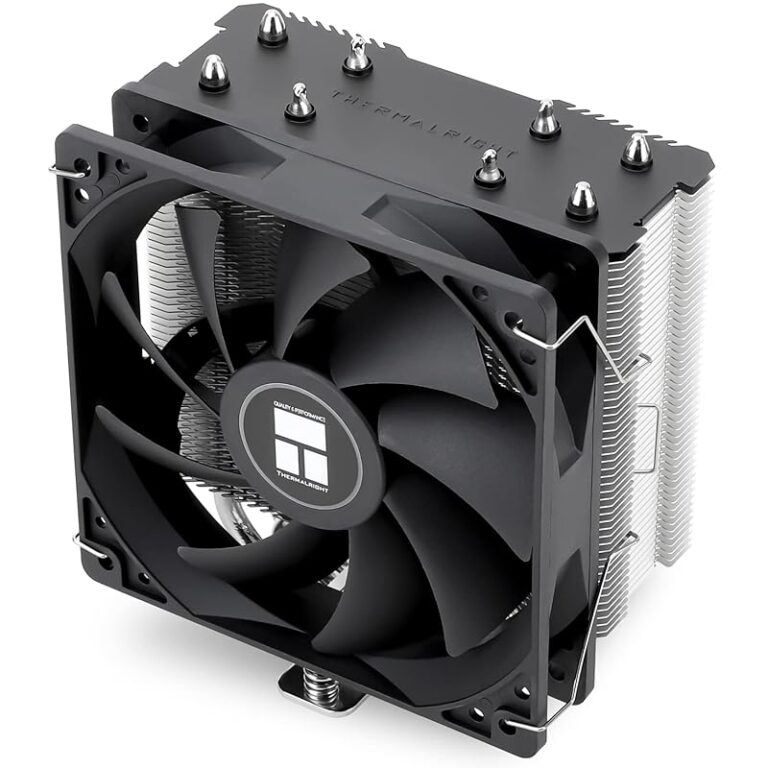
Finally, do not forget about thermal management. Heavy editing workloads can push your hardware to its limits. If your PC runs hot, it will throttle performance. Investing in a best cooling system for PC can help maintain consistent performance during long editing sessions.
Expert Tips to Optimize Lightroom Performance
Even if your system meets the requirements, there are always ways to get more out of Lightroom. Here are some expert tips to keep your editing workflow fast and smooth:
- Use Smart Previews: Smart previews let you edit without loading full-resolution files. This saves RAM and speeds up your workflow.
- Purge Your Catalog Regularly: Lightroom catalogs can grow large over time. Use the catalog cleanup tools to keep things lean.
- Close Unused Applications: Running multiple heavy apps alongside Lightroom eats up your RAM and CPU resources.
- Update Your GPU Drivers: Updated drivers ensure your graphics card works efficiently with Lightroom’s GPU-accelerated features.
- Use Preview Cache Wisely: Lightroom caches previews to speed up future loading. Keep your cache size generous, especially if you work with large batches.
These small adjustments can make a big difference, especially if your system is on the lower end of the recommended specs.
Final Thoughts on Adobe Lightroom System Requirements
Meeting the Adobe Lightroom system requirements is the foundation of a great editing experience. Your processor, RAM, storage, GPU, and display all work together to determine how smoothly Lightroom runs. No single component matters more than the others. It is the combination that creates a fast, responsive, and enjoyable workflow.
If you are building a new computer for Lightroom, aim for the recommended specs rather than the minimums. The extra investment pays off in speed, stability, and creative freedom. And if you are working with an existing system, targeted upgrades like adding RAM or switching to an SSD can deliver surprising improvements.
Lightroom is a tool that empowers you to bring your creative vision to life. Make sure your hardware supports that vision. Check the requirements, optimize your setup, and start editing with confidence.
Remember, the best system is one that lets you focus on your photos, not on waiting for your computer to catch up. Invest in the right hardware, and Lightroom will reward you with a seamless and inspiring editing experience.
Frequently Asked Questions
What is the minimum RAM needed for Adobe Lightroom?
The minimum RAM requirement for Adobe Lightroom is 4GB. However, 4GB is not enough for comfortable editing. You should aim for at least 8GB of RAM for a smooth experience, and 16GB or more if you work with large catalogs or RAW files.
Can Adobe Lightroom run on a laptop?
Yes, Lightroom can run on a laptop as long as it meets the system requirements. Many photographers use laptops for editing on the go. Just make sure your laptop has a dedicated GPU, sufficient RAM, and an SSD for the best performance.
Do I need a dedicated graphics card for Lightroom?
A dedicated graphics card is not strictly required. Lightroom can run on integrated graphics for basic editing. However, a dedicated GPU significantly improves performance for features like smart previews, HDR merging, and brush-based edits. It is highly recommended for any serious editing work.
How much storage space do I need for Lightroom?
Adobe requires at least 2GB of free hard-disk space for the Lightroom application installation. In reality, you need much more space for your photo library and catalog files. A minimum of 128GB of total storage is recommended, with an SSD being the preferred drive type.
Is Lightroom Classic or Lightroom CC better for low-end systems?
Lightroom CC is generally lighter and better suited for lower-end systems because it relies more on cloud processing. Lightroom Classic is more demanding because it manages large local catalogs. If your system is modest, Lightroom CC may be the better choice.
Does monitor size affect Lightroom performance?
Monitor size does not directly affect Lightroom performance. However, a higher resolution display can put more demand on your GPU. More importantly, a color-accurate monitor improves your editing quality by ensuring your photos look correct across different devices and print outputs.
=== CONCLUSION ===
Understanding Adobe Lightroom system requirements is essential before you install or upgrade. Your processor, RAM, storage, GPU, and display all play a role in how smoothly Lightroom runs. Meeting the recommended specs ensures fast imports, smooth editing, and quick exports. Even if your current system falls short, targeted upgrades can make a huge difference. Start with your RAM and storage, then move to your GPU and processor. The right hardware setup lets you focus on what really matters: creating beautiful photos.