Cubase 9 System Requirements
Cubase 9 system requirements cover the essential hardware and software specs needed to run Steinberg’s powerful DAW without issues. You need a modern processor, at least 4GB of RAM, and sufficient storage to handle audio projects smoothly. Meeting the recommended specs ensures stable performance when running multiple tracks and effects.
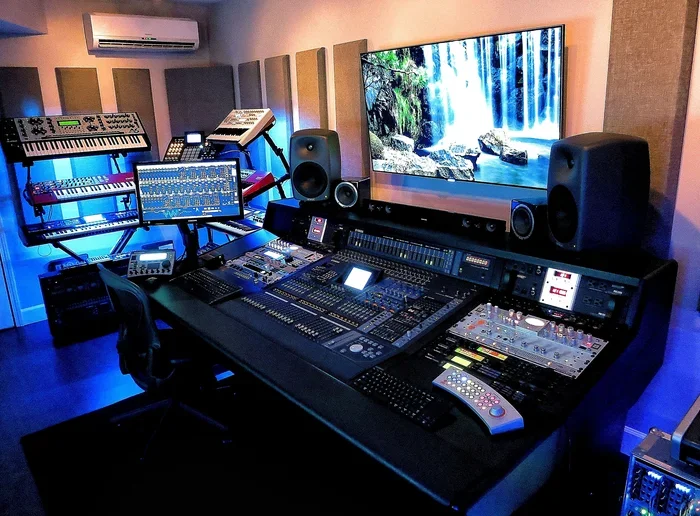
If you are planning to install Cubase 9, knowing the exact Cubase 9 system requirements is the first step. Steinberg built this digital audio workstation to handle professional music production, mixing, and mastering. But without the right hardware, even the best software will struggle. This guide breaks down everything you need to know about running Cubase 9 smoothly on your computer.
Whether you are a beginner setting up your first home studio or a seasoned producer upgrading your rig, understanding the DAW system requirements saves time and frustration. We will walk through minimum specs, recommended configurations, operating system details, and practical tips to get the most out of your setup. Let us dive in.
Key Takeaways
- Minimum Requirements: Cubase 9 needs a 64-bit OS, dual-core processor, 4GB RAM, and 10GB of free disk space to install and run basic projects.
- Recommended Specs Matter: A quad-core or higher CPU, 8GB+ RAM, and an SSD dramatically improve workflow and reduce latency during music production.
- OS Compatibility: Cubase 9 supports Windows 7/8/10 and macOS 10.9 or later, making it accessible across most modern systems.
- Hardware Choices Count: A good audio interface and sufficient cooling keep your sessions stable, especially during long production sessions.
- Optimization Is Key: Adjusting buffer sizes, disabling unnecessary startup apps, and using SSDs can boost Cubase 9 performance significantly.
- Common Mistakes Hurt Performance: Overlooking driver updates, using slow hard drives, and underpowering your system are top reasons Cubase 9 runs poorly.
📑 Table of Contents
- Minimum System Requirements for Cubase 9
- Recommended System Requirements for Optimal Performance
- Operating System Compatibility for Cubase 9
- Hardware Considerations for Cubase 9
- Tips to Optimize Your PC for Cubase 9
- Common Mistakes That Hurt Cubase 9 Performance
- Expert Insight: Balancing Cost and Performance
Minimum System Requirements for Cubase 9
Steinberg sets a baseline so that Cubase 9 can run on a wide range of computers. These are the minimum Cubase 9 system requirements you must meet before installation.
- Operating System: Windows 7 (64-bit), Windows 8 (64-bit), or Windows 10 (64-bit). On Mac, macOS 10.9 or later.
- Processor: Intel or AMD dual-core processor running at 2.1 GHz or faster.
- RAM: 4 GB minimum. This is the bare floor for basic functionality.
- Hard Disk Space: At least 10 GB of free space for the full installation.
- Display: 1280 x 800 resolution or higher with a graphics card that supports OpenGL.
- Audio Hardware: Any ASIO-compatible audio interface or built-in sound card.
These specs allow you to open Cubase 9 and work on simple projects. However, if you plan to use many virtual instruments or run large orchestral templates, you will quickly feel the strain. Think of the minimum requirements as the starting line, not the finish line.
What Happens If You Run Below Minimum Specs?
Running Cubase 9 below the minimum requirements leads to crashes, audio dropouts, and high latency. Your system may freeze when loading multiple plugins or playing back several audio tracks at once. If your computer barely meets the minimum, keep projects simple and save often.
Recommended System Requirements for Optimal Performance
The recommended Cubase 9 system requirements are what Steinberg suggests for a comfortable, professional workflow. These specs handle complex projects without breaking a sweat.
| Component | Minimum | Recommended |
|---|---|---|
| Processor | Dual-core, 2.1 GHz | Quad-core, 3.0 GHz or higher |
| RAM | 4 GB | 8 GB or more (16 GB ideal) |
| Storage | 10 GB free (HDD) | SSD with 50 GB+ free |
| Graphics | OpenGL compatible | Dedicated GPU with 2GB VRAM |
| Audio Interface | Basic ASIO driver | Professional low-latency interface |
| OS | Windows 7 64-bit / macOS 10.9 | Windows 10 / macOS 10.14 or newer |
Notice the big jump between minimum and recommended, especially in storage and RAM. An SSD makes a massive difference in Cubase 9 load times and project stability. When you store audio files on an SSD, the read/write speeds prevent stuttering during playback and recording.
For the processor, a quad-core chip handles Cubase 9’s internal processing much better. The software can distribute tasks across multiple cores, which means faster rendering and smoother real-time performance. If you are building a new machine for music production, prioritize the CPU and RAM first.
Operating System Compatibility for Cubase 9
Cubase 9 supports both Windows and macOS, but the specific versions matter. Steinberg regularly updates the software to stay compatible with newer operating systems, so always check the latest list on Steinberg’s website before purchasing.
On the Windows side, Cubase 9 system requirements include Windows 7, 8, and 10 in their 64-bit versions. Windows 10 is the most stable and widely supported option for Cubase 9 users today. If you are still on an older 32-bit version of Windows, you will not be able to run Cubase 9 at all.
On macOS, Cubase 9 works with versions 10.9 and above. Apple Silicon Macs can run Cubase 9 through Rosetta 2 translation, but native support performs better. If you are on a Mac, consider checking the best operating system for gaming PC options as well, since many of the same performance principles apply to audio workstations.
Keeping your operating system updated is critical. OS updates often include security patches and performance improvements that help DAWs like Cubase 9 run more reliably. Always create a system restore point before updating, just in case any driver conflicts arise.
Hardware Considerations for Cubase 9
Beyond the CPU, RAM, and storage, several hardware components directly affect how Cubase 9 performs. These details often get overlooked but can make or break your production experience.
Audio Interface
While Cubase 9 can use your computer’s built-in sound card, a dedicated audio interface is essential for serious work. An interface provides better sound quality, lower latency, and more inputs and outputs for microphones and instruments. Look for an interface with a reliable ASIO driver for Windows or Core Audio support for Mac.
Cooling and System Stability
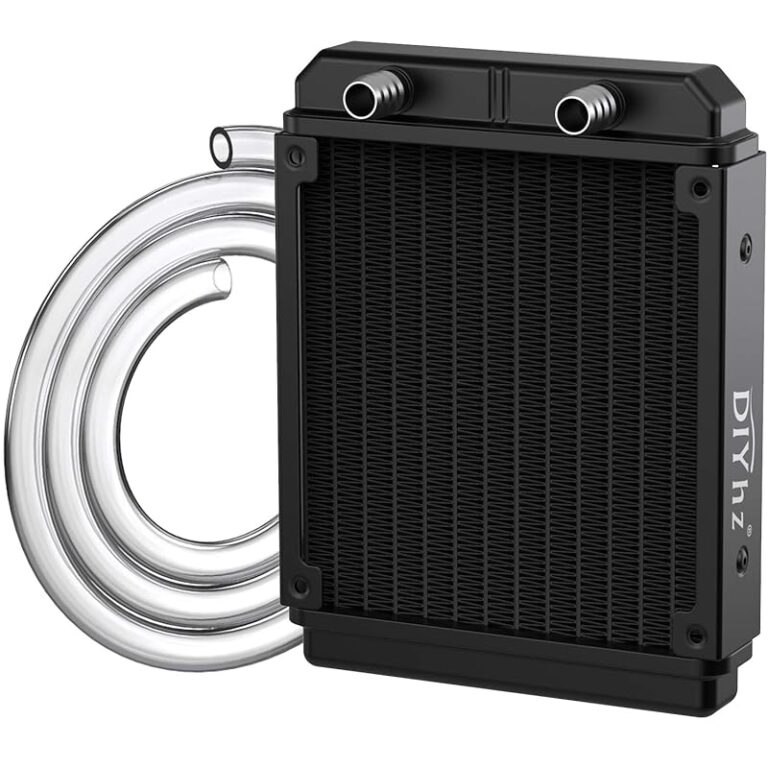
Music production sessions can push your computer hard, especially when mixing large projects with dozens of plugins. Heat buildup over time causes thermal throttling, which slows down your processor and leads to audio glitches. A proper cooling setup keeps your system stable during long sessions. You might want to explore the best cooling system for PC options if your current setup runs hot under load.
Monitor and Display
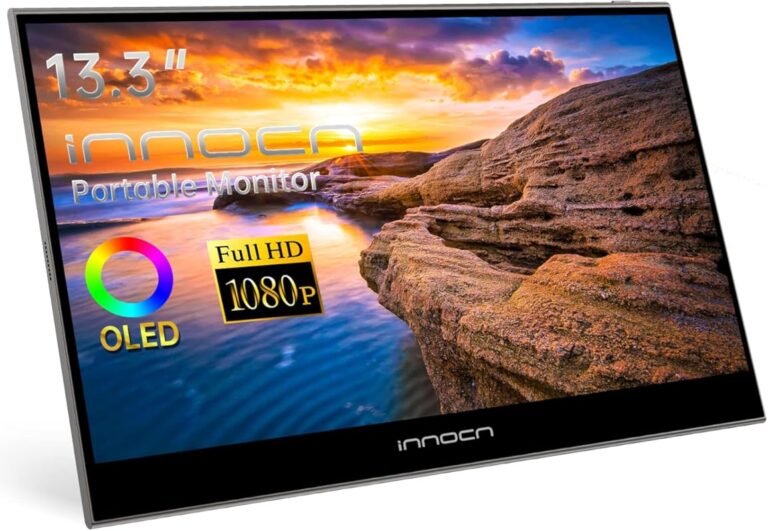
Cubase 9 uses a graphical interface with many windows, panels, and controls. A higher resolution monitor gives you more screen real estate to arrange your workspace comfortably. A secondary monitor is a popular choice among Cubase users who want to keep the mixer on one screen and the arranger on another.
Input Devices
A MIDI keyboard or controller makes working with virtual instruments in Cubase 9 much more intuitive. While not strictly a system requirement, having a MIDI controller transforms how you compose and produce music inside the software. Even a basic 25-key controller can add tremendous value to your workflow.
Tips to Optimize Your PC for Cubase 9
Once you have the right hardware, a few software tweaks can squeeze extra performance out of your system for Cubase 9.
- Use an SSD for your project drive. This is the single biggest upgrade you can make. SSDs eliminate the bottleneck of slow read/write speeds that cause audio dropouts.
- Install the latest audio drivers. Outdated ASIO drivers cause latency issues and crashes. Always download the latest version from your audio interface manufacturer’s website.
- Close unnecessary background applications. Web browsers, antivirus scans, and cloud sync services eat up CPU and RAM. Before opening Cubase 9, close everything you do not need.
- Adjust the buffer size. A lower buffer size reduces latency but demands more from your CPU. A higher buffer size is more stable but adds latency. Find the sweet spot for your system.
- Disable Wi-Fi and Bluetooth. These wireless connections can introduce tiny interruptions that cause audio glitches during playback or recording.
These small changes add up quickly. Many users report a noticeable improvement in Cubase 9 stability simply by moving their projects to an SSD and updating their drivers.
Quick Tips for Smooth Sessions
- Save your project frequently to avoid losing work during a crash.
- Freeze tracks you are not actively editing to free up CPU resources.
- Use the offline rendering feature for heavy effects chains.
- Keep your project folder and audio files on the same drive to avoid sync issues.
- Restart your computer before a long session to clear memory and background processes.
Common Mistakes That Hurt Cubase 9 Performance
Even with the right Cubase 9 system requirements met, certain habits can drag your performance down. Here are the most common mistakes producers make.
- Using a traditional hard drive (HDD) for project storage. HDDs are too slow for handling multiple audio tracks and plugin processing simultaneously. Always use an SSD.
- Skipping driver updates. Audio drivers receive regular updates that fix bugs and improve compatibility. Running outdated drivers is a leading cause of Cubase crashes.
- Overloading a single track with too many plugins. Each plugin uses CPU power. If one track has 10 plugins running, it can bottleneck your entire system.
- Ignoring your system’s thermal health. Overheating causes processors to slow down. If your fans are loud and your system feels hot, it is time to improve cooling.
- Not allocating enough RAM. With 4GB, Cubase 9 will struggle with anything beyond a simple arrangement. 8GB is the practical minimum for comfortable use.
Avoiding these mistakes keeps your Cubase 9 experience smooth and enjoyable. A little prevention goes a long way toward avoiding frustrating audio glitches and lost work.
Expert Insight: Balancing Cost and Performance
You do not need a $5,000 computer to run Cubase 9 well. The key is knowing where to invest your budget wisely. Priority one should always be the processor and RAM. These two components handle the bulk of Cubase 9’s processing demands. Storage comes next, with an SSD being far more impactful than a larger HDD. The graphics card matters less for Cubase 9 than it does for gaming or video editing, so you can save money there.
If you are on a tight budget, focus on meeting the recommended specs rather than chasing the absolute highest-end components. A well-balanced mid-range system will run Cubase 9 beautifully for years. Many professional producers still use systems that are several years old and work perfectly fine because they prioritized the right components at the time of purchase.
Final Thoughts on Cubase 9 System Requirements
Understanding the Cubase 9 system requirements empowers you to make smart decisions about your hardware. Whether you are buying a new computer or upgrading your current one, knowing exactly what Cubase 9 needs helps you avoid wasted money and wasted time. Start with the minimum specs as your foundation, then aim for the recommended configuration for a truly smooth production experience.
Take the time to optimize your system, keep your drivers updated, and invest in quality cooling and storage. These steps ensure that Cubase 9 runs at its best, letting you focus on what really matters: making great music.
Frequently Asked Questions
Can I run Cubase 9 on Windows 11?
Cubase 9 was released before Windows 11, so it is not officially listed as compatible. However, many users run it on Windows 11 without major issues. For the best experience, Windows 10 remains the recommended choice for Cubase 9 users.
How much RAM do I really need for Cubase 9?
The minimum is 4GB, but 8GB is the practical baseline for comfortable use. If you work with large orchestral templates or many virtual instruments, 16GB will give you much more headroom and prevent audio dropouts.
Does Cubase 9 need a dedicated graphics card?
No. Cubase 9 works fine with integrated graphics that support OpenGL. A dedicated GPU is not required, but it can help if you use multiple high-resolution monitors or run other demanding applications alongside Cubase.
What is the best storage setup for Cubase 9?
An SSD is the best choice for both your operating system and project files. SSDs provide faster read/write speeds that eliminate audio dropouts and reduce project load times significantly compared to traditional hard drives.
Can I use Cubase 9 on a laptop?
Yes. Cubase 9 runs well on laptops that meet the system requirements. Just make sure your laptop has adequate cooling, as sustained audio processing can generate heat. A laptop with an SSD and at least 8GB of RAM is ideal for mobile production.
Why does Cubase 9 keep crashing on my system?
Crashes often result from outdated audio drivers, insufficient RAM, or running too many background applications. Make sure your system meets the recommended specs, update your ASIO drivers, and close unnecessary programs before opening Cubase 9.
=== CONCLUSION ===
The Cubase 9 system requirements are straightforward once you understand what each component does for your workflow. Meeting the minimum specs gets you running, but the recommended configuration delivers the smooth, professional experience you deserve. Focus on a solid processor, enough RAM, an SSD for storage, and a reliable audio interface. Keep your drivers updated, optimize your settings, and avoid the common mistakes that slow things down. With the right setup, Cubase 9 becomes a powerful creative tool that supports your music production journey for years to come.