Fix Animations Not Working In Powerpoint In Windows 11 10

Animations not working in PowerPoint on Windows 11 or 10 can ruin your presentations. This guide walks you through proven fixes to restore slide animations, transition effects, and object animations quickly. Most solutions take only a few minutes to apply.
Animations not working in PowerPoint can turn a great presentation into a frustrating experience. You have spent hours arranging slides, adding text, and setting up animation effects just right. Then, when you hit play, nothing happens. The slides sit there, static and lifeless. This problem affects many users, especially those running Windows 11 or Windows 10. The good news is that you can fix it yourself with a few simple steps.
In this article, we will cover every major reason why your animations not working in PowerPoint and show you exactly how to fix each one. Whether it is a driver issue, a settings problem, or a corrupted Office installation, we have you covered. Let us get your presentations moving again.
Key Takeaways
- Update Graphics Drivers: Outdated display drivers are the top cause of animation failures in PowerPoint.
- Disable Hardware Acceleration: Turning it off often fixes frozen or missing animations instantly.
- Check Your Office Version: Older versions may not support newer animation features on Windows 11.
- Repair Office Installation: A simple repair can fix corrupted files causing animation issues.
- Run in Compatibility Mode: This helps when animations break after a Windows update.
- Check System Requirements: Low RAM or old hardware can slow down or block animations.
📑 Table of Contents
- Why Animations Not Working In PowerPoint Happen
- Check Your PowerPoint Version And Animation Settings
- Update Your Graphics Driver For Windows 11 And 10
- Disable Hardware Acceleration In PowerPoint
- Quick Fixes You Can Try Right Now
- Check System Requirements For Smooth Animations
- When To Seek Professional Help
- Conclusion
Why Animations Not Working In PowerPoint Happen
Several things can cause your animation effects to stop working. Understanding the root cause helps you pick the right fix. Here are the most common reasons:
- Outdated graphics drivers – Your display adapter needs fresh drivers to render animations smoothly.
- Hardware acceleration conflicts – Sometimes your GPU and PowerPoint do not play well together.
- Corrupted Office files – A damaged installation can break animation features entirely.
- Windows updates – New system updates can change how PowerPoint handles graphics.
- Old PowerPoint versions – Older builds may not support newer animation features on Windows 11.
When Animations Work On One PC But Not Another
If your animations work on a different computer but fail on yours, the problem is likely local. It is not a PowerPoint bug. It is something specific to your setup. Check your display adapter settings and driver version. Compare them with a machine where animations work fine. This quick check can save you hours of guessing.
Quick Tips Before You Start Troubleshooting
- Save your presentation first. You never know when a fix might cause unexpected issues.
- Restart PowerPoint before trying anything else. A fresh start clears temporary glitches.
- Note when the problem started. Was it after a Windows update or an Office upgrade? This clue helps narrow down the cause.
Check Your PowerPoint Version And Animation Settings
Not all versions of Microsoft PowerPoint support the same animation features. If you are running an older build, your slide transitions and object animations may not work correctly on Windows 11 or Windows 10.
Verify You Are Running A Supported Version
Open PowerPoint and go to File > Account. Look at the version number. If you are using Office 365, you should have the latest updates. Older perpetual licenses like Office 2016 or 2019 may lack support for newer animation features. Consider upgrading to Office 365 if you frequently use advanced animation settings.
Adjust Animation Settings In PowerPoint
Sometimes the fix is simpler than you think. Your animation settings may have been changed by accident. Here is how to check:
- Open your presentation in PowerPoint.
- Go to the Animations tab on the ribbon.
- Click the Animation Pane button to see all animations on the current slide.
- Check that each animation is set to trigger correctly.
- Make sure the Start dropdown is set to On Click or With Previous, not After Previous if that is not what you want.
Common Animation Settings Mistakes
- Setting all animations to “After Previous” can cause them to pile up and freeze.
- Turning off the “Show Advanced Timeline” option hides important timing controls.
- Forgetting to check the “Effect Options” for each animation can leave gaps in your slideshow.
Expert Insight: Animation Pane Best Practices
The Animation Pane is your best friend when fixing animation issues. It shows you every animation on every slide in order. If an animation is greyed out or shows an error icon, that tells you exactly which effect is broken. Use this pane to isolate problem animations quickly.
Update Your Graphics Driver For Windows 11 And 10
Your graphics driver is the software that tells your computer how to draw images on screen. If it is outdated, PowerPoint animations may fail to render. This is the single most common cause of animation problems on Windows 11 and Windows 10.
How To Update Display Drivers
Follow these steps to update your display adapter driver:
- Right-click the Start button and select Device Manager.
- Expand the Display adapters section.
- Right-click your graphics card and select Update driver.
- Choose Search automatically for drivers.
- Follow the on-screen prompts to complete the installation.
- Restart your computer and open PowerPoint to test animations.
Expert Insight: Driver Update Tips
If Windows says your driver is up to date but animations still fail, try visiting your GPU manufacturer’s website directly. NVIDIA, AMD, and Intel all offer fresh drivers on their support pages. This method often works better than waiting for Windows Update to push the latest version. Also, if you have dealt with issues like why your mouse is not working on your laptop, you know how frustrating driver problems can be across different hardware.
What To Do If Driver Updates Do Not Help
If updating your driver does not fix the issue, try rolling back to a previous version. Sometimes new drivers introduce bugs. Here is how:
- Open Device Manager and go to Display adapters.
- Right-click your GPU and select Properties.
- Go to the Driver tab and click Roll Back Driver.
- Restart your PC and test PowerPoint again.
| Method | Best For | Difficulty |
|---|---|---|
| Windows Update | Quick, safe updates | Easy |
| Manufacturer Website | Latest beta or game-ready drivers | Medium |
| Driver Rollback | Fixing issues caused by new drivers | Medium |
| Clean Reinstall | Severe corruption or persistent issues | Advanced |
Disable Hardware Acceleration In PowerPoint
Hardware acceleration lets PowerPoint use your GPU to render slides and animations. In theory, this makes everything smoother. In practice, it can cause conflicts that freeze or break your animation effects. Disabling it often fixes the problem instantly.
Step-By-Step Guide To Turning It Off
Here is how to disable hardware acceleration in PowerPoint:
- Open PowerPoint and click File.
- Select Options from the bottom of the left menu.
- Click on Advanced in the left panel.
- Scroll down to the Display section.
- Check the box that says Disable hardware graphics acceleration.
- Click OK and restart PowerPoint.
Quick Tips: Hardware Acceleration
- Try disabling hardware acceleration first before making any driver changes. It is the fastest fix.
- If animations work after disabling it, your GPU driver is likely the culprit.
- You can re-enable it later to see if a driver update fixed the underlying issue.
When To Keep Hardware Acceleration On
Hardware acceleration is useful for large presentations with many slides and complex graphics. If you have a modern GPU and fresh drivers, keeping it on can improve performance. Only disable it if you experience crashes or frozen animations. For most users, a balanced approach works best.
Quick Fixes You Can Try Right Now
Before diving into advanced troubleshooting, try these quick fixes. Many users have resolved their animation issues with these simple steps.
Restart PowerPoint And Your PC
This sounds too simple, but it works more often than you would think. Restarting clears temporary memory and resets graphics processes. Close all Office apps, restart your computer, and then open PowerPoint again. Check if your slide transitions and object animations work.
Run PowerPoint In Compatibility Mode
If your animations stopped working after a recent Windows Update, compatibility mode can help. This tells PowerPoint to behave as if it is running on an older version of Windows.
- Find PowerPoint in your Start menu.
- Right-click the app icon and select Properties.
- Go to the Compatibility tab.
- Check Run this program in compatibility mode for.
- Select Windows 10 from the dropdown.
- Click Apply and then OK.
- Launch PowerPoint and test your animations.
Repair Your Office Installation
Corrupted Office files can break animation features without any obvious signs. The built-in repair tool fixes these issues without losing your documents or settings.
- Open the Control Panel and go to Programs and Features.
- Find Microsoft Office or Microsoft 365 in the list.
- Click Change and then select Quick Repair or Online Repair.
- Follow the prompts and let the tool scan for issues.
- Restart your PC and open PowerPoint to test.
Expert Insight: Repair Vs. Reinstall
A Quick Repair fixes minor issues and takes only a few minutes. An Online Repair downloads fresh files and takes longer but fixes deeper problems. If Quick Repair does not work, try the Online Repair option before fully reinstalling Office. Only consider a full reinstall if both repair options fail. Also, keeping your system updated with the latest USB and display drivers for Windows 11 can prevent many of these issues from arising in the first place.
Check System Requirements For Smooth Animations
Your computer hardware plays a big role in how well PowerPoint animations perform. If your system does not meet the minimum requirements, animations may stutter, freeze, or not play at all.
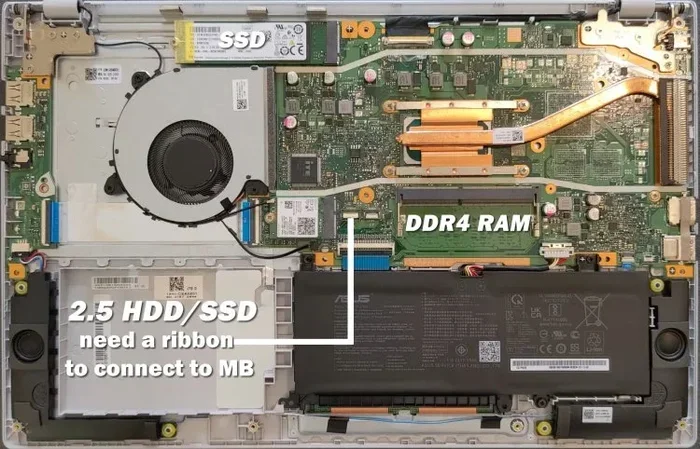
For smooth animations on Windows 11, you need at least 8GB of RAM and a dedicated or modern integrated graphics card. If your laptop has less than 8GB of RAM, you may experience performance issues with complex slide shows. Upgrading your RAM can make a significant difference in how animations render.
For reference, systems with Windows 11 with 8GB RAM or more handle animations much better than those with 4GB. If you are running an older configuration, consider upgrading your hardware or simplifying your animation choices within PowerPoint.
When To Seek Professional Help
Most animation issues in PowerPoint can be fixed with the steps above. However, some problems need expert attention. If you have tried every fix and your animations not working in PowerPoint persists, it may be time to seek help.
Signs That The Problem Is Beyond Basic Fixes
- PowerPoint crashes every time you open a presentation with animations.
- Your screen flickers or distorts when animations play.
- You have updated all drivers and Office versions but the problem remains.
- Animations work on other computers but not yours, even with the same Office version.
In these cases, a professional technician can diagnose deeper issues. It could be a failing GPU, a motherboard problem, or a complex software conflict that requires advanced troubleshooting.
Conclusion
Dealing with animations not working in PowerPoint on Windows 11 or Windows 10 does not have to be a headache. Start with the simple fixes like restarting PowerPoint, checking your animation settings, and disabling hardware acceleration. If those do not work, move on to updating your graphics driver and running an Office repair. Most users find that one of these steps resolves the problem completely.
Remember that keeping your system updated and your drivers fresh prevents many of these issues from happening in the first place. Take care of your computer, and your animation effects and slide transitions will keep working smoothly for years to come. Try these fixes today and bring your presentations back to life.
Frequently Asked Questions
Why did my PowerPoint animations stop working after a Windows update?
Windows updates can change how your system handles graphics and hardware acceleration. This may cause your animation effects to stop working. Try running PowerPoint in compatibility mode or updating your graphics driver to fix the issue.
Can outdated graphics drivers cause PowerPoint animations to fail?
Yes, outdated drivers are one of the most common causes. Your display adapter needs fresh drivers to render animations properly. Updating your graphics driver through Device Manager or the manufacturer’s website usually fixes this problem quickly.
Is it safe to disable hardware acceleration in PowerPoint?
Yes, it is completely safe. Disabling it may make animations slightly less smooth on powerful systems, but it often fixes broken animations on older or problematic hardware. You can always re-enable it later if needed.
Will repairing Office delete my presentations or files?
No, repairing Office does not delete your files. It only fixes corrupted program files and settings. Your presentations, documents, and data remain completely safe during the repair process.
How do I know if my PC is powerful enough for PowerPoint animations?
Check your RAM and graphics card. Systems with at least 8GB of RAM and a modern GPU handle animations well. If you have 4GB of RAM or a very old graphics card, you may experience performance issues with complex animations.
Can using an older version of PowerPoint cause animation problems on Windows 11?
Yes, older versions like Office 2016 or 2019 may not fully support newer animation features on Windows 11. Upgrading to Office 365 ensures you have the latest animation capabilities and compatibility fixes.