Windows 11 Laptop 8gb Ram

A Windows 11 laptop 8GB RAM setup strikes the perfect balance between performance and affordability for most users. Eight gigabytes of memory handles everyday tasks like browsing, streaming, and office work with ease. This guide covers whether 8GB RAM is enough for Windows 11, performance tips, upgrade options, and the best laptops to consider.
A Windows 11 laptop 8GB RAM setup has become the go-to choice for students, professionals, and everyday users. But does 8GB of memory really deliver the experience you need? The short answer is yes, for most people. Let us dive deep into everything you need to know about running Windows 11 on 8GB of RAM.
Windows 11 brought a fresh look, new features, and improved performance. However, it also raised the bar for system requirements. Microsoft lists 4GB as the minimum RAM, but real-world usage tells a different story. 8GB RAM gives you breathing room to open apps, browse the web, and switch between tasks without frustration.
In this guide, we will cover whether 8GB is enough, how it performs, which laptops shine with this configuration, and when you should consider an upgrade. Whether you are buying a new laptop or upgrading an existing one, this article has you covered.
Key Takeaways
- 8GB RAM is the sweet spot: It meets Windows 11 minimum requirements and handles most daily tasks smoothly.
- Multitasking is possible: With 8GB, you can run multiple browser tabs, apps, and light creative work without major slowdowns.
- Upgrade options exist: Many laptops allow RAM upgrades to 16GB or 32GB for heavier workloads.
- SSD storage matters: Pairing 8GB RAM with an SSD boosts Windows 11 performance significantly.
- Check compatibility first: Not all laptops support RAM upgrades, so verify specs before buying or upgrading.
- Windows 11 runs well on 8GB: Microsoft designed Windows 11 to work efficiently with 8GB of memory for most users.
📑 Table of Contents
- Why 8GB RAM Works Well with Windows 11
- Performance of 8GB RAM Laptops on Windows 11
- Best Laptops with 8GB RAM for Windows 11
- Can You Upgrade 8GB RAM on a Windows 11 Laptop?
- Common Mistakes to Avoid with 8GB RAM Laptops
- Quick Tips to Optimize 8GB RAM on Windows 11
- When Should You Move Beyond 8GB RAM?
- Final Thoughts
Why 8GB RAM Works Well with Windows 11
Windows 11 is more resource-hungry than its predecessor, Windows 10. The new design elements, widgets, and background processes demand a decent amount of memory. 8GB RAM provides a comfortable cushion for these demands.
Here is why 8GB hits the sweet spot for most users:
- Smooth multitasking: You can keep 10 to 15 browser tabs open while running a word processor and a music app without slowdowns.
- Better background performance: Windows 11 runs several background services. 8GB ensures these do not choke your system.
- Future-proofing: For the next two to three years, 8GB will remain a solid choice for everyday computing.
- Affordable: Laptops with 8GB RAM cost less than those with 16GB, making them budget-friendly.
If you compare 8GB RAM vs 16GB RAM, the difference is noticeable in heavy tasks like video editing or gaming. But for browsing, emails, streaming, and office work, 8GB holds its own very well.
Windows 11 System Requirements and 8GB RAM
Microsoft lists the following minimum requirements for Windows 11:
- 1 GHz or faster processor with 2 or more cores
- 4GB of RAM
- 64GB of storage
- TPM 2.0 support
- DirectX 12 compatible graphics
So technically, Windows 11 can run on 4GB RAM. But in practice, 4GB feels cramped. 8GB RAM doubles the minimum requirement and delivers a much smoother experience. It is the recommended amount for a comfortable Windows 11 experience.
When shopping for a Windows 11 laptop 8GB RAM model, look for a modern processor like an Intel Core i5 or AMD Ryzen 5. These pair beautifully with 8GB of memory and offer great value.
Performance of 8GB RAM Laptops on Windows 11
How does a Windows 11 laptop 8GB RAM perform in real-world scenarios? Let us break it down by use case.
Everyday Productivity
For tasks like writing documents, managing spreadsheets, and sending emails, 8GB RAM is more than enough. Windows 11 handles these lightweight workloads effortlessly. You will experience fast boot times and quick app launches.
A laptop with 8GB RAM and an SSD is especially fast. The solid-state drive speeds up file access, while 8GB of memory keeps apps running smoothly. This combination is ideal for students and office workers.
Web Browsing and Streaming
Modern web browsers like Chrome and Edge can be memory hogs. Each tab consumes around 100 to 300MB of RAM. With 8GB, you can comfortably open 10 to 15 tabs while streaming a video in the background.
If you tend to keep many tabs open, consider using browser extensions that suspend inactive tabs. This frees up memory and keeps your system responsive.
Light Creative Work
Photo editing in apps like Canva or light Photoshop work runs well on 8GB RAM. Video editing, however, may push the limits. For basic video trimming or social media content creation, 8GB is manageable.
For heavier creative tasks, you might want to explore 16GB RAM laptops. But for casual creators, 8GB delivers a satisfying experience.
Best Laptops with 8GB RAM for Windows 11
Not all laptops are created equal. Some deliver better performance with 8GB RAM than others. Here are key factors to consider:
HP Laptops with 8GB RAM
HP offers several excellent options in the 8GB RAM Windows 11 category. The HP Pavilion series provides solid performance for everyday use at an affordable price point. The HP laptop Windows 11 8GB RAM models come with reliable processors and decent build quality.
For accounting professionals, HP also offers specialized configurations. A best HP laptop for accounting 8GB RAM setup includes a comfortable keyboard, reliable performance, and sufficient memory for spreadsheet-heavy work.
Laptops with 8GB RAM and Intel Core i5
The Intel Core i5 processor paired with 8GB RAM is a proven combination. It delivers smooth performance for productivity, browsing, and light creative work. Many budget-friendly laptops feature this configuration and offer excellent value.
When choosing a laptop with 8GB RAM and i5 processor, look for models with at least a 256GB SSD. This ensures fast boot times and snappy app loading.
Key Specs to Look For
When buying a Windows 11 laptop with 8GB RAM, pay attention to these specs:
- Processor: Intel Core i5 (11th gen or newer) or AMD Ryzen 5
- Storage: 256GB SSD minimum, 512GB preferred
- Display: Full HD (1920×1080) for sharp text and images
- Battery life: At least 7 hours for all-day use
- Build quality: Metal chassis or durable plastic for longevity
Can You Upgrade 8GB RAM on a Windows 11 Laptop?
One of the best things about laptops is upgradability. Many Windows 11 laptops with 8GB RAM allow you to add more memory. This can breathe new life into an older machine.
How to Check if Your Laptop Supports RAM Upgrades
Before buying new RAM, check if your laptop supports upgrades:
- Open the Task Manager by pressing Ctrl + Shift + Esc.
- Go to the Performance tab and click on Memory.
- Look for “Slots used” information. If it shows 1 of 2 slots used, you have room for an upgrade.
- Check your laptop manufacturer’s website for the maximum supported RAM.
Some laptops have soldered RAM that cannot be upgraded. In those cases, you are stuck with what you have. Always verify upgradability before purchasing.
How to Upgrade RAM Yourself
Upgrading RAM is easier than most people think. Here is a quick overview:
- Back up your important files.
- Power off the laptop and unplug it.
- Open the back panel using a screwdriver.
- Locate the RAM slots.
- Remove the old RAM stick by pressing the side clips.
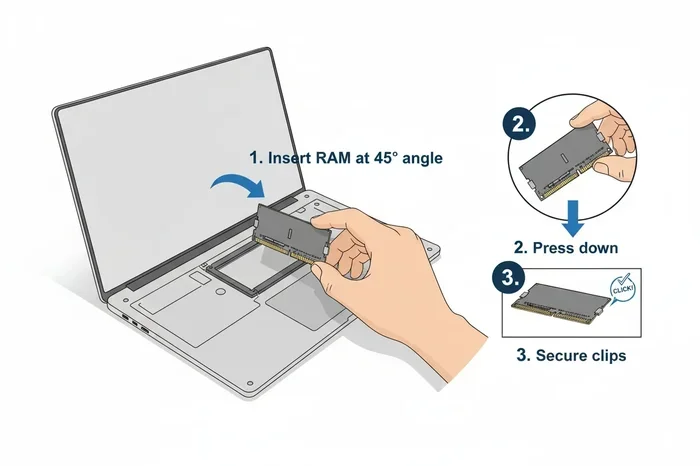
- Insert the new RAM stick at a 45-degree angle and press down until it clicks.
- Close the panel and power on your laptop.
If you prefer professional help, many local computer shops offer RAM installation services for a small fee. Alternatively, you can search for “how to install laptop RAM” for detailed video tutorials.
How Much RAM Do You Really Need?
The answer depends on what you do. Here is a simple breakdown:
| Use Case | Recommended RAM |
|---|---|
| Web browsing, emails, office work | 8GB |
| Photo editing, light video work | 16GB |
| Gaming, video editing, 3D rendering | 32GB |
| Heavy multitasking, programming | 16GB to 32GB |
For most Windows 11 users, 8GB is the right starting point. If you find your laptop slowing down, consider upgrading to 16GB. It is a cost-effective way to extend your laptop’s lifespan.
Common Mistakes to Avoid with 8GB RAM Laptops
Even with 8GB RAM, certain habits can slow down your laptop. Here are common mistakes to avoid:
- Opening too many browser tabs: Each tab consumes RAM. Keep only the tabs you actively use.
- Running too many background apps: Close apps you are not using. Check the Task Manager for memory-hungry processes.
- Ignoring Windows updates: Updates often include performance improvements and memory optimizations.
- Using a mechanical hard drive: Always pair 8GB RAM with an SSD. A hard drive will bottleneck your system.
- Overlooking malware: Malware can consume significant memory. Run regular scans with trusted antivirus software.
Quick Tips to Optimize 8GB RAM on Windows 11
Want to squeeze every drop of performance from your 8GB RAM laptop? Try these tips:
- Enable Memory Integrity: This Windows 11 security feature helps manage memory efficiently.
- Use Startup Manager: Disable unnecessary apps that launch at startup. This frees up RAM from boot.
- Adjust visual effects: Go to Settings > Accessibility > Visual Effects and turn off unnecessary animations.
- Use ReadyBoost: If you have a USB flash drive, ReadyBoost can supplement your RAM.
- Restart regularly: A simple restart clears temporary memory and refreshes your system.
These small changes can make a noticeable difference in how smoothly your Windows 11 laptop 8GB RAM runs. They take only a few minutes but deliver lasting benefits.
When Should You Move Beyond 8GB RAM?
While 8GB handles most tasks well, there are situations where you need more memory. Here are signs that it is time to upgrade:
- Your laptop frequently freezes or shows “Out of Memory” errors.
- You work with large spreadsheets or databases that strain available RAM.
- You edit videos or work with 3D modeling software regularly.
- You run virtual machines or development environments.
- You are a gamer who plays modern titles with high system requirements.
In these cases, upgrading to 16GB RAM or even 32GB RAM makes a significant difference. Many laptops allow you to start with 8GB and upgrade later, giving you flexibility and cost savings.
If you are curious about what RAM does, check out our detailed guide on what does RAM do on a laptop. Understanding the role of memory helps you make smarter purchasing decisions.
For those considering a major upgrade, 32GB RAM for laptop options are becoming more affordable. These configurations are ideal for power users who demand top-tier performance.
Final Thoughts
A Windows 11 laptop 8GB RAM setup remains an excellent choice for the vast majority of users. It delivers smooth performance for everyday tasks, handles multitasking with ease, and offers great value for money. Whether you are a student, a remote worker, or a casual user, 8GB of memory gives you everything you need.
Remember, the key to getting the most out of 8GB RAM is smart usage. Pair it with an SSD, keep your system updated, and avoid memory-heavy habits. And when the time comes, upgrading to 16GB is always an option.
Windows 11 is designed to work beautifully with 8GB RAM. It is efficient, responsive, and packed with features that enhance your daily computing experience. So go ahead, enjoy your 8GB RAM Windows 11 laptop, and make the most of every task.
For more information on RAM and laptop specifications, explore our resources on is 8GB RAM enough for laptop and learn how to make the best choice for your needs.
Frequently Asked Questions
Is 8GB RAM enough for Windows 11?
Yes, 8GB RAM is enough for Windows 11 for most users. It handles everyday tasks like browsing, streaming, and office work smoothly. Microsoft lists 4GB as the minimum, but 8GB provides a much more comfortable and responsive experience.
Can I upgrade 8GB RAM to 16GB on my Windows 11 laptop?
Many laptops support RAM upgrades from 8GB to 16GB. Check if your laptop has an available RAM slot and supports higher capacity. You can use the Task Manager to see how many slots are occupied and upgrade accordingly.
What is the difference between 8GB and 16GB RAM on Windows 11?
8GB RAM handles everyday tasks like browsing and office work well. 16GB RAM is better for heavy multitasking, video editing, and gaming. The difference is most noticeable when running multiple demanding applications simultaneously.
Does 8GB RAM slow down Windows 11?
No, 8GB RAM does not slow down Windows 11 for normal use. However, opening too many apps or browser tabs can consume available memory. Following optimization tips like disabling startup apps helps maintain smooth performance.
Which is the best laptop with 8GB RAM for Windows 11?
The best laptop depends on your needs and budget. HP Pavilion and similar series offer solid 8GB RAM configurations with Windows 11. Look for models with an Intel Core i5 or AMD Ryzen 5 processor and an SSD for the best experience.
How do I check how much RAM my Windows 11 laptop has?
Press Ctrl + Shift + Esc to open Task Manager. Click on the Performance tab and select Memory. It will show your total RAM, how much is in use, and how many slots are available.