Are Usb C Cables All the Same
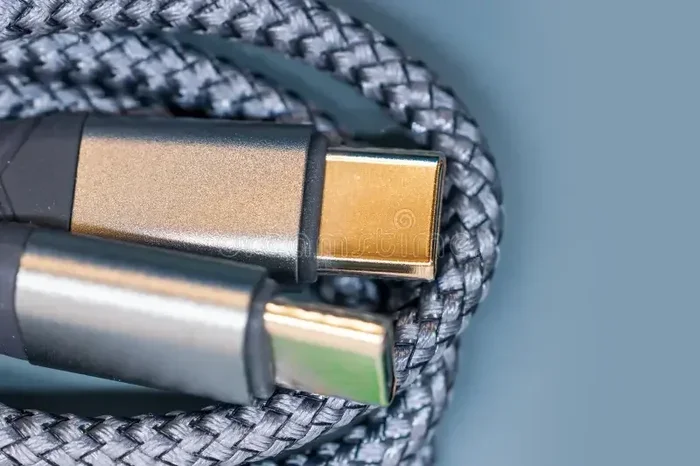
No, USB C cables are not all the same. They differ in speed, power delivery, and what they can do. Choosing the right USB C cable matters for charging, data transfer, and video output.
You have probably grabbed a USB C cable from a junk drawer and wondered if it really matters which one you use. The short answer is yes. Not all USB C cables are created equal. Some charge your phone in minutes while others take hours. Some handle 4K video while others cannot carry a signal at all.
The USB Type-C connector looks the same on every cable, but what happens inside can be wildly different. Power delivery, data speed, and even the materials used vary from one cable to the next. This guide breaks it all down so you never have to guess again.
By the end of this article, you will know exactly what to look for when buying a cable. We will cover everything from charging speeds to data transfer rates. You will also learn how to spot a fake or low-quality cable before it ruins your gear.
Key Takeaways
- USB C cables vary widely in speed, power, and capabilities.
- Not all cables support fast charging or high-speed data transfer.
- Cable quality and gauge affect performance and safety.
- Thunderbolt and USB 3.2 offer faster speeds than basic USB C.
- Check your device needs before buying any cable.
- Cheap cables can damage devices or charge very slowly.
- Look for certified cables to ensure quality and safety.
📑 Table of Contents
- What Makes USB C Cables Different From Each Other
- USB C Cable Types and Standards
- Power Delivery: Why Your Cable’s Wattage Matters
- Data Transfer Speeds: What You Can Really Expect
- How to Choose the Right USB C Cable
- Common Myths About USB C Cables
- Quick Tips for Getting the Most Out of Your USB C Cables
- Final Thoughts
What Makes USB C Cables Different From Each Other
The USB Type-C connector is just the shape of the plug. It does not tell you what the cable can do. Two cables can look identical on the outside but perform very differently on the inside. This is the biggest source of confusion for most people.
Here are the main things that make USB C cables different:
- Data transfer speed — Some cables move data at 10 Gbps while others max out at 480 Mbps.
- Power delivery — Cables support different wattages, from 60W to 240W.
- Video output — Only certain cables can carry a display signal.
- Cable length — Longer cables often lose speed or power.
- Wire gauge — Thicker wires handle more power safely.
- Chip and chipset — Some cables have smart chips that negotiate power and speed.
Think of it like roads. They all have lanes and signs, but some are highways and some are dirt paths. The connector is just the shape of the road. What matters is what is underneath.
Why the Connector Shape Does Not Tell the Whole Story
The reversible plug design of USB Type-C is great for convenience. You can plug it in either way, which is a nice feature. But that small reversible plug sits on top of very different internal wiring. A basic cable might have thin copper wires, while a premium cable has thicker wires and a built-in chip.
This is why you should never judge a cable by its cover. Two cables that both fit your laptop and phone may charge at completely different speeds.
USB C Cable Types and Standards
USB cables follow different standards that define their capabilities. Understanding these standards helps you choose the right cable for your needs. Here is a breakdown of the most common ones.
USB 2.0 Over USB C
Even though the connector is the modern USB Type-C shape, the cable might still use the older USB 2.0 standard. USB 2.0 cables transfer data at up to 480 Mbps. That is very slow by today’s standards. These cables are fine for charging but not for moving large files.
USB 3.0 and USB 3.1 Over USB C
USB 3.0 cables transfer data at 5 Gbps. USB 3.1 Gen 1 is the same speed. USB 3.1 Gen 2 doubles that to 10 Gbps. These cables are much better for transferring photos, videos, and large documents. If you use an M 2 Nvme Ssd To Usb 3 1 Adapter, you will want a cable that supports at least 10 Gbps to get the full speed of the drive.
USB 3.2 and Thunderbolt Cables
USB 3.2 Gen 2×2 pushes speeds to 20 Gbps. Thunderbolt 3 and Thunderbolt 4 cables go even further at 40 Gbps. Thunderbolt cables can also carry video signals and connect to external displays. If you use an external NVMe SSD enclosure, a Thunderbolt or USB 3.2 cable makes a huge difference in transfer times.
USB4 Cables
USB4 is the newest standard and it is built on the Thunderbolt 3 protocol. USB4 cables support 40 Gbps speeds and can handle charging, data, and video all at once. They are backward compatible with older USB C devices, but you need a USB4 host device to get the full speed.
Power Delivery: Why Your Cable’s Wattage Matters
One of the biggest differences between USB C cables is how much power they can carry. This is called USB Power Delivery, or USB PD. Not all cables support the same wattage, and using the wrong one can lead to slow charging or even damage.
Standard USB C Charging
Basic USB C cables typically support 60W of power delivery. This is enough to charge most phones, tablets, and light laptops. If you just need to top off your phone, a standard cable works fine.
High-Wattage USB C Charging
Premium USB C cables can support up to 240W with the latest USB PD 3.1 standard. These cables use thicker wires and better insulation. They are designed for powerful laptops, monitors, and even some desktop setups. A thicker cable gauge allows more current to flow safely.
How Cable Length Affects Charging
Longer cables have more resistance, which means they lose some power along the way. A 6-foot cable might charge slightly slower than a 2-foot cable of the same quality. If you need a long cable, look for one rated for higher wattage to compensate for the length.
Data Transfer Speeds: What You Can Really Expect
If you are using a USB C cable for data transfer, speed is everything. Moving a 50GB video file takes minutes on a fast cable but could take over an hour on a slow one. Here is what you can expect from different cable types.
- USB 2.0 (480 Mbps): Fine for small files and charging. Not good for large transfers.
- USB 3.0/3.1 Gen 1 (5 Gbps): Good for everyday file transfers and backups.
- USB 3.1 Gen 2 (10 Gbps): Great for external drives and large media files.
- USB 3.2 Gen 2×2 (20 Gbps): Excellent for professional video work.
- Thunderbolt 3/4 (40 Gbps): The fastest consumer cables available today.
If you plug a fast external drive into your computer but use a slow USB 2.0 cable, you will not get the speed the drive is capable of. It is like putting a narrow hose on a fire hydrant. The water is there, but the hose cannot carry it all.
For example, if you use a SanDisk Extreme Portable SSD over USB C, you need a cable that supports at least 10 Gbps to see the drive’s full speed. A USB 2.0 cable would bottleneck the performance completely.
How to Choose the Right USB C Cable
Buying the right cable is easier when you know what you need. Here are some practical tips to help you make the best choice.
Step 1: Know What You Will Use It For
Ask yourself what the cable will do most of the time. Do you need it mostly for charging? Or do you also need fast data transfer? Will you connect it to an external display? The answer to these questions determines the cable you need.
- Charging only: A basic USB C cable with 60W support works well.
- Charging + data: Look for a USB 3.0 or higher cable.
- Charging + data + video: Get a Thunderbolt or USB4 cable.
- Fast charging only: Make sure the cable supports the wattage your device needs.
Step 2: Check for Certifications
Look for cables that are USB-IF certified. This means they have been tested to meet official standards. Certified cables are safer and more reliable. Cheap uncertified cables might claim high speeds but fail to deliver.
Step 3: Consider the Cable Length
Shorter cables are generally faster and more reliable. If you need a longer cable, go for one with a higher power rating. A 6-foot USB C cable rated for 100W will perform better than a 6-foot cable rated for only 60W.
Step 4: Check the Wire Gauge
Wire gauge refers to how thick the internal wires are. Lower numbers mean thicker wires. A 24 AWG wire is thicker than a 28 AWG wire. Thicker wires handle more power and stay cooler during charging.
Common Myths About USB C Cables
There is a lot of misinformation about USB C cables floating around. Let us clear up some of the most common myths.
Myth 1: All USB C Cables Are Fast
This is simply not true. Many USB C cables only support USB 2.0 speeds. They look modern but perform like old cables. Always check the cable specifications before assuming it is fast.
Myth 2: Expensive Cables Are Always Better
Price does not always equal quality. Some expensive cables are overpriced and offer no real benefit. Instead of focusing on price, focus on certifications and specifications. A well-reviewed mid-range cable often beats a cheap premium brand.
Myth 3: You Can Use Any USB C Cable for Any Device
While the connector fits all USB C devices, the cable capabilities vary. Using a slow cable with a fast device will limit performance. A basic cable may charge a phone fine but struggle with a power-hungry laptop.
Myth 4: Longer Cables Charge Just as Fast
Longer cables have more resistance, which can reduce charging speed. If fast charging matters to you, use the shortest cable that works for your setup. A 2-foot cable will almost always charge faster than a 6-foot cable of the same quality.
Quick Tips for Getting the Most Out of Your USB C Cables
- Label your cables so you know which one is fast and which one is basic.
- Buy from reputable brands like Anker, Belkin, or Cable Matters.
- Avoid cables from unknown sellers on marketplaces without verified reviews.
- Inspect cables regularly for fraying, bent connectors, or damage.
- Store cables properly by coiling them loosely instead of wrapping tightly.
- Check your device manual to see what cable speed and wattage it supports.
Taking care of your cables also extends their lifespan. A well-maintained cable will perform better and last longer than one that is tossed around carelessly.
Final Thoughts
The answer to whether all USB C cables are the same is a clear no. They differ in speed, power delivery, video capability, and build quality. Choosing the right cable can mean the difference between a 10-minute charge and a 2-hour wait, or between smooth 4K video output and a frustrating laggy signal.
Next time you need a new cable, take a moment to check what you actually need. Look at the specifications, check for certifications, and buy from trusted brands. A good USB C cable is a small investment that protects your devices and saves you time every day.
Whether you are charging your phone, transferring files to an external drive, or connecting to a monitor, the right cable makes all the difference. Do not let a cheap, slow cable hold you back.
Frequently Asked Questions
Can I use any USB C cable to charge my laptop?
Not all USB C cables support the power your laptop needs. Check the cable’s wattage rating and make sure it matches or exceeds your laptop’s charging requirements. A 60W cable works for most laptops, but some need 100W or more.
How do I know if my USB C cable supports fast data transfer?
Look for the USB standard printed on the cable or its packaging. USB 3.0 or higher supports fast data transfer. USB 2.0 cables are only good for basic charging and slow file transfers.
Are Thunderbolt cables the same as regular USB C cables?
Thunderbolt cables use the same USB Type-C connector but offer much faster speeds and more capabilities. A Thunderbolt cable can do everything a regular USB C cable does, plus support 40 Gbps data speeds and video output.
Does cable length affect data transfer speed?
Yes, longer cables can reduce data transfer speed due to increased resistance. For the best performance, use shorter cables when possible. If you need a longer cable, choose one rated for higher speeds.
Can a bad USB C cable damage my device?
Yes, low-quality or counterfeit cables can potentially damage your device. They may not regulate power properly, which can harm your battery or charging port. Always buy certified cables from reputable brands.
What is the difference between USB 3.1 and USB 3.2?
USB 3.1 Gen 2 transfers data at 10 Gbps. USB 3.2 Gen 2×2 transfers at 20 Gbps. The names can be confusing, but the key is to look at the speed rating rather than the version number when choosing a cable.