Best Free Tools To Measure Hard Drive Performance Windows 10
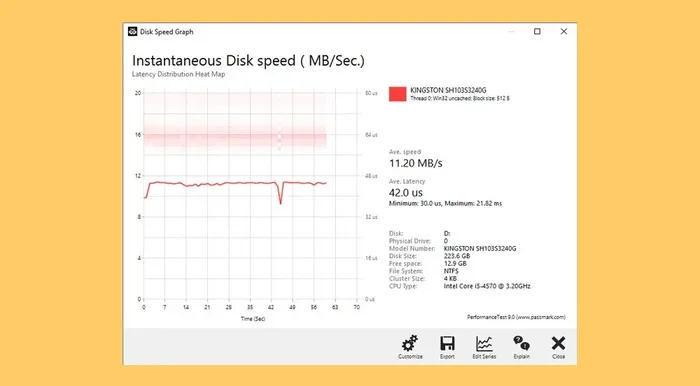
Measuring your hard drive performance on Windows 10 is easier than you think with the right free tools. Whether you have an HDD or SSD, these benchmark programs help you test read and write speeds, check drive health, and spot problems early. In this guide, we walk you through the top free options so you can keep your PC running fast and reliable.
Your hard drive is one of the most important parts of your Windows 10 PC. It stores everything from your operating system to your personal files and favorite games. But over time, drives can slow down or even start to fail. That is exactly why you need to measure hard drive performance regularly.
The good news is you do not need expensive software to do this. There are plenty of free tools to measure hard drive performance that give you detailed results in just a few clicks. In this article, we will share the best ones available right now. We will also show you how to use them, what to look for, and when it is time to take action.
Whether you are a casual user or a PC enthusiast, understanding your drive speed helps you get the most out of your system. Let us dive into the top free benchmark tools for Windows 10.
Key Takeaways
- CrystalDiskMark is the go-to tool for quick and accurate read and write speed tests on Windows 10.
- Hard disk health monitoring matters because it helps you catch failing drives before data loss occurs.
- Free benchmark tools give professional-level results without costing you a single dollar.
- Regular speed tests help you decide when it is time to upgrade or replace your storage drive.
- Multiple tools offer different insights so using more than one gives you a fuller picture of drive performance.
- Keeping your PC clean and protected supports better hard drive performance over time.
📑 Table of Contents
- Why Measuring Hard Drive Performance Matters
- Top Free Tools to Measure Hard Drive Performance on Windows 10
- How to Test Your Hard Drive Performance Step by Step
- What to Look for in Hard Drive Performance Results
- Tips to Improve and Maintain Hard Drive Performance
- Comparison of Free Hard Drive Performance Tools
- Common Mistakes People Make When Testing Drive Performance
- Expert Insight: How Often Should You Test Your Drive?
- Final Thoughts
Why Measuring Hard Drive Performance Matters
Spot Slowdowns Before They Become Big Problems
A slow hard drive can make your entire PC feel sluggish. Programs take longer to open. Files copy at a crawl. And boot times stretch on forever. By running a disk performance benchmark, you can catch these issues early. You will know exactly how fast your drive is reading and writing data.
Decide If It Is Time for an Upgrade
Maybe you have an older HDD and are wondering if an SSD would help. A speed test gives you the numbers to compare. If your current drive reads well below average, that is a strong signal to consider upgrading. You can explore options like the best hard drive for gaming PC if you want to boost your system’s storage speed.
Prevent Data Loss
Hard drives can fail without warning. Regular performance checks help you notice warning signs like bad sectors or dropping read speeds. This gives you time to back up your important files before a complete failure. A tool like best way to backup PC can save you from a major headache.
Top Free Tools to Measure Hard Drive Performance on Windows 10
CrystalDiskMark
CrystalDiskMark is the most popular free disk benchmark tool for Windows 10. It is simple, fast, and gives you clear results. The tool measures sequential and random read and write speeds. You can test different queue depths and file sizes too.
Here is why people love it:
- Easy to use interface with one-click testing
- Detailed results broken down by test type
- Lightweight and portable so it does not slow down your PC
- Free and open source with regular updates
To use CrystalDiskMark, simply download it from the official site, open the app, and click the big round button. It will run a series of tests and show you your drive’s read and write speeds in MB per second. Compare your results to average speeds for your drive type to see how you stack up.
AS SSD Benchmark
AS SSD Benchmark is another excellent free tool, especially for SSD users. It tests sequential and random access speeds. It also measures access time, which tells you how quickly your drive can locate data.
This tool is great because it focuses on real-world usage patterns. It runs three different tests and gives you an overall score. If you want to know how well your SSD handles everyday tasks, this is the tool to use.
Blackmagic Disk Speed Test
Originally built for video professionals, Blackmagic Disk Speed Test works well for anyone who wants to test drive performance. It measures read and write speeds using large files, which is perfect for testing how your drive handles heavy workloads.
The interface is clean and straightforward. You just click start and watch the speed meter move. It is not as detailed as CrystalDiskMark for random access tests, but it gives you a solid overall picture of sustained performance.
HWiNFO
HWiNFO is a comprehensive system monitoring tool that includes hard drive diagnostics. It reads S.M.A.R.T. data from your drive, which shows you the health status and performance attributes.
This tool is perfect for checking whether your drive is starting to fail. It shows temperature, power-on hours, bad sector counts, and more. You can set it to run in the background and monitor your drive health over time.
ATTODiskBenchmark
ATTODiskBenchmark is a simple and lightweight tool for testing drive performance. It measures read and write speeds at different transfer sizes. This helps you understand how your drive performs with both small and large files.
The tool is portable, meaning you do not need to install it. Just run the executable and start testing. It is a great quick-check tool if you do not want to install anything extra on your system.
How to Test Your Hard Drive Performance Step by Step
Step 1: Close Unnecessary Programs
Before running any benchmark, close programs you are not using. This ensures the test results reflect your drive’s true performance and not background activity. A clean system gives you more accurate numbers.
Step 2: Choose the Right Tool
Pick a tool based on what you want to test. CrystalDiskMark is great for a full overview. AS SSD Benchmark excels at SSD testing. HWiNFO is best for health monitoring. You can even use multiple tools for a more complete picture.
Step 3: Run the Test
Open your chosen tool and start the benchmark. Let it run without interruption. Most tests take only a minute or two. Wait for the results before closing anything.
Step 4: Compare Your Results
Once you have your results, compare them to expected speeds for your drive type. A typical SATA HDD reads at around 100 to 150 MB per second. A SATA SSD should hit 500 MB per second or higher. NVMe SSDs can reach 3000 MB per second or more.
Step 5: Take Action Based on Results
If your speeds are much lower than expected, there may be a problem. Check for malware, update your drivers, or inspect your drive cables. If the drive shows signs of failure in health diagnostics, back up your data immediately.
What to Look for in Hard Drive Performance Results
Sequential Read and Write Speeds
Sequential speeds measure how fast your drive reads and writes large, continuous files. This matters for tasks like copying big files or loading large games. Higher numbers mean better performance.
Random Read and Write Speeds
Random speeds measure how fast your drive handles small, scattered files. This is important for everyday tasks like opening apps and loading the operating system. SSDs typically excel here because they have no moving parts.
Access Time
Access time measures how long it takes your drive to locate and retrieve data. Lower numbers are better. Traditional HDDs usually have access times around 5 to 10 milliseconds. SSDs can go as low as 0.1 milliseconds.
IOPS (Input/Output Operations Per Second)
IOPS tells you how many read and write operations your drive can handle per second. This is especially important for multitasking and running multiple applications at once. Higher IOPS means a more responsive system.
Tips to Improve and Maintain Hard Drive Performance
Keep Your Drive Clean
Dust buildup inside your PC can affect drive temperatures and performance. Regular cleaning helps your hardware run cooler and more efficiently. Check out our guide on the best way to clean PC for tips on keeping your entire system in top shape.
Protect Against Power Surges
Power surges can damage your hard drive and cause data loss. Using a surge protector or UPS (uninterruptible power supply) adds a layer of protection. Learn more about safeguarding your equipment with our guide on the best way to protect PC from power surge.
Update Your Drivers and Firmware
Drive manufacturers often release updates that improve performance and fix bugs. Check your drive manufacturer’s website for the latest firmware updates. Also, keep your storage controller drivers up to date through Device Manager or Windows Update.
Disable Unnecessary Startup Programs
Too many programs launching at startup can slow down your drive as it struggles to load everything at once. Use Task Manager to review and disable unnecessary startup items. This frees up drive resources for the programs you actually use.
Defragment Your HDD (But Not Your SSD)
If you have a traditional hard drive, regular defragmentation helps maintain performance. Windows 10 does this automatically on a schedule. However, if you have an SSD, never defragment it. It wastes write cycles and can shorten the drive’s lifespan.
Comparison of Free Hard Drive Performance Tools
| Tool | Best For | Sequential Test | Random Test | Health Monitoring |
|---|---|---|---|---|
| CrystalDiskMark | Overall speed testing | Yes | Yes | No |
| AS SSD Benchmark | SSD performance | Yes | Yes | No |
| HWiNFO | Drive health and diagnostics | No | No | Yes |
| Blackmagic Disk Speed Test | Sustained write performance | Yes | Limited | No |
| ATTODiskBenchmark | Quick portable testing | Yes | Yes | No |
Common Mistakes People Make When Testing Drive Performance
Testing While Running Heavy Programs
Running a benchmark while other programs are active gives you inaccurate results. Always close unnecessary applications before testing. This includes background apps like cloud sync services and antivirus scans.
Ignoring S.M.A.R.T. Data
Speed tests only tell you part of the story. Ignoring S.M.A.R.T. health data means you might miss early signs of drive failure. Always check both performance and health for a complete picture.
Testing on a Nearly Full Drive
Hard drives perform worse when they are almost full. For the most accurate results, make sure you have at least 10 to 15 percent free space on the drive you are testing.
Comparing Different Drive Types Directly
An HDD will never match an SSD in speed, and that is okay. Comparing them directly does not make sense. Instead, compare your results to average benchmarks for your specific drive type.
Expert Insight: How Often Should You Test Your Drive?
Most users should test their hard drive performance every three to six months. If you use your PC heavily for gaming or video editing, consider testing monthly. If you notice slowdowns or unusual behavior, run a test right away. Early detection of problems saves you time, money, and stress.
Think of it like checking your car’s oil. Regular check-ups keep everything running smoothly and help you catch small issues before they become big expensive problems.
Final Thoughts
Measuring your hard drive performance on Windows 10 does not have to be complicated or expensive. The free tools we covered in this guide give you everything you need to test speed, check health, and spot potential problems. CrystalDiskMark, AS SSD Benchmark, HWiNFO, Blackmagic Disk Speed Test, and ATTODiskBenchmark are all excellent choices that deliver professional-grade results at zero cost.
Make drive testing a regular part of your PC maintenance routine. A healthy, fast hard drive makes everything on your computer feel quicker and more responsive. Whether you are a gamer, a student, or a professional, these tools help you get the best performance from your Windows 10 system.
Start with one of the tools today and see what your drive is really capable of. You might be surprised by what you find. And remember, if your drive is underperforming, it might be the perfect time to look into an upgrade or explore options like the best hard drive for gaming PC to bring your system back to life.
Frequently Asked Questions
What is the best free tool to measure hard drive performance on Windows 10?
CrystalDiskMark is widely considered the best free tool for measuring hard drive performance on Windows 10. It is easy to use, gives detailed results, and works with both HDDs and SSDs. It measures sequential and random read and write speeds with just one click.
How often should I benchmark my hard drive?
Most users should benchmark their hard drive every three to six months. If you notice slowdowns or unusual behavior, run a test immediately. Regular testing helps you catch performance drops and potential drive failures early.
Can I use these tools on an SSD as well as an HDD?
Yes, all the tools mentioned in this guide work with both SSDs and HDDs. Some tools like AS SSD Benchmark are specifically optimized for SSD testing, but they still provide useful data for traditional hard drives too.
What is a good read speed for a Windows 10 hard drive?
A good read speed depends on your drive type. A SATA HDD should read at 100 to 150 MB per second. A SATA SSD should reach 500 MB per second or higher. NVMe SSDs can achieve speeds of 3000 MB per second or more.
Is it safe to run hard drive benchmark tools?
Yes, it is completely safe to run these benchmark tools. They do not modify or delete any data on your drive. They simply read and write test files temporarily to measure performance. All test files are cleaned up after the test completes.
What should I do if my hard drive speed is much lower than expected?
First, close all unnecessary programs and run the test again. If the speed is still low, check for malware and update your storage drivers. You should also inspect your drive cables and run a health check using a tool like HWiNFO. If the drive shows signs of failure, back up your data immediately.