Best Ram For Hp Pavilion Which Memory Should You Buy
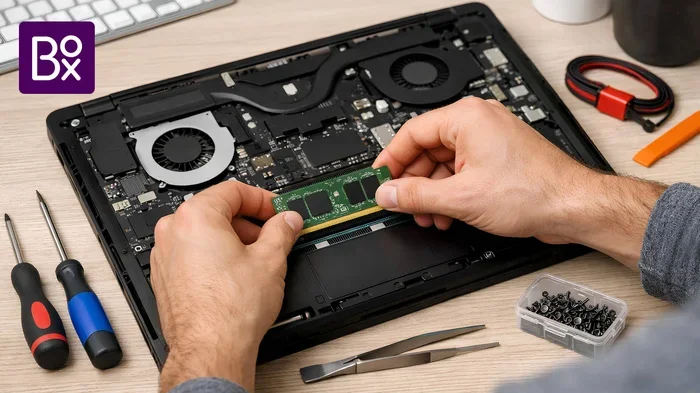
Choosing the best ram for HP Pavilion means knowing your model, checking compatibility, and picking the right DDR4 memory. This guide covers everything from 8GB to 32GB upgrades so you can boost performance with confidence. We break down speeds, slots, and prices to save you time and money.
If you own an HP Pavilion laptop and feel it has slowed down, the answer might be simpler than you think. Upgrading your RAM can breathe new life into an older machine. But with so many options on the shelf, how do you know which best ram for HP Pavilion to choose?
This guide walks you through everything you need to know. We cover RAM types, compatibility, capacity, and speed. By the end, you will feel confident picking the right laptop memory upgrade for your specific HP Pavilion model. No guesswork. No confusion. Just clear, practical advice.
Whether you use your laptop for school, work, or casual browsing, the right memory configuration makes a real difference. Let us get into it.
Key Takeaways
- Know Your Model: Different HP Pavilion models support different RAM types and maximum capacities.
- DDR4 Is the Standard: Most modern HP Pavilion laptops use DDR4 RAM for reliable performance.
- 8GB Is Minimum: For everyday tasks, 8GB works well, but 16GB is ideal for multitasking and light creative work.
- Check Dual Channel: Using matching RAM sticks in pairs can boost performance significantly.
- Upgrade Is Easy: Most HP Pavilion laptops let you upgrade RAM without professional help.
- Speed Matters Less Than Compatibility: Focus on the right type and capacity first, then consider speed.
📑 Table of Contents
Why RAM Matters for Your HP Pavilion
RAM stands for Random Access Memory. Think of it as your laptop’s short-term memory. When you open apps, browse tabs, or edit documents, they all live in RAM. The more RAM you have, the more tasks your laptop can handle at once.
Over time, software gets heavier. Web pages use more memory. Even simple apps demand more resources. If your HP Pavilion came with 4GB or 8GB of RAM, you may already feel the strain. An upgrade to 16GB of RAM can make a noticeable difference in day-to-day use.
How RAM Affects Performance
Here is a simple way to think about it. Your laptop’s processor is like a chef. RAM is like the kitchen counter. A bigger counter lets the chef prepare more dishes at once. Without enough counter space, the chef has to keep going back and forth to the pantry. That slows everything down.
When your HP Pavilion runs low on memory, it starts using your hard drive or SSD as temporary storage. This is called swapping, and it is much slower than using actual RAM. The result? Laggy performance, slow app launches, and frustrated users.
Understanding RAM Types for HP Pavilion Laptops
Not all RAM is the same. Different HP Pavilion models support different RAM types. Using the wrong type will not work, so this is where you need to pay attention.
DDR4 RAM: The Current Standard
Most modern HP Pavilion laptops use DDR4 RAM. This is the fourth generation of Double Data Rate memory. It offers a great balance of speed, efficiency, and affordability. If your HP Pavilion was bought after 2015, there is a strong chance it uses DDR4.
DDR4 RAM comes in different speeds, usually measured in MHz. Common speeds include 2400MHz, 2666MHz, and 3200MHz. For most HP Pavilion users, any of these speeds will work perfectly fine. You do not need to chase the highest number.
Older RAM Types (DDR3 and DDR2)
Some older HP Pavilion models may use DDR3 RAM. These laptops are typically from 2010 to 2014. DDR3 RAM is slower than DDR4 but still perfectly usable for basic tasks. If you have an older model, check your HP Pavilion specs before buying anything.
DDR2 RAM is very rare now and only found in extremely old models. We do not recommend upgrading these machines. A new laptop would be a better investment at that point.
How Much RAM Do You Actually Need?
This is one of the most common questions we get. The answer depends on how you use your laptop. Let us break it down by use case.
8GB RAM: Great for Everyday Use
For browsing the web, streaming videos, writing documents, and light multitasking, 8GB is plenty. Most HP Pavilion laptops come with 8GB out of the box. If your current setup feels slow, adding a second 8GB stick to enable dual channel RAM can boost performance without breaking the bank.
Check out our guide on Hp Pavilion Laptop 8Gb Ram for more details on 8GB configurations.
16GB RAM: The Sweet Spot for Multitasking
If you juggle multiple apps, edit photos, or do light video work, 16GB is the sweet spot. It gives you room to breathe. You can have dozens of browser tabs open while running other programs without slowdowns.
Many users find that upgrading from 8GB to 16GB is the single biggest performance boost they can get. For most people, this is the ideal memory upgrade for an HP Pavilion.
32GB RAM: Overkill for Most Users
32GB is excellent for heavy video editing, 3D rendering, or running virtual machines. But for the average HP Pavilion user, it is overkill. You will only need this if your work demands it.
HP Pavilion RAM Compatibility Guide
Before you buy any RAM, you need to check compatibility. Not every stick of memory works in every HP Pavilion model. Here is how to make sure you get the right one.
Check Your Model Number
Every HP Pavilion laptop has a model number printed on the bottom or in the system information. This number tells you exactly which RAM your laptop supports. Write it down before shopping.
Look Up Your Specifications
Visit HP’s official support page and enter your model number. You will find the maximum RAM support, the number of RAM slots, and the type of RAM required. Some models have one slot, others have two. This affects how you upgrade.
Maximum RAM Support
Most HP Pavilion laptops support up to 16GB of RAM. Some newer models can handle 32GB. Older models may be limited to 8GB. Always double-check the maximum before purchasing.
For a detailed walkthrough of upgrading, check out our Hp Pavilion Laptop Ram Upgrade article.
RAM Slots and Dual Channel
If your HP Pavilion has two RAM slots, you have options. You can either replace a single stick with a larger one, or add a matching stick to enable dual channel mode. Dual channel can improve memory bandwidth and make your laptop feel snappier.
For example, if your laptop has one 8GB stick, you can add another 8GB stick. Both sticks should be the same brand, speed, and size for the best results.
Top RAM Options for HP Pavilion Laptops
Now that you know what type and how much RAM you need, let us look at some specific options. These are popular choices that work well with most HP Pavilion models.
| RAM Option | Capacity | Speed | Best For |
|---|---|---|---|
| Crucial DDR4 SODIMM | 8GB | 2666MHz | Basic upgrades, budget builds |
| Kingston ValueRAM DDR4 | 8GB | 2666MHz | Reliable everyday use |
| Corsair Vengeance DDR4 | 16GB (2x8GB) | 3200MHz | Multitasking and light creative work |
| Samsung DDR4 SODIMM | 16GB | 2666MHz | Single-slot upgrades |
| TeamGroup Delta T DDR4 | 16GB (2x8GB) | 3200MHz | High-performance dual channel |
All of these options use the SODIMM form factor, which is what laptop RAM looks like. They are small and compact, designed specifically for portable computers.
If you are looking for a budget-friendly option, the 8gb ram for laptop price guide can help you find the best deals.
Quick Tips for Choosing RAM
- Always buy from reputable brands like Crucial, Kingston, Corsair, or Samsung.
- Match the speed of your existing RAM if you are adding a second stick.
- Check the form factor. Laptop RAM is SODIMM, not desktop DIMM.
- Buy in pairs for dual channel when possible.
- Read reviews before purchasing. Reliability matters.
How to Upgrade RAM in Your HP Pavilion
Upgrading RAM in an HP Pavilion laptop is one of the easiest DIY projects you can do. You do not need to be a tech expert. Here is a step-by-step walkthrough.
Step 1: Power Off and Unplug
Shut down your laptop completely. Unplug the power adapter and remove the battery if possible. This protects both you and your laptop.
Step 2: Find the RAM Access Panel
Flip your HP Pavilion over. Look for a small panel on the bottom marked with a RAM icon. This panel covers the RAM slots. Use a screwdriver to remove the screws.
Step 3: Remove the Old RAM (If Needed)
If you are replacing existing RAM, gently push the side clips outward. The RAM stick will pop up at an angle. Pull it straight out.
Step 4: Insert the New RAM
Align the notch on the new RAM stick with the slot. Press it down at a 45-degree angle until it clicks into place. Push it flat until the side clips snap back.
Step 5: Test Your Upgrade
Replace the access panel, reinsert the battery, and power on. Check the system information to confirm the new RAM is recognized. You should see the full capacity listed.
For a more detailed tutorial, visit our Ram Upgrade For Hp Pavilion Laptop guide.
Common Mistakes to Avoid
- Forcing the RAM stick in the wrong direction. Always check the notch alignment.
- Mixing different RAM speeds. This can cause instability.
- Forgetting to ground yourself. Touch a metal surface to discharge static before handling RAM.
- Buying the wrong form factor. Laptop RAM is not the same as desktop RAM.
Is It Worth Upgrading Your HP Pavilion’s RAM?
The short answer is yes, in most cases. A RAM upgrade is one of the most cost-effective ways to improve your laptop’s performance. New RAM sticks typically cost between $20 and $60, depending on capacity and brand.
Compared to buying a new laptop, an upgrade saves you hundreds of dollars. It also reduces e-waste, which is better for the environment. A simple laptop RAM upgrade can extend the useful life of your HP Pavilion by years.
If your laptop struggles with modern software, runs slowly with multiple tabs open, or takes forever to switch between apps, RAM is likely the bottleneck. A solid-state drive upgrade can also help, but RAM tends to give the most noticeable improvement for everyday tasks.
Before you buy, check your model’s maximum RAM support. Some older HP Pavilion models simply cannot accept more than 8GB. In those cases, a RAM upgrade may not help as much. But for most models from the last several years, an upgrade is a smart investment.
Need help figuring out your options? Our Ram For Hp Pavilion Laptop guide covers the full range of compatible upgrades.
Conclusion
Finding the best ram for HP Pavilion comes down to three things: knowing your model, checking compatibility, and picking the right capacity. For most users, 16GB of DDR4 RAM is the ideal choice. It delivers smooth multitasking and plenty of headroom for future needs.
Do not overlook the power of a simple RAM upgrade. It is affordable, easy to do, and delivers real results. Your HP Pavilion does not need to be slow forever. With the right memory, it can feel like new again.
Start by checking your model number. Look up your specifications. Pick the right RAM. Follow our upgrade steps. You will be amazed at how much difference it makes. A little effort now can save you from buying a new laptop later.
Frequently Asked Questions
Can I mix different brands of RAM in my HP Pavilion?
Yes, you can mix brands, but it is not ideal. Different brands may have slightly different timings and voltages. For the best stability, use matching RAM sticks from the same brand and model. If you must mix, try to match the speed and capacity as closely as possible.
How do I know if my HP Pavilion supports dual channel RAM?
Most HP Pavilion laptops with two RAM slots support dual channel. Check your model number on HP’s support website to confirm. Using two matching sticks in dual channel mode can improve memory performance by up to 20% compared to a single stick.
Is 8GB RAM enough for an HP Pavilion laptop in 2024?
8GB is enough for basic tasks like web browsing, word processing, and streaming. But if you multitask with many apps or use creative software, 16GB will give you a much smoother experience. Upgrading from 8GB to 16GB is one of the best value upgrades available.
What is the maximum RAM supported by HP Pavilion laptops?
It varies by model. Most HP Pavilion laptops support up to 16GB of RAM. Some newer models can handle 32GB or even 64GB. Always check your specific model’s specifications on HP’s official website before purchasing RAM.
Can I upgrade RAM myself or do I need a professional?
You can absolutely upgrade RAM yourself. Most HP Pavilion laptops have an easy-access panel on the bottom. The process takes about 10 to 15 minutes. Just make sure to power off your laptop, disconnect the battery, and handle the RAM gently to avoid static damage.
Does adding more RAM make my HP Pavilion faster?
Yes, adding RAM can significantly improve speed, especially if your laptop is running low on memory. If your current RAM is maxed out, your laptop slows down as it struggles to swap data to the storage drive. More RAM means more room for active tasks, resulting in a faster, smoother experience.