Best Ram For Dell Precision Workstations In 2024 Guide
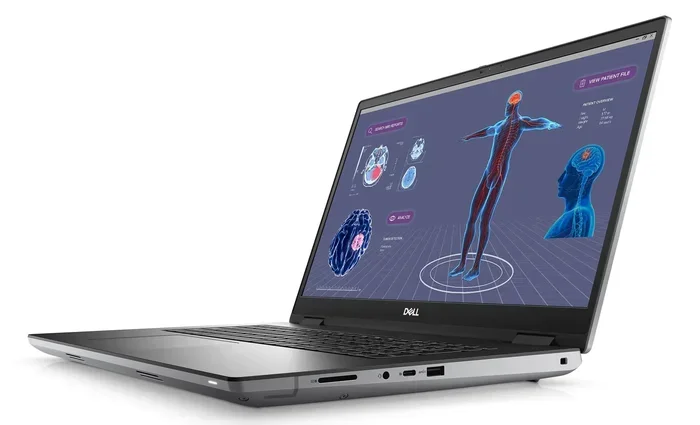
Choosing the best RAM for Dell Precision workstations can make or break your productivity. In 2024, Dell Precision machines support DDR4 and DDR5 memory with options ranging from 8GB to 128GB. This guide walks you through compatible RAM types, speeds, capacities, and upgrade tips so you can maximize your workstation’s performance without wasting money on the wrong modules.
Dell Precision workstations are built for professionals. Architects, engineers, data scientists, and video editors rely on these machines every single day. But here is the thing most people overlook — your RAM can hold you back more than almost any other component.
If your Dell Precision feels slow when you open heavy files or run multiple applications at once, the memory might be the culprit. Upgrading your RAM is one of the fastest and most affordable ways to breathe new life into a workstation. But with so many options available, knowing which RAM to buy can be confusing.
This guide breaks everything down in simple terms. You will learn which RAM types work with Dell Precision, what speeds and capacities matter most, and how to upgrade without any headaches. Whether you own a Dell Precision 3000 series, 5000 series, or 7000 series, this guide has you covered.
Key Takeaways
- DDR5 RAM is the future: Newer Dell Precision models support DDR5, offering faster speeds and better efficiency than DDR4.
- ECC memory matters for professionals: Error-correcting code RAM prevents data corruption during heavy workloads like rendering and modeling.
- Check your model first: Not all Dell Precision workstations accept the same RAM type, speed, or capacity.
- Upgrade in matched pairs: Installing RAM in dual-channel pairs boosts performance significantly.
- Mixing RAM types can cause issues: Stick to the same brand, speed, and size for stability.
- 32GB to 64GB is the sweet spot: Most users see the best value in this range for demanding tasks.
📑 Table of Contents
- Understanding Dell Precision RAM Basics
- How Much RAM Do You Really Need?
- Best RAM Modules for Dell Precision in 2024
- How to Upgrade RAM in Your Dell Precision
- Common Mistakes to Avoid When Buying RAM for Dell Precision
- Expert Tips to Maximize RAM Performance
- Dell Precision RAM Upgrade by Model Series
- Final Thoughts
Understanding Dell Precision RAM Basics
Before you buy anything, you need to understand a few basics about how RAM works in Dell Precision machines. This is not as complicated as it sounds, I promise.
What Type of RAM Do Dell Precision Workstations Use?
Dell Precision workstations use ECC DDR4 and ECC DDR5 memory. ECC stands for Error-Correcting Code, and it is a big deal for professionals. Standard desktop RAM does not have this feature. ECC RAM detects and fixes small data errors automatically, which keeps your work safe during long rendering sessions or complex simulations.
Older Dell Precision models from 2018 and earlier may use non-ECC DDR4 RAM. But if you have a newer machine, you almost certainly need ECC-compatible modules. Always double-check your specific model number before purchasing.
DDR4 vs DDR5: Which Should You Choose?
This is the most common question people ask. Here is the simple answer. If your Dell Precision supports DDR5, go with DDR5. It is faster and more efficient. If your machine only supports DDR4, do not worry — DDR4 is still excellent for most professional workloads.
Here is a quick comparison of the two:
- DDR4 RAM: Speeds range from 2666MHz to 3200MHz. It is widely available and more affordable. Most Dell Precision 3000 and 5000 series models use DDR4.
- DDR5 RAM: Speeds start at 4800MHz and go up to 5600MHz or higher. It offers better bandwidth and power efficiency. Newer Dell Precision 7000 series models support DDR5.
For most users doing CAD work, video editing, or 3D rendering, DDR4 is still plenty fast. But if you are doing machine learning or running massive datasets, DDR5 gives you a noticeable edge.
How Much RAM Do You Really Need?
Capacity is just as important as type. Too little RAM and your workstation chokes. Too much and you waste money. Let us talk about what makes sense for different workflows.
8GB — Basic Tasks Only
8GB is the bare minimum for a Dell Precision workstation in 2024. It works for simple tasks like email, web browsing, and light document editing. But if you are running any kind of professional software, 8GB will hold you back. Most modern applications recommend at least 16GB to run smoothly.
16GB — Solid for Everyday Professional Use
16GB is the sweet spot for many professionals. It handles multitasking well, runs most design and engineering software comfortably, and does not break the bank. If you are a graphic designer or light 3D modeler, 16GB will serve you very well.
For reference, many Dell Precision laptops come configured with 16GB RAM out of the box. Check our guide on Dell Laptop I7 16Gb Ram for more details on configurations.
32GB — The Professional Standard
32GB is where serious professionals should aim. If you work with large assemblies in CAD software, edit 4K video, or run virtual machines, 32GB gives you the headroom you need. Most Dell Precision workstations support 32GB configurations, and it is often the most popular upgrade choice.
64GB and Beyond — For Heavy Workloads
If you are doing complex simulations, massive data analysis, or 3D animation with heavy scenes, 64GB or even 128GB may be necessary. Dell Precision 7000 series towers often support up to 128GB or more of RAM. However, this level of capacity comes at a premium price.
Best RAM Modules for Dell Precision in 2024
Not all RAM is created equal. Some modules are specifically designed for workstations and offer better reliability and performance. Here are the top options to consider.
Crucial ECC DDR4 RDIMM
Crucial is one of the most trusted brands for workstation memory. Their ECC DDR4 RDIMM modules are widely compatible with Dell Precision models. They offer speeds of 2933MHz and 3200MHz in capacities from 8GB to 64GB per module. These modules are fully tested for Dell Precision compatibility, which gives you peace of mind.
Kingston Fury Beast DDR5 ECC
If you have a newer Dell Precision that supports DDR5, Kingston Fury Beast DDR5 ECC modules are a great choice. They offer speeds up to 5600MHz and come in 32GB and 64GB capacities. They are performance-oriented and reliable, making them ideal for demanding professional workloads.
Samsung DDR4 ECC RDIMM
Samsung is a major manufacturer of server-grade memory, and their ECC RDIMM modules are used inside many Dell Precision workstations from the factory. Buying Samsung ECC RAM for upgrades ensures the same quality and compatibility you get with a brand-new machine.
Micron DDR5 ECC Registered
Micron produces high-quality server and workstation memory. Their DDR5 ECC registered modules are designed for maximum stability under heavy loads. They are an excellent choice for Dell Precision 7000 series workstations that need the reliability of registered memory.
How to Upgrade RAM in Your Dell Precision
Upgrading RAM in a Dell Precision workstation is straightforward, but there are a few things you should know before you start. Follow these steps to ensure a smooth and successful upgrade.
Step 1: Check Your Current Configuration
Before buying any RAM, check what you currently have installed. You can do this by opening Task Manager on Windows and going to the Performance tab. Look at the speed, type, and total capacity of your installed memory. Write this information down.
You can also check your Dell Precision model number on the bottom of the machine or in the BIOS. Use this number to look up the maximum RAM capacity and supported RAM type on Dell’s official website.
Step 2: Buy Matching RAM Modules
Always buy RAM in matched pairs for dual-channel performance. This means buying two identical modules instead of one larger one. For example, buy two 16GB modules instead of one 32GB module. Dual-channel configuration can improve memory bandwidth by up to 30%, which translates to faster real-world performance.
Make sure the RAM modules match in speed, size, and type. Mixing different speeds will cause all modules to run at the slowest speed. Mixing different types (like DDR4 and DDR5) will not work at all.
Step 3: Install the RAM
Power off your workstation and unplug it. Open the case and locate the RAM slots. Dell Precision workstations typically have 4 to 8 RAM slots depending on the model. Press the clips on each side of the existing module to release it, then firmly press the new module into the slot at a 45-degree angle until it clicks into place.
For detailed instructions specific to your model, check our guide on Ram Upgrade For My Laptop for general upgrade tips that apply to most Dell systems.
Step 4: Verify the Upgrade
After installation, power on your machine and enter the BIOS to confirm the new RAM is recognized. Then open Task Manager to verify the total capacity has increased. Run a memory stress test using a free tool like MemTest86 to make sure everything is stable.
Common Mistakes to Avoid When Buying RAM for Dell Precision
Even experienced users sometimes make mistakes when upgrading RAM. Here are the most common ones to watch out for.
- Buying the wrong RAM type: DDR4 and DDR5 are not interchangeable. Always verify your Dell Precision model supports the RAM type you are buying.
- Ignoring ECC requirements: Some Dell Precision models require ECC memory. Buying non-ECC RAM for these machines will result in the RAM not being recognized or causing instability.
- Mixing RAM brands and speeds: While it sometimes works, mixing different RAM modules can cause crashes, blue screens, and poor performance. Stick to matched pairs from the same manufacturer.
- Overbuying capacity: If you do not need 128GB of RAM, do not buy it. Match your RAM to your actual workload and save your money.
- Forgetting about RAM speed: Faster RAM does help with certain tasks. If your budget allows, choose the fastest speed your motherboard supports.
Expert Tips to Maximize RAM Performance
Once you have installed your new RAM, there are a few things you can do to get the most out of it.
Enable XMP or DOCP profiles in BIOS. These profiles unlock the full speed of your RAM modules. By default, many workstations run RAM at slower speeds for stability. Enabling XMP (Intel) or DOCP (AMD) in the BIOS can boost your memory speed to the rated frequency.
Keep your BIOS updated. Dell frequently releases BIOS updates that improve memory compatibility and stability. Check Dell’s support website for your specific model and install the latest BIOS version.
Close unnecessary background applications. Even with plenty of RAM, running too many programs at once can slow things down. Use Task Manager to identify and close apps you are not using.
Consider virtual memory settings. If you regularly work with files larger than your available RAM, adjusting your page file settings can help prevent slowdowns. Set your page file to a fixed size on your fastest SSD for the best results.
For users who need guidance on choosing RAM for specific tasks, our article on Is 16Gb Ram Enough For Architecture provides detailed insights on memory requirements for design professionals.
Dell Precision RAM Upgrade by Model Series
Different Dell Precision series have different RAM requirements and capabilities. Here is a quick breakdown to help you find the right information for your specific machine.
Dell Precision 3000 Series (Tower and Mobile)
The 3000 series is designed for small businesses and individual professionals. These workstations typically support up to 64GB of DDR4 ECC RAM. They are perfect for general engineering, design, and office work. Upgrading from 8GB or 16GB to 32GB is the most common and impactful upgrade for this series.
Dell Precision 5000 Series
The 5000 series sits in the middle of the lineup. These machines handle more demanding workflows and support up to 128GB of DDR4 ECC RAM. They are ideal for mid-level engineering, content creation, and data analysis. If you run multiple applications simultaneously or work with moderately large files, 64GB is a great target for this series.
Dell Precision 7000 Series
The 7000 series is Dell’s top-tier workstation line. These machines are built for the most demanding professional tasks. They support up to 128GB or more of DDR4 or DDR5 ECC RAM depending on the configuration. If you are doing heavy 3D rendering, large-scale simulations, or machine learning workloads, this is the series for you.
For more information on Dell laptop RAM configurations, check out our guide on Ram Memory For Dell Laptop which covers memory options across Dell’s laptop lineup.
Final Thoughts
Finding the best RAM for Dell Precision workstations comes down to three things: knowing your model, choosing the right type, and picking the right capacity. DDR4 ECC RAM remains the standard for most current Precision workstations, but DDR5 is gaining ground in the newest models.
For most professionals, 32GB of RAM in a matched dual-channel configuration provides the best balance of performance and value. If you work with extremely large datasets or complex 3D scenes, consider 64GB or more. And always buy from reputable brands like Crucial, Kingston, Samsung, or Micron to ensure compatibility and reliability.
Upgrading your RAM is one of the simplest and most cost-effective ways to supercharge your Dell Precision workstation. Do not let slow memory be the bottleneck holding your productivity back. Follow the steps in this guide, make the right choice for your workflow, and enjoy a faster, more responsive workstation.
Remember, if you are also looking for a Dell laptop with solid RAM for everyday tasks, our guide on Best Dell Laptop For Work can help you find the right machine before you commit to a workstation upgrade.
Frequently Asked Questions
Can I mix DDR4 and DDR5 RAM in a Dell Precision workstation?
No, you cannot mix DDR4 and DDR5 RAM. They are physically different and have different pin configurations. Your Dell Precision motherboard only supports one type. Always check your specific model to confirm which RAM generation it uses before purchasing any modules.
Is ECC RAM really necessary for Dell Precision workstations?
ECC RAM is highly recommended for Dell Precision workstations. It detects and corrects memory errors in real time, which prevents data corruption during long workloads. For professionals doing CAD, rendering, or data analysis, the extra reliability of ECC memory is well worth the small price difference compared to non-ECC RAM.
How do I know if my Dell Precision supports dual-channel RAM?
Most Dell Precision workstations support dual-channel memory. To take full advantage of it, install RAM in matched pairs. For example, use two 16GB modules instead of one 32GB module. Check your user manual or Dell’s support website for your specific model to confirm the optimal configuration.
What is the maximum RAM I can install in a Dell Precision?
The maximum RAM depends on your specific Dell Precision model. The 3000 series typically supports up to 64GB, the 5000 series up to 128GB, and the 7000 series up to 128GB or more. Always check Dell’s official specifications for your exact model number before buying RAM.
Does RAM speed matter for Dell Precision workstations?
Yes, RAM speed does matter, especially for tasks like video editing, 3D rendering, and data processing. Faster RAM can improve performance by 5-15% in memory-intensive workloads. However, capacity is usually more important than speed, so prioritize getting enough RAM first, then worry about speed.
Can I upgrade Dell Precision RAM myself or should I hire a professional?
Upgrading Dell Precision RAM is a straightforward process that most users can do themselves. You just need to open the case, locate the RAM slots, and install the new modules. Just make sure to power off and unplug the machine first. If you are uncomfortable opening your workstation, a professional can do it quickly and safely.