Best Ram For Hp Z Workstation To Supercharge Your System
Looking for the best RAM for HP Z Workstation? This guide covers everything you need to know about compatible memory types, speeds, and configurations. Whether you are a creative professional or engineer, choosing the right HP Z workstation RAM can dramatically improve your system’s performance and reliability.
Building or upgrading a workstation is one of the most impactful decisions you can make for your workflow. If you own an HP Z Workstation, you already know this machine is built for heavy lifting. But here is the thing — the RAM you choose can make or break your experience. Whether you are rendering 3D models, editing 4K video, or running complex simulations, the right memory configuration turns your workstation into a powerhouse.
In this guide, we will walk you through everything you need to know about selecting the best RAM for HP Z Workstation. We cover compatible memory types, speed considerations, capacity options, and step-by-step upgrade tips. By the end, you will feel confident making the right choice for your setup.
Key Takeaways
- DDR4 ECC Memory is Essential: HP Z Workstations require registered ECC RAM for stability and error correction during heavy workloads.
- Capacity Matters: Depending on your tasks, configurations range from 32GB to 512GB or more for demanding applications.
- Speed and Channels: Quad-channel memory configurations on HP Z-series workstations deliver maximum bandwidth for professional tasks.
- Compatibility is Critical: Not all RAM works with HP Z workstations. Always verify your specific model’s requirements before purchasing.
- Upgrading is Straightforward: Most HP Z workstations allow easy RAM upgrades without specialized tools.
- Brand and Quality Matter: Stick with reputable brands to ensure long-term reliability in professional environments.
📑 Table of Contents
Understanding HP Z Workstation RAM Requirements
Before you buy any memory module, it helps to understand what makes HP Z Workstation RAM different from standard desktop RAM. These machines are designed for professional use, and that means they have specific requirements that consumer PCs do not.
What Makes HP Z Workstation RAM Different
The HP Z-series workstations use ECC registered memory, which stands for Error-Correcting Code. This type of RAM can detect and correct data corruption in real time. For professionals working on critical projects, this is a game-changer. A single bit-flip in a rendering calculation or financial model could cost hours of work. ECC RAM prevents that from happening.
Another key difference is the memory channel architecture. Most HP Z Workstations support quad-channel memory, which means four memory modules work together to deliver maximum bandwidth. This is very different from the dual-channel setup you find in most consumer laptops and desktops. If you have ever wondered why your workstation feels sluggish despite having plenty of RAM, the channel configuration might be the culprit.
When exploring RAM options, you may also come across content about DDR4 RAM for HP systems. The DDR4 standard is what powers current-generation HP Z Workstations, offering faster speeds and better power efficiency compared to older DDR3 modules. Make sure you are not accidentally buying outdated memory.
DDR4 ECC vs Standard RAM
You might be tempted to save money by buying standard non-ECC DDR4 RAM. After all, it is cheaper and widely available. But here is the honest truth — HP Z Workstations are not designed for non-ECC memory. While some models might physically accept it, you will lose the error-correction benefits that make these workstations so reliable.
Think of it this way. You are building a race car. You could put regular tires on it, and it would still drive. But for peak performance and safety, you want the specialized tires made for that car. The same logic applies to ECC registered RAM in your HP Z Workstation.
For general guidance on HP memory compatibility, you can also check our detailed resource on RAM for HP systems to understand the broader ecosystem of HP memory solutions.
Best RAM Options for HP Z Workstation
Now that you understand the technical requirements, let us look at the actual RAM options available. There are several configurations to consider depending on your workload and budget.
Top DDR4 ECC Memory Modules
The market offers several excellent DDR4 ECC memory modules that pair well with HP Z Workstations. Here are some of the most popular choices among professionals:
- Samsung DDR4 ECC RDIMM: Known for excellent reliability and wide compatibility across HP Z-series models. Available in 16GB, 32GB, and 64GB capacities.
- Crucial DDR4 ECC Registered Memory: A solid choice for budget-conscious professionals who still want quality. Crucial offers 32GB and 64GB modules that work well in HP Z Workstations.
- Kingston DDR4 ECC Server Memory: Kingston has a strong reputation in the server and workstation space. Their ECC modules are tested for compatibility with enterprise hardware.
- Micron DDR4 ECC RDIMM: Micron supplies memory to many OEMs, including HP. Their ECC modules are a safe and reliable choice for Z Workstation builds.
When selecting a module, always check the HP Z Workstation memory compatibility list. HP maintains an official validated memory list for each model, and sticking to it saves you from headaches down the road.
Capacity Options Compared
The amount of RAM you need depends entirely on what you do. Here is a quick comparison of common capacity configurations:
- 32GB (4x8GB): Great for general professional work like CAD drafting, light video editing, and software development. This is a solid starting point for most users.
- 64GB (4x16GB): Ideal for mid-range workloads such as 3D rendering, moderate simulation work, and multitasking with heavy applications.
- 128GB (4x32GB): Perfect for serious 3D modeling, large-scale video production, and complex data analysis. This is where the HP Z Workstation truly shines.
- 256GB and above (4x64GB or higher): Reserved for extreme workloads like machine learning, massive dataset processing, and high-end rendering farms.
For those working in architecture or engineering, you might have seen discussions about whether 16GB RAM is enough for architecture. The short answer is that 16GB is the bare minimum for basic drafting, but for serious architectural work with large BIM models, you want at least 64GB or more. The HP Z Workstation gives you the flexibility to scale up as your needs grow.
How to Choose the Right RAM for Your HP Z Workstation
Choosing RAM is not just about picking the biggest or fastest option. It is about matching the memory to your specific workflow and hardware.
Matching RAM to Your Workload
Think about what you do on your workstation every day. If you are a graphic designer working with Photoshop and Illustrator, 32GB to 64GB should handle your tasks comfortably. If you are a video editor working with 4K footage in Premiere Pro or DaVinci Resolve, 64GB to 128GB will give you the headroom you need.
For engineers running CAD software like SolidWorks or AutoCAD, 64GB is a sweet spot. And if you are doing machine learning or scientific computing, 128GB or more becomes essential. The key is to match your RAM to the demands of your software, not just chase the highest number.
Speed and Latency Considerations
DDR4 memory comes in different speeds, typically ranging from 2133MHz to 3200MHz or higher. For HP Z Workstations, the sweet spot is usually 2666MHz to 2933MHz. Going beyond that speed might not yield significant real-world gains for most professional workloads.
Latency also matters, though it is often overlooked. Lower CAS latency means the memory responds faster to requests. When comparing modules, look at the full specification including speed, latency, and rank configuration. Mixing different speeds or timings can cause compatibility issues, so always try to match your modules as closely as possible.
If you are considering a broader upgrade strategy, you might also want to explore our guide on upgrading RAM in HP systems for additional context on HP memory optimization across different product lines.
Step-by-Step RAM Upgrade Guide
Upgrading the RAM in your HP Z Workstation is one of the easiest hardware improvements you can make. Here is a straightforward walkthrough to help you do it safely and correctly.
Preparing for Your Upgrade
Before you start, gather the right tools and information:
- Check your HP Z Workstation model number. You can find this on a label on the back or side of the unit.
- Look up the maximum RAM capacity and supported memory type for your specific model on the HP support website.
- Purchase compatible DDR4 ECC registered memory modules from a reputable retailer.
- Prepare a clean, static-free workspace. An anti-static wrist strap is helpful but not required.
- Back up any important data before opening the case. Just in case.
Installation Tips
Once you have your new modules ready, follow these steps:
- Power off the workstation and unplug it from the wall. Wait at least 30 seconds for components to discharge.
- Open the case by removing the side panel. Most HP Z Workstations use thumbscrews for easy access.
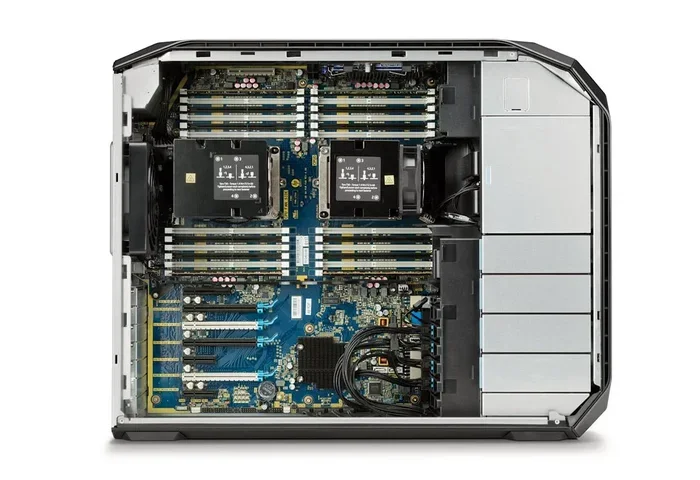
- Locate the RAM slots. HP Z Workstations typically have eight DIMM slots arranged in four channels.
- Press the clips on each side of the existing RAM module to release it. Gently pull the module straight out.
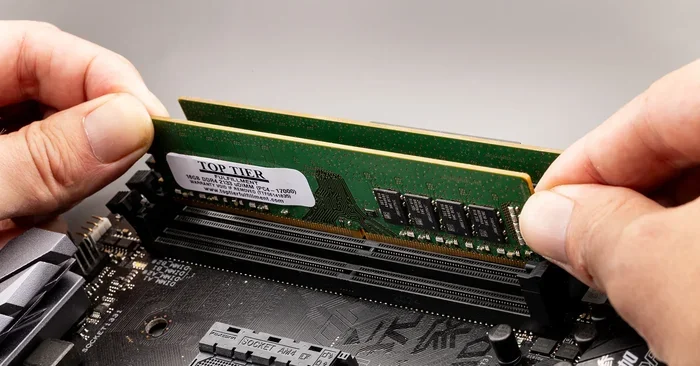
- Align the notch on the new module with the key in the slot. Press firmly and evenly until the clips click into place.
- Repeat for all modules you are installing.
- Close the case, plug in the workstation, and power it on.
- Enter the BIOS to verify the new memory is recognized at the correct capacity and speed.
After the upgrade runs successfully, run a memory stress test using tools like MemTest86 to confirm everything is stable. This step is especially important for ECC memory to ensure the error-correction features are working properly.
Common Mistakes to Avoid
Even experienced users can make mistakes when upgrading workstation RAM. Here are the most common pitfalls to watch out for:
- Buying non-ECC RAM: This is the number one mistake. Non-ECC memory may work in some HP Z Workstations, but you lose the error correction that keeps your data safe during long rendering sessions or complex calculations.
- Mixing RAM speeds: If you mix a 2666MHz module with a 3200MHz module, all modules will downclock to the slowest speed. Stick with matched kits for best performance.
- Ignoring channel configuration: HP Z Workstations use quad-channel memory. If you install modules incorrectly, you can lose the bandwidth benefits of multi-channel operation. Always fill slots in the correct order for your channel configuration.
- Overlooking the BIOS: After installing new RAM, always check the BIOS to confirm the system recognizes the full capacity. Sometimes modules need to be manually configured for optimal performance.
- Skipping the HP compatibility list: It might be tempting to go with the cheapest option, but using unvalidated memory can lead to stability issues. Always cross-reference with HP’s official list.
Expert Tips for Maximum Performance
Once you have installed the best RAM for your HP Z Workstation, you can squeeze even more performance out of your system with these expert tips:
- Keep your BIOS updated: HP regularly releases BIOS updates that improve memory compatibility and stability. Check the HP support site for your model regularly.
- Use matched kits: Buying RAM in kits of four ensures all modules are identical in speed, latency, and capacity. This guarantees optimal dual or quad-channel performance.
- Monitor memory usage: Use Task Manager or dedicated monitoring tools to track how much RAM your applications actually use. This helps you right-size your upgrade rather than overpaying for capacity you do not need.
- Consider your storage too: RAM works hand-in-hand with your storage subsystem. If you are still using a traditional hard drive, upgrading to an SSD can dramatically improve overall system responsiveness. Pairing fast RAM with an SSD is the best way to get the most out of your HP Z Workstation.
For users who want to explore memory options across different HP configurations, our guide on DDR4 RAM for HP systems provides additional insights into compatible memory types and performance expectations.
Final Thoughts
Choosing the best RAM for HP Z Workstation comes down to understanding your workload, verifying compatibility, and investing in quality ECC memory. The right RAM configuration transforms your workstation from a capable machine into an unstoppable productivity engine. Whether you are a designer, engineer, data scientist, or creative professional, the memory you select directly impacts your daily workflow and the quality of your output.
Take the time to research your specific HP Z model, choose the right capacity and speed, and follow the installation steps carefully. Your workstation will reward you with faster render times, smoother multitasking, and the reliability that professionals demand. Upgrade with confidence, and enjoy the difference that the right memory makes.
Frequently Asked Questions
What type of RAM does the HP Z Workstation use?
HP Z Workstations use DDR4 ECC registered memory (RDIMM). This type of RAM includes error-correcting code that detects and fixes data corruption in real time. Always verify compatibility with your specific HP Z model before purchasing.
How much RAM do I need for an HP Z Workstation?
The amount of RAM you need depends on your workload. For general professional tasks, 32GB to 64GB is usually sufficient. For heavy 3D rendering, video editing, or machine learning, 128GB or more is recommended. Check your software requirements to find the right capacity.
Can I use non-ECC RAM in an HP Z Workstation?
While some HP Z Workstations might physically accept non-ECC RAM, it is not recommended. You will lose the error-correction benefits that ECC memory provides, and you may experience stability issues during demanding workloads. Always use ECC registered memory for the best results.
What is the maximum RAM capacity for HP Z Workstations?
Maximum capacity varies by model. Most HP Z Workstations support up to 256GB or 512GB of RAM. Check the HP support website for your specific model number to find the exact maximum capacity and supported configuration.
How do I know if my HP Z Workstation RAM is working correctly?
After installing new RAM, enter the BIOS to verify the system recognizes the full capacity and speed. You should also run a memory stress test like MemTest86 to confirm stability. If you are using ECC RAM, check that error correction is functioning properly in the BIOS settings.
Can I mix different RAM brands in my HP Z Workstation?
It is possible to mix brands, but it is not recommended. Different brands may have varying timings, voltages, and chip configurations that can cause compatibility issues. For best performance and stability, use identical modules from the same kit or brand.