Best Ram For Lenovo Thinkcentre To Boost Performance

Upgrading the RAM in your Lenovo Thinkcentre is one of the easiest ways to breathe new life into your business desktop. Whether you run office apps, multitask with browser tabs, or handle light creative work, the right memory upgrade makes everything smoother. In this guide, we break down the best RAM options, compatibility details, and simple steps to get you started. You will learn exactly what to buy and how to install it yourself.
Your Lenovo Thinkcentre desktop is only as fast as the memory it runs on. If your machine feels slow when you open multiple apps or switch between tasks, the problem might be insufficient RAM. Adding the right memory can transform a sluggish office computer into a responsive workhorse. This guide walks you through everything you need to know about choosing and installing the best RAM for your Lenovo Thinkcentre.
We will cover which RAM types work with Thinkcentre models, how much memory you actually need, and step-by-step upgrade instructions. By the end, you will feel confident making the right choice for your setup. Let us get started.
Key Takeaways
- DDR4 RAM is the standard: Most modern Lenovo Thinkcentre models use DDR4 memory, offering better speed and efficiency than older DDR3.
- 8GB to 16GB is the sweet spot: For everyday business tasks, 8GB handles basics well, while 16GB unlocks serious multitasking power.
- Check your model first: Not all Thinkcentre desktops support the same RAM type or maximum capacity, so always verify before buying.
- Dual-channel setup boosts performance: Installing two matching RAM sticks can significantly improve speed over a single stick.
- Upgrade is simple and affordable: You do not need professional help or expensive tools to add RAM to your Thinkcentre.
- Speed matters but capacity matters more: Prioritize having enough memory over chasing the highest MHz rating for most users.
📑 Table of Contents
- Why RAM Matters for Your Lenovo Thinkcentre
- Best RAM Types for Lenovo Thinkcentre
- How to Choose the Best RAM for Your Thinkcentre
- Step-by-Step Guide to Upgrading Your Thinkcentre RAM
- Top RAM Brands Recommended for Lenovo Thinkcentre
- How Much Does Thinkcentre RAM Upgrade Cost?
- When to Consider a Full System Upgrade Instead
- Final Thoughts
Why RAM Matters for Your Lenovo Thinkcentre
RAM, or Random Access Memory, is the short-term memory your computer uses to handle active tasks. When you open a web browser, a spreadsheet, or a video call, that data lives in your RAM. The more RAM you have, the more applications you can run at once without slowdowns.
Thinkcentre desktops are built for business use. They handle email, word processing, video conferencing, and light data analysis every day. When the RAM fills up, your system starts using your hard drive as temporary memory, which is much slower. This causes lag, freezing, and frustration. Upgrading your RAM is the single most effective way to fix these issues without replacing the entire machine.
How Much RAM Do You Really Need?
The right amount of RAM depends on what you do daily. Here is a simple breakdown:
- 4GB: Enough for basic tasks like email and web browsing on a few tabs. This is the minimum for Windows 10 or 11 but feels limiting.
- 8GB: The sweet spot for most office workers. You can run Word, Excel, a browser with multiple tabs, and a video call without issues.
- 16GB: Ideal for heavy multitaskers, data analysts, or anyone running virtual machines. This is the best RAM for Lenovo Thinkcentre if you want future-proof performance.
- 32GB: Overkill for most business users but great for video editing, 3D rendering, or running multiple virtual machines.
For most Thinkcentre users, upgrading to 8GB or 16GB will make the biggest difference in day-to-day speed. If you are unsure what you currently have, check your system settings before purchasing anything.
Best RAM Types for Lenovo Thinkcentre
Not all RAM is the same, and using the wrong type will not work. Thinkcentre desktops typically use one of two memory standards: DDR3 or DDR4. The model and age of your machine determines which one you need.
DDR4 RAM: The Modern Choice
Most Thinkcentre models released after 2016 use DDR4 RAM. This is the current standard for business desktops. DDR4 offers faster speeds, lower power consumption, and better overall performance compared to older DDR3 modules.
When shopping for DDR4 RAM for your Thinkcentre, look for these specs:
- Speed: 2400MHz or 3200MHz are common and reliable choices.
- Capacity: 8GB or 16GB sticks are widely available and affordable.
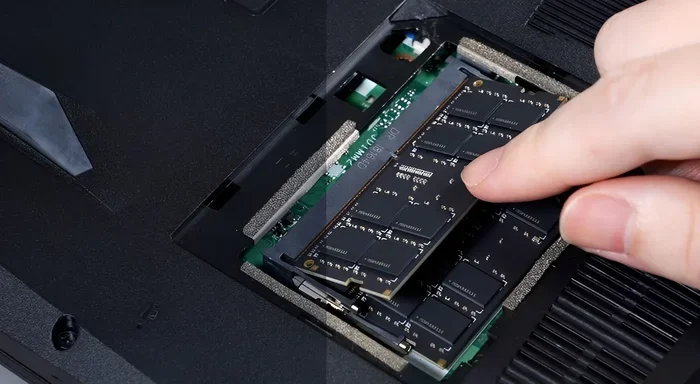
- Form Factor: Thinkcentre desktops use DIMM (desktop) RAM, not SO-DIMM (laptop) modules.
- ECC Support: Some Thinkcentre models support ECC (Error-Correcting Code) RAM for added reliability in business environments.
Brands like Crucial, Kingston, Corsair, and Samsung make excellent DDR4 modules that work well with Thinkcentre systems. If you are upgrading from an older machine, you might want to check what RAM your current Thinkcentre uses before comparing options like those found in guides about Lenovo 8 GB RAM laptop configurations or Lenovo laptop with 16GB RAM setups for reference on capacity tiers.
DDR3 RAM: For Older Models
Older Thinkcentre models (pre-2015) may still use DDR3 RAM. While slower than DDR4, DDR3 is perfectly fine for basic business tasks. If you have an older machine, DDR3 upgrades are still affordable and can make a noticeable difference.
Key DDR3 specs to look for:
- Speed: 1600MHz is the most common and reliable speed for DDR3.
- Capacity: 4GB and 8GB DDR3 DIMMs are still widely available.
- Voltage: DDR3 runs at 1.5V (standard) or 1.35V (DDR3L).
Before buying DDR3 RAM, double-check your Thinkcentre model number. Mixing DDR3 and DDR4 is not possible, so make sure you get the correct type.
How to Choose the Best RAM for Your Thinkcentre
Choosing RAM can feel overwhelming with so many options available. Here are the key factors to consider before making a purchase.
Check Your Motherboard Compatibility
Every Thinkcentre model has a motherboard that supports specific RAM types and maximum capacities. To find this information:
- Open the Start menu and type “System Information.”
- Look for your model number under “System Model.”
- Search Lenovo’s support website for your exact model.
- Check the “Memory” or “Specifications” section for RAM details.
This tells you the maximum RAM your Thinkcentre can support, the type it needs, and how many RAM slots are available. Some Thinkcentre models have two slots, while others have four. Knowing this helps you plan your upgrade correctly.
Single Stick vs. Dual Channel
Dual-channel memory means using two RAM sticks instead of one. This configuration allows your system to access memory faster and improves overall performance. If your Thinkcentre has two or four RAM slots, consider buying a matched pair of sticks.
For example, instead of buying one 16GB stick, buy two 8GB sticks. This enables dual-channel mode and gives you a small but noticeable performance boost. The same principle applies whether you are looking at desktop upgrades or comparing configurations like those discussed in upgrade RAM for Lenovo laptop guides, where dual-channel setups are also recommended for better throughput.
Speed vs. Capacity: What Matters More?
Many people get caught up in RAM speed numbers (measured in MHz). While faster speeds are nice, capacity matters more for most users. Here is a quick comparison:
| Factor | Speed (MHz) | Capacity (GB) |
|---|---|---|
| Impact on Daily Tasks | Low to Medium | High |
| Multitasking Performance | Medium | High |
| Gaming or Creative Work | Medium | Very High |
| Cost Difference | Higher speed costs more | More capacity costs more |
| Best For | Enthusiasts and power users | Most business and home users |
For a Thinkcentre used in an office setting, prioritize getting enough capacity first. A 16GB DDR4-2400MHz kit will outperform an 8GB DDR4-3200MHz kit in most real-world scenarios because you simply have more room for active applications.
Step-by-Step Guide to Upgrading Your Thinkcentre RAM
Upgrading RAM in a Thinkcentre desktop is one of the easiest PC improvements you can do. You do not need advanced technical skills or expensive tools. Here is how to do it safely.
What You Will Need
- Your new RAM sticks (matched to your Thinkcentre’s specifications)
- A Phillips head screwdriver
- An anti-static wrist strap (optional but recommended)
- A clean, flat workspace
Installation Steps
- Power down completely: Turn off your Thinkcentre and unplug it from the wall. Remove the power cable from the back of the machine.
- Open the case: Most Thinkcentre towers have a side panel held by one or two screws. Remove the screws and slide the panel off.
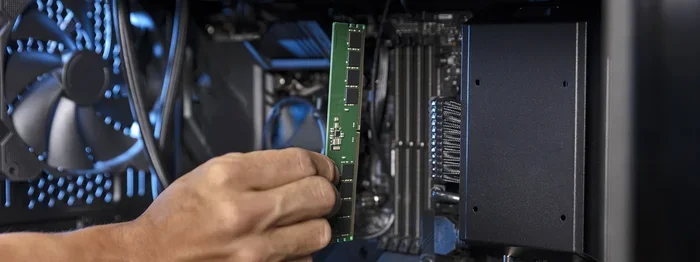
- Locate the RAM slots: You will see the RAM slots on the motherboard. They are long, thin slots with small clips on each end.
- Remove old RAM (if needed): Push the clips on each side of the existing RAM stick outward. The stick will pop up at an angle. Gently pull it out.
- Insert new RAM: Align the notch on the RAM stick with the tab in the slot. Press the stick down firmly until the clips click into place on both sides.
- Close the case: Slide the side panel back on and secure it with screws.
- Power on and verify: Plug everything back in and turn on your Thinkcentre. The system should recognize the new RAM automatically.
If you want to learn more about general RAM upgrade processes, you can also explore resources about how to increase RAM for laptop setups, which cover similar principles even though Thinkcentre is a desktop. The core steps of handling RAM carefully and seating it properly remain the same across device types.
Common Mistakes to Avoid
- Touching the gold contacts: The pins on the bottom of the RAM stick are sensitive. Hold the stick by the edges only.
- Forcing the RAM in: If it does not fit easily, check the alignment. Forcing it can damage the slot and the module.
- Mixing RAM types: Do not combine DDR3 and DDR4, or RAM with different speeds, unless your motherboard explicitly supports it.
- Skipping the anti-static precaution: Static electricity can damage components. Touch a metal part of the case before handling RAM.
Top RAM Brands Recommended for Lenovo Thinkcentre
Not all RAM brands are created equal. Here are the top brands we recommend for Thinkcentre upgrades:
- Crucial: One of the most trusted names in memory. Crucial offers DDR4 and DDR3 options specifically tested for compatibility with business desktops. Their online scanner tool helps you find the exact RAM for your Thinkcentre model.
- Kingston: Kingston is reliable and widely available. They offer value-friendly kits that perform well for office and business use.
- Corsair: Known for quality and durability. Corsair Vengeance series RAM is a popular choice for Thinkcentre users who want a bit more speed.
- Samsung: Samsung manufactures the actual memory chips used in many RAM sticks. Buying Samsung-based modules ensures high-quality components.
- Crucial and Kingston are the best value options for most Thinkcentre users. They offer solid performance at reasonable prices.
When comparing options, remember that the best RAM for your Thinkcentre is the one that matches your motherboard specifications and fits your budget. You do not need the most expensive kit to see real improvements. Even a simple upgrade from 4GB to 8GB or 8GB to 16GB can make your Thinkcentre feel brand new.
How Much Does Thinkcentre RAM Upgrade Cost?
One of the best things about upgrading RAM is how affordable it is. Here is a rough price guide:
- Single 8GB DDR4 stick: $25 to $40 USD
- Single 16GB DDR4 stick: $50 to $75 USD
- 2x8GB DDR4 kit (16GB total): $45 to $70 USD
- 2x16GB DDR4 kit (32GB total): $100 to $150 USD
- DDR3 8GB stick: $20 to $35 USD (older models)
Compared to buying a new desktop, a RAM upgrade is incredibly cost-effective. For under $50, you can double your memory and significantly improve performance. This makes RAM upgrades the best first step when your Thinkcentre starts feeling slow.
When to Consider a Full System Upgrade Instead
While RAM upgrades help a lot, they are not a cure for everything. Here are signs that your Thinkcentre might need more than just a memory boost:
- Your CPU is very old: If you have a first-generation Thinkcentre with a slow processor, adding RAM will help but not transform performance.
- You are still using an HDD: Switching from a hard drive to an SSD gives the biggest speed improvement of any single upgrade.
- Your RAM is soldered: Some ultra-compact Thinkcentre models have soldered RAM that cannot be upgraded.
- You need professional-grade power: If you run specialized software like CAD or data science tools, a more comprehensive upgrade might be necessary.
For most users, a RAM upgrade combined with an SSD swap is the perfect cost-effective refresh for an aging Thinkcentre. It brings the machine up to modern performance levels without the expense of a whole new system.
Final Thoughts
Upgrading the RAM in your Lenovo Thinkcentre is one of the simplest and most rewarding improvements you can make. Whether you choose 8GB, 16GB, or 32GB, the right memory upgrade will make your desktop faster, more responsive, and ready for whatever work you throw at it. Start by checking your model’s specifications, pick a compatible kit from a trusted brand, and follow the simple installation steps we covered.
Do not let a slow computer hold your productivity back. A RAM upgrade takes less than 30 minutes and costs less than a new pair of shoes. The performance boost you will feel is well worth the small investment. Your Thinkcentre will thank you.
Frequently Asked Questions
Can I mix different RAM brands in my Lenovo Thinkcentre?
Yes, you can mix brands as long as the RAM type, speed, and voltage match. However, using a matched kit from the same brand and model is always recommended for the best stability and performance. Mixing mismatched RAM can sometimes cause compatibility issues or prevent dual-channel mode from working properly.
What is the maximum RAM a Lenovo Thinkcentre can support?
The maximum RAM varies by model. Most Thinkcentre desktops support up to 32GB or 64GB depending on the motherboard. Check your specific model number on Lenovo’s support website to find the exact maximum capacity. Older models may be limited to 16GB total.
Do I need to install RAM in pairs?
No, you can install a single stick if you only have one slot available. However, installing RAM in pairs enables dual-channel mode, which improves memory bandwidth and overall performance. If your Thinkcentre has two or four slots, buying a matched pair is the best approach.
Is 8GB RAM enough for a Lenovo Thinkcentre used for office work?
Yes, 8GB is sufficient for most office tasks like email, word processing, spreadsheets, and video conferencing. If you frequently run multiple applications simultaneously or work with large files, upgrading to 16GB will provide a smoother experience. For light usage, 8GB remains a solid and budget-friendly choice.
How do I know if my Thinkcentre uses DDR3 or DDR4 RAM?
Check your model number on Lenovo’s support website and look at the specifications section. You can also use free tools like CPU-Z to scan your system and identify the exact RAM type installed. The age of your Thinkcentre is also a good indicator, as models from 2016 onward typically use DDR4.
Can I upgrade Thinkcentre RAM myself, or do I need a professional?
Upgrading Thinkcentre RAM is a straightforward DIY task that takes about 15 minutes. All you need is a small screwdriver and basic care in handling the modules. The process is similar to what is described in general guides about ram upgrade for laptop procedures, just adapted for a desktop tower. If you are uncomfortable opening your computer, a local tech shop can do it for a small fee.