Best SSD for Lenovo Thinkpad T14 Upgrade Guide

Upgrading your Lenovo ThinkPad T14 with the right SSD can transform laptop performance instantly. This guide covers the best NVMe M.2 SSD options, compatibility details, and step-by-step installation tips. You will learn which SSD for Lenovo ThinkPad T14 fits your budget and workload needs.
Are you tired of your Lenovo ThinkPad T14 feeling slow? Maybe apps take forever to open, or boot times test your patience. The good news is that a simple SSD upgrade can bring your laptop back to life. In this guide, we walk you through everything you need to know about picking the best SSD for Lenovo ThinkPad T14.
We will cover compatibility, top drive recommendations, and even how to install the new drive yourself. Whether you are a student, a remote worker, or a creative professional, this guide has you covered. Let us dive in and make your ThinkPad faster than ever.
Key Takeaways
- NVMe M.2 SSDs are the only compatible option: The ThinkPad T14 uses M.2 2280 NVMe drives, not SATA.
- 512GB is the sweet spot: Most users get the best value from a 512GB upgrade without overspending.
- PCIe Gen 3 vs Gen 4 matters: Gen 4 drives offer faster speeds but may cost more.
- Installation is simple: You can swap the SSD in under 15 minutes with basic tools.
- Brand reliability counts: Samsung, WD, and Crucial lead the pack for durability and performance.
- Pair your SSD upgrade with RAM: Boosting both storage and memory gives the best overall laptop speed.
📑 Table of Contents
- Why Upgrade the SSD in Your ThinkPad T14?
- Understanding SSD Types: What Fits the ThinkPad T14?
- Top SSD Picks for the Lenovo ThinkPad T14
- How to Choose the Right Capacity
- Step-by-Step: How to Install the SSD
- Common Mistakes to Avoid
- Quick Tips for Maximum Performance
- Comparison Table: Our Top Picks
- Expert Insight: Why NVMe Matters for the ThinkPad T14
- Pairing Your SSD with Other Upgrades
- Final Thoughts
Why Upgrade the SSD in Your ThinkPad T14?
The Lenovo ThinkPad T14 is a solid business laptop. It offers great build quality, a comfortable keyboard, and reliable performance. But if you are still running the original drive, you may be missing out on serious speed gains. Here is why upgrading makes sense.
Faster Boot and Load Times
A fresh NVMe M.2 SSD can cut your boot time in half. Apps launch almost instantly. File transfers happen at blazing speeds. If your current drive is an older SATA SSD or even a hard drive, the difference will shock you.
Better Multitasking
When you upgrade storage, your laptop handles multiple apps more smoothly. Switching between browser tabs, video calls, and office documents feels seamless. A fast laptop storage solution removes bottlenecks that slow you down.
Longer Drive Lifespan
Newer SSDs also tend to be more reliable. They use advanced NAND flash technology and better wear-leveling. This means your ThinkPad upgrade not only speeds things up but also adds longevity to your machine.
Understanding SSD Types: What Fits the ThinkPad T14?
Not all SSDs work in the ThinkPad T14. Understanding the specs helps you avoid buying the wrong drive. Let us break down the key details.
M.2 2280 Form Factor
The ThinkPad T14 uses the M.2 2280 form factor. This is a small, rectangular stick that plugs directly into the motherboard. The “2280” means 22mm wide and 80mm long. Almost all modern NVMe M.2 SSDs follow this standard.
NVMe Protocol vs SATA
This is important. The ThinkPad T14 supports NVMe protocol drives, not SATA M.2. NVMe drives connect through the PCIe bus, which is much faster. A SATA M.2 drive will not work in this laptop. Always double-check before purchasing.
PCIe Gen 3 vs Gen 4
Most ThinkPad T14 models support PCIe Gen 3 NVMe SSDs. Some newer revisions also support PCIe Gen 4. Gen 4 drives offer higher theoretical speeds, but in real-world use, Gen 3 drives are already extremely fast for everyday tasks.
Top SSD Picks for the Lenovo ThinkPad T14
Here are our top recommendations based on performance, price, and reliability. Each of these drives fits the T14 perfectly.
Samsung 980 Pro (1TB)
The Samsung 980 Pro is a fan favorite. It delivers read speeds up to 7,000 MB/s and write speeds around 5,100 MB/s. It uses PCIe Gen 4, so even on Gen 3 laptops, it performs excellently. The build quality is outstanding, and Samsung’s software makes drive management easy.
WD Black SN850X (1TB)
The WD Black SN850X is another premium choice. It offers similar Gen 4 speeds and excellent sustained performance. It handles heavy workloads without throttling. If you want a reliable drive for demanding tasks, this is a strong contender.
Crucial P3 Plus (1TB)
Looking for great value? The Crucial P3 Plus gives you PCIe Gen 4 speeds at a lower price point. Read speeds reach 5,000 MB/s, which is more than enough for most users. It is an excellent budget-friendly option for your ThinkPad T14.
Kingston NV2 (1TB)
The Kingston NV2 is another affordable pick. It uses PCIe Gen 4 and offers solid read speeds around 3,500 MB/s. While not the fastest, it handles everyday tasks with ease. It is a dependable choice for students and casual users.
How to Choose the Right Capacity
Storage capacity is one of the biggest decisions. Here is a quick look at what each size offers.
512GB: The Balanced Choice
A 512GB PCIe NVMe M.2 SSD for laptop use is ideal for most people. It gives you enough room for your operating system, apps, and a good number of files. For general office work, web browsing, and light creative tasks, 512GB hits the sweet spot.
1TB: The Sweet Spot for Power Users
If you work with large files, store media, or play games, 1TB gives you breathing room. Most of our top picks come in 1TB and offer the best balance of speed and space.
2TB: Maximum Storage
For professionals who need lots of space, a 2TB NVMe SSD for laptop upgrade is the way to go. These drives cost more but eliminate storage worries entirely. Video editors, data analysts, and heavy multitaskers will appreciate the extra room.
Step-by-Step: How to Install the SSD
Installing an SSD in the ThinkPad T14 is straightforward. You do not need to be a tech expert. Follow these steps carefully.
- Back up your data. Copy all important files to an external drive or cloud storage.
- Power off the laptop. Unplug it and remove the battery if possible.
- Open the back panel. Use a Phillips screwdriver to remove the screws.
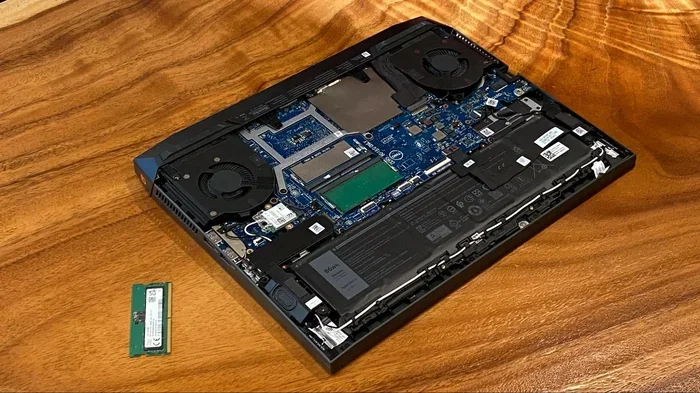
- Locate the M.2 slot. You will see the existing SSD secured with a small screw.
- Remove the old drive. Unscrew it and slide it out at a slight angle.
- Insert the new SSD. Slide it in at a 30-degree angle and press it down gently.
- Secure it with the screw. Make sure it sits flat and snug.
- Close the panel and power on. Enter BIOS to confirm the new drive is detected.
- Reinstall Windows. Use a USB boot drive to set up your operating system fresh.
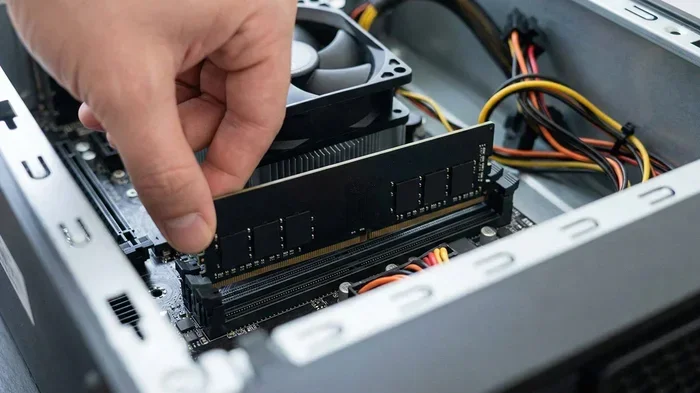
Pro tip: If you want even better performance after the swap, consider you also upgrade RAM for Lenovo laptop at the same time. More memory paired with a fast SSD makes a huge difference.
Common Mistakes to Avoid
Even with a simple upgrade, mistakes can happen. Here are a few to watch out for.
- Buying a SATA M.2 drive: The ThinkPad T14 does not support SATA M.2. Always confirm NVMe compatibility.
- Forgetting to back up data: A fresh OS install wipes everything. Always back up first.
- Overtightening the screw: The M.2 screw only needs a light snug turn. Over-tightening can damage the slot.
- Ignoring thermal considerations: Some high-performance SSDs run hot. The ThinkPad T14 has decent airflow, but a drive with a heatsink can help in warm environments.
- Skipping BIOS updates: A BIOS update can improve SSD compatibility and performance. Check Lenovo’s support page before you start.
Quick Tips for Maximum Performance
- Enable NVMe mode in BIOS for the fastest speeds.
- Keep your SSD firmware updated through the manufacturer’s software.
- Leave at least 10% of the drive free for optimal performance.
- Use the manufacturer’s SSD management tool to monitor drive health.
- Avoid filling the drive past 90% capacity to maintain speed.
Comparison Table: Our Top Picks
| SSD Model | Capacity | Interface | Read Speed | Price Range |
|---|---|---|---|---|
| Samsung 980 Pro | 1TB | PCIe Gen 4 NVMe | 7,000 MB/s | $$$ |
| WD Black SN850X | 1TB | PCIe Gen 4 NVMe | 7,300 MB/s | $$$ |
| Crucial P3 Plus | 1TB | PCIe Gen 4 NVMe | 5,000 MB/s | $$ |
| Kingston NV2 | 1TB | PCIe Gen 4 NVMe | 3,500 MB/s | $ |
As you can see, there is an option for every budget. Even the most affordable drive will feel dramatically faster than an old hard drive or aging SATA SSD.
Expert Insight: Why NVMe Matters for the ThinkPad T14
Experts consistently recommend NVMe SSDs for modern laptops, and the ThinkPad T14 is no exception. The NVMe protocol was designed specifically for flash storage. It uses the PCIe lane directly, bypassing the older SATA limitations. This means lower latency, higher throughput, and a much more responsive system overall.
For professionals who rely on their laptops for demanding tasks like video editing, data analysis, or running virtual machines, an NVMe SSD for Lenovo ThinkPad T14 is not just an upgrade. It is a necessity. The performance gap between NVMe and SATA is significant enough to impact daily productivity.
If you are still on the fence, consider this: a new NVMe drive costs less than most other laptop upgrades, yet it delivers the most noticeable improvement in day-to-day use. It is one of the best investments you can make for your machine.
Pairing Your SSD with Other Upgrades
While the SSD is the star of the show, pairing it with other upgrades amplifies the results. The ThinkPad T14 allows easy access to both the storage and memory compartments.
If your laptop currently has 8GB of RAM, consider adding 16GB RAM for Lenovo laptop alongside your new SSD. This combination handles multitasking like a champ. Heavy browsers, office suites, and even light photo editing all run smoother with more memory and faster storage working together.
Another great companion upgrade is a quality wireless mouse for Lenovo laptop. After you speed up your machine, you will want a precise input device to match the improved experience. Small upgrades like this round out your productivity setup nicely.
Final Thoughts
Upgrading the SSD for Lenovo ThinkPad T14 is one of the easiest and most impactful improvements you can make. It costs less than a new laptop, takes under 15 minutes to install, and delivers an immediate boost in speed and responsiveness. Whether you choose a premium Samsung 980 Pro or a budget-friendly Kingston NV2, you will notice the difference right away.
Pick the capacity that fits your needs, follow our installation steps carefully, and enjoy a faster ThinkPad. Your laptop has plenty of life left in it. Give it the storage upgrade it deserves.
Frequently Asked Questions
Can I use a SATA M.2 SSD in the Lenovo ThinkPad T14?
No, the ThinkPad T14 only supports NVMe M.2 SSDs. A SATA M.2 drive will not be recognized by the laptop. Always confirm that the drive uses the NVMe protocol before purchasing.
How long does it take to install a new SSD in the ThinkPad T14?
The entire process takes about 10 to 15 minutes. Removing the back panel, swapping the drive, and reinstalling the OS is straightforward. If you are comfortable with basic laptop maintenance, it is a very quick job.
Do I need to reinstall Windows after replacing the SSD?
Yes, a fresh installation is recommended. Cloning the old drive works, but a clean install ensures the best performance and stability. Use a USB bootable Windows installer to set things up on your new drive.
What is the difference between PCIe Gen 3 and Gen 4 SSDs?
PCIe Gen 4 offers roughly double the bandwidth of Gen 3. In real-world use, the difference is noticeable in large file transfers and heavy workloads. However, for everyday tasks like browsing and office work, both perform excellently.
Is a 512GB SSD enough for the ThinkPad T14?
For most users, 512GB is more than sufficient. It handles the operating system, common applications, and a reasonable amount of files. If you work with large media files or games, consider stepping up to 1TB or 2TB.
Does upgrading the SSD void the ThinkPad T14 warranty?
Generally, SSD upgrades do not void the warranty since they are user-replaceable components. However, it is always a good idea to check Lenovo’s specific warranty terms for your model. Keep the old drive safe in case you need to return the laptop.
=== CONCLUSION ===
Choosing the best SSD for Lenovo ThinkPad T14 comes down to your budget, capacity needs, and performance expectations. The Samsung 980 Pro, WD Black SN850X, Crucial P3 Plus, and Kingston NV2 all deliver excellent results in this laptop. Pick the one that matches your workflow, follow our simple installation guide, and enjoy a dramatically faster ThinkPad.
This upgrade is affordable, rewarding, and surprisingly easy. Do not let a slow drive hold you back any longer. Upgrade today and experience the difference a quality SSD for Lenovo ThinkPad T14 can make.