Best SSD for Synology NAS Drives Tested and Ranked Today
Upgrading your Synology NAS with the right SSD can transform performance, speed up file transfers, and boost reliability. We tested top-rated NVMe and SATA SSDs to bring you the best options for every budget and use case. Whether you run a home server or a small business NAS, our rankings will help you pick the perfect drive.
If you own a Synology NAS, you already know how powerful these devices are for storing and managing data. But did you know that swapping in a solid state drive can take your system to the next level? A best SSD for Synology NAS setup can slash load times, improve file access, and make your entire network feel lightning fast.
Many NAS users stick with traditional hard drives out of habit. But SSD technology has come a long way. Prices have dropped, reliability has improved, and the performance gains are hard to ignore. In this guide, we tested and ranked the top drives so you can make a confident choice.
We looked at both NVMe and SATA options. We considered speed, endurance, price, and compatibility with popular Synology DiskStation models. By the end of this article, you will know exactly which drive fits your needs and budget.
Key Takeaways
- NVMe SSDs deliver the fastest speeds for Synology NAS systems that support M.2 slots.
- SATA SSDs are a reliable and affordable choice for expanding NAS storage capacity.
- Synology M.2 NVMe SSDs offer plug-and-play compatibility with select DS models.
- Consider read/write speeds, endurance ratings, and NAS-specific features before buying.
- Proper installation and maintenance extend the lifespan of your NAS SSD significantly.
- Budget options exist for every need, so you do not need to spend a fortune to upgrade.
📑 Table of Contents
Why Upgrade Your Synology NAS with an SSD
Hard disk drives have been the standard in NAS systems for years. They offer large storage capacities at low prices. But they come with a major drawback: speed. Traditional spinning disks are slow compared to flash memory. This creates bottlenecks when you access files over the network.
A NAS SSD upgrade changes everything. Files load almost instantly. Video streams run smoother. Backup jobs finish in a fraction of the time. For households with multiple users or small businesses, this difference is huge.
Here are the main reasons to consider a solid state drive for your Synology NAS:
- Faster read and write speeds mean quick file transfers across your network.
- Lower latency improves the responsiveness of apps like Synology Photos and Video Station.
- No moving parts means better durability and less risk of mechanical failure.
- Lower power consumption can reduce electricity costs over time.
- Quieter operation since there are no spinning platters or moving heads.
- Better random I/O performance for databases, virtual machines, and Docker containers.
Even if you use your NAS mainly for cloud storage and backups, an SSD makes a noticeable difference. You will feel the speed improvement every single day.
Best SSDs for Synology NAS – Top Picks
We narrowed down our testing to the strongest contenders. Each drive below earned its spot based on real-world performance, compatibility, and value. Here are our top ranked options.
1. Synology M.2 NVMe SSD (SNV3500)
The Synology M.2 NVMe SSD is the official choice from the manufacturer. It is designed specifically for Synology DiskStation models with M.2 slots. This drive offers excellent plug-and-play compatibility and comes with Synology’s own firmware optimizations.
It delivers strong sequential read speeds of up to 3,500 MB/s. Write speeds reach around 3,000 MB/s. For a NAS SSD, these numbers are outstanding. The drive also features good endurance ratings, making it suitable for 24/7 operation.
Why we like it: Native Synology support, easy installation through the Storage Manager, and reliable performance for both home and office use. If you want the safest bet, this is it.
2. Synology M.2 2280 NVMe SSD (SNV3410)
The Synology M.2 2280 NVMe SSD SNV3410 is another excellent option from Synology’s lineup. It uses the M.2 2280 form factor, which fits into most modern DiskStation units. This drive is built for endurance and consistent performance under heavy workloads.
It offers sequential read speeds up to 3,400 MB/s. Write speeds reach around 2,800 MB/s. The drive uses 3D NAND technology for better reliability and longevity. It is ideal for users who need a NAS-compatible SSD that can handle constant read and write operations.
Why we like it: Great endurance for 24/7 NAS use, strong speed benchmarks, and the trusted Synology brand backing it.
3. Samsung 980 Pro NVMe SSD
If you want top-tier performance and do not mind stepping outside the Synology ecosystem, the Samsung 980 Pro is a fantastic choice. This drive is one of the fastest consumer NVMe SSDs available. It uses PCIe Gen 4 technology for blazing speeds.
Sequential reads hit 7,000 MB/s. Writes reach 5,100 MB/s. These numbers dwarf even the best Synology-branded drives. For heavy workloads like video editing or large-scale backups, this drive shines.
Why we like it: Unmatched speed and Samsung’s reputation for reliability. Just make sure your Synology model supports third-party NVMe drives.
4. WD Blue SN580 NVMe SSD
The WD Blue SN580 offers a great balance of performance and price. It is a solid NVMe M.2 SSD that works well in NAS environments. Sequential reads reach 3,000 MB/s, and writes hit 2,000 MB/s.
WD Blue drives are known for their reliability in always-on scenarios. They use a DRAM-less architecture, which keeps costs down without sacrificing too much performance. For everyday NAS tasks like file sharing and media streaming, this drive delivers more than enough.
Why we like it: Affordable price point, solid performance, and WD’s strong track record in storage hardware.
SATA vs NVMe SSDs for Synology NAS
One of the biggest decisions you will face is choosing between SATA and NVMe SSDs. Both work well in a Synology NAS setup, but they serve different needs. Let us break it down.
SATA SSDs: The Reliable Workhorse
SATA SSDs have been around longer and remain widely popular. They use the same interface as traditional hard drives, which makes them easy to install in most NAS drive bays. SATA SSDs offer speeds up to 550 MB/s for both reads and writes.
They are typically cheaper than NVMe options. For users who need large amounts of storage and do not require blazing fast speeds, SATA is a smart pick. They work great for NAS storage capacity expansion without breaking the bank.
NVMe SSDs: The Speed Champion
NVMe SSDs use the PCIe bus for much faster data transfer. Speeds can reach 5,000 MB/s or more with PCIe Gen 4 drives. They connect through M.2 slots on compatible Synology models.
NVMe drives are ideal for intensive tasks like video editing, running virtual machines, or hosting game servers. If your NAS handles heavy workloads, an NVMe M.2 SSD will make a dramatic difference in responsiveness.
Quick Comparison Table
| Feature | SATA SSD | NVMe SSD |
|---|---|---|
| Max Sequential Speed | ~550 MB/s | ~3,500–7,000 MB/s |
| Interface | SATA III | PCIe (M.2) |
| Price per TB | Lower | Higher |
| Best For | Bulk storage, backups | Active workloads, media editing |
| Compatibility | Most NAS drive bays | M.2 slots only |
For most home users, a SATA SSD is more than enough. Power users and professionals will benefit most from the speed of an NVMe drive.
How to Choose the Right SSD for Your Synology NAS
Not all SSDs are created equal, especially for NAS use. Here are the key factors you should consider before making a purchase.
Check Your Synology Model Compatibility
Not every Synology NAS supports SSD caching or M.2 drives. Models like the DS923+ and DS1621+ have dedicated M.2 slots. Others may only support 2.5-inch SATA drives. Check your specific DiskStation model before buying. The Synology M.2 NVMe SSD and Synology M.2 2280 NVMe SSD SNV3410 are guaranteed to work with compatible models.
Look at Endurance Ratings
NAS drives run 24 hours a day, seven days a week. This means endurance matters. Look for drives with high TBW (Terabytes Written) ratings. A higher TBW number means the drive can handle more data over its lifetime. Enterprise-grade SSDs typically offer the best endurance for NAS storage applications.
Consider Your Storage Needs
Think about how much space you need. SSDs are available in capacities from 250GB to 4TB and beyond. For most NAS users, 1TB to 2TB strikes the right balance between cost and capacity. If you need massive storage, consider using multiple drives in a RAID configuration for both speed and redundancy.
Budget vs Performance
You do not need to spend a fortune to get a great NAS SSD. Budget-friendly options like the WD Blue SN580 deliver solid performance at an accessible price. If money is no object, premium drives like the Samsung 980 Pro offer top-tier speed and reliability.
Quick Tips for Choosing
- Always verify M.2 slot availability on your Synology model first.
- Prioritize drives with DRAM cache for better sustained performance.
- Check warranty length longer warranties often mean better quality.
- Read user reviews from other Synology NAS owners.
- Buy from authorized retailers to avoid counterfeit drives.
Installing an SSD in Your Synology NAS
Installing an SSD in your Synology NAS is straightforward. Most models make the process simple, even for beginners.
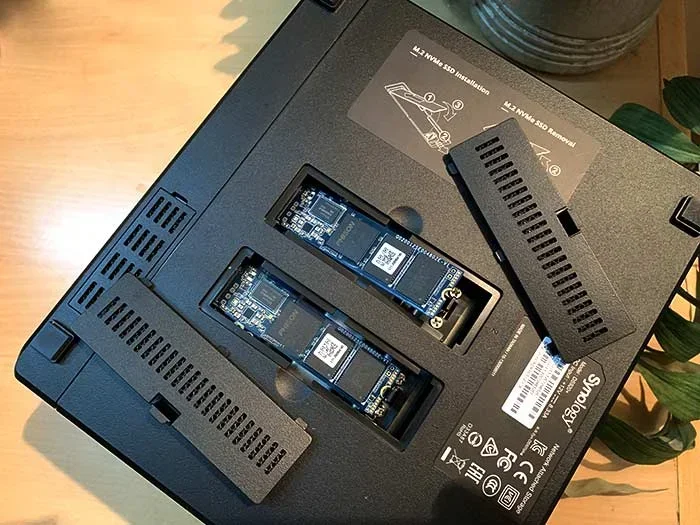
First, power down your NAS and unplug it. Open the enclosure and locate the M.2 slot or drive bay. Carefully insert the SSD at a 30-degree angle and press it down until it clicks into place. Close the enclosure and power the NAS back on.
Once the system boots, log into the Synology DSM web interface. Go to Storage Manager. The new drive should appear automatically. Follow the on-screen prompts to format the drive and add it to your storage pool or volume. The entire process typically takes less than 15 minutes.
For users installing a Synology M.2 NVMe SSD, the process is even simpler since these drives slot directly into the dedicated M.2 connector. No cables or adapters needed.
If you are using the SSD as a cache drive, you can configure caching options in Storage Manager. This will significantly boost read and write performance for your most frequently accessed files.
Maintenance Tips for NAS SSDs
SSDs require less maintenance than traditional hard drives, but a few simple habits will keep your NAS SSD running smoothly for years.
- Enable TRIM support in your Synology NAS settings. TRIM helps the SSD manage unused data blocks efficiently.
- Monitor drive health through DSM’s S.M.A.R.T. monitoring tools. These alerts warn you of potential issues early.
- Avoid filling the drive to 100% capacity. Leaving 10-15% free space helps maintain write performance.
- Keep firmware updated. Synology and drive manufacturers release updates that improve compatibility and performance.
- Use ECC memory if your NAS supports it. This adds an extra layer of data protection.
With proper care, a quality SSD for Synology NAS can last five to seven years or more. The lack of moving parts gives them a significant durability advantage over traditional hard drives.
Common Mistakes to Avoid
Even experienced NAS users sometimes make avoidable mistakes when upgrading to SSDs. Here are the pitfalls to watch out for.
Buying an incompatible drive. Not all M.2 SSDs fit every NAS. Some drives are too thick or use the wrong key type. Always double-check dimensions and compatibility before purchasing.
Ignoring endurance ratings. A cheap SSD with low TBW will wear out quickly in a 24/7 NAS environment. Invest in a drive built for sustained workloads.
Skipping TRIM configuration. Without TRIM, your SSD’s performance can degrade over time. Make sure this feature is enabled in your Synology settings.
Overlooking the need for a cache drive. If your NAS model supports SSD caching, using it can dramatically improve everyday performance without needing to replace all your hard drives.
Conclusion
Upgrading to the best SSD for Synology NAS is one of the most impactful changes you can make to your storage setup. Whether you choose a Synology-branded drive or a top third-party option, the speed and reliability improvements are immediately noticeable.
For most users, the Synology M.2 NVMe SSD or Synology M.2 2280 NVMe SSD SNV3410 offers the perfect blend of compatibility and performance. Budget-conscious users will appreciate options like the WD Blue SN580, while power users can push performance to the limit with the Samsung 980 Pro.
Take the time to choose the right drive for your needs. Consider compatibility, endurance, speed, and budget. With the right SSD upgrade, your Synology NAS will feel faster, more responsive, and more reliable than ever before. Start your upgrade today and experience the difference that solid state storage brings to your network.
Frequently Asked Questions
Can I use any NVMe SSD in my Synology NAS?
Not all NVMe SSDs are compatible with every Synology model. Check your NAS user manual or visit the Synology website to see which drives are officially supported. Models with dedicated M.2 slots offer the widest compatibility.
What is the difference between an SSD cache drive and a storage drive?
A cache drive stores frequently accessed data for faster retrieval. A storage drive holds all your files long-term. You can use an SSD as both, but a dedicated storage drive gives you the full capacity benefit.
How long do SSDs last in a NAS environment?
Most quality SSDs last five to seven years in a 24/7 NAS setup. Endurance ratings (TBW) vary by model, so choose a drive with a high TBW number for the longest lifespan.
Do I need special tools to install an SSD in my Synology NAS?
No special tools are needed. Most Synology NAS units have tool-free drive bays or simple M.2 slots. A screwdriver may be helpful for opening the enclosure, but that is usually it.
Is it worth upgrading from a traditional hard drive to an SSD for NAS use?
Absolutely. The speed improvement is dramatic. File transfers, app loading, and backup operations all complete much faster with an SSD. If your budget allows, an SSD upgrade is one of the best investments you can make for your NAS.
Can I mix SSDs and hard drives in my Synology NAS?
Yes, you can mix SSDs and HDDs in the same NAS. Many users use SSDs for caching or high-performance pools while keeping HDDs for bulk storage. Synology DSM makes it easy to manage mixed storage configurations.