Budget 6700k to 12th 14th Gen Cpu Upgrade Guide
Upgrading from an Intel 6700K to a 12th or 14th gen processor is one of the best ways to breathe new life into an older PC. This guide walks you through every step, from checking motherboard compatibility to picking the right budget CPU upgrade for your needs. You will learn how to save money, avoid common pitfalls, and get the most performance out of your system.
If your PC still runs on an Intel Core i7-6700K, you are not alone. Many users are stuck on this trusty processor and wonder if it is worth upgrading to a 12th or 14th gen Intel CPU. The good news is that a budget CPU upgrade can seriously transform your system. You get faster speeds, better multitasking, and improved gaming performance without buying a whole new computer.
But here is the catch. The 6700K uses an older LGA 1151 socket, while 12th and 14th gen CPUs use LGA 1700. That means you cannot just swap the old chip for the new one. You need a new motherboard, and possibly other parts too. This guide breaks down every step so you know exactly what to do, what to buy, and how to keep costs low.
Whether you are a gamer, a content creator, or just someone who wants a faster daily driver, this budget 6700K to 12th 14th gen CPU upgrade guide has you covered. Let us dive in.
Key Takeaways
- Know your socket: The 6700K uses LGA 1151, but 12th and 14th gen CPUs need LGA 1700, so a motherboard swap is required.
- Set a budget first: Planning your spending before shopping prevents overspending on unnecessary parts.
- Check compatibility early: Not all motherboards support 12th or 14th gen CPUs, even with a BIOS update.
- Cooling matters: A new CPU may need a better cooler to run at peak performance without overheating.
- Consider RAM too: Upgrading RAM alongside your CPU can significantly boost overall system performance.
- Compare upgrade paths: Sometimes upgrading other components like the GPU gives better value than a CPU swap.
📑 Table of Contents
Why Upgrade from a 6700K to 12th or 14th Gen?
The Intel Core i7-6700K was a fantastic processor when it launched in 2015. It still handles everyday tasks well. But modern software and games have moved on. A 12th gen or 14th gen Intel CPU offers big improvements in both single-core and multi-core performance.
Here are the main reasons to consider this upgrade:
- Faster clock speeds: Newer gen CPUs run at much higher frequencies, which means smoother performance in demanding tasks.
- More cores: 12th and 14th gen chips offer up to 16 cores, making heavy workloads like video editing much faster.
- Better efficiency: Newer architectures use less power for the same or better performance.
- Modern features: You get support for newer PCIe versions, faster RAM, and improved security features.
- Longer lifespan: Investing in a newer platform means your PC stays relevant for several more years.
Before you rush out and buy parts, it is important to understand that this is not a simple plug-and-play upgrade. You will need a new motherboard at minimum. That is why budgeting and planning are so important.
Understanding Compatibility: What You Need to Know
The biggest hurdle in any CPU upgrade is compatibility. The 6700K sits on the LGA 1151 socket. 12th and 14th gen Intel CPUs use the LGA 1700 socket. These are completely different, so your current motherboard will not work with a new CPU.
Motherboard Requirements
You will need a motherboard that supports 12th or 14th gen Intel processors. Look for boards with the following chipsets:
- Z690 – Great for overclocking and high-end builds.
- B660 – A solid budget option with good features.
- H670 – Mid-range choice that balances cost and capability.
- Z790 – Top-tier support for 14th gen CPUs with overclocking.
Some older B660 and Z690 boards received BIOS updates to support 14th gen CPUs. Always check the motherboard manufacturer’s website before purchasing. This small step can save you from buying incompatible hardware.
Do You Need a New RAM Too?
Most LGA 1700 motherboards use DDR4 RAM, which is great because you may already have compatible memory. However, some newer boards support DDR5. If you are on a tight budget, sticking with DDR4 saves money. You can always upgrade to DDR5 later when prices drop further.
Also consider whether your current RAM speed is holding back your new CPU. Faster memory can unlock extra performance, especially with Intel’s 14th gen processors. A quick check of your RAM specs before buying parts is always a smart move.
Building a Budget Upgrade Plan
A successful budget 6700K to 12th 14th gen CPU upgrade guide starts with a solid plan. You need to decide how much you are willing to spend and which parts to prioritize.
Step 1: Set Your Total Budget
Write down a number before you start shopping. A reasonable budget for this upgrade ranges from $200 to $500, depending on what parts you already have. If you already own a decent motherboard, you can spend more on the CPU and cooler.
Step 2: Decide What to Reuse
Take inventory of your current components. Here is what you might be able to keep:
- RAM: If you have DDR4 sticks, they likely work with new LGA 1700 boards.
- Storage: Your existing SSD or HDD stays the same.
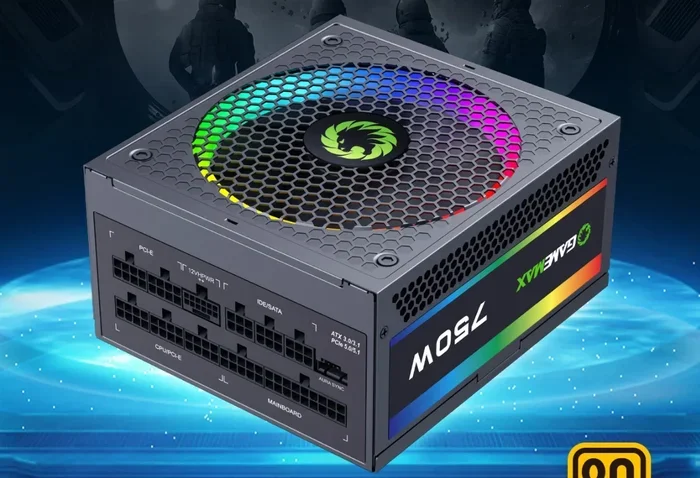
- Power Supply: If it has enough wattage, you can reuse it.
- Case: Most modern boards fit in standard ATX or mid-tower cases.
Reusing parts is the single best way to keep your upgrade cost low. Only buy what you absolutely need.
Step 3: Pick the Right CPU
Not all 12th and 14th gen CPUs are created equal. Here is a quick comparison of popular budget-friendly options:
- Intel i5-12400F: Around $120-$150. Excellent value with 6 cores and 12 threads. Great for gaming and everyday use.
- Intel i5-14400F: Around $160-$190. A newer option with 10 cores and 16 threads. Better for multitasking.
- Intel i7-12700K: Around $250-$280. More cores and higher boost clocks for power users.
- Intel i7-14700K: Around $300-$350. Top-tier performance but pricier.
If you want the best bang for your buck, the i5-12400F or i5-14400F are hard to beat. They offer a huge performance jump over the 6700K at a very reasonable price.
Step-by-Step Upgrade Process
Now for the fun part. Let us walk through the actual upgrade process. Do not worry. It is simpler than it sounds, and anyone with basic hands-on experience can do it.
Step 1: Back Up Your Data
Before you touch any hardware, back up your important files. An upgrade can sometimes cause unexpected issues. A simple backup to an external drive or cloud storage keeps your data safe.
Step 2: Install the New Motherboard
If you are replacing your motherboard, remove the old one carefully. Disconnect all cables, unscrew the standoffs, and lift it out. Place the new board in the case, secure it with screws, and reconnect everything.
Step 3: Install the New CPU
Open the LGA 1700 socket cover on the new motherboard. Gently place the new CPU into the socket, matching the corner marker. Close the retention arm carefully. Do not force anything.
Step 4: Apply Thermal Paste and Cooler
Clean off the old thermal paste from the CPU. Apply a small pea-sized dot of new paste. Then mount your cooler. If your current cooler does not support LGA 1700, you may need a new one. Check out a best budget CPU air cooler to keep costs down while maintaining great temperatures.
Step 5: Boot and Update BIOS
Power on your system and enter the BIOS. Check that the new CPU is detected. If you have a 14th gen CPU on a board that was not originally designed for it, you may need a BIOS update. Most modern boards have a USB BIOS flash feature that makes this easy.
Step 6: Install Drivers and Test
Once Windows boots, install the latest Intel chipset and graphics drivers. Run a stress test or benchmark to make sure everything runs smoothly. You should immediately notice a big improvement in speed and responsiveness.
Common Mistakes to Avoid
Even with the best plan, mistakes happen. Here are the most common errors people make during a CPU upgrade:
- Skipping the BIOS check: Buying a 14th gen CPU for a board that does not support it without a BIOS update is a costly mistake.
- Forgetting the cooler: Newer CPUs run hotter. Using an old cooler that is not compatible can cause overheating.
- Ignoring the power supply: A higher-performance CPU draws more power. Make sure your PSU can handle the load.
- Not checking RAM compatibility: Some boards work best with specific RAM speeds. Check the motherboard QVL list.
- Overlooking the GPU bottleneck: If your graphics card is very old, upgrading the CPU alone may not give you the boost you expect. Deciding whether to upgrade your CPU or GPU first can save you money.
Taking a few extra minutes to research before buying can save you hours of frustration later. Always double-check compatibility lists and read user reviews before making any purchase.
When a Full Upgrade Makes More Sense
Sometimes a CPU upgrade alone is not the best path. If your motherboard is very old, your RAM is DDR3, or your GPU is several generations behind, a full platform upgrade might make more sense.
Consider your overall system balance. A powerful new CPU paired with an old graphics card will leave you bottlenecked. In that case, matching your CPU and GPU properly becomes the priority. Similarly, if you find that your laptop RAM is holding you back, consider upgrading your RAM alongside or instead of the CPU depending on your system.
The goal is to get the best performance for your money. Sometimes that means spending on the CPU, and sometimes it means spreading your budget across multiple components.
Maximizing Your New CPU’s Performance
Once your upgrade is complete, there are a few things you can do to get the most out of your new processor:
- Enable XMP in BIOS: This allows your RAM to run at its rated speed for better performance.
- Update Windows: The latest Windows updates include optimizations for newer Intel CPUs.
- Use performance power plans: Switch to the High Performance or Ultimate Performance power plan in Windows.
- Keep drivers updated: Regular driver updates from Intel improve stability and performance.
- Monitor temperatures: Use free tools like HWMonitor or Core Temp to make sure your CPU stays cool under load.
These small tweaks can make a noticeable difference. Your budget upgrade will feel even more powerful when everything is tuned correctly.
Final Thoughts
Upgrading from an Intel 6700K to a 12th or 14th gen CPU is one of the most rewarding upgrades you can do. It gives your PC modern performance without the cost of a brand new system. The key is planning, checking compatibility, and making smart purchasing decisions.
Start by setting a clear budget, then pick the right CPU and motherboard combination for your needs. Do not forget about cooling, RAM, and power supply considerations. And if your current GPU is holding you back, consider whether a GPU upgrade might give you more value.
With this budget 6700K to 12th 14th gen CPU upgrade guide, you have everything you need to get started. The upgrade process is straightforward, the cost is manageable, and the performance gains are well worth the effort. Your old 6700K served you well. Now it is time to let your PC shine with modern hardware.
Frequently Asked Questions
Can I upgrade my 6700K directly to a 12th gen CPU without changing the motherboard?
No. The 6700K uses an LGA 1151 socket, while 12th and 14th gen CPUs require an LGA 1700 socket. You will need to replace your motherboard to use a newer generation Intel CPU.
How much does a full 6700K to 14th gen upgrade cost on a budget?
A budget upgrade typically costs between $200 and $400. This includes a motherboard, CPU, and possibly a new cooler. Reusing your existing RAM, storage, and power supply helps keep costs low.
Is a 12th gen or 14th gen CPU worth it over the 6700K?
Absolutely. Both 12th and 14th gen CPUs offer significantly higher single-core and multi-core performance. You will notice faster load times, smoother multitasking, and better gaming frame rates compared to the 6700K.
Do I need a new CPU cooler for a 12th or 14th gen upgrade?
It depends on your current cooler. If your existing cooler supports LGA 1700 mounting, you can reuse it. Otherwise, you will need a new cooler. Even a budget CPU air cooler works well for most 12th and 14th gen chips.
Will my existing DDR4 RAM work with a 12th or 14th gen CPU?
Yes. Most LGA 1700 motherboards support DDR4 RAM. You can keep your existing memory and save money. Just check the motherboard’s QVL list to confirm compatibility with your specific RAM sticks.
Should I upgrade my GPU at the same time as the CPU?
It depends on your current GPU. If it is several years old, upgrading both the CPU and GPU together will give you the best balanced performance. If your GPU is still decent, focus on the CPU first and upgrade the GPU later when your budget allows.