Gateway Laptop Power Button Not Working
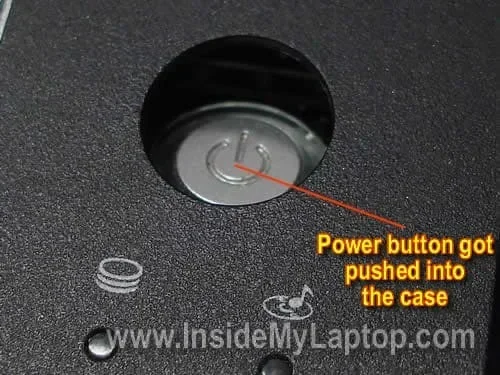
A Gateway laptop power button not working is a frustrating problem, but it is often fixable with simple steps. This guide covers the most common causes, from stuck buttons to motherboard issues, and gives you clear troubleshooting methods you can try at home. You will learn when a quick reset solves the problem and when it is time to seek professional Gateway laptop repair.
There is nothing worse than pressing the power button on your Gateway laptop and nothing happening. You expect the screen to light up, the fan to hum, and the home screen to appear. But when the Gateway laptop power button not working, it feels like your entire day just stopped. Whether you need your laptop for work, school, or entertainment, a dead power button is a real problem. The good news is that most power button issues have simple solutions. In this guide, we walk you through every possible cause and fix step by step.
Before you panic or spend money on a repair, try the methods we share below. Many Gateway laptop owners fix this issue themselves in under ten minutes. We also explain when the problem is serious enough to call a professional. By the end of this article, you will know exactly what to do when your Gateway laptop power button not working keeps you from using your device.
Key Takeaways
- Dirt and debris are the most common reasons a Gateway laptop power button stops responding.
- A simple power reset can fix many power button issues without any tools.
- Worn-out buttons may need replacement, especially on older Gateway laptop models.
- Motherboard problems can cause the power button to fail completely.
- Battery and AC adapter issues sometimes mimic a broken power button.
- Regular cleaning helps prevent power button malfunctions over time.
- Professional repair is the best option when DIY fixes do not work.
📑 Table of Contents
Why Your Gateway Laptop Power Button Might Not Work
Understanding the root cause is the first step to fixing any problem. A Gateway laptop power button not working can happen for many reasons. Some causes are simple and easy to fix. Others need a bit more technical skill. Let us look at the most common culprits.
Dirt, Dust, and Debris Buildup
This is the number one reason power buttons stop working. Over time, dust, crumbs, and tiny particles get trapped around the button. They press against the button mechanism and stop it from making proper contact. If your laptop lives on a desk or bed, this happens faster than you think. A little compressed air or a gentle cleaning can often bring the button back to life.
Worn-Out Power Button Mechanism
Like any moving part, the power button wears out over time. If you press your power button hundreds of times a day, the internal spring or contact pad can weaken. Older Gateway laptops are especially prone to this. When the mechanism wears down, the button may feel loose or unresponsive. In these cases, a power button replacement is the best long-term solution.
Motherboard or Internal Connection Issues
The power button connects to the motherboard through a small cable or contact strip. If that connection loosens or gets damaged, the button cannot send the signal to turn on the laptop. This type of problem is more serious and usually requires professional Gateway laptop repair. A technician can open the laptop, check the connection, and re-seat or replace the faulty part.
Battery or Power Supply Problems
Sometimes the power button seems dead, but the real issue is the power source. A dead battery or a faulty AC adapter can make it look like the button is broken. Before assuming the worst, make sure your laptop is actually getting power. Plug in the charger and wait a few minutes before pressing the button again.
Common Signs Your Power Button Is Failing
Not all power button problems look the same. Some give clear warning signs before they completely fail. Recognizing these signs early can save you from a sudden shutdown.
- The button feels loose or spongy when you press it. A healthy power button should feel firm and click.
- The laptop does not respond at all when you press the button, even with a full charge.
- The power light does not turn on, even though the laptop is plugged in.
- The button sticks or does not spring back after pressing it.
- Intermittent power — the laptop turns on sometimes but not every time.
- The laptop turns off randomly when the button is pressed lightly or accidentally.
If you notice any of these signs, do not ignore them. Early action can prevent a small issue from turning into a big repair bill. For related laptop hardware issues, you can also check our guide on Why Laptop Mouse Not Working to troubleshoot other input device problems that may point to broader hardware concerns.
How to Troubleshoot Your Gateway Laptop Power Button
Now that you know the common causes, let us get into the fixes. Try these steps in order. Most people solve the problem by step three or four.
Step 1: Perform a Hard Reset
A hard reset clears any static charge or temporary glitch that may be blocking the power circuit. Here is how to do it:
- Turn off the laptop completely.
- Unplug the AC adapter from the laptop.
- If your battery is removable, take it out.
- Press and hold the power button for 30 seconds.
- Wait one minute, then reconnect the battery and adapter.
- Press the power button normally.
This simple trick fixes more power button issues than most people realize. It resets the internal power circuit and gives the laptop a fresh start.
Step 2: Clean the Power Button Area
Grab a can of compressed air and spray around the power button. Hold the can upright and use short bursts. Do not tilt the can or you will get moisture inside. You can also use a soft, dry toothbrush to gently brush around the button edges. This removes loose dust and debris that may be blocking the mechanism.
For stubborn grime, dampen a cotton swab with a tiny bit of rubbing alcohol. Gently clean around the button and let it dry completely before trying to power on the laptop. Never use water or harsh cleaners on laptop components.
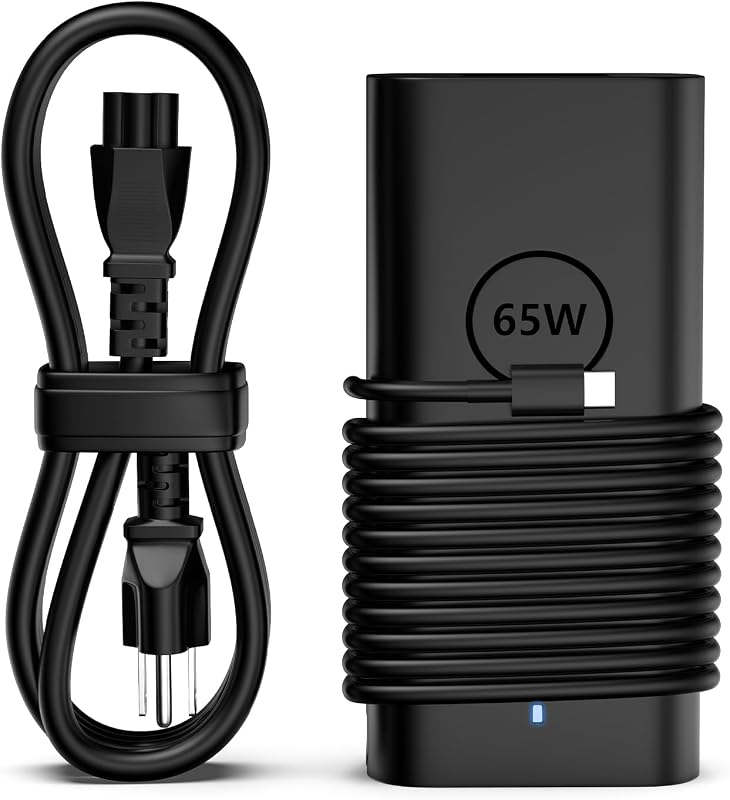
Step 3: Check the AC Adapter and Battery
Before assuming the button is broken, make sure the laptop is getting power. Try these checks:
- Plug the AC adapter into a different wall outlet.
- Check the adapter light (if it has one) to confirm it is working.
- Try a different AC adapter if you have one that fits your Gateway model.
- If the battery is removable, remove it and run the laptop on AC power only.
- Look for any swelling or damage on the battery. A swollen battery is a safety hazard and needs immediate replacement.
If the laptop turns on with a different adapter or without the battery, your original power source was the problem, not the button.
Step 4: Try an External Keyboard
Many Gateway laptops allow you to power on using an external keyboard. Connect a USB keyboard and press the power key on it. If the laptop turns on this way, the internal power button is definitely the problem. This is a great temporary workaround while you arrange for a repair or replacement.
For broader troubleshooting of laptop input and power issues together, you can also read our article on Laptop Keyboard Mouse Not Working which covers related hardware failures that affect multiple components at once.
Step 5: Check for Loose Internal Connections
If you are comfortable opening your laptop, you can check the internal power button cable. Make sure the laptop is unplugged and the battery is removed before opening the case. Look for the small ribbon cable or connector that runs from the power button to the motherboard. If it is loose, gently reseat it. This simple fix solves the problem for many users.
Warning: If you are not comfortable opening your laptop, skip this step. You do not want to damage other components. Take it to a professional instead.
When to Replace the Power Button
Sometimes cleaning and resetting are not enough. If the button is physically damaged or the internal mechanism is broken, replacement is the way to go.
Signs You Need a Replacement
- The button is cracked, chipped, or visibly broken.
- The button feels completely mushy and does not click at all.
- None of the troubleshooting steps above have worked.
- The laptop is older and the button has simply worn out from years of use.
- You notice the power button cable is frayed or damaged inside the laptop.
DIY Replacement vs. Professional Repair
Replacing a power button yourself is possible if you have experience with laptop disassembly. You will need the correct replacement part for your specific Gateway model. Search online using your laptop model number to find the right button assembly. The process involves removing the top case, disconnecting the old button, and connecting the new one.
However, if you have never opened a laptop before, professional repair is the safer choice. A technician can do the job quickly and correctly. They can also check for any hidden damage while the laptop is open. For more on diagnosing multiple laptop component failures together, see our guide on Keypad And Mouse Not Working On Laptop which covers related input device diagnostics.
Cost Considerations
A power button replacement part usually costs between $10 and $30. Professional labor adds another $50 to $100 depending on your location and the Gateway laptop model. For older laptops, you might want to weigh the repair cost against buying a new device. If the rest of the laptop is in good shape, a small repair is worth it.
Preventing Future Power Button Problems
Prevention is always easier than repair. A few simple habits can keep your Gateway laptop power button working smoothly for years.
- Keep your laptop clean. Wipe the power button area weekly with a dry microfiber cloth.
- Avoid eating over your laptop. Crumbs and spills are the enemy of any button.
- Use a laptop stand or hard surface. This reduces dust buildup compared to using the laptop on a bed or carpet.
- Do not press the power button too hard. Gentle pressure is all that is needed. Pressing forcefully wears out the mechanism faster.
- Keep your laptop on a stable surface. Avoid dropping or bumping the laptop, which can loosen internal connections.
- Update your laptop BIOS. Sometimes a BIOS update fixes power management bugs that affect the button.
These small habits add up. They keep your laptop healthy and save you from unexpected breakdowns. For general laptop maintenance tips and broader troubleshooting, you might also find our article on Why Is Mouse Not Working On Laptop helpful for understanding how dust and wear affect other laptop components too.
When to Seek Professional Help
Not every problem should be fixed at home. Know your limits and when to call in the experts. If you have tried every troubleshooting step in this guide and the power button still does not work, it is time to see a professional. The same goes for any situation where you feel uncomfortable opening the laptop or working with internal components.
A certified technician can diagnose issues that are not visible from the outside. They have the tools and experience to safely open your Gateway laptop and check the motherboard, power circuits, and internal wiring. If the problem turns out to be a motherboard failure, the repair cost will be higher, but a professional can give you an honest assessment of whether it is worth fixing.
Always choose a repair shop that specializes in Gateway laptops or has experience with your specific model. General repair shops may not have the right parts or knowledge. Ask for a diagnosis fee upfront so there are no surprises.
Final Thoughts
A Gateway laptop power button not working does not have to mean the end of your laptop’s life. In most cases, the fix is simple and free. Start with a hard reset and a good cleaning. Check your power sources and connections. Only move to replacement or professional repair if those steps do not work.
The key is to act quickly when you notice the first signs of a failing power button. The longer you wait, the worse the problem can get. A loose connection today can become a dead motherboard tomorrow if left unaddressed. With the right knowledge and a little patience, you can get your Gateway laptop powered up and running again.
Remember, your laptop is an investment. Taking care of the small things — like keeping the power button clean and not pressing too hard — goes a long way. Share this guide with anyone you know who is dealing with a Gateway laptop power button not working. You might just save them a trip to the repair shop.
Frequently Asked Questions
Why does my Gateway laptop power button not respond at all?
The most common reason is dust or debris trapped around the button. A hard reset and cleaning often fix this. If the button still does not respond, the internal cable or mechanism may need replacement.
Can a dead battery cause the power button to not work?
Yes. A completely drained or faulty battery can make the power button seem unresponsive. Plug in the AC adapter, wait a few minutes, and try again before assuming the button itself is broken.
How much does it cost to replace a Gateway laptop power button?
The part usually costs $10 to $30, and professional labor runs $50 to $100. For older models, compare this cost to the price of a replacement laptop before deciding.
Is it safe to open my Gateway laptop to check the power button connection?
It is safe if you are careful and follow proper steps. Always unplug the laptop and remove the battery first. If you are not comfortable, take it to a professional technician instead.
Can a power button problem damage the motherboard?
Usually not directly. However, if the issue is a stuck power circuit or a short, it could potentially cause motherboard stress over time. Fix the button problem promptly to avoid any risk.
What should I do if the power button works sometimes but not always?
Intermittent power button issues often point to a loose internal connection or a worn-out button mechanism. Try a hard reset first, then consider professional inspection if the problem continues.
=== CONCLUSION ===
A Gateway laptop power button not working is a common but solvable problem. You now have the knowledge to troubleshoot the issue from start to finish. Start with the simplest fixes, work your way up, and do not be afraid to call a professional when needed. With the right approach, your laptop will be back to normal in no time.