Can I Remove Laptop Screen and Just Use External Monitor
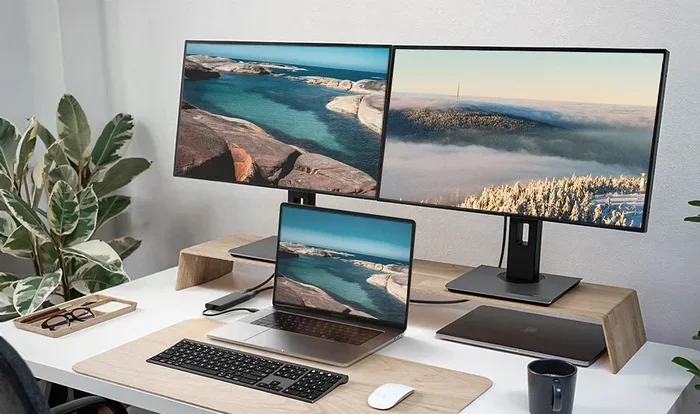
Yes, you can remove your laptop screen and use only an external monitor. This setup, known as a headless laptop configuration, lets you turn your portable computer into a desktop replacement. You will need the right cables, a docking station, and a few simple adjustments to get everything working smoothly.
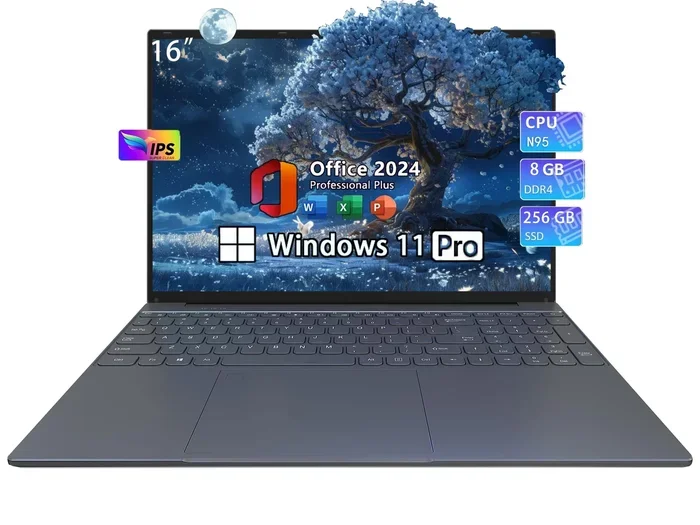
Many laptop users find themselves in a situation where they want to ditch the built-in screen. Maybe the screen is cracked, or maybe you just prefer a bigger display. Whatever the reason, the question Can I Remove Laptop Screen And Just Use External Monitor comes up a lot. The short answer is yes. You absolutely can use your laptop without the screen attached and rely entirely on an external monitor. This setup is called a headless laptop, and it works surprisingly well for many people.
In this guide, we will walk you through everything you need to know. From the hardware you need to the step-by-step setup process, we have you covered. You will also learn about the benefits, potential downsides, and common mistakes to avoid. Let us dive right in.
Key Takeaways
- You can remove your laptop screen: A laptop works perfectly fine with just an external monitor connected.
- You need the right connection: HDMI, USB-C, or DisplayPort cables are essential for linking your laptop to an external display.
- A docking station helps: It simplifies cable management and adds extra ports for peripherals.
- Display settings matter: You must adjust your laptop’s display output settings to extend or mirror the screen properly.
- There are pros and cons: While it frees up desk space, you lose portability and the built-in screen backup.
- Peripherals are key: You will need an external keyboard, mouse, and speakers to complete the setup.
📑 Table of Contents
- Why Would You Remove a Laptop Screen?
- How to Connect an External Monitor to Your Laptop
- Setting Up Your Laptop Without a Screen
- Benefits and Drawbacks of Using Only an External Monitor
- Tips for a Seamless Headless Laptop Experience
- Common Mistakes to Avoid
- Can You Physically Remove the Laptop Screen?
- Final Thoughts
Why Would You Remove a Laptop Screen?
There are several reasons why someone would want to use their laptop without the built-in screen. Understanding your motivation can help you decide if this setup is right for you.
Broken or Damaged Screen
The most common reason is a cracked or non-functioning screen. Replacing a laptop screen can be expensive, sometimes costing more than the laptop is worth. In these cases, using an external monitor is a smart and cost-effective solution. You keep using your laptop while saving money on repairs.
Space and Ergonomics
Some users prefer a cleaner desk setup. Removing the laptop screen frees up space and allows you to position your external monitor at the perfect height and angle. This can reduce neck strain and improve your posture during long work sessions.
Turning Your Laptop into a Desktop
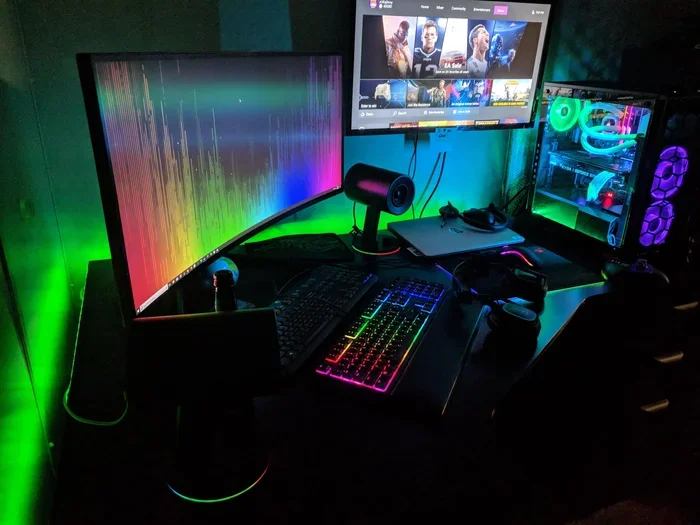
Many people use their laptop as a permanent desktop replacement. By removing the screen and connecting to a large external monitor, you get the computing power of a laptop with the comfort of a full desktop setup. This is especially popular among students and remote workers.
Travel and Portability
Interestingly, removing the screen can also make your setup more portable in some cases. You can carry just the laptop body and connect to any monitor you find at your destination. This is handy for people who travel frequently for work.
How to Connect an External Monitor to Your Laptop
Connecting an external monitor is the first step in your headless laptop journey. The process is simpler than most people think. Here is what you need to know.
Check Your Laptop’s Ports
Before you buy any cables, check what ports your laptop has. Most modern laptops come with one or more of the following:
- HDMI port – Very common and widely supported
- USB-C port – Found on newer laptops, supports video output
- DisplayPort – Offers high-quality digital display output
- VGA port – Older but still found on some models
Choose the Right Cable or Adapter
Once you know your ports, pick the right cable. If your laptop has an HDMI port and your monitor does too, a simple HDMI cable will do the job. If your laptop only has USB-C, you may need a USB-C to HDMI adapter or a USB-C docking station.
For example, many users ask, Can I Upgrade Ram On Laptop at the same time they set up an external monitor. It is a great idea to handle hardware upgrades before you commit to a permanent headless setup. Similarly, if you need a mouse and keyboard, you might wonder Can You Use A Mouse With A Touch Screen Laptop — and yes, you can connect any mouse to your laptop for the external setup.
Connect and Detect
Plug one end of the cable into your laptop and the other into your monitor. Turn on both devices. Your laptop should automatically detect the external display. If it does not, you may need to adjust your display settings, which we will cover in the next section.
Setting Up Your Laptop Without a Screen
Once the physical connection is in place, you need to configure your laptop’s display settings. This ensures everything looks and works the way you want.
Adjust Display Settings on Windows
On Windows, right-click on your desktop and select Display Settings. You will see options for multiple displays. Choose one of the following modes:
- Extend these displays – This gives you more screen space. Your laptop acts as a second screen or you use only the external monitor.
- Duplicate these displays – This shows the same image on both screens.
- Show only on 2 – This turns off the laptop screen and uses only the external monitor. This is what you want for a headless setup.
Adjust Display Settings on macOS
On a Mac, go to System Settings and click Displays. You can choose to use the external monitor as your primary display. Simply drag the menu bar to the external monitor icon to make it your main screen. You can also turn off the built-in display by closing the laptop lid if you have that option enabled.
Set Up Peripherals
Without a laptop screen, you need external peripherals to work comfortably. You will need:
- An external keyboard – A wireless keyboard works great
- A mouse – You can use a wireless or wired mouse
- Speakers or headphones – For audio output
If you are setting up a wireless mouse, you might want to check How Can I Connect Wireless Mouse To My Laptop for a detailed guide. A clean desk with just a monitor, keyboard, and mouse feels amazing once everything is set up.
Benefits and Drawbacks of Using Only an External Monitor
Like any setup, using your laptop without a built-in screen has its advantages and disadvantages. Let us look at both sides.
Benefits
- Bigger screen real estate – External monitors are often larger than laptop screens, giving you more space for multitasking.
- Better ergonomics – You can position the monitor at eye level, reducing strain on your neck and back.
- Cost savings – Instead of replacing a broken screen, you use what you have with an external display.
- Cleaner workspace – No clamshell lid taking up desk space.
- Flexibility – You can easily switch between using an external monitor and the laptop screen whenever you want.
Drawbacks
- Loss of portability – Without the laptop screen, you cannot easily use your laptop on the go or in bed.
- Dependency on external monitor – If your monitor breaks or is not available, you cannot use your laptop at all.
- Extra cables and peripherals – You need a keyboard, mouse, and monitor, which adds to your setup.
- Battery considerations – Running an external monitor uses more power, so you may need to keep your laptop plugged in.
Tips for a Seamless Headless Laptop Experience
Setting up your laptop without a screen is straightforward, but a few tips can make the experience even better.
Use a Docking Station
A docking station is a game-changer for headless laptop setups. It connects to your laptop through a single cable and provides multiple ports for your monitor, keyboard, mouse, and other peripherals. This means you only need to plug in one cable to get everything running. When you are ready to move, you unplug one cable and you are good to go.
Close the Laptop Lid
Most laptops allow you to close the lid and keep the external monitor active. To enable this, go to your power settings and change the action when the lid closes to “Do Nothing.” This lets you use your laptop like a mini desktop without the screen taking up space.
Optimize Your Monitor Settings
Make sure your external monitor is set to the correct resolution and refresh rate. A higher resolution gives you sharper text and images. A higher refresh rate makes everything feel smoother, especially if you do any gaming or video editing.
Keep Your Laptop Cool
When your laptop is closed and sitting on a desk, airflow can be restricted. Make sure your laptop has enough ventilation. You might also want to consider a laptop cooling pad, especially if you are running demanding tasks. Overheating can cause serious problems, and in rare cases, a laptop can even be at risk of damage from overheating if proper ventilation is not maintained.
Consider Your RAM Needs
Using an external monitor often means running multiple applications at once. If your laptop feels slow, you might benefit from adding more memory. Many users ask Can I Add Ram To My Laptop or Can I Upgrade My Laptop Ram when they notice performance issues. More RAM can make a big difference in a headless setup where you juggle many windows and tasks simultaneously.
Common Mistakes to Avoid
Setting up a headless laptop is not difficult, but some common mistakes can cause frustration. Here is what to watch out for.
- Forgetting to change the display mode – If you do not set your external monitor as the primary display, you might not get the full screen experience you want.
- Using the wrong cable – Not all cables support video output. Make sure you use the right one for your laptop and monitor.
- Ignoring power settings – If your laptop goes to sleep when you close the lid, you will lose your connection to the external monitor.
- Neglecting cooling – A closed laptop on a soft surface like a bed or couch can overheat quickly. Always use a hard, flat surface.
- Not testing peripherals first – Before you commit to a headless setup, make sure your keyboard, mouse, and monitor all work properly with your laptop.
Can You Physically Remove the Laptop Screen?
Some users wonder if they can physically remove the laptop screen from the hinges and just use the base unit with an external monitor. The answer is yes, but with caveats. You can unscrew the bezel and disconnect the display cable from the motherboard. However, this is not a simple task. It requires technical skill and care. You also risk damaging the hinges, the display cable, or the motherboard if you are not careful.
For most users, simply closing the laptop lid and using the external monitor is the better approach. You get the same result without any risk of physical damage. If your screen is already broken, you can leave it closed and use the laptop as a headless machine without removing anything.
One thing to keep in mind is that removing the screen entirely may void your warranty. If your laptop is still under warranty, check with the manufacturer before taking it apart. It is always better to be safe than sorry when it comes to hardware modifications.
Final Thoughts
So, can you remove your laptop screen and just use an external monitor? Absolutely. Whether your screen is broken or you simply prefer a desktop-style setup, a headless laptop works great. You need the right cable, a monitor, and a keyboard and mouse. Adjust your display settings, close the lid, and you are ready to go.
This setup offers many benefits, from better ergonomics to cost savings. Just be aware of the drawbacks, like reduced portability and the need for external peripherals. With the right approach, a headless laptop can be a powerful and practical solution for work, study, or entertainment.
Take your time setting things up. Make sure every connection is secure and your display settings are configured correctly. Once everything is in place, you will wonder why you did not try this sooner. Happy computing!
Frequently Asked Questions
Can I use my laptop without the screen attached?
Yes, you can use your laptop without the screen attached by connecting it to an external monitor. Simply close the laptop lid, connect your monitor, keyboard, and mouse, and adjust your display settings to show only on the external monitor. Your laptop will work just like a desktop computer.
Do I need any special equipment to set up a headless laptop?
You need an external monitor, a cable (HDMI, USB-C, or DisplayPort), a keyboard, and a mouse. A docking station can make the setup cleaner and more convenient by reducing the number of cables you need to manage.
Will removing my laptop screen void the warranty?
Physically removing the screen may void your warranty, depending on the manufacturer. If your screen is broken, it is best to keep the laptop closed and use an external monitor without removing any parts. Always check your warranty terms before taking your laptop apart.
Can I close my laptop lid and still use the external monitor?
Yes, you can. On Windows, go to Power Options and change the action when the lid closes to “Do Nothing.” On macOS, you can set the external monitor as your primary display. This allows you to close the lid and work only on the external screen.
Is a headless laptop setup good for gaming?
It can be, but it depends on your laptop’s graphics capabilities. A larger external monitor with a high refresh rate can enhance your gaming experience. However, make sure your laptop has adequate cooling since it will be running hard without the screen open for ventilation.
What is the best type of monitor for a headless laptop setup?
A monitor with a high resolution (at least 1080p) and good color accuracy works best for everyday use. If you do graphic design or video editing, consider a monitor with 4K resolution and an IPS panel. For general work and browsing, a standard 1080p or 1440p monitor is more than enough.