What Is Copilot Pc
Copilot PC is Microsoft’s AI-powered assistant built into Windows 11 that helps you work faster, write better, and manage tasks with simple voice or text commands. It uses advanced AI to generate content, answer questions, and control your PC settings hands-free. Copilot PC is a game-changer for anyone who wants a smarter, more efficient way to use their computer.
Have you heard about Copilot PC and wondered what all the fuss is about? You are not alone. Millions of PC users are curious about this new AI tool that promises to make everyday computing easier and faster. Whether you are a student, a professional, or just someone who wants to get more done on your computer, Copilot PC has something to offer.
Microsoft built Copilot PC as a smart assistant that lives inside your Windows 11 operating system. Think of it like having a helpful friend who knows a lot about your computer and can do tasks for you just by chatting. It is not a separate program you need to download or install. It is already there, waiting for you to start using it.
The beauty of Copilot PC lies in its simplicity. You type a question, give a command, or just talk to it, and it responds with useful answers or takes action right away. It can rewrite emails, create documents, find files, and even generate images. This guide will walk you through everything you need to know about Copilot PC, from setup to daily use.
Key Takeaways
- Built-in AI Assistant: Copilot PC is a native AI tool integrated directly into Windows 11 for seamless productivity.
- Easy to Access: You can launch Copilot with a keyboard shortcut or by clicking the taskbar icon.
- Smart Features: It can draft emails, summarize documents, generate images, and answer questions in real time.
- Works Across Apps: Copilot PC integrates with Microsoft 365, Edge browser, and many other tools you already use.
- Free to Use: The basic Copilot experience comes at no extra cost for Windows 11 users.
- Improves Over Time: Copilot learns from your usage patterns to offer more relevant suggestions.
📑 Table of Contents
What Exactly Is Copilot PC?
Copilot PC is Microsoft’s artificial intelligence assistant designed to work inside your Windows 11 PC. It combines the power of large language models with your personal data and the apps you use every day. This means it understands your context and can help in ways that feel natural and relevant.
Unlike standalone AI chatbots, Copilot PC is deeply woven into the operating system. It can interact with your files, your calendar, your browser, and your productivity apps. You do not need to switch between tools or open a separate window for most tasks. It all happens in one place.
How Copilot PC Differs from Regular Chatbots
Regular chatbots like ChatGPT are powerful on their own. But Copilot PC goes a step further because it knows your PC. It can see your open apps, access your documents (with your permission), and take real actions like changing settings or sending emails. This makes it more than just a chatbot. It is a true PC assistant.
Here is a quick look at what sets Copilot PC apart:
- System-level access: It can control PC settings and open apps.
- Context awareness: It understands what you are working on.
- App integration: It works inside Microsoft 365 apps like Word, Excel, and Outlook.
- Real-time actions: It can summarize, draft, and organize content on the fly.
Key Features of Copilot PC
The features of Copilot PC are designed to save you time and reduce the friction of daily computer tasks. Let us explore the most useful ones.
AI-Powered Writing and Editing
One of the standout features of Copilot PC is its ability to help you write and edit. Whether you are drafting a work email, writing a report, or putting together a presentation, Copilot can generate text, fix grammar, and adjust the tone. You simply tell it what you need, and it does the heavy lifting.
For example, you can ask Copilot PC to “write a polite email to my boss requesting a day off,” and it will draft the entire message. You can then edit it to match your personal style. This is a huge time saver for anyone who writes often.
Document Summarization
If you deal with long documents or lengthy email threads, Copilot PC can summarize them for you. Instead of reading through pages of text, you can ask Copilot to give you the key points. This feature works inside Microsoft Edge and Microsoft 365 apps, making it very handy for research and meetings.
Image Generation with DALL-E
Copilot PC also includes image generation powered by DALL-E technology. You can describe an image in words, and Copilot will create it for you. Need a custom graphic for a presentation? Just ask. Want a fun wallpaper idea? Describe it and Copilot will generate something unique.
PC Settings Control
You can use Copilot PC to change system settings without digging through menus. Want to turn on dark mode? Just ask. Need to adjust your volume or open a specific app? Copilot can handle it. This hands-free control makes your PC more accessible and efficient.
How to Set Up and Use Copilot PC
Getting started with Copilot PC is straightforward. You do not need to be a tech expert to make it work. Here is a simple walkthrough.
Step 1: Check Your System Requirements
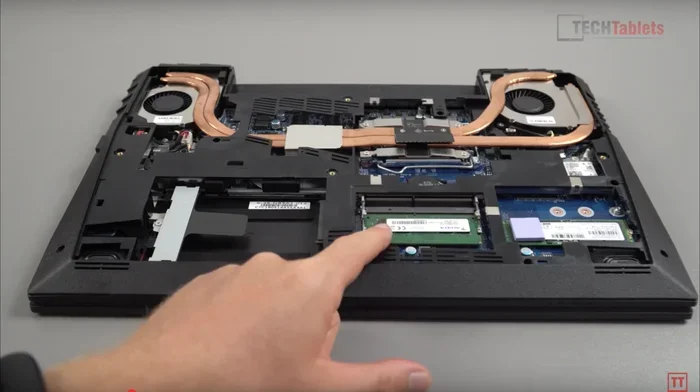
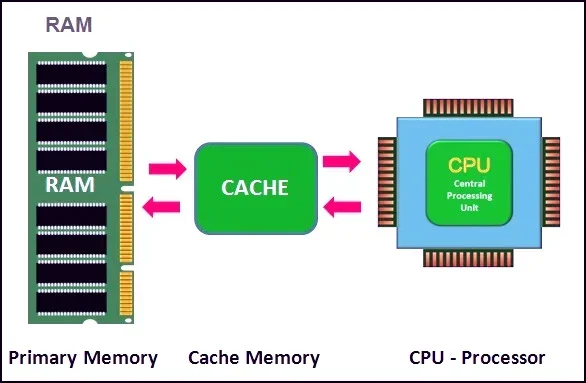
First, make sure your PC is running Windows 11. Copilot PC is not available on older versions of Windows. You also want to make sure your laptop has enough memory to run smoothly. Having a good amount of RAM good on a laptop helps ensure that Copilot PC runs without lag or slowdowns. Most modern laptops with at least 8GB of RAM will work well.
Step 2: Access Copilot
Once you are on Windows 11, you can find Copilot PC in a few ways:
- Taskbar icon: Click the Copilot icon on your taskbar.
- Keyboard shortcut: Press the Windows key + C to open Copilot instantly.
- Start menu: Search for “Copilot” in the Start menu search bar.
Step 3: Start Using It
After opening Copilot PC, you will see a chat interface similar to other AI chat tools. Type your question or command in the text box and hit enter. You can also use voice input if your laptop has a microphone. Copilot will respond and can take action based on your request.
Here are some quick tips to get the most out of Copilot PC:
- Be specific with your prompts for better results.
- Use it inside Microsoft apps like Word and Outlook for seamless integration.
- Experiment with different commands to discover hidden features.
- Keep your Windows 11 updated for the latest Copilot improvements.
Benefits of Using Copilot PC
There are many reasons to embrace Copilot PC as part of your daily workflow. Let us look at the biggest benefits.
Boosts Productivity
The most obvious benefit of Copilot PC is the productivity boost it provides. Tasks that used to take minutes now take seconds. Drafting emails, creating reports, and finding information all become faster when you have an AI assistant at your side. This lets you focus on the work that really matters.
Reduces Repetitive Tasks
Do you find yourself doing the same tasks over and over? Copilot PC can automate many of them. It can format documents, organize data in spreadsheets, and even draft routine responses to emails. This frees up your time for more creative and strategic work.
Makes PC Management Easier
Managing a PC can feel overwhelming, especially for less experienced users. Copilot PC simplifies things by letting you control settings, find files, and troubleshoot basic issues through simple conversations. It is like having a tech support agent built into your computer.
It is also worth noting that keeping your PC well-maintained complements the Copilot PC experience. Investing in the right upgrades and maintenance can extend the lifespan of your PC and ensure that AI tools run smoothly.
Who Can Benefit Most from Copilot PC?
Copilot PC is not just for tech enthusiasts. A wide range of users can benefit from its features.
Students
Students can use Copilot PC to draft essays, summarize research papers, and generate study notes. The image generation feature is also great for creating visual aids for presentations. Students who struggle with writing can use Copilot as a helpful starting point for their assignments.
Professionals and Office Workers
If you work with Microsoft Office tools every day, Copilot PC is a natural fit. It integrates with Word, Excel, PowerPoint, and Outlook to help you work smarter. You can generate meeting summaries, create slide decks, and analyze data with simple commands.
Creative Professionals
Designers, marketers, and content creators can use the image generation and text drafting features of Copilot PC to speed up their creative workflows. Need a quick social media post or a blog outline? Copilot can handle it in seconds.
Common Mistakes to Avoid with Copilot PC
While Copilot PC is a powerful tool, there are some common pitfalls to watch out for.
- Being too vague: The more specific your prompt, the better the result. Vague questions lead to generic answers.
- Trusting it blindly: Always review the output from Copilot PC before using it in important work. AI can sometimes make mistakes.
- Ignoring privacy settings: Be mindful of what data you share with Copilot. Check your privacy settings to control what the AI can access.
- Not keeping Windows updated: Microsoft regularly improves Copilot PC with new features. Keeping your system updated ensures you get the best experience.
Another thing to keep in mind is hardware compatibility. While Copilot PC does not demand a top-tier machine, having decent hardware helps. For instance, ensuring your laptop has good RAM for laptop performance will make the overall experience smoother, especially when running multiple apps alongside Copilot.
The Future of Copilot PC
Microsoft is continuously updating and expanding Copilot PC with new capabilities. The company envisions a future where AI is not just a tool but a natural part of how we interact with our computers. Future updates may include deeper app integrations, more advanced image and video generation, and smarter personalization.
As AI technology evolves, Copilot PC will likely become an even more essential part of the Windows experience. It is already changing how people work, learn, and create on their PCs. Staying informed about these developments will help you make the most of what Copilot PC has to offer.
Final Thoughts
Copilot PC is a remarkable addition to the Windows 11 ecosystem. It brings the power of AI directly to your desktop in a way that is practical, accessible, and genuinely useful. Whether you want to write faster, manage your PC more easily, or explore creative tools, Copilot PC delivers on all fronts.
The best part is that you do not need to be a tech expert to use it. With a few simple clicks or keystrokes, you can start enjoying the benefits of an AI-powered assistant. Give Copilot PC a try today and see how it can transform the way you work and play on your computer.
Frequently Asked Questions
What is Copilot PC and how does it work?
Copilot PC is Microsoft’s AI assistant built into Windows 11. It uses large language models and your PC data to help you with tasks like writing, summarizing, and controlling settings. You access it through the taskbar or by pressing Windows + C.
Is Copilot PC free to use?
Yes, the basic Copilot PC experience is free for all Windows 11 users. Some advanced features may require a Microsoft 365 subscription, but the core AI assistant comes at no extra cost.
Can Copilot PC work offline?
Most features of Copilot PC require an internet connection because the AI processes requests on cloud servers. However, some basic functions may work with limited offline capabilities depending on your Windows version.
What are the system requirements for Copilot PC?
You need a PC running Windows 11 with a decent processor and at least 8GB of RAM for smooth performance. Having the right amount of RAM good on a laptop ensures Copilot PC runs without slowdowns, especially when multitasking.
Can Copilot PC generate images?
Yes, Copilot PC includes image generation powered by DALL-E technology. You can describe any image in words, and Copilot will create it for you. This is useful for presentations, social media, and creative projects.
How does Copilot PC protect my privacy?
Microsoft has built privacy controls into Copilot PC. You can manage what data Copilot accesses through your Windows privacy settings. It is always a good idea to review these settings and adjust them based on your comfort level.
=== CONCLUSION ===
Copilot PC is more than just a trendy AI tool. It is a practical, powerful assistant that can genuinely improve how you use your computer every day. From writing emails to controlling PC settings, it brings AI into your workflow in a way that feels natural and helpful. Whether you are a student, a professional, or a casual user, Copilot PC has something valuable to offer. Start exploring it today and discover the difference a smart AI assistant can make on your laptop.