How to Connect Iphone Headphones to Laptop
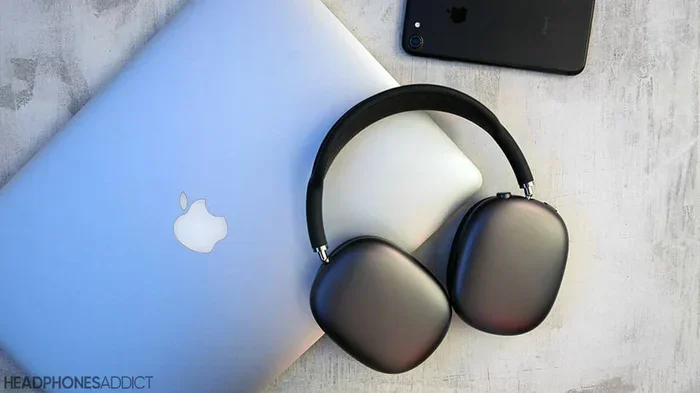
Connecting your iPhone headphones to a laptop is easy whether you use Bluetooth or a wired cable. This guide walks you through every method, from pairing AirPods to fixing common connection issues. You will learn quick steps to get your iPhone headphones working with any laptop in minutes.
You just got your favorite iPhone headphones and want to use them with your laptop. Maybe you are working from home, watching a movie, or listening to music. The good news is that connecting iPhone headphones to a laptop is simple and takes only a few minutes.
Whether you have AirPods, wired EarPods, or any other iPhone headphones, this guide covers every method you need. We will walk you through Bluetooth pairing, wired connections, and how to fix common problems. By the end, you will know exactly how to get great sound from your iPhone headphones on any laptop.
Let us dive right in and get your headphones connected. No tech skills needed, just follow along step by step.
Key Takeaways
- Bluetooth is the easiest way: Most iPhone headphones connect wirelessly to laptops using Bluetooth pairing.
- A cable works too: You can use a Lightning or 3.5mm audio cable for a wired connection when Bluetooth fails.
- Check your audio settings: Switching your laptop audio output to the headphones is essential for sound to play correctly.
- Troubleshooting is simple: Most connection problems can be fixed by resetting Bluetooth or updating your audio drivers.
- AirPods pair fast: Apple AirPods and iPhone earbuds connect quickly to laptops, especially if they share the same Apple ID.
- Keep devices close: For the best wireless connection, stay within 30 feet of your laptop during pairing.
📑 Table of Contents
- Why Connect iPhone Headphones to Your Laptop
- How to Connect iPhone Headphones to Laptop via Bluetooth
- How to Connect iPhone Headphones to Laptop Using a Cable
- How to Set Audio Output on Your Laptop
- Troubleshooting Common Connection Issues
- Best Practices for Using iPhone Headphones with a Laptop
- Wired vs Wireless: Which Connection Method Is Better
- Final Thoughts
Why Connect iPhone Headphones to Your Laptop
There are many reasons you might want to use your iPhone headphones with a laptop. Maybe your laptop speakers sound weak. Perhaps you want private listening during a late-night work session. Or you need a reliable audio setup for video calls.
iPhone headphones offer great sound quality and comfort. They are designed to work seamlessly with Apple devices. But here is the good part: they also work well with Windows and other laptops. You just need to know the right steps.
Using your iPhone headphones with a laptop also means fewer wires on your desk. Wireless connectivity keeps your workspace clean and tidy. Plus, you get the freedom to move around while listening to music or taking calls.
How to Connect iPhone Headphones to Laptop via Bluetooth
Bluetooth is the most popular way to connect iPhone headphones to a laptop. Most modern laptops have built-in Bluetooth. This method works with AirPods, AirPods Pro, and any wireless iPhone earbuds.
Before you start, make sure your laptop has Bluetooth turned on. Nearly all laptops made after 2015 support Bluetooth. If you are not sure, you can check your laptop settings or look for a Bluetooth icon in the taskbar.
Step-by-Step Bluetooth Pairing Guide
Follow these simple steps to pair your iPhone headphones with your laptop:
- Turn on Bluetooth on your laptop. Go to Settings, then Bluetooth, and toggle it on. On Windows, click the Start menu and select Settings, then Devices, then Bluetooth.
- Put your iPhone headphones in pairing mode. For AirPods, open the charging case lid and press and hold the back button until the light flashes white. For other wireless earbuds, check your manual for the pairing button.
- Click Add Bluetooth device on your laptop. Your laptop will search for nearby devices. Select your iPhone headphones from the list.
- Wait for the connection to complete. You will see a confirmation message or a solid light on your headphones. The device pairing process usually takes about 10 seconds.
- Set your headphones as the audio output. Click the sound icon in your taskbar and select your iPhone headphones as the output device.
That is it. Your iPhone headphones are now connected to your laptop via Bluetooth. You can start playing music, watching videos, or joining calls right away.
Tips for a Strong Bluetooth Connection
- Keep your laptop and headphones within 30 feet of each other during pairing.
- Remove any obstacles between the devices, like walls or large furniture.
- Turn off other Bluetooth devices nearby that might cause interference.
- Make sure your laptop Bluetooth drivers are up to date.
- If the connection drops, turn Bluetooth off and back on again.
The Bluetooth connection works much like connecting a Bluetooth mouse to a laptop. Both use the same wireless protocol to communicate with your computer. Once paired, the devices remember each other and reconnect automatically.
How to Connect iPhone Headphones to Laptop Using a Cable
Not all iPhone headphones are wireless. If you have wired EarPods or headphones with a Lightning connector, you can connect them using a cable. This method works even if your laptop does not have Bluetooth.
Using a Lightning Cable
If your iPhone headphones have a Lightning connector, follow these steps:
- Check if your laptop has a USB port. Most laptops have at least one USB-A or USB-C port.
- Plug the Lightning end into your headphones. Connect the other end to a USB port on your laptop.
- Wait for the laptop to recognize the device. You may see a notification that a new audio device is connected.
- Select the headphones as your audio output. Go to your sound settings and choose the headphones as the default playback device.
This wired audio connection gives you a stable, interference-free listening experience. It is perfect for recording or editing audio where you need zero latency.
Using a 3.5mm Audio Cable
Some older iPhone EarPods come with a 3.5mm headphone jack plug. You can plug these directly into your laptop if it has a headphone port. Here is how:
- Find the headphone jack on your laptop. It is usually on the side or front.
- Plug the 3.5mm connector into the jack firmly.
- Your laptop should automatically switch audio output to the headphones.
- If not, go to your audio settings and manually select the headphones.
If your laptop does not have a 3.5mm jack, you can buy a simple USB-to-3.5mm adapter. These cost just a few dollars and work with any laptop. They are a great option if you want a quick wired audio solution without buying new headphones.
How to Set Audio Output on Your Laptop
Once your iPhone headphones are connected, you need to make sure your laptop sends audio to them. This step is easy but often overlooked.
On Windows Laptops
Here is how to change the audio output on Windows:
- Click the speaker icon in the bottom-right corner of your taskbar.
- A volume slider will appear with a list of audio devices.
- Click on your iPhone headphones from the list.
- Adjust the volume and start listening.
You can also go to Settings, then System, then Sound. Under Output, select your iPhone headphones as the default device. This ensures all audio plays through your headphones every time.
On Mac Laptops
Mac users have a slightly different process:
- Click the Control Center icon in the top-right menu bar.
- Click on Sound.
- Select your iPhone headphones from the output device list.
- Adjust the volume slider to your preference.
MacBooks make it especially easy to switch between audio devices. The system remembers your Bluetooth headphones and often switches automatically when you connect them.
Troubleshooting Common Connection Issues
Sometimes things do not go as planned. Your iPhone headphones might not connect, or the sound might cut out. Do not worry. Most issues have simple fixes.
Headphones Not Showing Up in Bluetooth List
If your laptop does not find your iPhone headphones, try these steps:
- Make sure your headphones are in pairing mode. The light should be flashing.
- Turn Bluetooth off and back on your laptop.
- Restart both your laptop and headphones.
- Move closer to your laptop. Distance can block the wireless connection.
- Check if another device is already connected to the headphones. Disconnect from other devices first.
These steps work just like troubleshooting a Bluetooth mouse connection. The same Bluetooth principles apply to all wireless audio devices.
Sound Keeps Cutting Out
If your audio drops frequently, try the following:
- Stay within range of your laptop. Walls and furniture can weaken the signal.
- Turn off other wireless devices nearby that might interfere.
- Update your laptop Bluetooth drivers. Go to Device Manager and check for updates.
- Reset your headphones and try pairing again.
No Sound After Connecting
If you see the headphones connected but hear no sound:
- Check that the headphones are set as the default audio output device.
- Make sure the volume is turned up on both the laptop and the headphones.
- Try unplugging and replugging a wired connection.
- Restart your laptop and try again.
Most audio output problems are solved by simply resetting the Bluetooth connection. Turn Bluetooth off, wait 10 seconds, and turn it back on. This clears any temporary glitches and often fixes the issue immediately.
Best Practices for Using iPhone Headphones with a Laptop
Once you have your iPhone headphones connected, a few simple habits will keep things running smoothly.
Keep Your Devices Updated
Regular updates keep your Bluetooth and audio drivers running well. On Windows, go to Settings, then Update and Security. On Mac, click the Apple menu and select System Preferences, then Software Update. Updated drivers fix many wireless connection problems before they start.
Charge Your Headphones Regularly
Wireless iPhone headphones run on battery. If they run out of charge, they will not connect. Get in the habit of charging them overnight or when you are not using them. Most cases give you several charges before you need to plug them in.
Clean Your Headphones
Dust and earwax can build up on the speakers and sensors. This can affect sound quality and even prevent proper pairing. Use a soft, dry cloth to wipe down your headphones regularly. For AirPods, gently clean the speaker mesh with a cotton swab.
Use the Right Audio Settings
For the best wireless audio experience, check your laptop audio settings. On Windows, go to Sound settings and look for enhancements. On Mac, use the Audio MIDI Setup tool. These settings let you fine-tune your sound quality and balance.
Following these simple tips will keep your iPhone headphones working perfectly with your laptop for years to come.
Wired vs Wireless: Which Connection Method Is Better
Both wired and wireless connections have their strengths. Here is a quick comparison to help you decide which method works best for you.
| Feature | Bluetooth (Wireless) | Cable (Wired) |
|---|---|---|
| Convenience | Very convenient, no cords | Requires a cable, less freedom |
| Sound Quality | Good, may have slight delay | Excellent, no latency |
| Battery Needed | Yes, must charge headphones | No battery needed |
| Distance | Up to 30 feet | Limited by cable length |
| Setup Time | Quick Bluetooth pairing | Plug and play instantly |
| Best For | Music, calls, daily use | Recording, editing, gaming |
For everyday use like listening to music or taking calls, Bluetooth is the way to go. It is fast, easy, and works just like connecting a Bluetooth mouse to a laptop. For tasks that need perfect timing like audio recording, a wired connection gives you the most reliable audio output.
Final Thoughts
Connecting iPhone headphones to a laptop is a straightforward process that anyone can do. Whether you choose Bluetooth or a cable, the steps are simple and quick. You can be listening to your favorite music or taking clear calls within minutes.
Remember to check your audio settings after connecting. This small step makes a big difference. Keep your devices updated and charged for the best experience. With the tips in this guide, you will never struggle to get sound from your iPhone headphones again.
Now go ahead and try it yourself. Pick your preferred method, follow the steps, and enjoy your audio on the big laptop speakers. Wait, no. Enjoy it through your great iPhone headphones. Happy listening.
Frequently Asked Questions
Can I connect any iPhone headphones to any laptop?
Yes, most iPhone headphones can connect to any laptop that supports Bluetooth or has a compatible audio port. Wireless AirPods and EarPods work with both Windows and Mac laptops. Wired models need a matching port or a simple adapter.
Why won’t my iPhone headphones show up in the Bluetooth list?
This usually happens when the headphones are not in pairing mode or Bluetooth is turned off on your laptop. Make sure your headphones are flashing a light, indicating they are ready to pair. Also, check that no other device is currently connected to them.
Do I need any extra software to connect iPhone headphones to a laptop?
No extra software is needed for most laptops. Windows and Mac both have built-in Bluetooth support. Your laptop handles the connection automatically once you put your headphones in pairing mode.
Can I use my iPhone headphones for video calls on my laptop?
Absolutely. Once connected, your iPhone headphones work as both an audio input and output device. You can listen and speak through them during Zoom, Teams, or any video call app. Just make sure to select them as the default audio device in your call settings.
How do I disconnect my iPhone headphones from my laptop?
You can turn off Bluetooth on your laptop, or simply go to your Bluetooth settings and click disconnect next to your headphones. For wired headphones, just unplug the cable. Your laptop will automatically switch back to its built-in speakers.
Is the sound quality as good on a laptop as on an iPhone?
Yes, the sound quality is nearly the same. iPhone headphones produce the same audio output regardless of the device they are connected to. Some minor differences may occur due to the laptop’s audio driver or Bluetooth version, but the experience is excellent in most cases.
=== CONCLUSION ===
Connecting iPhone headphones to a laptop is quick, easy, and works with both Bluetooth and wired methods. You now have everything you need to get great audio from your headphones on any laptop. Start with the Bluetooth method for convenience, or use a cable for the most stable connection. Follow the troubleshooting tips if you run into any issues. With the right setup, your iPhone headphones will deliver amazing sound for work, entertainment, and everything in between. Try it today and enjoy the difference.