Can I Stream on Twitch with a Mini Pc
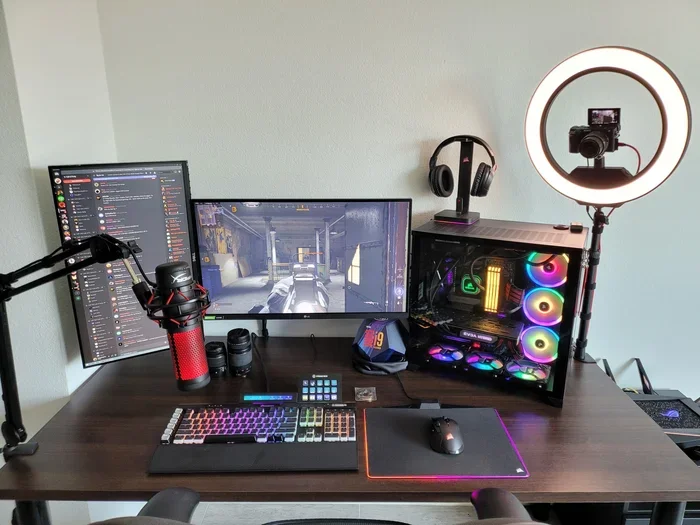
Yes, you can absolutely stream on Twitch with a mini PC. A compact mini PC can deliver smooth Twitch broadcasts if you pick the right hardware and set it up properly. You need enough processing power, RAM, and a graphics card to handle both gaming and streaming at the same time.
Streaming on Twitch has become one of the most popular ways to share your passion with the world. Whether you love playing video games, chatting with viewers, or showing off creative work, Twitch gives you a platform to connect with thousands of people. But here is the big question many beginners ask: can I stream on Twitch with a mini PC? The short answer is yes. You can absolutely stream on Twitch using a mini PC. But the real question is whether your specific mini PC can handle the job well.
Mini PCs have come a long way in recent years. They are small, quiet, and surprisingly powerful. Many people assume you need a large gaming desktop to stream on Twitch. That is simply not true anymore. A well-built mini PC can run OBS Studio, encode video in real time, and deliver a smooth viewing experience to your audience. In this guide, we will walk you through everything you need to know about streaming on Twitch with a mini PC. We will cover the hardware you need, the setup process, common mistakes to avoid, and tips to make your stream look professional.
If you have ever wondered whether a small computer can handle live broadcasting, you are in the right place. Let us dive in and find out what it takes to make a mini PC work for Twitch streaming.
Key Takeaways
- A mini PC can stream on Twitch: You do not need a bulky desktop tower to broadcast.
- Hardware matters a lot: Your CPU, GPU, and RAM determine streaming quality.
- OBS Studio is the go-to software: It is free and works great on mini PCs.
- Check your RAM carefully: Having enough memory prevents lag during live streams.
- Internet speed is critical: A fast and stable connection keeps your stream smooth.
- You can upgrade components: Adding RAM or storage boosts performance over time.
📑 Table of Contents
- What Is a Mini PC and Why Does It Work for Streaming?
- Can I Stream On Twitch With A Mini Pc — The Real Requirements
- Hardware Components That Matter Most for Mini PC Streaming
- Setting Up Your Mini PC for Twitch Streaming
- Common Mistakes to Avoid When Streaming on a Mini PC
- Tips to Improve Your Mini PC Streaming Setup
- Can You Upgrade a Mini PC for Better Streaming?
- Final Thoughts
What Is a Mini PC and Why Does It Work for Streaming?
A mini PC is a small form factor computer that packs desktop-level performance into a tiny chassis. These machines are much smaller than traditional towers. Some are as small as a paperback book. Despite their size, modern mini PCs come with powerful processors, solid-state drives, and enough memory to handle demanding tasks.
So why does a mini PC work for streaming? There are several reasons:
- Compact size: Mini PCs take up very little desk space. They are perfect for small rooms or setups where you want a clean look.
- Low noise: Smaller fans mean less noise. Your stream will not have the sound of a jet engine in the background.
- Energy efficient: Mini PCs use less power than full-sized desktops. This means lower electricity bills and less heat output.
- Portability: You can pack a mini PC in a bag and take it to a friend’s house or a LAN event.
- Good enough performance: Many mini PCs now feature Intel Core i5 or i7 processors, which are more than capable of encoding video streams.
The key is choosing the right mini PC with the right components. Not every mini PC is built for streaming. You need to pay attention to the processor, graphics capabilities, and memory. A mini PC with weak specs will struggle to keep up with a live broadcast.
Can I Stream On Twitch With A Mini Pc — The Real Requirements
Now let us get to the heart of the matter. Can I stream on Twitch with a mini PC and actually do it well? The answer depends on your hardware. Streaming on Twitch requires your computer to do two things at once: run your game or application and encode the video stream in real time. This is called dual-tasking, and it puts a real strain on your system.
Here are the minimum requirements you should aim for:
- Processor: An Intel Core i5 (10th generation or newer) or an AMD Ryzen 5. The processor handles game performance and stream encoding.
- RAM: At least 8 GB of memory. If you want to run games and stream at the same time, 16 GB is much better. If you are unsure about how much memory you actually need, you can check out this guide on how much RAM do I need on a laptop to understand your options better.
- Graphics Card: A dedicated GPU helps with encoding and game performance. Some mini PCs come with integrated graphics, which can work for less demanding games.
- Storage: An SSD is a must. It loads games faster and keeps your system responsive while streaming.
- USB Ports: You need enough ports for your webcam, microphone, and any other peripherals.
Keep in mind that streaming is different from just playing games. When you stream, your computer has to capture your screen, encode the video, and send it to Twitch servers all at the same time. A mini PC that barely handles gaming might still stream fine if you lower your game settings and use efficient encoding software.
Understanding Stream Encoding
Encoding is the process of compressing your video feed so it can be sent to Twitch in real time. There are two main types of encoding:
- CPU Encoding: Uses your processor to encode video. This works on any computer but can be slower and use more system resources.
- GPU Encoding: Uses your graphics card to encode video. This is faster and frees up your processor for the game. Look for mini PCs with NVIDIA GPUs that support NVENC encoding.
If your mini PC has a GPU with hardware encoding support, you are in great shape. This makes streaming much smoother and less stressful on your system.
Hardware Components That Matter Most for Mini PC Streaming
Not all components in a mini PC are created equal when it comes to streaming. Let us break down which parts matter the most and what you should look for.
Processor (CPU)
The processor is the brain of your mini PC. It handles the game, the streaming software, and the encoding process. For Twitch streaming, you want a multi-core processor. Intel Core i5 and i7 processors are excellent choices. AMD Ryzen 5 and Ryzen 7 chips also perform very well.
A stronger processor means you can run higher-quality streams without lag. If your mini PC has an older or weaker processor, you might experience dropped frames or stuttering during your broadcast.
Memory (RAM)
RAM is where your computer stores data it needs right now. Streaming takes up a lot of memory. Running OBS Studio, a game, a web browser for chat, and maybe Discord all at once can eat through your RAM quickly.
Here is a quick look at RAM needs for streaming:
- 8 GB RAM: Enough for basic streaming with light games. You might struggle with heavier titles.
- 16 GB RAM: The sweet spot for most streamers. You can run games and stream without issues.
- 32 GB RAM: Overkill for most streamers but great if you do multitasking or run heavy software.
If you already have a mini PC with 8 GB of RAM and want to improve it, you might be able to upgrade. Many mini PCs use SO-DIMM RAM, similar to laptops. If you are curious about whether you can add more memory to your setup, check out this guide on can I upgrade RAM on a laptop for helpful tips on the upgrade process.
Graphics Card (GPU)
The graphics card handles rendering your game and helping with video encoding. In a mini PC, you might have integrated graphics built into the processor, or a dedicated GPU. Dedicated GPUs are always better for streaming because they have their own encoding hardware.
NVIDIA GPUs with NVENC support are the gold standard for streaming. They encode video very efficiently, which means less strain on your processor. If you are looking at mini PCs for streaming, try to find one with at least an NVIDIA GTX 1650 or better.
Storage
An SSD is essential for streaming on a mini PC. Unlike a traditional hard drive, an SSD loads games and applications much faster. It also helps keep your system responsive when you are running multiple programs at once during a stream.
Aim for at least a 256 GB SSD. 512 GB or 1 TB is better if you plan to store games and video files on the same drive.
Setting Up Your Mini PC for Twitch Streaming
Once you have the right mini PC, setting it up for Twitch streaming is straightforward. Here is a step-by-step guide to get you live in no time.
Step 1: Install OBS Studio
OBS Studio is the most popular free streaming software. It works on Windows, macOS, and Linux. You can download it from the official OBS website. It is open source and trusted by millions of streamers worldwide.
After installing OBS, you will need to connect it to your Twitch account. Go to OBS Settings, click on Stream, select Twitch as the service, and paste your stream key. Your stream key can be found in your Twitch dashboard under Settings and then Stream Key.
Step 2: Configure Your Video Settings
In OBS, go to Settings and then Video. Set your base resolution to your monitor’s native resolution. For the output resolution, you can set it to 1080p if your mini PC can handle it. If not, 720p is a great starting point. Set your frame rate to 60 FPS for smooth motion, or 30 FPS if your hardware is more limited.
Step 3: Set Up Your Audio
Good audio is just as important as good video on Twitch. You need a decent microphone and a way to capture game audio. In OBS, you can add audio sources by clicking the plus button in the Audio Mixer section. Add your microphone and your desktop audio separately so you can control their volumes independently.
Step 4: Add Overlays and Alerts
Overlays make your stream look professional. You can add a webcam frame, on-screen alerts for new followers, and a chat display. Many streamers use free tools like Streamlabs to create custom overlays. Keep your overlays simple and clean so they do not distract from your gameplay.
Step 5: Test Your Stream
Before going live, always do a test stream. OBS lets you stream to a private Twitch channel so only you can see it. Use this to check your video quality, audio levels, and frame rate. Adjust your settings if anything looks or sounds off.
Common Mistakes to Avoid When Streaming on a Mini PC
Streaming on a mini PC can be tricky if you do not know what to watch out for. Here are some common mistakes that hold people back.
Running Too Many Programs at Once
It is tempting to have your game, OBS, a web browser for chat, Discord, Spotify, and maybe a second monitor all running at the same time. On a mini PC, this can quickly overwhelm your system. Close any programs you do not need while streaming. This frees up processing power and memory for your stream.
Using CPU Encoding When GPU Encoding Is Available
If your mini PC has a dedicated NVIDIA GPU, use NVENC for encoding. CPU encoding is slower and uses more of your system resources. Switching to GPU encoding can dramatically improve your stream quality and game performance at the same time.
Ignoring Your Internet Connection
Your mini PC might be powerful, but if your internet connection is slow or unstable, your stream will suffer. You need at least 6 Mbps of upload speed for a 1080p stream. Use a wired Ethernet connection instead of Wi-Fi whenever possible. A wired connection is more stable and faster.
Not Upgrading RAM When Needed
Many mini PCs come with 8 GB of RAM out of the box. That is fine for casual streaming, but if you want to run heavier games or multitask, you will need more. If you want to mix different RAM sticks, you might wonder if you can use different sizes together. Check out this article on can I use 4GB and 8GB RAM together to learn about mixing memory modules.
Skipping Driver Updates
Keeping your graphics drivers and chipset drivers up to date is important for streaming performance. Updated drivers often include performance improvements and bug fixes that can make a big difference in stream quality.
Tips to Improve Your Mini PC Streaming Setup
Want to take your mini PC streaming to the next level? Here are some practical tips that make a real difference.
- Use a capture card for console gaming: If you want to stream console games on your mini PC, a capture card lets you connect your console and capture the video feed.
- Optimize your game settings: Lowering in-game settings like shadows, anti-aliasing, and draw distance frees up resources for streaming.
- Use a green screen: A simple green screen lets you remove your background and make your stream look more polished.
- Monitor your temperatures: Mini PCs can get warm under heavy load. Use monitoring software to keep an eye on your CPU and GPU temperatures.
- Invest in a good microphone: Viewers will forgive average video quality, but bad audio will drive them away fast.
- Stream during off-peak hours: If your internet is shared with others in your home, streaming during less busy times can give you a more stable connection.
These small changes add up over time. You do not need to do everything at once. Start with the basics and improve gradually as you grow your channel.
Can You Upgrade a Mini PC for Better Streaming?
One of the best things about many mini PCs is that they allow upgrades. You can often add more RAM, swap in a larger SSD, or sometimes even replace the Wi-Fi card for a better connection. Upgrading your mini PC can breathe new life into your streaming setup without spending money on a whole new computer.
Adding more RAM is one of the easiest and most impactful upgrades you can make. If your mini PC currently has 8 GB of RAM, adding another 8 GB stick can double your memory and significantly improve streaming performance. Many mini PCs use the same type of RAM as laptops, which are small SO-DIMM modules. If you are wondering about the process of adding memory, you can read more about installing RAM in this guide on how to change RAM on a laptop, which covers similar steps for compact systems.
Upgrading your storage to a larger SSD also helps. Streaming software, games, and video files all take up space. A bigger SSD means you do not have to constantly delete things to make room.
Final Thoughts
So, can I stream on Twitch with a mini PC? Absolutely. A mini PC can be a fantastic streaming machine if you choose the right model and set it up correctly. You do not need a massive desktop tower to share your passion with the world. A compact mini PC can deliver smooth, high-quality streams that keep your viewers coming back.
Focus on getting a mini PC with a strong processor, enough RAM, and a capable graphics card. Set up OBS Studio, configure your audio and video properly, and avoid the common mistakes we covered. With a little patience and practice, your mini PC can become a powerful streaming tool.
The streaming world is open to everyone, regardless of the size of your computer. Start small, grow your channel, and upgrade your setup as you go. Your mini PC might just be the perfect starting point for your Twitch journey.
Frequently Asked Questions
Do I need a powerful mini PC to stream on Twitch?
You do not need the most powerful mini PC, but you do need a decent one. An Intel Core i5 or AMD Ryzen 5 processor, 8 GB of RAM, and a GPU with encoding support is enough to get started. You can always upgrade components later as your channel grows.
Can I stream console games on a mini PC?
Yes, you can. You will need a capture card to connect your console to the mini PC. The capture card captures the video signal from your console and sends it to your mini PC for streaming. This works great with most mini PCs that have USB ports.
Is OBS Studio the best software for streaming on a mini PC?
OBS Studio is the most popular and widely used streaming software. It is free, open source, and works well on mini PCs. It uses hardware encoding efficiently, which helps keep your system resources free for gaming.
How much internet speed do I need to stream on Twitch from a mini PC?
You need at least 6 Mbps of upload speed for a 1080p stream at 60 FPS. For 720p at 60 FPS, 4.5 Mbps is enough. A wired Ethernet connection is always better than Wi-Fi for streaming stability.
Can I use a mini PC with 8 GB of RAM for streaming?
Yes, 8 GB of RAM is enough for basic streaming. You can run most games and stream at the same time. However, if you plan to run heavier games or multitask with multiple apps, upgrading to 16 GB will give you a much smoother experience.
Does streaming on a mini PC cause overheating?
Mini PCs are designed to handle sustained workloads, but streaming can push them hard. Make sure your mini PC has good ventilation and is placed on a flat surface. Using a cooling pad or external fan can also help keep temperatures in check during long streams.