Do Mini Pcs Support Wake on Lan
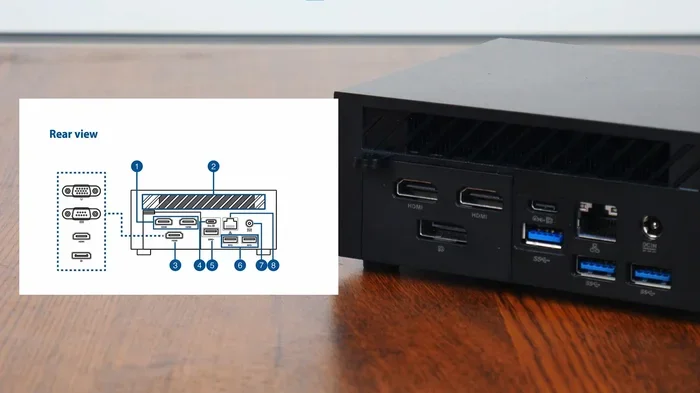
Wake on Lan is a handy feature that lets you power on your mini PC remotely over a network connection. Many mini PCs do support this function, but it depends on your hardware, BIOS settings, and operating system configuration. This guide walks you through everything you need to know about enabling and troubleshooting Wake on Lan on your mini PC.
Have you ever wanted to turn on your mini PC from across the room without touching the power button? That is exactly what Wake on Lan lets you do. It is a network-based feature that sends a special signal to your computer and tells it to power up. The idea sounds like something from a sci-fi movie, but it is very real and very practical.
If you use a mini PC for work, media, or even mini PCs for gaming, the ability to start it remotely can save you a lot of time and hassle. You do not need to walk over to the machine or leave your couch. A simple network command does the job. But here is the big question: do mini PCs actually support this feature? The short answer is yes, but with some important caveats.
Not every mini PC handles Wake on Lan the same way. Your motherboard, network card, BIOS version, and operating system all play a role. In this guide, we will break down exactly how Wake on Lan works on mini PCs, how to set it up, and what to do when it does not work. By the end, you will know everything you need to get this feature running smoothly.
Key Takeaways
- Wake on Lan works on many mini PCs: Most modern mini PCs include support for remote wake-up, but you need to check your specific model and BIOS settings.
- Enabling WOL requires BIOS and OS configuration: You must turn on the feature in both your BIOS and network adapter settings for it to work properly.
- A wired ethernet connection is essential: Wake on Lan typically does not work over Wi-Fi and requires a stable LAN cable connection.
- Common issues are easy to fix: Most problems with Wake on Lan come from incorrect power settings or outdated network drivers.
- Remote access becomes much more convenient: Once set up, you can turn on your mini PC from anywhere on your local network without physically pressing the power button.
- Check your mini PC model carefully: Not all compact or budget mini PCs support this feature, so always verify before relying on it.
📑 Table of Contents
What Is Wake On Lan and How Does It Work?
Wake on Lan, often shortened to WOL, is a networking standard that allows a computer to be turned on or woken up by a network message. This message is called a “magic packet.” It travels through your local network to the target computer and tells the network card to wake the system up. Even when the PC is powered off or in sleep mode, the network card stays powered at a low level to listen for this signal.
The magic packet contains the target computer’s MAC address. Every network card has a unique MAC address, so the system knows exactly which machine to wake up. This process happens entirely over your LAN connection, which is why a wired ethernet cable is almost always required.
How the Magic Packet Works
When you send a Wake on Lan command, here is what happens behind the scenes:
- Your sending device builds a magic packet with the target MAC address.
- The packet is broadcast across your local network.
- The network card on the target mini PC receives the packet.
- The network card signals the motherboard to power on the system.
- The mini PC boots up normally, just as if you had pressed the power button.
This process is fast and efficient. It does not require any internet connection, just a working local network. That makes it ideal for home offices, media centers, and small server setups.
Do Mini Pcs Support Wake On Lan?
The short answer is that most modern mini PCs do support Wake on Lan, but support depends on several factors. Budget mini PCs and older models sometimes skip this feature to cut costs. Higher-end models, especially those designed for productivity or media use, almost always include it.
Before you assume your mini PC has this feature, you need to check a few things. First, look at your motherboard specifications. Second, check your network adapter model. Third, review your BIOS settings. If all three support WOL, you are good to go.
Factors That Determine WOL Support
Not all mini PCs are created equal when it comes to Wake on Lan. Here are the key factors that determine whether your mini PC can wake up remotely:
- Motherboard chipset: Some chipsets have better power management features than others.
- Network adapter type: A dedicated ethernet card is far more reliable for WOL than an integrated one.
- BIOS firmware: Your BIOS must include WOL options and have them enabled by default or manually.
- Operating system: Windows 10 and Windows 11 both support Wake on Lan, but you must configure power settings correctly.
- Power supply: The PSU must provide standby power to the network card even when the PC is off.
If you are shopping for a new mini PC and Wake on Lan matters to you, make sure to check the product specs before buying. Look for terms like “WOL support,” “LAN wake,” or “remote power on” in the listing.
How to Enable Wake On Lan on Your Mini PC
Setting up Wake on Lan on a mini PC is straightforward, but it requires changes in two places: your BIOS and your operating system. Skipping either step will prevent the feature from working.
Step 1: Enable WOL in BIOS
Your BIOS is the first place you need to check. Every mini PC boots into the BIOS before loading the operating system. Here is how to get there:
- Restart your mini PC.
- Press the BIOS key during startup. This is usually F2, Del, or Esc, depending on your brand.
- Look for a section called Power Management, Advanced Settings, or Network Boot.
- Find the Wake on Lan or WoL option and set it to Enabled.
- Save your changes and exit the BIOS.
Some mini PCs hide the WOL setting under a submenu called “Power Management” or “APM Configuration.” If you cannot find it, check your motherboard manual or search the BIOS for “wake” or “LAN.”
Step 2: Configure Network Adapter Settings in Windows
After enabling WOL in the BIOS, you need to configure your network adapter in Windows. Here is what to do:
- Right-click the Start button and select Device Manager.
- Expand the Network Adapters section.
- Right-click your ethernet adapter and select Properties.
- Go to the Advanced tab.
- Look for Wake on Magic Packet or Wake on Lan and set it to Enabled.
- Also check the Power Management tab and make sure “Allow this device to wake the computer” is checked.
These steps make sure Windows knows to listen for the wake signal even when the system is off. If you skip this, your mini PC will not respond to the magic packet.
Step 3: Adjust Windows Power Settings
Windows power settings can interfere with Wake on Lan if they are not configured correctly. Here is what to check:
- Go to Control Panel and open Power Options.
- Click Change Plan Settings next to your active plan.
- Select Change Advanced Power Settings.
- Expand the Sleep section and make sure “Allow wake timers” is set to Enable.
- Also check the PCI Express settings and make sure Link State Power Management is set to Off.
These power settings ensure your mini PC can respond to network signals in all power states, including sleep and soft-off.
Common Wake On Lan Problems and How to Fix Them
Wake on Lan does not always work perfectly the first time. Many users run into issues that prevent remote wake-up. The good news is that most of these problems have simple fixes.
WOL Does Not Work After Enabling BIOS Settings
If you have enabled Wake on Lan in the BIOS but nothing happens, the problem is likely in Windows. Double-check your network adapter settings and make sure the magic packet option is turned on. Also, make sure your ethernet cable is plugged in securely. A loose cable is one of the most common reasons WOL fails.
Mini PC Wakes Up but Then Shuts Off Immediately
This issue usually happens when the BIOS settings are not fully configured. Some mini PCs need both “Wake on Lan” and “Power On by PCI-E Device” enabled. Check your BIOS for both options and turn them on. This tells the motherboard to keep the system running after the initial wake signal.
WOL Works on Wired but Not on Wi-Fi
Most mini PCs do not support Wake on Lan over Wi-Fi. The feature relies on the network card staying powered in standby mode, and many wireless adapters do not maintain this power state. If you need reliable WOL, always use a wired LAN cable connection. This is a hardware limitation, not a software issue.
The Magic Packet Does Not Reach the Mini PC
If the sending device cannot reach the target mini PC, check your network setup. Both devices must be on the same local network. Routers with strict firewall settings or VLAN configurations can block broadcast packets. Try disabling any advanced router features temporarily to see if that fixes the issue.
Network Adapter Driver Is Outdated
An outdated or corrupted network driver can prevent Wake on Lan from working. Go to your PC manufacturer’s website or the network adapter manufacturer’s site and download the latest driver. After installing it, restart your mini PC and test WOL again.
Benefits of Using Wake On Lan with a Mini PC
Once you have Wake on Lan set up, you will find many practical uses for it. This feature is not just a tech novelty, it is a real productivity tool.
Remote Access Without Physical Presence
The biggest benefit of Wake on Lan is the ability to access your mini PC from anywhere in your home. You can start it up before you even get out of bed. This is especially useful if your mini PC serves as a home server, media center, or NAS device.
Energy Efficiency and Power Management
Instead of leaving your mini PC running all day, you can put it in a low-power state and only wake it when you need it. This saves electricity and reduces wear on your components. It is a smart way to balance convenience with energy savings.
Seamless Workflow for Remote Workers
If you work from home, Wake on Lan lets you access your work PC without waiting for it to boot up. You can send the wake signal from your phone or another computer before you even sit down at your desk. This small convenience adds up over time.
Perfect for Home Media Setups
Mini PCs are popular as media centers and entertainment hubs. With Wake on Lan, you can turn on your media PC from the couch using your phone. You do not need to find the power button or use a remote control. It is a small feature that makes a big difference in daily use.
For users who want to get the most out of their compact systems, checking whether your mini PC has enough RAM and proper power management is also important. If you are curious about how much memory your system needs, check out our guide on what RAM does on a laptop for a deeper understanding of memory’s role in overall system performance.
Wake On Lan and Mini PC Performance
Some users wonder if Wake on Lan affects their mini PC’s performance. The answer is no. WOL uses very little standby power and does not impact your system’s speed or stability when it is running normally. The network card simply stays in a low-power listening state, which uses minimal energy.
However, if your mini PC already has performance limitations, adding more memory can help overall. If you are exploring upgrade options, you might want to read about how to upgrade RAM on a laptop for tips that also apply to many mini PC setups.
The Wake on Lan feature works independently of your PC’s performance specs. It relies on the network hardware and firmware, not on your CPU or RAM. So even older or budget mini PCs can benefit from this feature as long as the network adapter supports it.
Final Thoughts on Wake On Lan for Mini PCs
Wake on Lan is a genuinely useful feature that adds real convenience to your mini PC setup. It lets you start your computer remotely, access files from anywhere on your network, and manage your system more efficiently. Most modern mini PCs support this feature, but you need to enable it in both your BIOS and Windows settings for it to work.
If you run into trouble, check your ethernet connection, update your network drivers, and double-check your power settings. These steps solve the vast majority of WOL issues. Once everything is configured correctly, you will wonder how you ever managed without it.
Take a few minutes today to check if your mini PC supports Wake on Lan and set it up. It is one of those small features that makes a big difference in how you use your computer every day. Whether you use your mini PC for work, entertainment, or as a home server, remote wake-up is a feature you will appreciate more than you might expect.
Frequently Asked Questions
Can Wake on Lan work over Wi-Fi on a mini PC?
Most mini PCs do not support Wake on Lan over Wi-Fi. The feature typically requires a wired ethernet connection because the network card needs to stay powered in standby mode. Some newer wireless adapters may support wireless wake, but this is rare in mini PCs. Always use a LAN cable for reliable WOL functionality.
Does Wake on Lan work when the mini PC is completely powered off?
Yes, Wake on Lan is designed to work when the PC is in a soft-off state (S5). The network card remains powered at a low level and listens for the magic packet. However, the mini PC must still be plugged into a power source for this to work. A completely unplugged PC cannot receive the wake signal.
Can I use Wake on Lan to wake my mini PC from a different network?
Standard Wake on Lan only works on the same local network. The magic packet is a broadcast message that does not route across the internet. To wake your mini PC remotely from outside your local network, you would need to set up port forwarding on your router or use a VPN service. This adds complexity and security considerations.
Why does my mini PC not respond to Wake on Lan even after enabling it?
There are several possible reasons. First, check that your ethernet cable is securely connected. Second, verify that the WOL setting is enabled in both your BIOS and Windows network adapter properties. Third, make sure your network driver is up to date. Fourth, check that your Windows power settings allow wake timers. A loose cable or outdated driver is the most common culprit.
Is Wake on Lan safe to use on a mini PC?
Yes, Wake on Lan is completely safe. It is a standard networking feature that has been around for decades. It does not expose your mini PC to security risks by itself. However, if you forward ports on your router to enable remote WOL over the internet, make sure to use strong passwords and secure your network properly.
Can I wake my mini PC using my phone?
Yes, you can use a smartphone app to send the magic packet and trigger Wake on Lan. Many free WOL apps are available for both Android and iOS. Your phone and mini PC must be on the same local network for this to work. Simply enter your mini PC’s MAC address in the app and send the wake command.