Chromebook Ram Storage Upgrade Guide For Beginners
Our Chromebook Ram Storage Upgrade Guide For Beginners walks you through everything you need to know about upgrading your device’s memory and storage. You will learn whether your Chromebook supports upgrades, what parts to buy, and how to install them safely. This guide covers costs, tools, common mistakes, and expert tips to help you improve your Chromebook’s speed and storage capacity without spending a fortune.
Is your Chromebook feeling slow? Do apps take forever to open, and tabs keep crashing? You are not alone. Many people buy Chromebooks with limited RAM and storage to save money. But over time, those limits can hold you back. The good news is that upgrading your Chromebook RAM and storage can breathe new life into your device.
In this Chromebook Ram Storage Upgrade Guide For Beginners, we will cover everything you need to know. We will explain whether your Chromebook can be upgraded, what parts you need, and how to do it yourself. Whether you are a student, a professional, or just someone who wants a faster machine, this guide has you covered.
Before you spend money on a new laptop, consider upgrading the one you have. It is cheaper, greener, and surprisingly simple once you know the steps. Let us dive in and help you boost your Chromebook’s performance the smart way.
Key Takeaways
- Not all Chromebooks allow upgrades: Some models have soldered RAM, so check your device first.
- Upgrading RAM can boost speed: More memory means smoother multitasking and faster Chrome OS performance.
- Storage upgrades are often easier: Replacing an HDD with an SSD or adding a larger SSD is a common upgrade path.
- Basic tools are all you need: A screwdriver, anti-static wrist strap, and a steady hand are enough for most upgrades.
- Costs vary widely: RAM and storage upgrades range from $20 to $100+ depending on your Chromebook model.
- Back up your data first: Always save your files before opening your device to avoid data loss.
- Follow manufacturer guides: Each Chromebook model has unique steps, so check your brand’s official documentation.
📑 Table of Contents
- Can You Upgrade RAM In A Chromebook?
- How To Upgrade Your Chromebook Storage
- What You Need for a Successful Upgrade
- How Much Does It Cost to Upgrade?
- Common Mistakes to Avoid During Upgrades
- Expert Tips to Maximize Your Chromebook’s Performance
- When Should You Upgrade vs. Buy New?
- Final Thoughts on Upgrading Your Chromebook
Can You Upgrade RAM In A Chromebook?
The first question most people ask is whether upgrading RAM in a Chromebook is even possible. The answer depends on your model. Some Chromebooks come with soldered RAM, which means the memory is permanently attached to the motherboard. In those cases, you cannot upgrade the RAM at all.
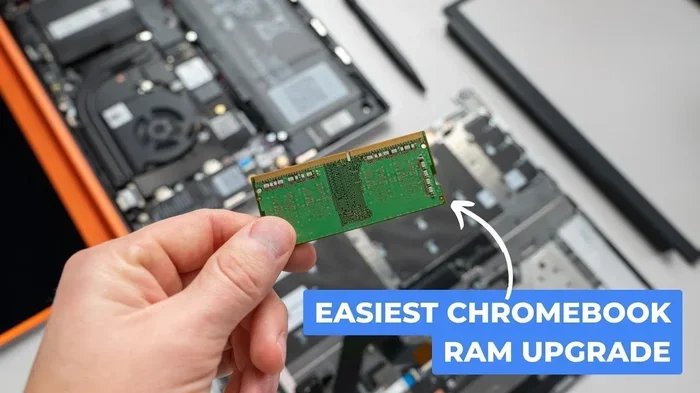
However, many Chromebook models do have removable RAM slots or replaceable memory modules. Budget Chromebooks from brands like Acer, ASUS, and Lenovo often use standard SO-DIMM RAM that can be swapped out. Higher-end models may have different designs, so always check your specific device before buying parts.
Here is a quick way to find out if your Chromebook supports RAM upgrades:
- Check the manufacturer’s website for your model’s specifications
- Look up your Chromebook’s service manual online
- Search forums like Reddit or Chromebook forums for your model
- Use a tool like Crucial System Scanner to check compatibility
If you are unsure, the safest bet is to search for your exact model number along with the phrase “upgradeable RAM.” This will give you a clear answer fast. Can You Upgrade RAM In A Laptop is a broader topic, but the same principles apply to most Chromebooks since they are essentially small laptops.
Types of RAM Used in Chromebooks
Most Chromebooks use DDR3 or DDR4 SO-DIMM memory modules. These are smaller versions of the RAM sticks found in desktop computers. Some newer models use LPDDR4X soldered memory, which cannot be upgraded. Here is a simple breakdown:
- DDR3 SO-DIMM: Found in older Chromebooks, up to 8GB or 16GB
- DDR4 SO-DIMM: Common in mid-range Chromebooks, supports up to 16GB
- LPDDR4X (soldered): Found in newer slim models, not upgradeable
Knowing which type your Chromebook uses is essential before purchasing any RAM upgrade kit. Buying the wrong type will not work and wastes your money.
How To Upgrade Your Chromebook Storage
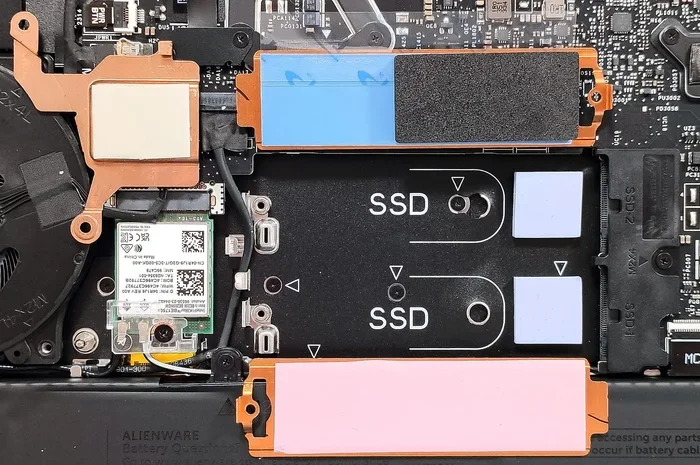
Storage upgrades are often easier and more impactful than RAM upgrades on a Chromebook. Many Chromebooks come with eMMC storage or a standard SATA SSD. Both can be replaced with larger or faster drives. This is one of the best ways to improve your Chromebook’s speed and give yourself more room for files and apps.
eMMC vs SSD: What Is the Difference?
Most budget Chromebooks use eMMC storage, which is similar to the memory inside a smartphone. It is fast enough for basic tasks but can slow down when you store a lot of files. SSD storage is much faster and more reliable. Upgrading from eMMC to an SSD is one of the biggest improvements you can make.
Here are the benefits of upgrading your storage:
- Faster boot times and app loading
- More space for files, downloads, and offline apps
- Better overall system responsiveness
- Improved durability since SSDs have no moving parts
Steps to Upgrade Chromebook Storage
Upgrading your storage involves opening the back panel, removing the old drive, and installing a new one. Here is a simplified version of the process:
- Power off your Chromebook and unplug it from the charger
- Remove the back panel screws carefully
- Locate the storage drive and disconnect the cable
- Remove the old drive and insert the new one
- Reconnect the cable and screw the panel back on
- Power on and set up your new storage
Always refer to your specific model’s teardown guide for exact instructions. Every Chromebook has a slightly different layout inside. Taking photos as you go can help you remember how everything fits together.
What You Need for a Successful Upgrade
Before you start, make sure you have everything ready. Having the right tools and parts makes the process much smoother and prevents frustrating delays.
Essential Tools
- Small Phillips-head screwdriver: Most Chromebook screws are tiny, so a precision set works best
- Anti-static wrist strap: This protects your components from static electricity damage
- Plastic pry tools: These help you open the case without scratching or cracking it
- Soft work surface: A clean, flat table with a soft cloth prevents scratches
- Flashlight: Helps you see inside the tight spaces of a Chromebook
Parts You May Need
- Compatible RAM module: Match the type, speed, and size to your Chromebook’s specifications
- Replacement storage drive: Choose an SSD with the right connector and capacity
- Thermal paste: Only needed if you also clean or replace the cooling system
When buying parts, always double-check compatibility. Websites like Crucial and Kingston offer tools to find the right RAM for your specific model. For storage, check your Chromebook’s maximum supported drive size and interface type.
How Much Does It Cost to Upgrade?
Cost is a big factor when deciding whether to upgrade. The good news is that upgrading your Chromebook is usually much cheaper than buying a new one. Let us break down the typical costs.
RAM Upgrade Costs
A single 8GB DDR4 SO-DIMM stick usually costs between $20 and $40. If your Chromebook has two slots, adding a second stick can double your memory for around $40 total. This is a fantastic deal compared to the performance boost you get.
Storage Upgrade Costs
A 256GB SATA SSD typically runs $25 to $50. A 512GB SSD might cost $50 to $80. NVMe SSDs are faster but may not be compatible with all Chromebooks. Always check your device’s specifications before purchasing.
Overall, a complete RAM and storage upgrade for a Chromebook can cost anywhere from $40 to $120. Compare that to the price of a brand-new laptop, and the savings are obvious. For more details on pricing, you can check our guide on the cost of RAM upgrade on laptop.
Common Mistakes to Avoid During Upgrades
Even with a great guide, mistakes can happen. Here are the most common errors people make when upgrading their Chromebook RAM and storage, and how to avoid them.
Mistake 1: Not Backing Up Your Data
Before you open your Chromebook, back up all your important files. An upgrade should not risk losing your photos, documents, or bookmarks. Use Google Drive or an external USB drive to save everything first.
Mistake 2: Buying Incompatible Parts
Not all RAM or storage drives work with every Chromebook. Always verify the exact model number and specifications before purchasing. Buying the wrong part is the fastest way to waste money.
Mistake 3: Forcing Components Into Place
If a part does not fit easily, stop and check your alignment. Forcing a RAM stick or drive can damage the connector or the motherboard. Gentle pressure is all you need.
Mistake 4: Skipping the Anti-Static Precautions
Static electricity can fry sensitive components without you even noticing. Always wear an anti-static wrist strap or touch a grounded metal surface before handling any internal parts.
Mistake 5: Not Testing Before Reassembling
After installing new RAM or storage, power on your Chromebook before putting the case back together. This way, if something is wrong, you can fix it without removing the entire panel again.
Expert Tips to Maximize Your Chromebook’s Performance
Upgrading your hardware is just the first step. Here are some expert tips to get the most out of your upgraded Chromebook RAM and storage.
Keep Chrome OS Updated
Google regularly releases updates that improve performance and fix bugs. Make sure your Chrome OS is always running the latest version. Go to Settings and select About ChromeOS to check for updates.
Disable Unnecessary Startup Apps
Too many apps launching at startup can slow down your system. Go to Settings, then Apps, and manage which apps open automatically. This simple step can make a noticeable difference in speed.
Clear Your Cache Regularly
Over time, your browser cache can build up and eat into your storage space. Clearing it regularly frees up room and helps your Chromebook run smoother. You can do this from Chrome’s Settings under Privacy and Security.
Use Linux Apps Wisely
Chromebooks support Linux applications, which can be powerful but also resource-heavy. If you have limited RAM after upgrading, be mindful of how many Linux apps you run at the same time.
Monitor Your Storage Usage
Even after upgrading, you should keep an eye on your storage. Go to Settings and select Device, then Storage to see what is taking up space. Delete unused files and apps to keep your system running at peak performance.
When Should You Upgrade vs. Buy New?
Upgrading is not always the right choice. Here are some guidelines to help you decide whether to upgrade your current Chromebook or purchase a new one.
Upgrade if:
- Your Chromebook is less than four years old
- The upgrade cost is less than half the price of a new device
- Your Chromebook model supports RAM and storage upgrades
- You are happy with the screen size and keyboard
Buy new if:
- Your Chromebook has soldered RAM and cannot be upgraded
- The device is physically damaged or worn out
- You need features your current model does not support
- The upgrade cost is close to the price of a new Chromebook
Sometimes the best decision is simply to replace an older device. But for many users, a simple RAM and storage upgrade delivers excellent value and extends the life of their Chromebook by years.
Final Thoughts on Upgrading Your Chromebook
Upgrading your Chromebook RAM and storage is one of the best investments you can make. It is affordable, straightforward, and delivers real performance improvements. Whether you are a student juggling multiple tabs or a professional relying on your Chromebook for work, more memory and faster storage will transform your experience.
Start by checking if your model supports upgrades. Gather your tools and compatible parts. Follow the steps carefully, and you will have a faster, more capable Chromebook in no time. Remember to back up your data, take your time, and enjoy the process of learning how your device works inside.
If you want to learn more about the general process of upgrading laptop memory, check out our detailed guide on how to upgrade RAM in a laptop. For information on whether your specific device is upgradeable, visit our page on can you upgrade RAM in a laptop. And if you are curious about the cost implications, our guide on cost of RAM upgrade on laptop covers everything you need to know.
With the right knowledge and a little confidence, you can upgrade your Chromebook yourself and save both money and time. Happy upgrading!
Frequently Asked Questions
Can I upgrade the RAM in any Chromebook?
No, not all Chromebooks allow RAM upgrades. Some models have soldered memory that cannot be removed or replaced. Check your specific model’s specifications or service manual to confirm whether your Chromebook supports RAM upgrades before purchasing any parts.
How much does it cost to upgrade a Chromebook’s RAM?
A single 8GB DDR4 SO-DIMM stick typically costs between $20 and $40. If your Chromebook has two RAM slots, adding memory to both will cost around $40 total. Prices may vary depending on the brand and where you purchase the RAM.
What type of storage do Chromebooks use?
Most Chromebooks use either eMMC storage or SATA SSDs. Budget models typically have eMMC, while mid-range and higher-end models often use SATA SSDs. Some newer Chromebooks may use NVMe SSDs, but this varies by model.
Is it hard to upgrade a Chromebook yourself?
No, upgrading a Chromebook is generally straightforward if you have basic tools and follow a guide. Most upgrades require only a small screwdriver, a plastic pry tool, and patience. Always back up your data and take photos during disassembly to make reassembly easier.
Will upgrading my Chromebook’s RAM and storage void the warranty?
This depends on your manufacturer and warranty terms. Some brands consider user-installed upgrades as voiding the warranty, while others do not. Check your warranty documentation or contact the manufacturer directly before opening your device.
How much RAM do I need for a Chromebook?
For most users, 8GB of RAM is the sweet spot for smooth multitasking. If you use your Chromebook for basic browsing and document editing, 4GB may be enough. Power users who run multiple tabs or Linux applications will benefit from 16GB of RAM.