Dual Channel Vs Single Channel Ram What You Need To Know

Dual channel vs single channel ram is a big deal for your PC speed. Dual channel memory doubles the data path between your RAM and CPU, giving you a real performance boost. Single channel ram works fine for basic tasks, but dual channel configuration shines in gaming, video editing, and heavy workloads. Understanding memory channels helps you get the most from every RAM stick.
Dual channel vs single channel ram is one of the most talked-about topics in PC building. Many people buy RAM sticks without understanding how memory channels work. This guide breaks it all down in simple terms. You will learn what each mode does, how it affects your system, and which setup is right for you. Let us dive into the world of dual channel vs single channel ram and clear up the confusion once and for all.
RAM, or random access memory, is the short-term memory your computer uses to handle tasks right now. Every app, browser tab, and game you open uses RAM. How fast your RAM works depends on several factors. Speed, capacity, and the number of channels all play a role. When you have two RAM sticks installed the right way, your system can use dual channel memory. This means data travels back and forth twice as fast. On the other hand, single channel ram uses only one data path. The difference can be huge depending on what you do with your PC.
Key Takeaways
- Dual channel ram doubles bandwidth: It uses two memory modules to transfer data simultaneously, significantly improving performance.
- Single channel is fine for light use: Web browsing, office work, and basic tasks don’t need dual channel memory.
- Gaming benefits from dual channel setup: You will see smoother frame rates and faster load times with two matched RAM sticks.
- Matching RAM modules matters: Using identical RAM sticks in the correct slots ensures your system runs in dual channel mode.
- Integrated graphics love dual channel: If you use integrated graphics, dual channel ram can double your GPU performance.
- You can check your channel mode easily: Built-in Windows and motherboard tools tell you if you are running single or dual channel.
📑 Table of Contents
What Is Single Channel RAM?
Single channel memory is the default mode when you have one RAM stick installed. Your system uses a single 64-bit data path to communicate between the CPU and RAM. This works perfectly fine for everyday computing. If you only browse the web, watch videos, or do basic office work, single channel ram will serve you well. Single channel ram is also common in budget laptops and pre-built PCs that come with one memory module.
When Single Channel Makes Sense
Not everyone needs dual channel memory. Here are situations where single channel ram is perfectly okay:
- Basic office tasks: Word processing, spreadsheets, and email do not need extra bandwidth.
- Web browsing: Even with many tabs open, single channel handles light browsing without issues.
- Budget builds: If you are tight on funds, starting with one stick of RAM saves money.
- Home theater PCs: Media playback does not demand high memory bandwidth.
That said, single channel does have limits. Heavy tasks like video editing or 3D rendering will feel slower. If you plan to upgrade later, adding a second matched stick can unlock dual channel mode. This is a smart move if you want better RAM performance without replacing your existing module.
What Is Dual Channel RAM?
Dual channel ram is when your system uses two identical memory modules to double the data pathway. Instead of one 64-bit bus, you get a 128-bit bus. This means your CPU can read and write data twice as fast. The result is smoother multitasking, faster load times, and better overall system performance. Dual channel configuration is the standard recommendation for most modern PCs.
How Dual Channel Works
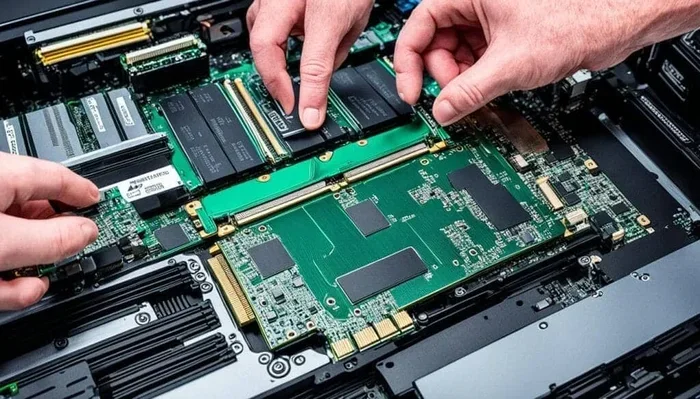
When you install two matching RAM sticks in the correct slots, your motherboard activates dual channel mode. Both modules work together at the same time. One handles incoming data while the other handles outgoing data. This parallel processing is what gives dual channel memory its speed advantage. Your memory controller on the CPU manages this process automatically.
For example, imagine a highway with one lane versus two lanes. Single channel is like one lane. Dual channel is like two lanes. More cars (data) can move at the same time. This analogy helps explain why dual channel vs single channel ram matters so much for demanding tasks.
Dual Channel Vs Single Channel Ram: The Real Differences
The main difference between these two modes comes down to bandwidth and speed. Let us look at the key differences in detail.
Bandwidth Comparison
Bandwidth is the amount of data that can move between your RAM and CPU per second. Dual channel doubles this amount compared to single channel. Here is a quick look at the numbers:
- Single channel DDR4-3200: About 25.6 GB/s bandwidth.
- Dual channel DDR4-3200: About 51.2 GB/s bandwidth.
- Single channel DDR5-4800: About 38.4 GB/s bandwidth.
- Dual channel DDR5-4800: About 76.8 GB/s bandwidth.
These numbers show why dual channel memory is so powerful. The extra bandwidth helps your CPU access data faster, which translates to real-world speed gains.
Real-World Performance Impact
The performance difference between dual channel vs single channel ram depends on your workload. Here is what you can expect:
- Gaming: You can see 10 to 30 percent better frame rates in some titles. Games that rely heavily on RAM speed benefit the most.
- Video editing: Rendering times drop noticeably with dual channel DDR4 RAM or DDR5.
- 3D rendering: Complex scenes load faster when your memory bandwidth is doubled.
- Machine learning: Data-heavy tasks run more efficiently with dual channel configuration.
- General use: The difference is small for web browsing and office work.
If you are into gaming or creative work, dual channel is almost a must. You can check out our guide on does overclocking ram increase fps to learn more about squeezing out extra performance.
Integrated Graphics Performance
This is where dual channel ram really shines. If your PC uses integrated graphics instead of a dedicated GPU, your system shares RAM with the graphics processor. Running single channel in this case cuts your graphics performance in half. Switching to dual channel memory can nearly double your integrated GPU speed. This is huge for budget builds that do not have a dedicated graphics card.
If you want to learn more about how RAM affects visual tasks, check out our article on does ram affect 3d rendering speed. It covers exactly how memory impacts rendering workloads.
How to Set Up Dual Channel RAM Correctly
Setting up dual channel is not just about having two sticks. You need to install them in the right slots and match them properly. Here is what you need to know.
Matching Your RAM Sticks
For the best results, both RAM modules should match. This means:
- Same capacity: Use two 8 GB sticks instead of one 8 GB and one 16 GB.
- Same speed: Both sticks should have the same MHz rating.
- Same timings: CAS latency and other timing values should match.
- Same brand: Ideally, buy a matched pair or a kit.
Using mismatched RAM can still work, but it may run in flex mode or fall back to single channel. This defeats the purpose of dual channel configuration. Always check your motherboard manual for the correct slot layout.
Which Slots to Use
Most motherboards have four RAM slots. To enable dual channel, you typically need to install sticks in slots 2 and 4 (counting from the CPU). This is the standard for most boards, but always double-check your manual. Putting sticks in the wrong slots can force single channel mode even with two modules installed.
Checking Your Channel Mode
Want to know if your system is running dual channel? You can check easily in Windows. Open Task Manager, go to the Performance tab, and click on Memory. Look at the bottom right corner. It will say “Channels” and show whether you are running Single, Dual, or Quad channel. This is the simplest way to verify your dual channel vs single channel ram setup.
You can also use free tools like CPU-Z to get detailed information about your memory configuration. These tools show your RAM speed, timings, and channel mode all in one place.
Common Mistakes With Dual Channel RAM
Many people make mistakes when setting up dual channel memory. Avoid these common pitfalls to get the best performance from your RAM modules.
Buying RAM Without Checking Compatibility
Not all RAM sticks work well together. Different brands, speeds, or generations can cause issues. Always check if your motherboard supports the DDR type you plan to buy. For example, you cannot put DDR5 RAM on a DDR4 motherboard. Use our guide on can i use ddr5 ram on ddr4 motherboard if you are unsure about compatibility.
Mixing Different Capacities
Putting an 8 GB stick with a 16 GB stick can work, but it is not ideal. Your system may run part of the memory in single channel mode. For the best memory bandwidth and performance, always match your RAM sticks.
Ignoring RAM Speed and Timings
Capacity is not everything. Your RAM speed and timings affect how fast data moves through the channels. Faster RAM with tighter timings gives you an edge, especially in gaming and creative work.
Forgetting to Enable XMP or DOCP
Many modern RAM kits run at slower speeds by default. You need to enable XMP (Intel) or DOCP (AMD) in your BIOS to run at the rated speed. Without this step, your dual channel setup will not reach its full potential.
Who Needs Dual Channel RAM?
Now that you understand the differences, you might wonder if dual channel is worth it for you. Here is a simple breakdown.
- Gamers: Yes, absolutely. Dual channel gives you a noticeable FPS boost.
- Content creators: Yes. Video editors and 3D artists benefit greatly from extra bandwidth.
- Programmers: Yes, especially if you run virtual machines or compile large codebases.
- Students: It depends. Light use does not need it, but multitasking with many apps does.
- Office workers: Probably not necessary. Single channel is fine for email and documents.
If you are unsure about your current setup, check your channel mode in Task Manager. If you are running single channel and your workload demands more speed, adding a second matched stick is one of the easiest and cheapest upgrades you can make. For more tips on upgrading your system, see our article on ram upgrade for my laptop.
The bottom line is simple. Dual channel vs single channel ram is not just a technical spec. It is a real performance factor that affects your daily computing experience. Whether you are building a new PC or upgrading an existing one, understanding memory channels puts you in control of your system’s speed.
Conclusion
Understanding dual channel vs single channel ram helps you make smarter decisions about your PC. Dual channel memory offers double the bandwidth, which translates to faster performance in demanding tasks. Single channel ram is fine for light use, but it leaves performance on the table. Matching your RAM sticks, installing them in the correct slots, and enabling XMP or DOCP ensures you get the most from your setup. Whether you game, edit videos, or just want a snappier PC, dual channel configuration is the way to go. Take a few minutes to check your current channel mode, and upgrade if needed. Your system will thank you.
Frequently Asked Questions
Can I mix RAM sizes in dual channel mode?
Yes, you can mix different capacities, but it is not ideal. Your system will run in flex mode, where the matched portion works in dual channel and the rest runs in single channel. For best performance, use two identical RAM sticks.
How do I know if my PC is running dual channel?
Open Task Manager in Windows, go to the Performance tab, and click on Memory. Look for the “Channels” label at the bottom right. It will show Single, Dual, or Quad depending on your setup.
Does dual channel ram improve FPS in games?
Yes, dual channel can improve frame rates by 10 to 30 percent in many games. The exact boost depends on your CPU, GPU, and the game itself. Memory bandwidth has a direct impact on gaming performance.
Is single channel ram bad?
No, single channel is not bad. It works perfectly fine for everyday tasks like browsing, office work, and media playback. You only need dual channel for demanding workloads like gaming, video editing, and 3D rendering.
Do I need to buy a matched RAM kit for dual channel?
A matched kit is the best option because the sticks are tested together. However, you can use two separate sticks of the same brand, speed, and capacity. Matching the specifications is more important than buying a kit.
Can I upgrade from single channel to dual channel easily?
Yes, it is one of the easiest upgrades. Just buy a second RAM stick that matches your existing one in speed, capacity, and timings. Install it in the correct slot, and your system will automatically switch to dual channel mode.