Dell Wifi Adapter Not Working

Your Dell wifi adapter not working can bring your entire laptop to a halt, but most fixes are simple and free. This guide covers driver updates, device manager checks, network resets, and hardware diagnostics to get your wireless connection back online. Whether you own a Dell Inspiron, Latitude, or XPS, these steps will help you troubleshoot and resolve the issue quickly.
Nothing is more frustrating than sitting down at your desk, opening your Dell laptop, and discovering that your Dell wifi adapter not working. You click on the wifi icon in the bottom right corner of your screen, and either nothing happens or you see a warning symbol. The internet that was working perfectly yesterday suddenly seems like a distant memory.
This problem affects thousands of Dell laptop users every single day. Whether you are working from home, attending an online class, or just trying to relax with some streaming content, a wifi adapter that refuses to cooperate can ruin your entire day. The good news is that you do not need to rush to a repair shop or spend hundreds of dollars. Most of the time, the fix is something you can do yourself in just a few minutes.
In this guide, we will walk you through every possible cause and solution for a Dell wifi adapter not working. We start with the simplest fixes and work our way up to more advanced troubleshooting. By the end, you will have a clear picture of what is going wrong and exactly how to fix it. Let us get your Dell laptop back online.
Key Takeaways
- Driver issues are the #1 cause: An outdated or corrupted wifi adapter driver is the most common reason your Dell wifi adapter stops working.
- Device Manager is your best friend: You can diagnose and fix most Dell wifi adapter problems directly from Device Manager in Windows.
- Simple resets often work: Disabling and re-enabling the adapter or restarting your laptop resolves many connectivity issues.
- Hardware failure is possible: If software fixes don’t work, your Dell wifi card may need replacement.
- Prevention saves time: Regular driver updates and proper shutdown habits can prevent most Dell wifi adapter issues.
- Dell support is there for you: Dell offers dedicated support and driver downloads for all their laptop models.
📑 Table of Contents
What Causes Dell Wifi Adapter Not Working
Before you start fixing anything, it helps to understand what went wrong in the first place. The Dell wifi adapter not working problem can come from several different sources. Some causes are software-related, while others point to hardware issues. Let us look at the most common culprits.
Outdated or Corrupted Drivers
The single most common reason for Dell wifi adapter not working is a driver problem. Your wifi adapter needs a driver to communicate with your operating system. Over time, these drivers can become outdated, corrupted, or incompatible after a Windows update. When the driver breaks, your laptop simply cannot talk to the wifi adapter anymore.
You might notice that your Dell wifi adapter not working started right after a Windows update installed. This happens more often than you would think. Windows sometimes pushes driver updates that conflict with your existing hardware, leaving you without a wireless connection.
Windows Update Conflicts
Windows updates are designed to improve your system, but they can sometimes cause unexpected problems. A recent update might change settings that affect your wireless network adapter, or it might install a driver that does not work well with your specific Dell model. These conflicts can leave your wifi adapter completely disabled or stuck in a loop of disconnections.
If your Dell wifi adapter not working started right after a Windows update, you are not alone. This is one of the most reported issues in Dell laptop troubleshooting forums. The good news is that rolling back the update or updating the driver usually fixes the problem.
Hardware Issues and Physical Damage
Sometimes the problem is not software at all. Your Dell wifi card is a small physical component inside your laptop. It can get damaged from drops, spills, or general wear and tear over time. If your laptop has been through any physical stress, the wifi adapter itself might be failing.
Signs of hardware failure include the wifi adapter not showing up in Device Manager at all, or your Dell wifi not connecting even after reinstalling drivers. If you notice a burning smell or hear unusual sounds from your laptop, stop using it immediately and seek professional help.
Disabled Wifi Adapter in Settings
This one sounds obvious, but it happens more often than you might think. Your wifi adapter can get turned off accidentally through a function key press, a settings change, or a background process. When the adapter is disabled, Windows treats it as if it does not exist, and you get the dreaded “no wifi available” message.
Many Dell laptops have a dedicated wifi toggle key, usually located in the top row of the keyboard. Pressing a combination like Fn + F2 can disable your wireless adapter without you even realizing it. Checking this first can save you a lot of time.
How to Fix Dell Wifi Adapter Not Working
Now that you know the common causes, let us get into the fixes. We recommend trying these solutions in order, starting with the simplest ones. Most users find that one of the first few steps resolves their Dell wifi adapter not working issue completely.
Step 1: Restart Your Dell Laptop
It sounds too simple, but a restart fixes more tech problems than people realize. When you restart your Dell laptop, Windows clears temporary files, resets network services, and reloads drivers. Many wireless connectivity issues are temporary glitches that a fresh restart will resolve.
Make sure you fully shut down your laptop rather than just closing the lid. On Dell laptops, holding the power button for 10 seconds forces a complete shutdown. After waiting a few seconds, turn it back on and check if your wifi adapter is working again.
Step 2: Check Your Wifi Adapter in Device Manager
Device Manager is one of the most powerful tools for network adapter troubleshooting on Windows. It gives you a clear view of all your hardware components and their status. If your Dell wifi adapter not working, Device Manager will usually tell you why.
To open Device Manager, right-click the Start button and select Device Manager from the menu. Look for the Network Adapters section and expand it. Find your wifi adapter (it usually has “Wireless” or “Wi-Fi” in the name). If you see a yellow warning icon next to it, that tells you exactly what the problem is.
Step 3: Update or Reinstall the Wifi Adapter Driver
If your driver is outdated or corrupted, updating it is often all you need to fix the Dell wifi adapter not working problem. Right-click on your wifi adapter in Device Manager and select “Update driver.” Choose the option to search automatically for updated driver software.
If updating does not work, try uninstalling the driver completely. Right-click the adapter, select “Uninstall device,” and check the box that says “Delete the driver software for this device.” Then restart your laptop. Windows will automatically reinstall a fresh driver during boot-up. This adapter driver reinstall method works surprisingly well for many Dell users.
You can also visit Dell’s official support website and search for your exact laptop model. Dell provides the latest Dell wifi driver update files directly for each model. Downloading the driver from Dell ensures you get the correct version for your specific hardware.
Step 4: Reset Your Network Settings
Sometimes network settings get tangled up and cause persistent wifi connection problems. Windows has a built-in network reset that clears all your network configurations and starts fresh. This is a powerful fix for Dell wifi adapter not working issues that resist simpler solutions.
To reset your network, go to Settings > Network & Internet > Status > Network Reset. Click “Reset now” and confirm. Your laptop will restart, and all network adapters will be reinstalled with default settings. You will need to reconnect to your wifi network and re-enter your password, but this often resolves deep-rooted connectivity issues.
Step 5: Run the Windows Network Troubleshooter
Windows includes a built-in troubleshooter designed to automatically detect and fix common network problems. While it is not perfect, it can identify issues you might have missed. Go to Settings > Update & Security > Troubleshoot > Additional troubleshooters > Internet Connections. Run the troubleshooter and follow any recommendations it provides.
The troubleshooter can sometimes detect that your wifi adapter settings are misconfigured or that a service has stopped running. It will attempt to fix these automatically, which saves you time and guesswork.
Dell-Specific Troubleshooting for Wifi Adapter Issues
Dell laptops have their own unique software tools and settings that can affect your wifi adapter. Understanding these Dell-specific features can help you narrow down the problem faster.
Using Dell SupportAssist for Driver Updates
Dell laptops come pre-installed with SupportAssist, a tool designed to keep your system updated and healthy. SupportAssist can automatically scan for outdated drivers, including your wireless network adapter driver. Open SupportAssist from your Start menu, run a full system check, and let it install any recommended updates.
Many users have fixed their Dell wifi adapter not working issue simply by letting SupportAssist update their drivers. This tool is especially useful because it knows exactly which drivers are compatible with your specific Dell model.
Checking for BIOS Updates
Your laptop’s BIOS controls how hardware components communicate with the operating system. An outdated BIOS can sometimes cause your Dell wifi card to malfunction. Dell makes BIOS updates easy to find and install through their support website.
Search for your Dell laptop model on Dell’s support page, navigate to the Drivers & Downloads section, and look for BIOS updates. Always make sure your laptop is plugged in and connected to a wired internet source before updating your BIOS, as a power loss during the update can cause serious problems.
Checking the Physical Wifi Switch on Your Dell Laptop
Some older Dell laptops have a physical wifi switch or button on the side or front of the machine. If this switch is turned off, your Dell wifi adapter not working problem is not a software issue at all. Check the edges of your laptop for any small switches labeled with a wifi or antenna icon.
If you find a physical switch, make sure it is in the “On” position. On some Dell models, this switch is easy to accidentally bump, which can turn off your wireless adapter without any visible warning on screen.
When Your Dell Wifi Adapter Needs Replacement
Not all Dell wifi adapter not working problems can be fixed with software. Sometimes the hardware itself has reached the end of its life, and replacement is the only real solution. Knowing the signs of a failing adapter can save you from wasting time on fixes that will not work.
Signs That Your Wifi Adapter Has Failed
Watch for these warning signs that point to a hardware problem rather than a software one. Your wifi adapter does not appear in Device Manager at all, even after a restart. You get the same “Dell wifi not connecting” error across multiple operating systems or after a clean Windows install. Your laptop has experienced a physical impact, such as a drop or a liquid spill, shortly before the wifi stopped working. You notice a burning smell or hear unusual sounds coming from inside your laptop.
If you experience several of these signs at once, it is very likely that your Dell wifi card has suffered physical damage. At this point, no amount of driver updates or settings resets will bring it back to life.
Choosing a Replacement Wifi Adapter
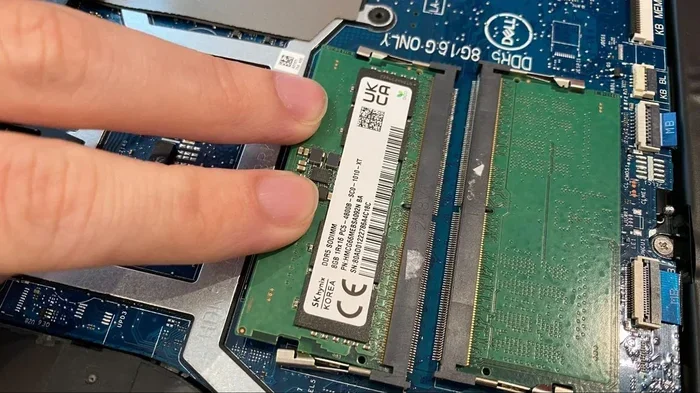
When you need to replace your wifi adapter, make sure you choose one that is compatible with your Dell laptop model. Dell uses specific internal cards that match the form factor and antenna connectors of each model. You can find compatible replacement adapters on Dell’s official parts page or from trusted electronics retailers.
If you are not comfortable opening your laptop yourself, take it to a certified Dell repair center or a trusted local technician. Replacing a wifi card is a relatively affordable repair, and it can breathe new life into an older Dell laptop that might otherwise be discarded.
Preventing Dell Wifi Adapter Problems
Prevention is always better than cure, and taking a few simple steps can keep your Dell wifi adapter not working issues from happening in the first place. These habits are easy to adopt and can save you hours of frustration down the road.
Keep Your Drivers Updated Regularly
Set a reminder to check for driver updates once a month. Outdated drivers are the leading cause of wireless connectivity issues on Dell laptops. You can use Dell SupportAssist to automate this process, or manually check Dell’s support website for the latest drivers for your model.
Protect Your Laptop from Physical Damage
Your Dell wifi card is a fragile component inside your laptop. Drops, bumps, and liquid spills can damage it beyond repair. Use a protective laptop case, keep drinks away from your laptop, and handle your device with care. These simple precautions go a long way toward preventing hardware failures.
Avoid Forced Shutdowns
Forcing your laptop to shut down by holding the power button can corrupt driver files and system settings. Always use the proper shutdown process through the Start menu. If your laptop is frozen, wait a minute before forcing a shutdown, and try the regular restart first.
Use Dell-Recommended Accessories
When buying external accessories like usb hubs or cooling pads, make sure they are compatible with your Dell laptop. Cheap, uncertified accessories can interfere with your wireless adapter and cause connectivity problems. Stick with Dell-certified or well-reviewed accessories to avoid these issues.
Final Thoughts on Dell Wifi Adapter Not Working
A Dell wifi adapter not working can feel like a major inconvenience, but the vast majority of cases are fixable with the steps outlined in this guide. Start with the simple stuff, like restarting your laptop and checking Device Manager. Move on to driver updates and network resets if the simple fixes do not work. And if all else fails, consider that your Dell wifi card might need a physical replacement.
Remember that Dell laptops are built with quality components, and wifi adapter issues are usually temporary and solvable. Keep your drivers updated, protect your laptop from physical damage, and use the built-in Dell tools to maintain your system. With a little patience and the right approach, you will have your wireless connection back up and running in no time.
If you have tried everything in this guide and your Dell wifi adapter not working issue persists, do not hesitate to reach out to Dell’s official support team. They have access to advanced diagnostic tools and can help you identify whether the problem is hardware or software. You are not alone in this, and help is always available.
Frequently Asked Questions
Why did my Dell wifi adapter suddenly stop working?
The most common reason is a driver update or Windows update that conflicts with your adapter. Sometimes a simple restart or driver reinstall fixes the problem immediately. Check Device Manager to see if the adapter shows any error codes or warnings.
Can I fix a Dell wifi adapter that is not showing up in Device Manager?
Yes, in many cases. Try uninstalling the hidden devices in Device Manager and restarting your laptop. Windows should detect the adapter again on boot. If it still does not appear, the adapter may have a hardware failure that requires replacement.
How do I update my Dell wifi adapter driver?
You can update your driver through Device Manager by right-clicking the adapter and selecting Update Driver. Alternatively, visit Dell’s support website, enter your laptop model number, and download the latest wifi driver directly from Dell.
Is it safe to reset my network settings on a Dell laptop?
Yes, it is completely safe. A network reset clears all saved wifi passwords and network configurations, but it does not delete any personal files or data. You will simply need to reconnect to your wifi networks after the reset.
How much does it cost to replace a Dell wifi adapter?
Replacement wifi adapters typically cost between 15 and 50 dollars depending on the model and features. If you hire a technician to install it, labor costs may add another 30 to 60 dollars. Overall, it is a very affordable repair.
Can a virus or malware cause my Dell wifi adapter to stop working?
Yes, malware can sometimes disable your wireless adapter or corrupt network settings. Run a full virus scan using Windows Defender or a trusted antivirus program. If malware is found, removing it should restore your wifi adapter functionality.