Dell Inspiron 16 Plus Touchpad Issues
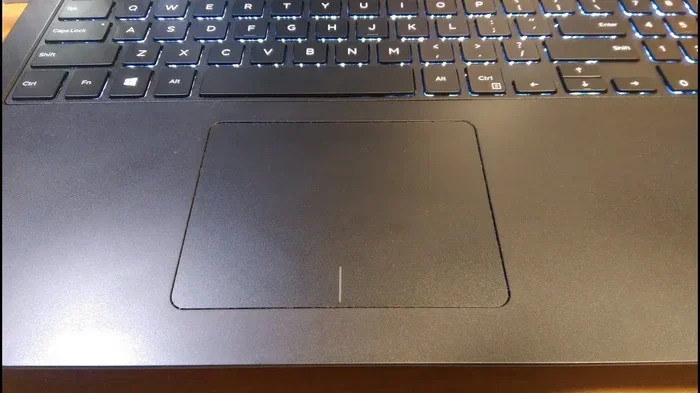
The Dell Inspiron 16 Plus is a powerful machine, but touchpad problems can frustrate users daily. This guide covers the most common touchpad issues, from cursor jumping to complete unresponsiveness, and provides step-by-step fixes you can try right now. Most Dell Inspiron 16 Plus touchpad issues are easy to resolve with simple driver updates, setting adjustments, or a quick restart.
The Dell Inspiron 16 Plus is a sleek, powerful laptop built for work and play. But when the touchpad starts acting up, it can throw a wrench into your entire workflow. You tap, swipe, and scroll, but nothing happens. Or worse, your cursor jumps around the screen for no reason.
If you are dealing with Dell Inspiron 16 Plus touchpad issues, you are not alone. Many users report similar problems, especially after Windows updates or driver changes. The good news is that most of these issues have simple fixes. You do not need to be a tech expert to get your touchpad working again.
In this guide, we walk through every common problem and its solution. From driver updates to hardware checks, we cover it all. Let us get your Dell Inspiron 16 Plus back to smooth, responsive tracking.
Key Takeaways
- Driver updates fix most touchpad problems on the Dell Inspiron 16 Plus quickly and easily.
- Windows settings can accidentally disable your touchpad, causing it to stop working entirely.
- Hardware debris or moisture under the touchpad surface leads to erratic cursor behavior.
- Safe Mode testing helps isolate whether the issue is software or hardware related.
- A simple restart or power reset resolves temporary glitches in many cases.
- Contact Dell support if basic fixes do not restore touchpad function.
📑 Table of Contents
Common Dell Inspiron 16 Plus Touchpad Problems
The Dell Inspiron 16 Plus touchpad can develop several types of issues over time. Each problem has its own cause and fix. Here are the most common ones users encounter.
Touchpad Not Responding at All
This is the most frustrating issue. You tap or swipe, but nothing happens on screen. Often, this happens after a Windows update or a driver conflict. Sometimes the touchpad gets disabled by accident through a keyboard shortcut. The Fn key combined with a function key can toggle the touchpad off without you noticing.
Cursor Jumping or Drifting
Your cursor moves on its own or jumps to random spots. This usually happens when there is moisture, dirt, or debris under the touchpad surface. It can also result from a synaptics driver that needs updating. Sensitivity settings may also be set too high, causing accidental inputs.
Touchpad Gestures Not Working
Two-finger scrolling, pinch-to-zoom, and three-finger swipe may stop working. This often points to a driver issue or a settings problem. Windows 11 touchpad gestures rely on specific drivers to function properly. If those drivers are outdated or corrupted, gestures fail.
Right-Click and Left-Click Failures
Sometimes only one click button works, or neither works at all. This could be a software issue or physical wear on the touchpad surface. Dirt buildup around the click areas can also cause this problem.
Why Does the Dell Inspiron 16 Plus Touchpad Fail?
Understanding the root cause helps you pick the right fix. Several factors can lead to touchpad problems on Dell laptops. Here are the main culprits.
Outdated or Corrupted Drivers
Windows updates can overwrite or corrupt your touchpad driver. The Dell Inspiron 16 Plus uses specific drivers for its touchpad hardware. When these drivers become outdated, the touchpad may behave unpredictably. Device Manager is the best place to check for driver issues.
Windows Settings Conflicts
Windows 11 has built-in touchpad settings that can conflict with Dell’s custom drivers. Sometimes a Windows update changes default settings, disabling certain features. These conflicts can make your touchpad seem broken even when the hardware is fine.
Physical Damage or Debris
Spills, dust, and crumbs can get under the touchpad surface. This causes erratic behavior like cursor jumping or unresponsive areas. Over time, the touchpad surface can also wear down, leading to inconsistent click responses.
Software Conflicts
Third-party apps, especially mouse utilities or virtual machine software, can interfere with touchpad function. Antivirus programs sometimes block driver access too. These software conflicts are often overlooked but can cause significant touchpad problems.
How to Fix Dell Inspiron 16 Plus Touchpad Issues
Now let us get into the solutions. Try these fixes in order, starting with the simplest. Most users find that one of these steps resolves their Dell Inspiron 16 Plus touchpad issues completely.
Fix 1: Restart Your Laptop
It sounds too simple, but a restart fixes many temporary glitches. The touchpad driver may just need a fresh start. Close all programs, click Restart, and test the touchpad afterward. This alone resolves the issue for many users.
Fix 2: Check Touchpad Toggle Keys
Many Dell laptops have a keyboard shortcut that disables the touchpad. Look for a function key with a touchpad icon, usually F5 or F7. Press Fn plus that key to toggle the touchpad back on. If you accidentally pressed this shortcut, your touchpad will appear completely dead.
Fix 3: Update the Touchpad Driver
Outdated drivers are the number one cause of touchpad problems. Here is how to update yours:
- Right-click the Start button and open Device Manager.
- Expand the Mice and other pointing devices section.
- Right-click your touchpad device and select Update driver.
- Choose Search automatically for drivers.
- Follow the on-screen prompts and restart your laptop.
You can also visit Dell’s support website and download the latest touchpad driver for your specific Inspiron 16 Plus model. This ensures you get the correct driver directly from the manufacturer.
Fix 4: Roll Back or Reinstall the Driver
If a recent update caused the problem, rolling back the driver can help. In Device Manager, right-click the touchpad device, go to Properties, and select the Driver tab. Click Roll Back Driver if the option is available. If not, uninstall the device and restart your laptop. Windows will reinstall the driver automatically.
Fix 5: Adjust Windows Touchpad Settings
Windows 11 has dedicated touchpad settings that control gestures, sensitivity, and click behavior. To access them:
- Go to Settings > Bluetooth and Devices > Touchpad.
- Make sure the touchpad is turned on.
- Adjust the cursor speed slider to a comfortable level.
- Check that gesture settings match your preferences.
Sometimes simply toggling the touchpad off and back on in these settings restores normal function.
Fix 6: Run the Dell Diagnostics Tool
Dell includes a built-in diagnostics tool that tests your hardware. You can access it by restarting your laptop and pressing F12 at the Dell logo screen. Select Diagnostics from the boot menu and run the peripheral tests. This tool will tell you if there is a hardware problem with your touchpad.
Fix 7: Clean the Touchpad Surface
Dust and moisture are silent killers of touchpad performance. Use a soft, slightly damp microfiber cloth to gently clean the surface. Avoid using liquid cleaners directly on the touchpad. For stubborn debris, use compressed air to blow particles out from the edges. Regular cleaning prevents many touchpad cursor problems before they start.
Fix 8: Check for Windows Updates
Microsoft frequently releases patches that fix touchpad compatibility issues. Go to Settings > Windows Update and check for updates. Install any pending updates and restart your laptop. This is especially important after major Windows feature updates.
When to Seek Professional Help
Most touchpad issues resolve with the fixes above. But sometimes the problem is deeper than a driver or settings issue. Here are signs that you need professional help.
- The touchpad works fine in Safe Mode but fails in normal Windows mode. This suggests a software conflict that needs deeper investigation.
- Physical damage is visible, such as cracks, deep scratches, or areas that feel spongy under your finger.
- None of the software fixes work after trying all the steps above.
- The touchpad works intermittently, which often points to a loose internal connection or failing hardware.
If you notice your Dell laptop mouse and touchpad not working together, the issue might be with the internal USB controller rather than the touchpad itself. In that case, contacting Dell support or visiting a certified technician is the best next step. You can also check if your laptop is still under warranty, as Dell may cover repair costs at no charge to you.
For users who have tried everything and still face issues, a touchpad replacement might be the final solution. Dell offers replacement parts through their official support site, and many local repair shops can install them affordably.
Preventing Future Touchpad Problems
Prevention is always better than cure. A few simple habits can keep your Dell Inspiron 16 Plus touchpad working smoothly for years.
- Keep your laptop clean. Wipe the touchpad surface weekly with a dry microfiber cloth.
- Update drivers regularly. Check Dell’s support page monthly for driver updates.
- Avoid eating over your laptop. Crumbs and spills are the leading causes of touchpad damage.
- Use a cooling pad. Overheating can affect internal components, including the touchpad controller.
- Back up your drivers. Use a driver backup tool before major Windows updates so you can restore them easily.
These small steps add up. They save you time, frustration, and potentially expensive repairs down the road.
Final Thoughts
Dell Inspiron 16 Plus touchpad issues are common but usually easy to fix. Most problems stem from driver conflicts, settings changes, or minor debris buildup. By working through the fixes in this guide, you can get your touchpad back to full functionality without spending a dime.
Start with the simplest solutions and work your way up. A restart or driver update solves the problem more often than you might think. If the issue persists, do not hesitate to reach out to Dell support for expert assistance. Your touchpad is a vital part of your laptop experience, and it deserves to work flawlessly every day.
Frequently Asked Questions
Why did my Dell Inspiron 16 Plus touchpad suddenly stop working?
The most common reason is a driver update or Windows update that conflicts with the touchpad driver. It could also be a toggled-off setting or a stuck function key. Try restarting your laptop and checking the touchpad toggle first. If that does not work, update or roll back the driver through Device Manager.
Can I use an external mouse if my touchpad is not working?
Yes, absolutely. You can connect a USB mouse or Bluetooth mouse to your Dell Inspiron 16 Plus while you troubleshoot the touchpad. This lets you continue working without interruption. Just remember that an external mouse does not fix the underlying touchpad problem.
How do I update the touchpad driver on my Dell Inspiron 16 Plus?
Open Device Manager, expand the Mice and other pointing devices section, right-click your touchpad, and select Update driver. Alternatively, visit Dell’s official support website, enter your laptop model number, and download the latest touchpad driver directly from Dell. Restart your laptop after installing any driver update.
Is it safe to clean my Dell Inspiron 16 Plus touchpad with water?
Use a slightly damp microfiber cloth, not dripping wet. Excess moisture can seep under the touchpad and damage internal components. Never spray liquid directly onto the touchpad. A dry cloth works well for daily cleaning, and a lightly dampened cloth handles tougher grime.
What should I do if the touchpad works in Safe Mode but not normally?
This indicates a software conflict rather than a hardware problem. Check for recently installed apps or Windows updates that might be interfering. Run a clean boot to identify the conflicting software. If you cannot find the cause, contacting Dell support or a technician is the best next step.
How much does it cost to replace the touchpad on a Dell Inspiron 16 Plus?
Replacement costs vary depending on where you get it done. Dell official service centers may charge more but use genuine parts. Independent repair shops often offer lower prices, typically ranging from $50 to $150 for parts and labor. Check your warranty status first, as Dell may cover the cost if your laptop is still under warranty.