Does All Usb C Support Hdmi
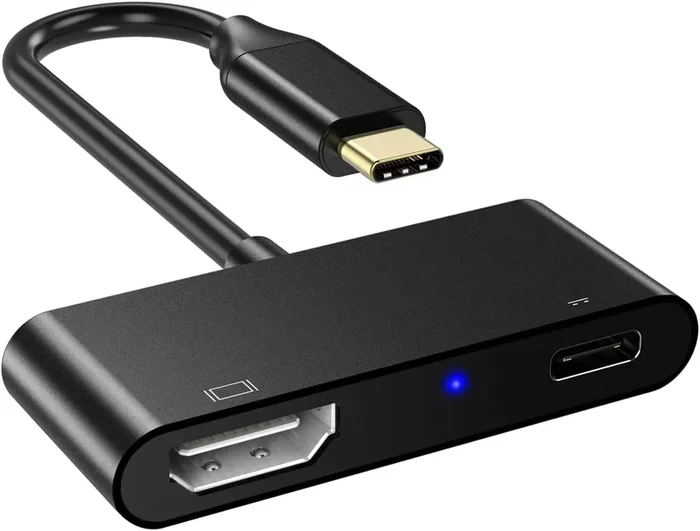
Not all USB C ports support HDMI output. While many modern devices include USB-C Alt Mode for video, some USB-C ports only handle data and power. Understanding the difference helps you pick the right USB-C to HDMI adapter and avoid frustrating connectivity issues.
You plug in your USB-C cable, ready to mirror your screen to a big TV or monitor. But nothing happens. Sound familiar? This is a frustrating moment that many people face. The short answer to the question does all USB C support HDMI is no. Not every USB-C port can send a video signal to an HDMI display.
USB-C has become the go-to connector for modern devices. Laptops, phones, tablets, and even some cameras now use this tiny reversible port. But the USB-C standard covers more than just video. It handles data transfer, power delivery, and in some cases, audio and display output. The confusion comes from the fact that not all USB-C ports are built the same way.
In this guide, we break down exactly what you need to know about USB-C and HDMI compatibility. You will learn how to tell if your port supports video output, which adapters work best, and why some USB-C connections fall short. Whether you are trying to connect a laptop to a monitor or cast your phone screen to a TV, this article has you covered.
Key Takeaways
- USB-C does not universally support HDMI: Only ports with Alt Mode or Thunderbolt can output video signals.
- Check your device specs: Look for “DisplayPort Alt Mode” or “Thunderbolt” in your device documentation.
- Adapters make it possible: A quality USB-C to HDMI adapter can bridge the gap for most laptops and phones.
- Thunderbolt 3 and 4 always support HDMI: These ports offer the most reliable video output options.
- Not all USB-C cables are equal: The cable type matters for video transfer and display quality.
- USB-C accessories vary widely: Some USB-C devices focus on data or charging, not video output.
📑 Table of Contents
- What Is USB-C and Why Does It Matter?
- Does Every USB-C Port Support HDMI Output?
- How to Check If Your USB-C Port Supports HDMI
- Understanding USB-C Alt Mode
- Common USB-C to HDMI Adapter Options
- Why Some USB-C Cables Cannot Carry Video
- Quick Tips for a Smooth USB-C to HDMI Setup
- Common Mistakes People Make with USB-C and HDMI
- The Future of USB-C and HDMI
- Conclusion
What Is USB-C and Why Does It Matter?
USB-C is a connector type, not a feature. Think of it like a wall outlet. Some outlets support multiple functions, and some only do one thing. The USB-C connector is small, oval-shaped, and reversible. You can plug it in either way, which is a huge upgrade over older USB types.
The USB-C standard supports several capabilities:
- Data transfer: Speeds up to 40 Gbps with Thunderbolt 3 or 4.
- Power delivery: Up to 100 watts for charging laptops and tablets.
- Video output: Through Alt Mode or Thunderbolt protocols.
- Audio transmission: For headsets and external speakers.
Here is the key point. A USB-C port can support one, some, or all of these features. Your device manufacturer decides which capabilities to include. This is why does all USB C support HDMI is such a common question. The answer depends on what the port was designed to do.
Does Every USB-C Port Support HDMI Output?
The direct answer is no. Many USB-C ports only handle charging and data transfer. They do not have the hardware needed to send a video signal. This is a common source of confusion, especially when you buy a new laptop or phone.
USB-C Ports That Do Not Support HDMI
Some devices come with USB-C ports that are strictly for data and power. These are often found on budget devices or certain peripherals. For example, some external hard drive enclosures use USB-C purely for fast file transfers. The M.2 NVMe SSD in USB enclosures often use USB-C for data, not video output.
Similarly, some USB cameras connect via USB-C for data only. These ports cannot output video to an HDMI monitor. They are designed to transfer image files or serve as webcams, not display ports.
USB-C Ports That Do Support HDMI
Most modern laptops from Apple, Dell, HP, and Lenovo include USB-C ports with video output capabilities. These ports support DisplayPort Alt Mode, which allows them to carry a video signal through a USB-C to HDMI adapter or cable.
Thunderbolt 3 and Thunderbolt 4 ports always support HDMI output. These are the most capable USB-C ports available. They can drive multiple displays and handle high-resolution video with ease. If your device has a Thunderbolt logo next to the port, you are good to go.
| Port Type | Supports HDMI? | Video Signal? |
|---|---|---|
| USB-C (Basic) | No | Data and power only |
| USB-C with Alt Mode | Yes (with adapter) | DisplayPort over USB-C |
| Thunderbolt 3 | Yes | Full video support |
| Thunderbolt 4 | Yes | Full video support |
| USB 3.2 Gen 2 | Usually No | Data only |
As you can see, knowing your port type is the first step. If you are unsure, check your device manual or the manufacturer’s website. Look for terms like DisplayPort Alt Mode or Thunderbolt to confirm video support.
How to Check If Your USB-C Port Supports HDMI
Figuring out whether your USB-C port can output HDMI does not require a tech degree. There are several simple ways to check.
Method 1: Check the device manual. Look up your device model online and search for the port specifications. The manual will list whether the USB-C port supports video output.
Method 2: Look for logos on the port. A Thunderbolt lightning bolt icon means full video support. A DisplayPort icon or “DP” label means Alt Mode is available. A plain USB-C icon with no extra markings usually means data and power only.
Method 3: Search online. Type your device model and “USB-C HDMI support” into a search engine. Tech forums and manufacturer pages often have the answer.
Method 4: Try a USB-C to HDMI adapter. If you have an adapter handy, plug it in and see if the external display works. This is the most direct test, though it requires having the right adapter first.
Many people assume all USB-C ports work the same way. This is one of the most common USB-C connectivity mistakes. Taking a few minutes to verify your port’s capabilities can save you a lot of hassle later.
Understanding USB-C Alt Mode
USB-C Alt Mode is the technology that allows video signals to travel through a USB-C cable. Without Alt Mode, a USB-C port can only handle data and power. Alt Mode opens the door to video output, making it possible to connect to HDMI displays.
There are different versions of Alt Mode:
- DisplayPort Alt Mode: The most common type. Found on most laptops and phones that support video output over USB-C.
- Thunderbolt Alt Mode: Used by Thunderbolt 3 and 4 ports. Offers the highest bandwidth and supports multiple displays.
When you use a USB-C to HDMI adapter, the adapter reads the Alt Mode signal and converts it into an HDMI output. This is why the quality of the adapter matters. Cheap adapters may not properly translate the signal, leading to no display or poor image quality.
One important thing to note. Alt Mode does not always support audio. Some devices can send video but not sound through USB-C to HDMI. Check your device specs if you need both video and audio over the same connection.
Common USB-C to HDMI Adapter Options
If your USB-C port supports video output, you need the right adapter or cable to connect to an HDMI display. Here are the most common options:
USB-C to HDMI Adapters
These small dongles plug into your USB-C port and have an HDMI output on the other end. They are portable and easy to use. Look for adapters that support 4K resolution and are certified by the display standards organization.
USB-C to HDMI Cables
These cables have a USB-C connector on one end and an HDMI connector on the other. They are convenient because you do not need a separate adapter. However, they can be stiff and limit how you position your device.
USB-C Docking Stations
Docking stations offer multiple ports, including HDMI, USB-A, and Ethernet. They are ideal for workspace setups. If you want a clean desk with one cable connection, a docking station is a great choice.
Thunderbolt Docks
For Thunderbolt 3 or 4 users, a Thunderbolt dock provides the most reliable and fastest video output. These docks support high resolutions and multiple displays simultaneously.
When shopping for adapters, make sure the product explicitly states it supports video output. Some cheap USB-C accessories only handle data and power. Reading the product description carefully can save you from buying the wrong one.
Why Some USB-C Cables Cannot Carry Video
Not all USB-C cables are created equal. The cable inside matters just as much as the port. Some USB-C cables are designed only for charging and data transfer. They lack the wiring needed to carry a video signal.
Here is what to look for in a USB-C cable that supports video:
- E-Marker chip: This small chip inside the cable tells the device what the cable can handle. Cables with E-Markers can support higher speeds and video output.
- USB 3.2 or Thunderbolt certification: These cables are built to handle the bandwidth needed for video.
- Proper wire gauge: Thicker wires carry more data. Thin cables may not support video transfer reliably.
If you plug a basic charging cable into your laptop and connect it to an HDMI monitor, it will not work. The cable simply does not have the right internal wiring. This is why people often ask does all USB C support HDMI and assume the cable is the problem. Sometimes it is the cable, and sometimes it is the port.
For car owners who use USB-C connections for dash cameras or backup systems, the car camera cable USB port setup is a good example of a USB-C connection that handles data but not HDMI video output.
Quick Tips for a Smooth USB-C to HDMI Setup
Want to get the best results when connecting USB-C to HDMI? Follow these simple tips:
- Check compatibility first. Confirm your port supports video output before buying an adapter.
- Buy certified adapters. Look for products certified by USB-IF or DisplayPort standards.
- Update your drivers. Outdated display drivers can cause connection issues even with the right hardware.
- Use the right resolution. Not all adapters support 4K. Check the adapter specs for the maximum resolution.
- Try a different cable. If the connection fails, the cable might be the issue. Swap it out and try again.
- Avoid cheap knockoffs. Low-quality adapters often fail to convert the signal properly. Invest in a reputable brand.
These small steps can make a big difference. A smooth USB-C to HDMI setup saves time and prevents unnecessary frustration.
Common Mistakes People Make with USB-C and HDMI
Even tech-savvy people sometimes run into issues with USB-C and HDMI connections. Here are the most common mistakes:
- Assuming all USB-C ports support HDMI: This is the biggest mistake. Not every port can output video.
- Using a USB hub that does not support video: Some hubs only expand data and power ports. They cannot carry a video signal.
- Ignoring cable quality: A cheap cable can be the reason your HDMI display does not work.
- Not checking the adapter’s max resolution: An adapter that only supports 1080p will not work with a 4K monitor.
- Forgetting to enable external display settings: Some devices need you to manually switch to the external display in your settings.
Avoiding these mistakes can save you hours of troubleshooting. It is always better to verify your setup before you need it in a hurry.
The Future of USB-C and HDMI
The USB-C standard continues to evolve. Newer versions offer faster data transfer, more power, and better video support. USB4, which is built on the Thunderbolt 3 protocol, promises even more seamless video output over USB-C.
As more devices adopt USB-C as their sole connector, the industry is moving toward universal compatibility. In the near future, every USB-C port may support HDMI output by default. Until then, knowing your device’s capabilities remains essential.
For now, the best approach is simple. Check your port specs, get the right adapter, and use quality cables. This approach works for laptops, phones, tablets, and even some USB-C headphones and audio gear that use the same versatile connector.
Conclusion
The answer to does all USB C support HDMI is clear. No, not all USB-C ports support HDMI output. The key factor is whether your port includes Alt Mode or Thunderbolt technology. Once you confirm your port supports video output, the right adapter or cable makes the connection simple and reliable.
Take the time to understand your device’s USB-C capabilities. Check for Alt Mode or Thunderbolt logos, invest in quality adapters, and avoid common setup mistakes. With the right knowledge and tools, connecting your USB-C device to an HDMI display becomes second nature.
USB-C is a versatile and powerful connector. It handles data, power, and video all in one tiny port. Understanding how it works with HDMI opens up a world of connectivity options for your devices. Whether you are at home, in the office, or on the go, you will always know exactly what your USB-C port can do.
Frequently Asked Questions
Can I connect a USB-C device directly to an HDMI TV without an adapter?
Only if your device has a USB-C port that directly outputs HDMI. Some devices include a built-in HDMI output through their USB-C port. Most devices, however, require a USB-C to HDMI adapter or cable to connect to an HDMI display.
Why does my USB-C to HDMI adapter not work?
The most common reason is that your USB-C port does not support video output. Other reasons include using a low-quality adapter, an outdated driver, or a cable that does not support video transfer. Check your port specs first to confirm compatibility.
Does Thunderbolt 3 always support HDMI output?
Yes. Thunderbolt 3 and Thunderbolt 4 ports always support HDMI video output. They offer the most reliable and fastest USB-C video performance available today.
Can I use any USB-C cable for HDMI output?
No. Only USB-C cables that are specifically designed to carry video signals will work for HDMI output. Look for cables with USB 3.2 or Thunderbolt certification to ensure they support video transfer.
Do USB-C hubs support HDMI output?
Some do and some do not. USB hubs vary widely in their capabilities. Check the product description to confirm that the hub includes an HDMI output port and supports video signal transfer.
What resolution can USB-C to HDMI adapters support?
It depends on the adapter. Many support 4K at 60Hz, while others are limited to 1080p. Always check the adapter specifications before purchasing to ensure it meets your display needs.