Does Firestick Work with Hdmi Audio Extractor
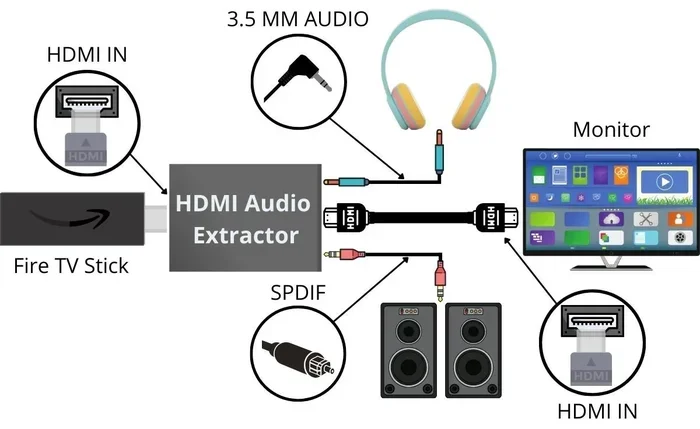
Yes, a Firestick works with an HDMI audio extractor. This handy device pulls audio from your Firestick’s HDMI signal and sends it to external speakers, soundbars, or receivers. Setting up an HDMI audio extractor with a Firestick is simple and solves common audio issues with older TVs or limited sound systems.
If you own a Firestick and want better audio from your streaming setup, you might be wondering whether an HDMI audio extractor is the right solution. The short answer is yes. A Firestick works with an HDMI audio extractor, and this combination can seriously improve your listening experience. Whether you have an older TV with limited audio options or you simply want to route sound to a better speaker system, an audio extractor makes it possible.
Setting up a Firestick with an audio extractor is easier than most people think. You do not need to be a tech expert. In this guide, we will walk you through everything you need to know. We will cover compatibility, setup steps, common problems, and the best extractors to buy. By the end, you will have all the information you need to get your Firestick audio working perfectly.
Key Takeaways
- Full Compatibility: The Firestick works with most HDMI audio extractors available on the market today without any major issues.
- Quick Setup: Connecting your Firestick to an audio extractor takes just a few minutes and requires no technical expertise.
- Multiple Audio Outputs: You can extract audio to optical, HDMI ARC, or analog 3.5mm outputs depending on your extractor model.
- Common Problems Are Fixable: Lip sync delays and no audio are the top issues, and both have simple solutions.
- Ideal for Older TVs: An audio extractor is a great solution when your TV lacks optical or audio output ports.
- Power Matters: Some extractors need a separate power source, so always check your setup before buying.
📑 Table of Contents
- What Is an HDMI Audio Extractor and Why Do You Need One?
- Does Firestick Work with an HDMI Audio Extractor?
- How to Set Up Your Firestick with an Audio Extractor
- Common Problems and How to Fix Them
- Best HDMI Audio Extractors for Firestick
- Expert Insights and Final Recommendations
- Frequently Asked Questions
What Is an HDMI Audio Extractor and Why Do You Need One?
An HDMI audio extractor is a small device that separates the audio signal from an HDMI cable. It takes the combined video and audio signal from your Firestick and splits them. The video goes to your TV through one HDMI output, while the audio goes to a speaker, soundbar, or receiver through a different output.
Why would you need one? Many older TVs do not have optical audio ports or RCA audio outputs. Some modern TVs only have HDMI ARC, which not everyone uses. An audio extractor gives you flexibility. You can connect your Firestick to speakers that would otherwise be incompatible.
How Does an Audio Extractor Work?
The device reads the HDMI signal coming from your Fire TV Stick. It then separates the audio and video streams. The video passes through to your display, while the audio routes to your chosen output. Most extractors support multiple output types, including optical (TOSLINK), analog (3.5mm), and sometimes coaxial audio. This means you can connect to a wide range of audio equipment.
Some people pair their extractor with Bluetooth speakers by using the extractor’s analog output and a Bluetooth adapter. This is a popular setup for casual listeners who want wireless sound without buying expensive equipment. The process is simple and works reliably in most home setups.
Who Benefits from Using an HDMI Audio Extractor?
Several types of users benefit from this device. People with older TVs that lack modern audio outputs find extractors essential. Home theater enthusiasts use them to route Firestick audio to a dedicated sound system. Gamers who use their Firestick for streaming games sometimes prefer the low-latency audio that an extractor provides. Even people who watch movies late at night benefit because they can connect headphones or a personal audio device without disturbing others.
Does Firestick Work with an HDMI Audio Extractor?
Yes, the Firestick works with HDMI audio extractors. The Firestick outputs a standard HDMI signal, and audio extractors are designed to handle exactly that. There are no special Firestick-specific extractors needed. Any standard HDMI audio extractor should work with your Firestick, Firestick 4K, or Firestick Lite.
That said, there are a few things to keep in mind. The audio extractor must support the resolution and audio format your Firestick outputs. Most modern extractors handle 4K video and Dolby Digital or Dolby Atmos audio without any problems. But cheaper or older models might not support the latest formats.
Compatibility Overview
Here is what you need to know about Firestick compatibility with audio extractors:
- Firestick (1st, 2nd, 3rd Gen): Works with all standard HDMI audio extractors. Outputs up to 1080p video with stereo or 5.1 surround audio.
- Firestick 4K: Fully compatible with most 4K-capable extractors. Supports Dolby Atmos and Dolby Digital Plus on models that handle those formats.
- Firestick Lite: Works with standard extractors. Outputs 1080p video and stereo audio. No Dolby Atmos support.
- Firestick Max: Compatible with premium extractors that support the latest HDMI 2.1 and advanced audio formats.
In general, if your Firestick connects to your TV fine via HDMI, it will connect to an audio extractor the same way. The extractor simply taps into the audio signal before it reaches the TV.
What to Check Before Buying
Before you buy an audio extractor for your Firestick, check a few things. First, make sure the extractor supports the video resolution you need. If you have a Firestick 4K, you want an extractor that handles 4K at 60Hz. Second, check the audio outputs. Do you need optical? Analog? Both? Third, look at whether the extractor requires its own power source. Most do, and this is important to know before you set everything up.
Some users also connect their audio setup to gaming headsets with good bass for an immersive viewing experience. If this sounds like you, make sure your extractor supports the audio output type your headset or adapter requires.
How to Set Up Your Firestick with an Audio Extractor
Setting up your Firestick with an audio extractor is a straightforward process. You do not need any special tools or technical knowledge. Follow these steps, and you will be up and running in minutes.
Step-by-Step Setup Guide
Here is the simple process to get your Firestick audio working through an extractor:
- Plug the Firestick into your TV’s HDMI port. This is the same as your normal setup.
- Connect an HDMI cable from the Firestick to the extractor’s HDMI input. Use a high-quality cable for the best signal.
- Connect the extractor’s HDMI output to your TV. This sends the video signal to your display.
- Connect your audio output device to the extractor. This could be a soundbar via optical, speakers via RCA, or headphones via 3.5mm.
- Plug the extractor into a power source. Most extractors need a USB power cable or a wall adapter.
- Turn on your TV and Firestick. Go to the Firestick settings and adjust the audio output to match your extractor.
That is it. Your Firestick audio should now play through your external speakers or sound system instead of your TV speakers.
Quick Tips for a Smooth Setup
- Use a short, high-quality HDMI cable between the Firestick and extractor to reduce signal loss.
- If you experience no sound, check that the extractor is receiving power and that all cables are firmly connected.
- Set your Firestick audio settings to match your output type. For example, if you use an optical connection, select Dolby Digital or PCM in the Firestick settings.
- Keep your extractor firmware updated if the manufacturer provides updates. This ensures compatibility with the latest Firestick models.
- Place the extractor near your TV to keep cable runs short and clean.
Common Problems and How to Fix Them
Even though the setup is simple, you might run into a few issues. Here are the most common problems people face when using a Firestick with an HDMI audio extractor, along with their solutions.
No Audio Output
This is the most common issue. If you have video but no sound, the first thing to check is the audio settings on your Firestick. Go to Settings > Display & Sounds > Audio and make sure the output is set correctly. If you are using an optical connection, try switching between Dolby Digital and PCM. Sometimes the Firestick defaults to a format your extractor does not support.
Also check that your extractor is powered on. Some models have a small LED light that shows they are receiving power. If the light is off, try a different USB port or wall adapter.
Lip Sync Issues
Audio and video out of sync can be frustrating. This usually happens when the extractor introduces a small delay in the audio signal. The fix is often simple. Go to your TV settings and look for an audio delay or lip sync adjustment. Increase or decrease the delay until the audio matches the video.
Another solution is to check if your extractor has a built-in audio delay setting. Some models include this feature in their menu. Adjusting it can fix the problem without touching your TV settings.
No Support for Dolby Atmos or Advanced Audio
Not all audio extractors support the latest audio formats. If you have a Firestick 4K that outputs Dolby Atmos and your extractor does not support it, you will get stereo audio or no audio at all. Check the specs of your extractor before buying. Look for explicit support for Dolby Atmos, Dolby Digital Plus, or DTS if you need these formats.
Best HDMI Audio Extractors for Firestick
Not all audio extractors are created equal. Some are basic and affordable, while others support the latest audio and video formats. Here are a few things to consider when choosing the right one for your Firestick setup.
What to Look For in an Audio Extractor
- 4K Support: If you have a Firestick 4K, make sure the extractor handles 4K resolution at 60Hz.
- Audio Format Support: Look for Dolby Atmos, Dolby Digital, and PCM support for the best audio quality.
- Output Options: More output options mean more flexibility. Optical, HDMI ARC, and analog outputs cover most setups.
- Built-in Amplifier: Some extractors include a small amplifier. This is useful if you want to connect passive speakers directly.
- Price: Good extractors range from $15 to $60. You do not need to spend a fortune for reliable performance.
Comparison Table
| Feature | Budget Extractor | Mid-Range Extractor | Premium Extractor |
|---|---|---|---|
| Price Range | $10 – $20 | $25 – $45 | $50 – $60 |
| 4K Support | No | Yes (4K 30Hz) | Yes (4K 60Hz) |
| Dolby Atmos | No | Sometimes | Yes |
| Outputs | Optical + Analog | Optical + HDMI ARC + Analog | Optical + HDMI ARC + Analog + Coaxial |
| Power Required | Yes (USB) | Yes (USB or Wall) | Yes (Wall Adapter) |
| Best For | Basic Firestick setups | Most Firestick users | Home theater enthusiasts |
For most Firestick users, a mid-range extractor offers the best balance of features and price. It handles 4K video, supports common audio formats, and gives you multiple output options to connect to your preferred audio setup.
Expert Insights and Final Recommendations
Using a Firestick with an HDMI audio extractor is one of the simplest and most effective ways to improve your streaming audio. The setup takes minutes, the devices are affordable, and the results are noticeable. You get cleaner, louder, and more immersive sound compared to relying on your TV’s built-in speakers.
If you are still on the fence, here is my advice. Start with a budget or mid-range extractor. Test it with your Firestick and see how it works in your setup. If you are happy with the audio quality, you are done. If you want more features like Dolby Atmos support or HDMI ARC, you can always upgrade later.
One thing many people overlook is the quality of the HDMI cable you use. A cheap or damaged cable can cause audio dropouts or poor video quality. Invest in a certified high-speed HDMI cable, and your setup will run smoothly. Also, keep your Firestick firmware updated. Amazon regularly releases updates that improve compatibility with external devices like audio extractors.
Remember, the goal is to enjoy your content with great sound. Whether you are watching movies, streaming music, or catching up on your favorite shows, the right audio extractor makes a big difference. The Firestick works with these devices, and the combination opens up a world of audio possibilities for your home entertainment setup.
Frequently Asked Questions
Can I use any HDMI audio extractor with my Firestick?
Most standard HDMI audio extractors work with the Firestick without issues. The Firestick outputs a regular HDMI signal, so any extractor designed for HDMI devices should be compatible. Just make sure the extractor supports the resolution and audio format your specific Firestick model outputs. Check the product specs before buying to avoid any surprises.
Do I need a special Firestick for an HDMI audio extractor to work?
No, you do not need a special Firestick. Every Firestick model, from the basic Firestick Lite to the top-tier Firestick Max, works with standard HDMI audio extractors. The extractor simply splits the audio from the HDMI signal, and this works the same way regardless of which Firestick you own.
Why is there no sound when I connect my Firestick to an audio extractor?
No sound usually means the audio settings on your Firestick do not match your extractor’s output type. Go to your Firestick audio settings and try switching between Dolby Digital, PCM, or stereo. Also make sure the extractor is powered on and all cables are firmly plugged in. Sometimes simply unplugging and replugging the HDMI cables fixes the issue.
Can I use an HDMI audio extractor with a soundbar?
Yes, you can connect an audio extractor to a soundbar. Most soundbars have optical or HDMI ARC inputs, and many audio extractors offer both. Simply connect the extractor’s output to your soundbar using the appropriate cable, and you will get much better sound than your TV speakers can provide.
Does an HDMI audio extractor cause any delay in the audio?
Some extractors introduce a small delay, which can cause lip sync issues. This is more common with cheaper models. If you notice audio and video being out of sync, you can adjust the audio delay in your TV settings. Many mid-range and premium extractors are designed to minimize this delay and provide near-instant audio output.
Is it better to use an HDMI audio extractor or Bluetooth for audio from my Firestick?
It depends on your needs. An HDMI audio extractor gives you a wired, reliable connection with no latency. This is ideal for watching movies and shows where lip sync matters. Bluetooth is more convenient and wireless, but it can introduce slight delays. If you want the best audio quality and zero delay, go with an extractor. If convenience is your priority, Bluetooth is a fine choice.