Free Tools To Permanently Delete Files On Windows 10
Deleting files the normal way on Windows 10 doesn’t actually remove them from your hard drive. Anyone with basic recovery software can bring them back. Free file shredder tools overwrite your data multiple times, making permanent file deletion a reality. This guide covers the top free tools, step-by-step instructions, and common mistakes to avoid.
You hit delete. You empty the Recycle Bin. You think your files are gone forever. But here’s the truth most people don’t know: permanently delete files on Windows 10 requires more than just clicking “delete.”
When you delete a file the normal way, Windows only removes the shortcut to it. The actual data stays on your hard drive until something new overwrites it. That means anyone with free recovery software can restore your supposedly deleted files in minutes.
This is a real problem. Whether you’re selling your old laptop, tossing out a hard drive, or just trying to keep your personal data private, you need free tools to permanently delete files on Windows 10. And the good news? You don’t need to spend a single dollar to do it right.
In this guide, I’ll walk you through the best free file shredder tools, how they work, and exactly how to use them. I’ll also share common mistakes that leave your data exposed and quick tips to keep your digital footprint clean.
Key Takeaways
- Regular deletion only hides files: Windows moves deleted files to the Recycle Bin, and even emptying it doesn’t erase the data from your drive.
- Free file shredder tools overwrite data: Programs like Eraser, DBAN, and BleachBit rewrite your files multiple times so recovery is impossible.
- Permanent deletion protects your privacy: Securely erasing sensitive files prevents identity theft and unauthorized data access.
- Built-in Windows tools help too: Windows 10 has a disk cleanup feature, but it alone won’t permanently delete files.
- Choosing the right tool matters: Different tools offer different security standards, so pick one that matches your needs.
📑 Table of Contents
- Why Regular Deletion Doesn’t Remove Files Forever
- Best Free Tools To Permanently Delete Files On Windows 10
- How To Choose The Right Tool For Permanent File Deletion
- Step-by-Step Guide To Permanently Deleting Files
- Common Mistakes People Make When Deleting Files
- Why Permanent File Deletion Matters in 2024
- Final Thoughts On Secure File Deletion
Why Regular Deletion Doesn’t Remove Files Forever
Most people think hitting “delete” means the file is gone. It’s not. Understanding how Windows handles deleted files helps you see why secure file removal tools are essential.
What Happens When You Delete a File
When you delete a file, Windows does two things:
- It removes the file reference from the file table.
- It marks that space as available for new data.
The actual data stays put until something new writes over it. Think of it like erasing a word on a whiteboard. The mark is still there until you wipe the whole board clean.
Why This Matters for Your Privacy
Here’s why this matters. Free recovery tools like Recuva can scan your drive and pull up deleted files in seconds. Photos, documents, passwords, bank statements — all of it can be recovered if you haven’t used a data erasure tool.
If you’ve ever sold a used computer or thrown away an old hard drive, your personal files might still be floating around on that disk. That’s a scary thought, right?
Regular disk cleanup and emptying the Recycle Bin are good habits. But they won’t protect you from data recovery. For that, you need a proper file shredder or secure erase tool.
Best Free Tools To Permanently Delete Files On Windows 10
There are several great free file deletion tools available. Each one has its strengths. Let me break down the top options so you can pick what works best for you.
Eraser
Eraser is one of the most popular free file shredders for Windows. It integrates right into your right-click menu, making it super easy to use.
Key features:
- Multiple overwrite methods including Gutmann and DoD standards
- Schedule automatic erasure of files and folders
- Free space wiping to clean up previously deleted files
- User-friendly interface that works on Windows 10
Eraser is perfect for everyday users who want secure delete without a steep learning curve. You just right-click a file, choose Eraser, and it handles the rest.
BleachBit
BleachBit is another excellent free tool for cleaning up your Windows 10 system. It’s open-source and packed with features.
Key features:
- Shreds files and folders beyond recovery
- Cleans system junk like cache and temp files
- Wipes free disk space to cover old deletions
- Works on Windows, macOS, and Linux
BleachBit is great if you want an all-in-one solution. It not only helps you permanently delete files but also keeps your system running fast by cleaning out unnecessary data. If you’re also dealing with junk buildup, check out our guide on how to remove junk files from your PC for even more tips.
DBAN (Darik’s Boot and Nuke)
DBAN is a more advanced tool designed for complete hard drive wiping. It boots from a USB or CD and overwrites the entire drive.
Key features:
- Wipes entire drives including the operating system
- Multiple wiping methods for different security levels
- Ideal for disposing of old hard drives
- Completely free and open-source
DBAN is the go-to choice if you’re planning to sell or recycle a computer. It ensures that no data can ever be recovered from the drive. This is the nuclear option for secure file deletion.
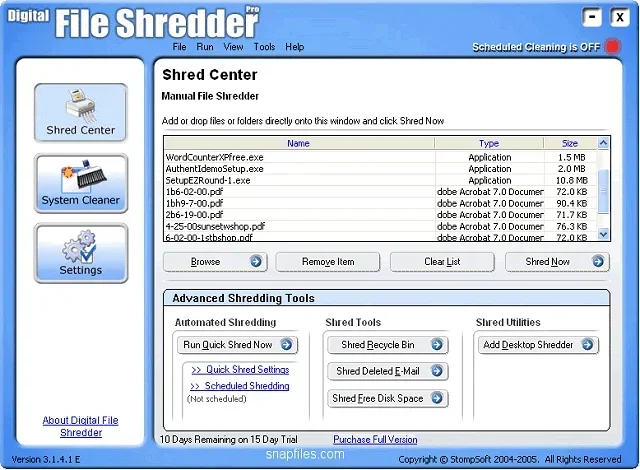
File Shredder
File Shredder is a lightweight, portable tool that doesn’t require installation. You can run it right from a USB stick.
Key features:
- No installation needed
- Drag-and-drop interface
- Multiple overwrite patterns
- Portable and free
File Shredder is ideal for quick, on-the-go permanent file deletion. If you don’t want to install anything on your system, this is a solid choice.
How To Choose The Right Tool For Permanent File Deletion
Not all file shredder tools are created equal. Your choice depends on what you need to accomplish. Here’s a quick comparison to help you decide.
| Tool | Best For | Ease of Use | Overwrite Methods |
|---|---|---|---|
| Eraser | Everyday file shredding | Very Easy | Gutmann, DoD, random |
| BleachBit | System cleanup + file shredding | Easy | Multiple standards |
| DBAN | Complete drive wiping | Moderate | DoD, Gutmann, PRNG |
| File Shredder | Quick portable deletion | Very Easy | Multiple patterns |
If you just want to delete sensitive files regularly, Eraser or File Shredder will do the job. If you’re cleaning up an entire system before giving it away, DBAN is your best bet. And if you want a mix of cleanup and secure deletion, BleachBit covers both bases.
Also, keep your system running smoothly while you manage your files. If your PC is running low on memory, you might want to look into how to update your RAM to boost performance.
Step-by-Step Guide To Permanently Deleting Files
Now that you know which tools to use, let me walk you through the process. I’ll use Eraser as the example since it’s the most beginner-friendly.
Step 1: Download and Install Eraser
Go to the official Eraser website and download the latest version for Windows 10. Run the installer and follow the on-screen prompts. It only takes about a minute.
Step 2: Choose Your Files
Right-click on the file or folder you want to permanently delete. From the context menu, hover over “Eraser” and select “Erase.”
Step 3: Confirm the Deletion
Eraser will ask you to confirm. Click “Yes” and the tool begins overwriting your file with random data. The time it takes depends on file size and the overwrite method you chose.
Step 4: Verify the Deletion
Once Eraser finishes, try to recover the file using a recovery tool. You won’t find anything. The data is gone for good.
Quick Tips for Best Results
- Always use the latest version of your chosen tool to ensure compatibility with Windows 10.
- Don’t use your PC heavily during the shredding process to avoid new data writes.
- Shred free disk space regularly to cover up old deletions you might have forgotten about.
- Use multiple overwrite passes for highly sensitive files like tax documents or passwords.
For more tips on keeping your PC clean and running well, also check out our article on how to remove junk files from your PC.
Common Mistakes People Make When Deleting Files
Even with the right tools, people make mistakes that compromise their data security. Here are the most common ones to avoid.
Relying Only on the Recycle Bin
Emptying the Recycle Bin is not the same as secure file erasure. The data is still sitting on your drive, waiting to be recovered. Always use a dedicated shredder tool for sensitive files.
Forgetting to Wipe Free Space
Even after you delete files, traces remain in your free disk space. A good file shredder will wipe this space too. BleachBit and Eraser both offer this feature.
Using Too Few Overwrite Passes
Some tools let you choose how many times to overwrite your data. One pass is enough for most situations, but for highly confidential files, use at least 3 to 7 passes. The Gutmann method uses 35 passes for maximum security.
Not Checking for Leftover Temp Files
Windows creates temporary copies of files in the background. These temp files can contain the same sensitive data. Use a tool like BleachBit to clean out temp folders along with your secure deletion process.
Ignoring External Drives and USBs
People often forget about USB drives and external hard drives. If you’ve stored sensitive files on these devices, make sure to securely erase them too before disposal or reuse.
Why Permanent File Deletion Matters in 2024
Data breaches and identity theft are more common than ever. Your personal information is valuable. When you toss out an old hard drive or sell a used laptop without properly erasing your data, you’re handing strangers access to your life.
Permanently delete files using reliable tools, and you protect yourself from:
- Identity theft — thieves can use your personal documents to open accounts in your name
- Financial fraud — bank statements and tax files contain everything someone needs to steal from you
- Privacy violations — personal photos, messages, and emails can be exposed
- Corporate data leaks — if you work from home, business files on your personal PC are at risk too
Taking 10 minutes to use a free file deletion tool can save you hours of headache down the road. Prevention is always easier than damage control.
And if you’re upgrading your PC’s hardware for better performance, remember that adding more memory can also help your system run smoother. Check out our guide on how to install more RAM on your laptop to get the most out of your machine.
Final Thoughts On Secure File Deletion
Free tools to permanently delete files on Windows 10 are powerful, effective, and completely accessible to everyone. You don’t need expensive software or technical expertise. Tools like Eraser, BleachBit, DBAN, and File Shredder give you everything you need to erase data permanently and protect your privacy.
The key is to make secure deletion a habit. Don’t just delete files and move on. Take the extra few minutes to use a file shredder, especially for anything sensitive. Your future self will thank you.
Start today. Pick a tool from this list, download it, and try it out. Once you see how easy and effective permanent file deletion can be, you’ll never go back to regular deletion again.
Frequently Asked Questions
Can permanently deleted files be recovered?
No, not if you use a proper file shredder tool. Regular deletion leaves data recoverable, but secure file removal tools overwrite your data multiple times, making recovery impossible.
Is Eraser really free to use?
Yes, Eraser is completely free and open-source. You can download and use it on Windows 10 without paying anything. There are no hidden fees or premium versions.
How many overwrite passes do I need?
For most files, one pass is enough. For highly sensitive documents, use 3 to 7 passes. The Gutmann method with 35 passes is overkill for everyday use but works for maximum security.
Can I permanently delete files on an external hard drive?
Absolutely. Tools like Eraser and BleachBit work on external drives connected to your Windows 10 PC. Just make sure to select the correct drive letter before shredding.
Does DBAN work on SSDs?
DBAN was designed for traditional hard drives. For SSDs, it’s better to use tools that support the TRIM command or built-in secure erase features. BleachBit and some versions of Eraser handle SSDs more effectively.
How often should I wipe my free disk space?
Wiping free space once a month is a good habit. You should also do it before selling or giving away your computer. This ensures that traces of old deleted files are completely gone.
=== CONCLUSION ===
Permanently delete files on Windows 10 without spending a dime. The free tools in this guide — Eraser, BleachBit, DBAN, and File Shredder — give you everything you need to securely erase your data and keep your privacy intact.
Regular deletion is not enough. Recovery tools make it too easy for others to access your supposedly deleted files. But with a simple file shredder, you can overwrite your data and destroy it forever.
Pick the tool that fits your needs, follow the steps in this guide, and make secure file deletion part of your routine. Your personal information is worth protecting, and these free tools make it easier than ever to do so.