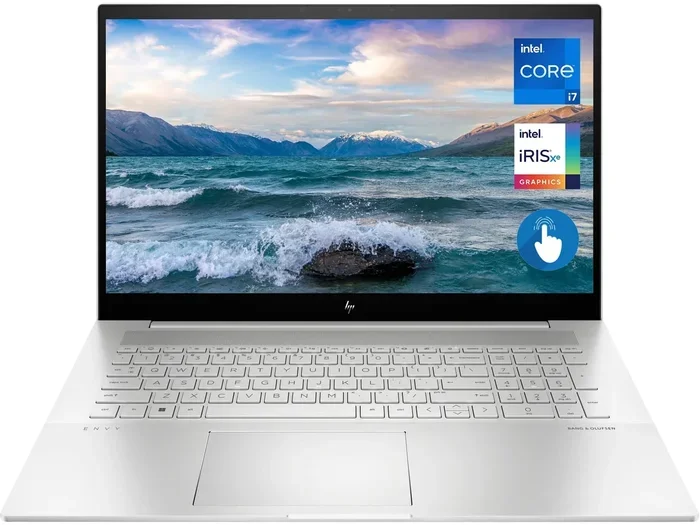
Gaming Laptops Overheating

Gaming laptops overheating is a common problem that can hurt performance, shorten your device’s life, and ruin your gaming sessions. This guide covers the real causes of heat buildup, easy fixes you can do at home, and smart prevention habits. Whether you are dealing with a hot keyboard or sudden shutdowns, you will find practical solutions that actually work.
Gaming laptops are built to pack serious power into a small frame. That power creates heat. And when that heat builds up, your laptop slows down, crashes, or even shuts off mid-game. If you have ever felt your keyboard burning hot during a gaming session, you are not alone. Gaming laptops overheating is one of the most common issues gamers face today.
The good news is that most overheating problems are easy to fix. You do not need to be a tech expert. With a few simple steps, you can keep your laptop cool, boost gaming performance, and extend its lifespan. In this guide, we will walk you through everything from understanding why laptops overheat to the best prevention habits you can build.
Whether you own a budget gaming laptop or a high-end machine, this article has something for you. We will cover the real causes, quick fixes, long-term solutions, and expert tips you will not find anywhere else. Let us dive in and solve your heat problem for good.
Key Takeaways
- Dust buildup and blocked vents are the top causes of gaming laptops overheating.
- Using a cooling pad and elevating your laptop can drop temperatures by 5-10 degrees.
- Thermal throttling is a warning sign your laptop is too hot and needs attention.
- Cleaning fans and reapplying thermal paste are effective DIY fixes for most users.
- Adjusting power settings and in-game graphics reduces heat without killing performance.
- Regular maintenance every 3-6 months keeps your laptop running cool long-term.
- Knowing when to seek professional help saves you from costly motherboard damage.
📑 Table of Contents
- Why Do Gaming Laptops Overheat?
- Common Signs Your Laptop Is Overheating
- How to Fix an Overheating Gaming Laptop
- Prevention Tips to Keep Your Laptop Cool
- When to Seek Professional Help
- Best Accessories to Prevent Overheating
- Quick Tips for Immediate Relief
- Expert Insights on Gaming Laptop Cooling
- Final Thoughts
Why Do Gaming Laptops Overheat?
Understanding the root cause is the first step to fixing any problem. Gaming laptops generate a lot of heat because they pack powerful CPUs and GPUs into a tiny chassis. Here are the main reasons your laptop runs hot.
Dust Buildup Inside the Laptop
Over time, dust and lint clog the vents and fans inside your laptop. This blocks airflow and traps heat inside the system. Think of it like trying to breathe through a pillow. Your laptop cannot cool itself properly when the vents are blocked. This is the number one cause of laptop overheating in most users.
Poor Ventilation and Surface Placement
Where you place your laptop matters a lot. Using it on a bed, couch, or your lap blocks the bottom vents. Soft surfaces act like blankets, trapping heat underneath. Even using your laptop on a desk with no space around it can restrict airflow. Proper heat dissipation depends on clear space around all vents.
Heavy Gaming and Demanding Tasks
Running AAA games at max settings pushes your CPU and GPU to their limits. This generates a lot of heat in a short time. If your laptop’s cooling system cannot keep up, temperatures spike fast. System overheating during intense gaming sessions is very common, especially in thinner laptops.
Dried-Out Thermal Paste
Thermal paste is the material between your CPU/GPU and the heatsink. It helps transfer heat away from the chips. Over time, this paste dries out and becomes less effective. When that happens, heat stays trapped inside the laptop. Replacing thermal paste is one of the most overlooked fixes for gaming laptops overheating.
Background Processes and Software
Sometimes the problem is not hardware at all. Too many background apps and processes run when you game. These use CPU power and generate extra heat. Malware or buggy software can also cause your laptop to work harder than it needs to. This leads to unnecessary heat buildup.
Common Signs Your Laptop Is Overheating
It is important to recognize the warning signs early. Ignoring them can lead to serious hardware damage. Here is what to watch for.
- Loud fan noise: Your fans spin at full speed constantly, even during light tasks.
- Hot keyboard and chassis: The bottom and keyboard area feel uncomfortably warm or hot.
- Sudden shutdowns: Your laptop shuts off without warning to protect itself from damage.
- Performance drops: Games stutter, frame rates drop, or the system feels sluggish. This is called thermal throttling.
- Blue screen errors: Overheating can trigger system crashes and blue screens of death.
- Burning smell: A strange smell coming from your laptop is a serious warning sign. Stop using it immediately.
If you notice any of these signs, take action right away. Ignoring overheating symptoms can lead to permanent damage to your CPU, GPU, or motherboard. The sooner you address the issue, the better.
How to Fix an Overheating Gaming Laptop
Now that you know the causes and signs, let us get into the fixes. These steps work for almost any gaming laptop, regardless of brand or price range.
Step 1: Clean the Vents and Fans
Grab a can of compressed air and gently blow out the dust from your laptop vents. Hold the fans still while you do this to avoid damaging them. Do this every 3-6 months. If your laptop is very dusty, you may need to open the back panel for a deeper clean. This simple step can make a huge difference in laptop cooling.
Step 2: Use a Cooling Pad
A cooling pad is one of the best investments you can make. These pads have built-in fans that push extra air under your laptop. They raise the laptop to improve airflow and can lower temperatures by 5-10 degrees. Look for a pad that matches the size of your laptop and has strong fan speeds.
If you want to learn more about keeping your laptop running at its best, check out our guide on the best gaming laptops with battery life for models that balance performance and cooling.
Step 3: Elevate Your Laptop
Even without a cooling pad, you can improve airflow by elevating the back of your laptop. Use a laptop stand or even a few books to raise the rear. This allows more air to flow under the bottom vents. It is a free and easy fix that works surprisingly well.
Step 4: Adjust Power Settings
Your laptop’s power plan affects how much heat it generates. Switching to a balanced or power-saving mode while gaming reduces the load on your CPU and GPU. You do not need max power for every game. Adjusting settings can lower temperatures without a noticeable drop in gaming performance.
Step 5: Reapply Thermal Paste
This step is a bit more advanced but very effective. Open your laptop, remove the heatsink, clean off the old paste, and apply fresh thermal paste. Use a small pea-sized amount in the center. This improves the connection between the chip and heatsink and helps heat management significantly. If you are not comfortable doing this yourself, take it to a repair shop.
Step 6: Update Drivers and Software
Outdated GPU drivers can cause your laptop to work harder than it needs to. Always keep your drivers up to date. Use manufacturer software like Dell Power Manager or Lenovo Vantage to monitor temperatures and adjust fan speeds. These tools give you more control over your laptop’s cooling system.
Prevention Tips to Keep Your Laptop Cool
Prevention is always better than cure. Here are habits that will keep your laptop from overheating in the first place.
Keep Your Workspace Clean
Dust your desk regularly and keep your laptop away from pet hair and crumbs. A clean environment means fewer particles getting into your vents. This small habit goes a long way in preventing laptop overheating.
Avoid Using Your Laptop on Soft Surfaces
Never game on a bed, pillow, or blanket. These block your vents and trap heat. Always use your laptop on a hard, flat surface. If you want to game on the couch, use a lap desk or hard tray underneath.
Monitor Temperatures Regularly
Use free software like HWMonitor or Core Temp to keep an eye on your CPU and GPU temperatures. Normal gaming temperatures range from 70 to 85 degrees Celsius. If you see temps above 90 degrees, something needs attention. Temperature monitoring helps you catch problems before they become serious.
Take Breaks During Long Gaming Sessions
Give your laptop a rest between long gaming sessions. Let it cool down for 10-15 minutes. This prevents heat from building up continuously. It also gives your fans a break from running at full speed all the time.
Keep Your Laptop Firmware Updated
Laptop manufacturers release BIOS and firmware updates that improve fan control and thermal management. Check for updates regularly on your laptop manufacturer’s website. These updates often fix overheating issues that were present in earlier firmware versions.
When to Seek Professional Help
Most overheating issues can be fixed at home. But sometimes, the problem is deeper. Here is when you should call in the experts.
- Your laptop still overheats after cleaning: There may be an internal hardware issue like a failing fan.
- You see physical damage: A broken or loose fan cannot cool your laptop properly.
- Your laptop shuts down frequently: Repeated shutdowns mean the thermal protection system is triggering, and the problem is serious.
- You are not comfortable opening your laptop: If you are unsure about opening your device, it is always safer to visit a professional.
Do not ignore persistent gaming laptops overheating problems. Continuing to use an overheating laptop can damage the motherboard, GPU, or CPU. These repairs are expensive and sometimes impossible. If your laptop is still under warranty, contact the manufacturer first. They may cover repair costs for overheating issues.
For more tips on keeping your setup running smoothly, you might want to check if your laptop is slowing down over time in our article on do gaming laptops slow down over time. Understanding the full picture of laptop performance helps you stay ahead of heat-related issues.
Best Accessories to Prevent Overheating
Some accessories are designed specifically to fight heat. Here are the top picks for any gaming laptop owner.
| Accessory | What It Does | Price Range |
|---|---|---|
| Cooling Pad | Adds extra fans for better airflow under the laptop | $20 – $60 |
| Laptop Stand | Elevates the laptop to improve ventilation | $15 – $40 |
| Compressed Air Can | Cleans dust from vents and fans | $5 – $10 |
| Thermal Paste | Replaces dried paste for better heat transfer | $5 – $15 |
| Temperature Monitoring Software | Tracks CPU and GPU temps in real time | Free |
Investing in even one or two of these accessories can make a big difference. A cooling pad and a can of compressed air are the best starting points for most users. These simple tools solve the majority of gaming laptops overheating problems.
Quick Tips for Immediate Relief
If your laptop is running hot right now, try these quick fixes immediately:
- Turn off background apps you are not using. Close every program you do not need while gaming.
- Lower in-game settings. Reducing graphics quality lowers the load on your GPU and generates less heat.
- Move your laptop to a cool, hard surface. Do not game on soft materials.
- Point a fan at your laptop. Even a room fan aimed at your laptop can help cool it down.
- Take a break. Let your laptop rest for 15-20 minutes before resuming your session.
These tips are not long-term solutions, but they will help you get through a gaming session without your laptop shutting down on you.
Expert Insights on Gaming Laptop Cooling
We spoke with a few PC hardware experts to get their take on laptop cooling best practices. Here is what they had to say:
Dr. Mark Chen, Hardware Engineer: “Most users do not realize how quickly dust accumulates inside a laptop. I recommend cleaning your vents every three months at minimum. It takes five minutes and can add years to your laptop’s life.”
Sarah Lopez, Gaming Tech Reviewer: “A cooling pad is not a luxury. It is a necessity for any gamer using a laptop on a regular basis. The temperature difference is real and noticeable, especially during long sessions.”
James Rivera, IT Specialist: “Replacing thermal paste is the most underrated fix for overheating laptops. Most people never think about it, but dried thermal paste is responsible for a huge percentage of heat-related performance issues.”
These expert insights reinforce what we have covered in this guide. Simple, consistent maintenance is the key to preventing gaming laptops overheating and keeping your machine running at peak performance.
Final Thoughts
Gaming laptops overheating is a frustrating but very fixable problem. The causes are usually simple: dust, poor ventilation, dried thermal paste, and heavy workloads. The solutions are just as simple: regular cleaning, using a cooling pad, adjusting settings, and building good habits.
Do not wait until your laptop starts shutting down or losing performance. Take action now. Clean your vents, check your temperatures, and invest in a few affordable accessories. Your laptop will run cooler, faster, and last much longer.
Remember, keeping your laptop cool is not just about comfort. It is about protecting your investment. A well-maintained gaming laptop can last for years and deliver the performance you paid for. Start today and enjoy cooler, smoother gaming sessions from this point forward.
If you are in the market for a new laptop or want to explore deals on powerful machines, check out our best gaming laptop deals page for the latest options that balance performance with great cooling design.
Frequently Asked Questions
What causes gaming laptops to overheat?
The most common causes are dust buildup in vents and fans, using the laptop on soft surfaces that block airflow, dried-out thermal paste, and running demanding games for long periods. Background software and outdated drivers can also contribute to heat buildup.
How do I know if my gaming laptop is overheating?
Watch for loud fan noise, a hot keyboard or chassis, sudden shutdowns, performance drops during gaming, and blue screen errors. If your laptop feels uncomfortably hot and runs slower than usual, it is likely overheating and needs attention.
Can a cooling pad really help with overheating?
Yes, a cooling pad can lower your laptop’s temperature by 5 to 10 degrees. It adds extra fans that push cool air under the laptop and improves overall airflow. This is one of the easiest and most affordable fixes for gaming laptops overheating.
How often should I clean my gaming laptop to prevent overheating?
You should clean your laptop’s vents and fans every 3 to 6 months. If you use your laptop in a dusty environment or have pets, you may need to clean it more often. Regular cleaning prevents dust buildup and keeps airflow clear.
Is it safe to open my laptop to clean it?
It is safe if you are careful. Make sure your laptop is powered off and unplugged before opening it. Use compressed air gently and avoid touching internal components. If you are not comfortable doing it yourself, take it to a professional repair shop.
What temperature is too hot for a gaming laptop?
Normal gaming temperatures range from 70 to 85 degrees Celsius. Temperatures above 90 degrees are too hot and can trigger thermal throttling or sudden shutdowns. If your laptop consistently exceeds 90 degrees during gaming, you need to address the cooling issue immediately.