What Is an Fdd Connector
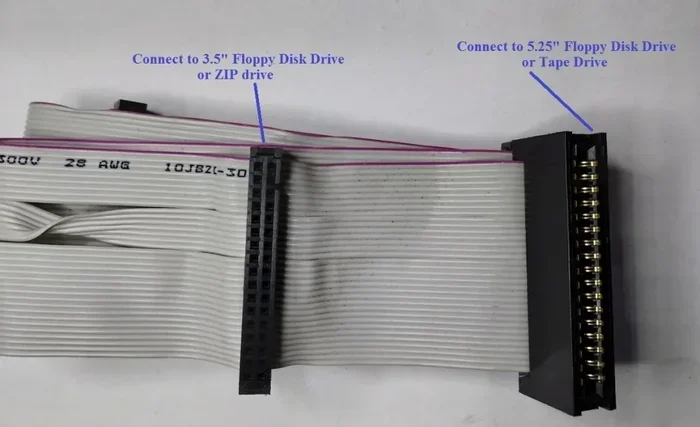
An Fdd connector is a 34-pin interface found on computer motherboards that links the floppy disk drive to the system. It uses a flat ribbon cable to transfer data between the drive and the motherboard. Understanding how this connector works helps you troubleshoot older hardware and navigate legacy PC architecture with confidence.
Have you ever opened up an older computer and spotted a small, narrow connector on the motherboard labeled “FDD”? If you have, you might have wondered what it does and why it is still there. The Fdd connector is a key piece of legacy computer hardware that once played a vital role in everyday computing. Even though most modern PCs have moved past floppy drives, understanding this connector remains useful for anyone working with older systems or maintaining vintage equipment.
The Fdd connector serves as the bridge between your floppy disk drive and the rest of your computer. Without it, the system cannot communicate with the drive, meaning no reading or writing of floppy disks. Whether you are repairing an old machine or just curious about how things used to work, this guide covers everything you need to know about the Fdd connector and its role in computer hardware.
Key Takeaways
- An Fdd connector is a 34-pin interface used to connect floppy disk drives to the motherboard for data transfer.
- The connector relies on a flat ribbon cable with a specific pin layout for signal and motor control.
- Fdd connectors come in standard and reversed types, so always verify orientation before connecting.
- Common issues include loose cables and incorrect BIOS settings that prevent the drive from being detected.
- Modern computers no longer include Fdd connectors, making them relevant mainly for legacy systems and retro builds.
- Comparing the Fdd connector to SATA and IDE connectors highlights how storage interfaces have evolved over time.
📑 Table of Contents
What Is An Fdd Connector?
The Fdd connector is a 34-pin internal connector located on a computer motherboard. It provides the physical and electrical connection between the motherboard and the floppy disk drive. This connector uses a thin, flat ribbon cable to carry data signals back and forth between the two components.
In the early days of personal computing, the floppy disk drive was one of the most important storage devices available. People used floppy disks to boot operating systems, transfer files, and install software. The Fdd connector made all of this possible by creating a reliable pathway for data transfer between the drive and the system.
Today, the floppy disk drive is largely obsolete. However, the Fdd connector still appears on many motherboards designed for backward compatibility or industrial use. If you work with older PCs or embedded systems, knowing how this connector functions is essential.
How the Fdd Connector Works
The Fdd connector operates by sending and receiving electrical signals through its 34 pins. Each pin has a specific role in the communication process between the motherboard and the floppy drive. The ribbon cable that plugs into the connector carries multiple signal lines at once, allowing for efficient data transfer.
Here is a simple breakdown of how the process works:
- The motherboard sends a command through the Fdd connector to the floppy drive.
- The floppy drive receives the command and prepares to read or write data.
- Data travels through the ribbon cable via the Fdd connector pins.
- The motherboard receives the data and processes it for the operating system.
The entire process happens in milliseconds. Even though floppy drives are slow by today’s standards, the Fdd connector handled the data flow reliably for decades. The connector supports both read and write operations, making it a two-way communication channel between the drive and the system.
Pin Layout and Configuration
Understanding the Fdd connector pin layout helps you identify pinouts and troubleshoot connection issues. The standard FDD connector uses 34 pins arranged in two rows. Each pin carries a specific signal, from data lines to ground connections.
The most important pins in the Fdd connector include:
- Pin 1 – This is the key pin that helps orient the cable correctly. It is usually marked with a red stripe on the ribbon cable.
- Pins 2 through 5 – These serve as ground pins to stabilize the electrical connection.
- Pins 6 through 9 – These carry data signals for reading and writing information to the floppy disk.
- Pins 10 through 14 – These handle motor control and spindle speed signals for the floppy drive.
- Pins 15 through 34 – These cover additional signal lines including index timing, head select, and direction control.
The Fdd connector also supports a feature called cable select. This allows the system to automatically determine whether the floppy drive is set as the primary or secondary device on the cable. Cable select simplifies setup and reduces configuration errors. If you are working with legacy hardware, checking the pin orientation of the Fdd connector can save you a lot of troubleshooting time.
Types of Fdd Connectors
Not all Fdd connectors are the same. There are a few variations you may encounter depending on the motherboard and the era of the hardware.
The most common type is the standard 34-pin FDD connector. This is what you will find on most desktop motherboards from the 1990s and 2000s. It connects directly to the floppy disk drive using a 34-wire ribbon cable.
Another variation is the reversed FDD connector. Some manufacturers designed the connector with the pins flipped to save space or improve cable routing. If you are not careful, plugging a standard ribbon cable into a reversed Fdd connector can prevent the drive from working. Always check the pinout diagram for your specific motherboard before connecting any cables.
Some industrial and embedded systems use a different variant of the Fdd connector with additional pins for specialized functions. These are less common but still worth knowing about if you work with custom or legacy hardware setups.
Common Issues with Fdd Connectors
Even though floppy drives are outdated, people still encounter problems with the Fdd connector when repairing old systems. Understanding these common issues can help you diagnose and fix them quickly.
Loose or Damaged Connections
The most frequent problem with the Fdd connector is a loose connection. The ribbon cable can wiggle free over time, especially in older machines that have been moved or opened multiple times. When the connection is loose, the system fails to detect the floppy drive.
To fix this, simply reseat the ribbon cable in the Fdd connector. Make sure the pin 1 alignment matches the connector key. A firm push until the cable clicks into place usually resolves the issue.
Incorrect Cable Orientation
Another common mistake is plugging the ribbon cable in backwards. The Fdd connector has a specific orientation, and inserting it incorrectly will not damage the hardware but will prevent the drive from functioning.
Always look for the red stripe on the ribbon cable. This stripe should align with pin 1 on the Fdd connector. If the drive is not recognized, check the cable orientation first before assuming something more serious is wrong.
BIOS Detection Problems
Sometimes the system does not detect the floppy drive even with a proper connection. In these cases, the issue may lie in the BIOS settings. The Fdd connector relies on correct BIOS configuration for the motherboard to recognize the drive.
You can check this by entering the BIOS setup during boot. Look for the floppy drive setting and ensure it is enabled. If the BIOS does not show the drive at all, the Fdd connector or the ribbon cable may be faulty. Replacing the cable is often the simplest fix.
Fdd Connector vs Other Internal Connectors
The Fdd connector is just one of many internal connectors found on a motherboard. Comparing it to other connectors helps you understand its unique role and limitations.
| Feature | Fdd Connector | SATA Connector | IDE Connector |
|---|---|---|---|
| Pins | 34 pins | 7 pins | 40 pins |
| Cable Type | Flat ribbon cable | Thin data cable | Wide ribbon cable |
| Device Supported | Floppy disk drive | Hard drive, SSD | Hard drive, optical drive |
| Data Speed | Up to 500 Kbps | Up to 6 Gbps | Up to 133 Mbps |
| Current Use | Legacy systems | Modern PCs | Legacy systems |
As you can see, the Fdd connector supports much slower data transfer than modern connectors like SATA. However, it served its purpose well during the era when floppy disks were the primary removable storage medium. The Fdd connector is simpler in design compared to the 40-pin IDE connector, but it shares a similar ribbon cable approach.
Modern computers have replaced all of these legacy connectors with faster, more compact alternatives. The Fdd connector remains relevant only for those working with older hardware or maintaining vintage systems. If you are upgrading an old PC, understanding how the Fdd connector compares to newer options like SATA helps you plan your build more effectively.
Is the Fdd Connector Still Relevant Today?
The short answer is yes, but only in specific situations. Most new computers do not include floppy drive support or the Fdd connector on their motherboards. However, industrial machines, medical equipment, and embedded systems still use floppy drives for certain tasks.
For the average user, the Fdd connector matters mainly when repairing or restoring older computers. If you are a hobbyist, a retro computing enthusiast, or someone who maintains legacy equipment, knowing how the Fdd connector works gives you a valuable skill. It also helps you understand the evolution of computer hardware and how storage technology has changed over the decades.
When you are working on older laptops or desktops, the Fdd connector often sits alongside other legacy components. For example, older systems typically had the Fdd connector paired with a specific amount of RAM. If you are upgrading memory in an older machine, knowing What Is A Good Amount Of Ram For A Laptop helps you make the right choice for that era of hardware. Similarly, understanding the Fdd connector works hand in hand with knowing How To Know What Ram Is Compatible With My Laptop when you are restoring a complete legacy system.
Even the What Is The Ram On A Laptop in older machines was closely tied to how the Fdd connector and other internal components interacted on the motherboard. All of these parts worked together to create a functional computing experience during the floppy disk era.
Tips for Working with Fdd Connectors
If you need to work with the Fdd connector on an older system, these practical tips will help you get the job done right.
- Always power off the computer before touching any internal connectors. Working on a live system can damage the Fdd connector or other motherboard components.
- Check the ribbon cable orientation before inserting it. The red stripe on the cable must align with pin 1 on the Fdd connector.
- Use a high-quality ribbon cable for best results. Cheap cables can cause intermittent connection problems and data errors.
- Clean the connector pins with a soft, dry cloth if you notice dust buildup. Dirty pins can prevent proper contact.
- Verify BIOS settings after connecting the drive. Make sure the floppy drive option is enabled in the BIOS.
These simple steps can save you hours of frustration when working with the Fdd connector. Taking a few extra minutes to check your connections and settings goes a long way toward a successful repair or restoration.
Conclusion
The Fdd connector is a small but important piece of computer hardware history. It connected floppy disk drives to motherboards for decades and played a crucial role in early personal computing. While modern systems have moved on to faster storage interfaces, the Fdd connector remains relevant for anyone working with legacy hardware.
Understanding how the Fdd connector works, its pin layout, common issues, and how it compares to modern connectors gives you a well-rounded view of PC architecture. Whether you are a repair technician, a retro computing enthusiast, or simply curious about how older computers function, the Fdd connector is a connector worth knowing about.
Take what you have learned here and apply it the next time you open up an older machine. With the right knowledge and a little patience, the Fdd connector becomes much less mysterious and much more manageable to work with.
Frequently Asked Questions
What does FDD stand for in the Fdd connector?
FDD stands for Floppy Disk Drive. The Fdd connector gets its name from this connection being specifically designed for floppy disk drives. It provides the interface between the drive and the motherboard for data and control signals.
Can I use an Fdd connector with a modern computer?
Most modern computers do not have the Fdd connector on their motherboards because floppy drives are no longer included. However, you can still find the connector on older boards and use it with a floppy drive if you are working on a legacy system or a retro build.
How many pins does the Fdd connector have?
The standard Fdd connector has 34 pins arranged in two rows. These 34 pins carry data signals, ground connections, motor control signals, and other communication lines between the motherboard and the floppy disk drive.
What is the difference between the Fdd connector and the IDE connector?
The Fdd connector has 34 pins and uses a narrow ribbon cable for floppy drives. The IDE connector has 40 pins and uses a wider ribbon cable for hard drives and optical drives. They serve different devices and support different data speeds.
Why is my floppy drive not detected even with the Fdd connector connected?
This is often caused by an incorrectly oriented ribbon cable or a loose connection. Check that the red stripe on the cable aligns with pin 1 on the Fdd connector. Also verify that the floppy drive setting is enabled in your BIOS configuration.
Are there different sizes of Fdd connectors?
The standard Fdd connector is a 34-pin connector and does not come in different sizes. However, some manufacturers produce reversed versions where the pin orientation is flipped. Always check your motherboard manual to confirm the correct connector type for your system.