Graphics Card Requirements for Autocad

Graphics card requirements for Autocad depend on your workflow, model complexity, and whether you work in 2D or 3D. A dedicated GPU with at least 4GB VRAM is the sweet spot for most users, while professionals handling large 3D models may need 8GB or more. Choosing the right GPU ensures faster rendering, smoother navigation, and fewer crashes when working on detailed CAD projects.
If you have been struggling with laggy viewports or slow rendering in AutoCAD, your graphics card might be the culprit. Graphics card requirements for Autocad are not one-size-fits-all. The right GPU can mean the difference between a smooth workflow and constant frustration. Whether you are a student drafting simple floor plans or an engineer building complex 3D models, understanding your GPU needs is essential.
Autodesk AutoCAD relies heavily on your graphics processing unit for viewport navigation, rendering, and real-time previews. A weak or incompatible card will slow you down, while a well-matched GPU keeps everything responsive. In this guide, we break down exactly what you need, what you can skip, and how to choose the best card for your specific AutoCAD workload. Let us get into it.
Key Takeaways
- Minimum 4GB VRAM is essential: Most AutoCAD tasks run well with a dedicated card offering at least 4GB of video memory.
- Professional GPUs outperform consumer cards: Cards like NVIDIA Quadro and AMD Radeon Pro are optimized for CAD workloads.
- 2D drafting needs less GPU power: Simple 2D drawings can run on integrated graphics, but 3D modeling demands a dedicated GPU.
- Budget options exist: You don’t need to spend a fortune to get a capable card for AutoCAD.
- Driver compatibility matters: Always check Autodesk’s certified GPU list before purchasing.
- Laptop users have specific needs: Mobile workstation GPUs offer a balance of power and portability.
📑 Table of Contents
- Why Your Graphics Card Matters for AutoCAD
- Minimum vs Recommended Graphics Card Specs for AutoCAD
- Best Graphics Cards for AutoCAD
- Integrated vs Dedicated Graphics for AutoCAD
- AutoCAD 2D vs 3D: How GPU Needs Differ
- Tips to Optimize AutoCAD Performance
- Common Mistakes to Avoid When Choosing a Graphics Card for AutoCAD
- Expert Insights on Choosing the Right GPU for AutoCAD
- Conclusion
Why Your Graphics Card Matters for AutoCAD
Many people underestimate how much AutoCAD depends on the GPU. While the CPU handles calculations and geometry processing, the graphics card takes care of displaying everything on your screen. This includes wireframe models, shaded views, textures, and dynamic navigation. Without a capable GPU, even simple tasks can feel sluggish.
The right dedicated graphics card accelerates GPU acceleration AutoCAD features like real-time visual styles, shadow mapping, and anti-aliasing. These features make your drawings look professional and help you spot design issues early. When your GPU is up to the task, you spend less time waiting and more time creating.
How AutoCAD Uses Your GPU
AutoCAD uses the GPU in several key ways. First, it handles viewport rendering, which is what you see when you zoom, pan, or rotate a drawing. Second, it powers visual styles like realistic and conceptual shading. Third, it assists with AutoCAD 3D rendering tasks such as lighting calculations and material previews.
For 2D drafting, the GPU demand is relatively low. But the moment you move into 3D modeling, the requirements jump significantly. Complex assemblies with thousands of parts need a card that can handle heavy polygon counts and texture mapping without breaking a sweat.
Minimum vs Recommended Graphics Card Specs for AutoCAD
Autodesk publishes official AutoCAD system requirements that outline both minimum and recommended GPU specs. Understanding the difference between these two tiers helps you make a smart purchasing decision.
Minimum Requirements
The minimum graphics card requirements for Autocad are quite modest. Autodesk lists a DirectX 1.0 capable video card with at least 1GB of VRAM as the baseline. In practice, this means even older or budget cards can run basic AutoCAD tasks. However, do not expect a smooth experience with large files or 3D models.
Here is what the minimum setup looks like:
- GPU: DirectX 1.0 compatible card
- VRAM: 1GB minimum
- Resolution: 1920 x 1080
- Driver: Latest certified drivers
Recommended Requirements
For a truly comfortable experience, Autodesk recommends a card with at least 4GB of VRAM and strong OpenGL performance. This is the tier where professional graphics card options start to shine. Cards in this range handle medium to large drawings with ease and support advanced visual styles.
Here is what the recommended setup looks like:
- GPU: DirectX 11 compatible with OpenGL 4.6
- VRAM: 4GB minimum, 8GB preferred
- Resolution: Up to 4K support
- Driver: Studio or Enterprise drivers for stability
Best Graphics Cards for AutoCAD
Choosing the right card can feel overwhelming with so many options on the market. The best choice depends on your budget, whether you use a desktop or laptop, and the complexity of your AutoCAD projects. Below, we break down the top picks across different categories.
Top Picks for Desktop Workstations
For desktop users, there is a wide range of best graphics cards for PC that deliver excellent AutoCAD performance. NVIDIA Quadro and AMD Radeon Pro cards are specifically designed for professional CAD work. They offer certified drivers, superior OpenGL performance, and excellent stability with Autodesk software.
Here are some standout options:
- NVIDIA RTX A4000: 16GB VRAM, excellent for large 3D models
- NVIDIA Quadro T1000: A solid mid-range choice for moderate workloads
- AMD Radeon Pro W5500: Great value with 8GB VRAM
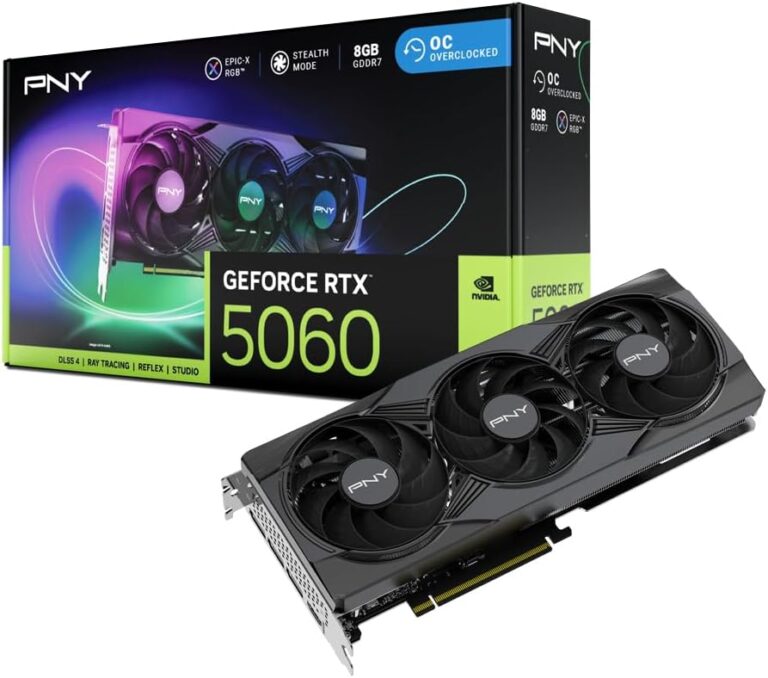
- NVIDIA GeForce RTX 4060: A strong consumer option at an affordable price
If you are on a tighter budget, there are also great options that balance cost and performance. Check out our guide on the best graphics cards for the price for more recommendations.
Best Options for Laptop Users
Laptop users face a unique challenge: balancing portability with performance. Mobile workstation GPUs like the NVIDIA RTX A2000 or AMD Radeon Pro W5500M offer professional-grade GPU acceleration AutoCAD in a portable form factor. For those looking at consumer laptops, the NVIDIA GeForce RTX series also performs well in AutoCAD.
If you are shopping for a laptop, consider exploring our guide on the best graphics cards for laptops to find the right match for your mobile workflow.
Budget-Friendly Options
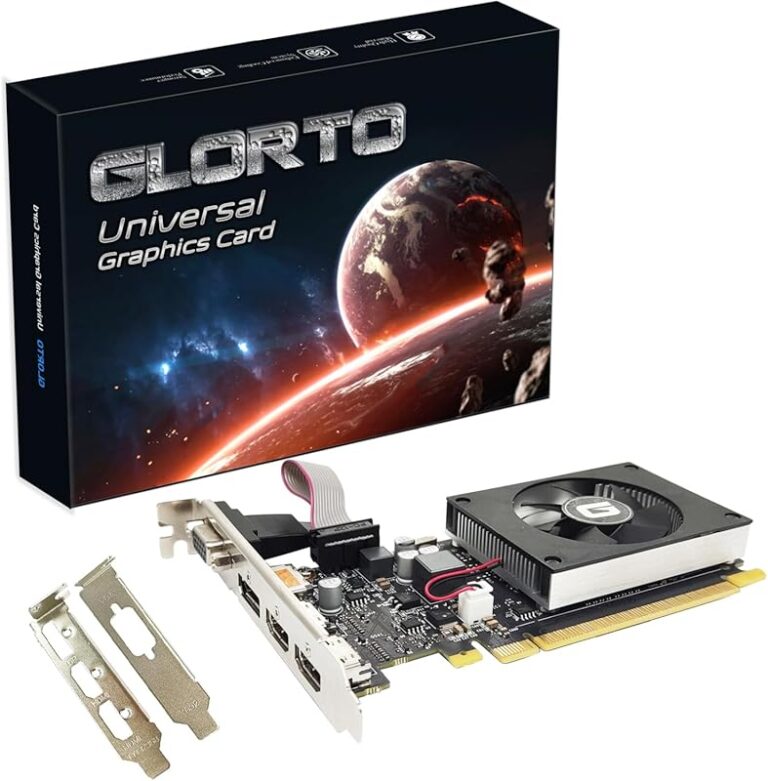
You do not need to spend hundreds of dollars to get a functional AutoCAD setup. Several budget graphics card for CAD options deliver solid performance for 2D drafting and light 3D work. Cards with 4GB VRAM from recent generations often provide the best value.
For users with very limited budgets, our best graphics cards under $100 guide highlights options that can still handle basic AutoCAD tasks effectively.
Integrated vs Dedicated Graphics for AutoCAD
One of the most common questions we hear is whether integrated graphics are enough for AutoCAD. The short answer is: it depends on what you do.
Intel integrated graphics and AMD APUs can handle simple 2D drafting with small to medium file sizes. If your work involves basic floor plans, schematics, or annotations, you may get by without a dedicated card. However, integrated graphics share system memory, which limits their effectiveness for demanding tasks.
A dedicated graphics card comes with its own VRAM and processing power, making it far superior for anything beyond basic 2D work. Here is a quick comparison:
- Integrated Graphics: Best for 2D drafting, small files, and budget setups
- Dedicated Graphics: Required for 3D modeling, large assemblies, and smooth viewport navigation
If you plan to work with complex 3D models or large projects, investing in a dedicated card is non-negotiable. The performance difference is dramatic and immediately noticeable in day-to-day use.
AutoCAD 2D vs 3D: How GPU Needs Differ
Your graphics card requirements for Autocad shift significantly depending on whether you primarily work in 2D or 3D. Understanding this distinction helps you avoid overspending or underspending on your GPU.
2D Drafting GPU Needs
2D drafting is primarily CPU-bound. The GPU’s role is mainly to display the drawing on screen and handle viewport navigation. For basic 2D work, even modest graphics cards perform well. A card with 2GB to 4GB of VRAM is usually more than sufficient.
Key factors for 2D GPU performance include:
- Smooth panning and zooming
- Quick regeneration of complex layouts
- Support for high-resolution displays
3D Modeling GPU Needs
3D modeling puts much heavier demands on the GPU. Real-time rendering of shaded models, shadow calculations, and texture mapping all rely on the graphics card. For serious 3D work, you want a card with at least 6GB to 8GB of VRAM and strong single-precision floating-point performance.
Professional cards like the NVIDIA Quadro and AMD Radeon Pro lines excel here because they are optimized for CAD compatible GPU workloads. They also receive certified drivers that reduce visual glitches and crashes in AutoCAD.
Tips to Optimize AutoCAD Performance
Even with the right GPU, there are steps you can take to get the most out of AutoCAD. These tips help you squeeze out extra performance and keep your workflow running smoothly.
Keep Your Drivers Updated
Always use the latest graphics drivers from NVIDIA or AMD. Autodesk maintains a list of Autodesk certified graphics cards, and using drivers from these manufacturers ensures the best compatibility. Studio drivers from NVIDIA are specifically tuned for professional applications like AutoCAD.
Adjust Visual Settings
Heavy visual effects can slow down your viewport. Try switching to a simpler visual style like “2D Wireframe” when working on large files. You can also disable hardware acceleration temporarily if you experience display issues, though this should be a last resort.
Monitor Your VRAM Usage
Keep an eye on how much VRAM your projects consume. Large 3D assemblies with high-resolution textures can quickly exhaust your card’s memory. If you notice slowdowns, it might be time to upgrade to a card with more graphics card memory.
Use GPU-Optimized Settings
In AutoCAD, go to the Graphics Performance settings and ensure hardware acceleration is enabled. You can also configure the graphics driver to prefer maximum performance, which prevents power-saving features from interfering with your workflow.
Common Mistakes to Avoid When Choosing a Graphics Card for AutoCAD
Avoiding these pitfalls saves you time, money, and frustration.
- Buying a gaming card without checking driver certification: While gaming GPUs are powerful, they may lack the professional driver support that AutoCAD relies on.
- Ignoring VRAM requirements: A card with a fast processor but insufficient VRAM will struggle with large models.
- Overlooking laptop thermal limits: Mobile GPUs run hotter and may throttle under sustained AutoCAD workloads.
- Skipping driver updates: Outdated drivers cause compatibility issues and performance drops.
- Assuming more cores means better graphics: AutoCAD GPU performance depends on the graphics processor, not the CPU core count.
Expert Insights on Choosing the Right GPU for AutoCAD
Industry professionals recommend focusing on OpenGL performance and driver stability over raw gaming benchmarks. AutoCAD uses OpenGL as its primary graphics API, so a card with strong OpenGL support will always outperform a card with similar specs but weaker OpenGL implementation.
For users working in architecture, engineering, or construction, a workstation graphics card with ISV certification provides peace of mind. These cards undergo rigorous testing with professional applications, ensuring fewer crashes and better long-term reliability.
When in doubt, consult Autodesk’s official hardware compatibility list. It provides a curated selection of tested and verified GPUs for every version of AutoCAD. This is the most reliable way to ensure your new card will work seamlessly with your software.
Conclusion
Getting the graphics card requirements for Autocad right is one of the most impactful upgrades you can make for your workflow. A well-chosen GPU delivers smoother navigation, faster rendering, and a more enjoyable drafting experience. Whether you are a casual 2D drafter or a professional 3D modeler, matching your GPU to your workload makes all the difference.
Start by assessing your typical projects and their complexity. For basic 2D work, a modest dedicated card or even integrated graphics may suffice. For 3D modeling and large assemblies, invest in a professional or high-performance consumer GPU with at least 4GB to 8GB of VRAM. Keep your drivers updated, adjust your visual settings, and you will be well on your way to a faster, more efficient AutoCAD experience.
Take the time to research your options, consider your budget, and choose a card that fits your specific needs. The right graphics card is not just an upgrade; it is an investment in your productivity and the quality of your work.
Frequently Asked Questions
Can AutoCAD run without a dedicated graphics card?
Yes, AutoCAD can run on integrated graphics for basic 2D drafting. However, you will experience slowdowns with large files, 3D models, and complex visual styles. A dedicated GPU is strongly recommended for any serious work.
How much VRAM do I need for AutoCAD?
For most users, 4GB of VRAM is the sweet spot. If you work with large 3D models or complex assemblies, aim for 8GB or more. VRAM directly affects how much detail your GPU can render in real time.
Are NVIDIA Quadro cards worth it for AutoCAD?
Yes, NVIDIA Quadro cards are specifically designed for professional CAD workloads. They offer certified drivers, excellent OpenGL performance, and superior stability compared to consumer gaming cards.
What is the difference between OpenGL and DirectX for AutoCAD?
AutoCAD primarily uses OpenGL for rendering. While DirectX is important for gaming, OpenGL is the standard for professional CAD applications. Always prioritize OpenGL performance when choosing a card for AutoCAD.
Do I need a new graphics card for AutoCAD 2024 or 2025?
AutoCAD updates may raise the recommended system requirements over time. However, most cards that met previous requirements continue to work well. Check Autodesk’s official hardware list for the latest certified GPUs.
Can a budget graphics card handle AutoCAD well?
Absolutely. Many budget cards with 4GB VRAM handle 2D drafting and light 3D work very well. You do not need an expensive card unless you are working with highly complex models or large assemblies.