How Do I Fix My Laptop Mouse

Is your laptop mouse acting up? Don’t panic. Most mouse problems are simple to solve with basic troubleshooting. Whether your touchpad is frozen, your wireless mouse won’t connect, or your cursor is jumping around, this guide covers every common fix. By the end, you’ll know exactly how to get your laptop mouse working again in minutes.
[FEATURED IMAGE_PLACEHOLDER]
There is nothing more frustrating than sitting down to work and realizing your laptop mouse has stopped working. One moment everything is fine, and the next, your cursor is frozen, jumping around, or completely gone. If you have ever found yourself asking, “How do I fix my laptop mouse?” you are not alone. This is one of the most common tech problems people face, and the good news is that most solutions are surprisingly simple.
Your laptop mouse could be a built-in touchpad, a USB mouse you plug in, or a wireless mouse connecting through Bluetooth or a USB receiver. Each type has its own set of problems and solutions. The key is to approach the issue methodically. Start with the easiest fixes first before moving on to more advanced troubleshooting. In most cases, you will have your mouse working again in just a few minutes without needing to call a technician or spend any money.
In this comprehensive guide, we will walk you through every possible reason your laptop mouse might not be working and give you clear, step-by-step instructions to fix it. Whether you are using Windows or macOS, a touchpad or an external mouse, this article has you covered. Let’s dive in and get your cursor moving again.
Key Takeaways
- Restart first: A simple restart fixes most laptop mouse issues instantly by refreshing drivers and system processes.
- Check physical connections: Loose USB ports, dead batteries, or Bluetooth pairing problems are common culprits behind mouse failures.
- Update or reinstall drivers: Outdated or corrupted mouse drivers cause erratic cursor behavior and unresponsiveness.
- Adjust touchpad settings: Your touchpad may be accidentally disabled through keyboard shortcuts or system settings.
- Clean your touchpad: Dirt, oil, and debris on the touchpad surface interfere with tracking accuracy.
- Use built-in troubleshooters: Windows and macOS include diagnostic tools that automatically detect and fix mouse problems.
- Know when to replace: If software fixes fail, the mouse hardware itself may be damaged and need replacement.
📑 Table of Contents
- Understanding Why Your Laptop Mouse Stops Working
- Basic Troubleshooting Steps to Try First
- How to Fix a Laptop Touchpad That Is Not Working
- Updating and Reinstalling Mouse Drivers
- Fixing Wireless and Bluetooth Mouse Connection Issues
- Advanced Fixes for Persistent Mouse Problems
- When to Replace Your Laptop Mouse
- Preventing Future Mouse Problems
- Conclusion
Understanding Why Your Laptop Mouse Stops Working
Before jumping into fixes, it helps to understand what might be causing the problem. Laptop mouse issues generally fall into three categories: hardware problems, software glitches, and settings misconfigurations. Knowing which category your issue belongs to will save you time and effort.
Hardware Issues
Hardware problems involve the physical components of your mouse or touchpad. For external mice, this could mean a damaged cable, a dead battery, or a faulty USB port. For built-in touchpads, hardware issues might include physical damage from drops or spills, loose internal connections, or worn-out components from years of use. If your mouse feels physically damaged or shows signs of wear, hardware is likely the culprit.
Software and Driver Problems
Your laptop relies on software drivers to communicate with your mouse. If these drivers become outdated, corrupted, or incompatible after a system update, your mouse may stop responding or behave erratically. Windows updates are a frequent cause of driver conflicts. Sometimes a recent update changes how your system recognizes input devices, leading to sudden mouse failures that seem to appear out of nowhere.
Settings and Configuration Errors
Accidentally changing a setting is one of the most common reasons a laptop mouse stops working. You might have disabled your touchpad through a keyboard shortcut without realizing it. Or perhaps your mouse sensitivity was set too low to register movement. Bluetooth settings, USB power management options, and accessibility features can all interfere with normal mouse operation if configured incorrectly.
Basic Troubleshooting Steps to Try First
When your laptop mouse stops working, start with these fundamental fixes. They solve the majority of problems and take only a few minutes to complete.

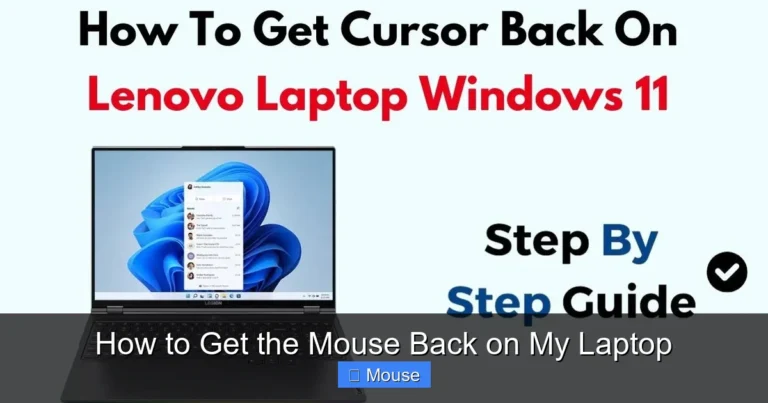
Visual guide about How Do I Fix My Laptop Mouse
Image source: grammarnestly.com
Restart Your Laptop
This might sound too simple, but restarting your laptop fixes more mouse problems than any other single solution. A restart clears temporary software glitches, refreshes driver connections, and resets hardware communication. If your mouse has suddenly stopped responding, save your work using keyboard shortcuts if possible, then restart. Many people are surprised to find their mouse working perfectly after a simple reboot.
Check Physical Connections
If you are using an external mouse, check the physical connection first. For a USB mouse, unplug it and plug it into a different USB port. Sometimes a specific port fails while others work fine. For a wireless mouse with a USB receiver, make sure the receiver is fully inserted and try a different port as well. If your mouse uses batteries, replace them with fresh ones. Low battery power is a leading cause of wireless mouse problems.
For Bluetooth mice, go to your laptop’s Bluetooth settings and make sure the mouse is still paired. If it shows as disconnected, remove the device and pair it again. You can find detailed instructions on how to connect a wireless mouse to a laptop if you need help with the pairing process.
Test with Another Mouse
If you have access to another mouse, plug it into your laptop and see if it works. This simple test tells you whether the problem is with the specific mouse or with your laptop itself. If the second mouse works fine, your original mouse is likely defective. If neither mouse works, the issue is probably with your laptop’s settings, drivers, or hardware.
How to Fix a Laptop Touchpad That Is Not Working
Built-in touchpads have their own unique set of problems. Since they are integrated into your laptop, you cannot simply swap them out like an external mouse. Here is how to troubleshoot and fix touchpad issues.

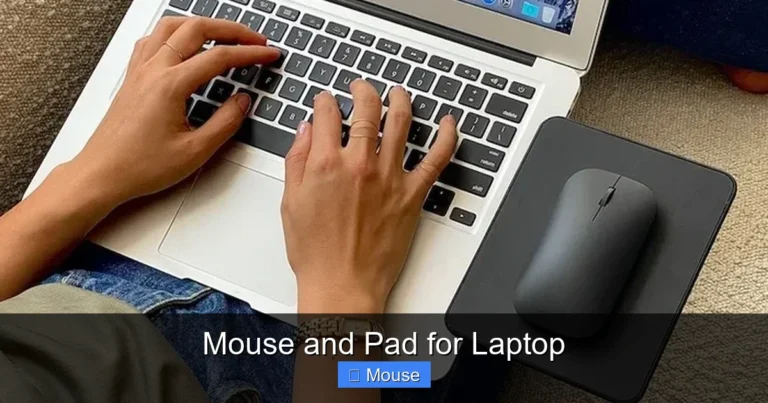
Visual guide about How Do I Fix My Laptop Mouse
Image source: finances4females.com
Check If Your Touchpad Is Disabled
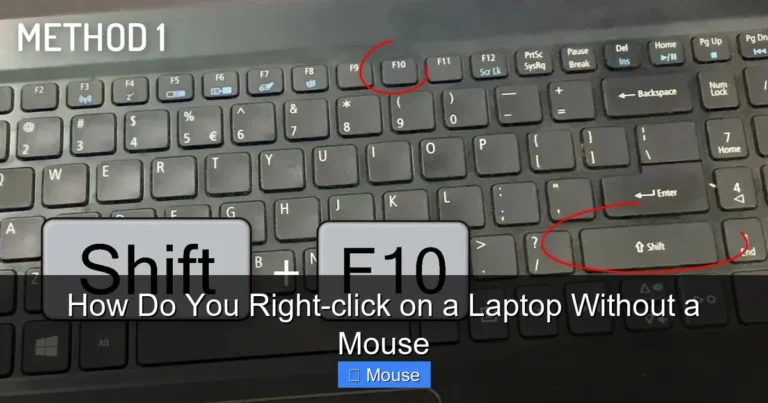
The most common reason a touchpad stops working is that it has been accidentally disabled. Most laptops have a keyboard shortcut that toggles the touchpad on and off. Look for a function key with a touchpad icon, usually found on the F5 through F9 keys. You typically need to hold the Fn key while pressing the function key to toggle the touchpad.
Some laptops also have a small button near the top of the touchpad itself. Double-tapping this area can enable or disable the touchpad. If you are not sure which key controls your touchpad, check your laptop’s user manual or look up your specific model online. If you are using an HP laptop, you can also read our guide on how to unlock the mouse on an HP laptop for model-specific instructions.
Enable the Touchpad in Settings
If the keyboard shortcut does not work, check your system settings. On Windows 10 and 11, go to Settings, then Bluetooth and Devices, and click on Touchpad. Make sure the touchpad toggle is turned on. You can also adjust sensitivity settings here. On macOS, go to System Settings, then Trackpad, and ensure all tracking options are enabled.
Some laptops have an option to automatically disable the touchpad when an external mouse is connected. If this setting is enabled, your touchpad will stop working whenever you plug in a USB or wireless mouse. You can turn this feature off in the same settings menu if you prefer to use both simultaneously.
Clean Your Touchpad
Your fingers leave behind oil and dirt every time you use the touchpad. Over time, this buildup can interfere with the touchpad’s ability to detect your finger movements accurately. Turn off your laptop, dampen a soft cloth with water or isopropyl alcohol, and gently wipe the touchpad surface. Make sure the touchpad is completely dry before turning your laptop back on.
Avoid using harsh chemicals or abrasive materials that could damage the touchpad coating. Regular cleaning not only helps with tracking issues but also keeps your laptop hygienic. If cleaning does not solve the problem, the issue is likely software-related rather than physical.
Updating and Reinstalling Mouse Drivers
Drivers are the software that allows your operating system to communicate with your mouse hardware. When drivers become outdated or corrupted, your mouse may stop working or behave unpredictably. Here is how to fix driver-related mouse problems.
How to Update Mouse Drivers on Windows
Press the Windows key and X simultaneously, then select Device Manager from the menu. Expand the “Mice and other pointing devices” section. Right-click on your mouse device and select “Update driver.” Choose the option to search automatically for updated driver software. Windows will look for the latest driver online and install it if one is available.
If Windows says you already have the best driver installed but your mouse is still not working, try the next step. Sometimes the current driver is corrupted even though it is the latest version.
How to Reinstall Mouse Drivers
In Device Manager, right-click on your mouse device and select “Uninstall device.” Do not worry, this will not permanently remove your mouse. After uninstalling, restart your laptop. Windows will automatically detect the mouse and reinstall the correct driver during the startup process. This fresh installation often resolves issues caused by corrupted driver files.
For touchpad drivers, you might also want to visit your laptop manufacturer’s website and download the latest touchpad driver directly. Manufacturers like Dell, HP, Lenovo, and ASUS provide driver downloads specific to each laptop model. Installing the manufacturer’s driver can sometimes work better than the generic Windows driver.
How to Update Mouse Drivers on macOS
macOS handles drivers differently than Windows. Most driver updates come through system updates. Go to System Settings, then General, and click Software Update. Install any available updates. If you are using a third-party mouse with custom software, such as a Logitech mouse, make sure you have the latest version of the manufacturer’s software installed.
Fixing Wireless and Bluetooth Mouse Connection Issues
Wireless mice offer convenience but come with their own set of connection problems. If your wireless mouse has stopped working, here is what to check.

Visual guide about How Do I Fix My Laptop Mouse
Image source: pic3.zhimg.com
USB Receiver Problems
Most wireless mice use a small USB receiver that plugs into your laptop. If the mouse stops responding, first make sure the receiver is properly connected. Try removing it and plugging it into a different USB port. USB ports can sometimes fail or provide insufficient power, especially on older laptops.
Avoid using USB hubs or extension cables with your mouse receiver. These can cause signal interference or power issues. Plug the receiver directly into a USB port on your laptop for the best connection. If you are using a USB 3.0 port and experiencing interference, try switching to a USB 2.0 port instead, as USB 3.0 ports can sometimes cause wireless interference.
Bluetooth Connection Troubleshooting
Bluetooth mice connect without a USB receiver, but they can be trickier to troubleshoot. First, make sure Bluetooth is turned on in your laptop’s settings. Then check if your mouse appears in the list of paired devices. If it shows as paired but not connected, click on it and select “Connect.”
If the mouse does not appear in the list at all, you may need to put it into pairing mode. Most Bluetooth mice have a small button on the bottom that you press and hold to enter pairing mode. Once in pairing mode, your laptop should detect the mouse and allow you to pair it. If you need more help, check out our guide on how to connect a wireless mouse to a laptop.
Bluetooth interference from other devices can also cause connection drops. If you have multiple Bluetooth devices nearby, try turning off the ones you are not using. Moving closer to your laptop can also help if you are experiencing range issues.
Battery and Power Issues
Always check the batteries in your wireless mouse. Even if the mouse light turns on, the batteries might not have enough power to maintain a stable connection. Replace the batteries with fresh ones and see if that solves the problem. If your mouse has a rechargeable battery, make sure it is fully charged before troubleshooting further.
Some wireless mice have a power switch on the bottom. Make sure this switch is in the “On” position. It sounds obvious, but many people accidentally flip this switch when picking up or moving their mouse.
Advanced Fixes for Persistent Mouse Problems
If the basic troubleshooting steps did not work, it is time to try some more advanced solutions. These fixes address deeper software and system issues that can cause mouse problems.
Run the Windows Hardware Troubleshooter
Windows includes a built-in troubleshooter that can automatically detect and fix hardware problems. Go to Settings, then System, and click on Troubleshoot. Select “Other troubleshooters” and find “Keyboard and Mouse” or “Hardware and Devices.” Run the troubleshooter and follow the on-screen instructions. Windows will scan for issues and attempt to fix them automatically.
This tool is particularly useful for identifying problems you might not think to check, such as power management settings that are turning off your mouse to save energy.
Check Power Management Settings
Windows has a feature that allows the system to turn off USB devices to save power. This can sometimes cause your mouse to stop working, especially on laptops running on battery. To fix this, open Device Manager, expand “Universal Serial Bus controllers,” right-click on each USB Root Hub, and select Properties. Go to the Power Management tab and uncheck “Allow the computer to turn off this device to save power.” Repeat this for all USB Root Hubs.
This setting is a common cause of intermittent mouse disconnections. Once disabled, your mouse should maintain a consistent connection regardless of your laptop’s power state.
Disable Fast Startup
Windows Fast Startup is a feature that helps your laptop boot faster, but it can sometimes cause hardware initialization problems. To disable it, go to Control Panel, then Power Options. Click “Choose what the power buttons do” and then “Change settings that are currently unavailable.” Uncheck “Turn on fast startup” and save your changes. Restart your laptop and test your mouse.
Check for Malware
In rare cases, malware can interfere with your mouse functionality. Malicious software might capture mouse inputs, redirect clicks, or disable input devices entirely. Run a full system scan using Windows Defender or your preferred antivirus software. If malware is detected, follow the software to remove it and then restart your laptop.
Perform a System Restore
If your mouse stopped working after a recent software installation or system update, a System Restore can roll your computer back to a previous state when the mouse was working. Type “System Restore” in the Windows search bar and follow the prompts. Choose a restore point from before the problem started. This will not affect your personal files but will remove recently installed programs and updates.
When to Replace Your Laptop Mouse
Sometimes, no amount of troubleshooting can fix a mouse that has reached the end of its lifespan. Here are signs that it is time for a replacement.
Physical Damage
If your mouse has been dropped, exposed to liquid, or shows visible damage like cracks or broken buttons, it may be beyond repair. Physical damage to internal components often causes intermittent or complete failure that software fixes cannot resolve.
Consistent Failure Across Multiple Computers
If your mouse does not work on any computer you try it on, the mouse itself is the problem. This confirms that the issue is hardware-related and not specific to your laptop’s configuration.
Age and Wear
Mice have a limited lifespan. Mechanical components wear out over time. If your mouse is several years old and has been heavily used, the internal switches and sensors may simply be worn out. In this case, replacing the mouse is more cost-effective than attempting repairs.
When shopping for a replacement, consider whether you want a wired or wireless mouse. Wired mice are generally more reliable and do not require batteries. Wireless mice offer more freedom of movement but need regular battery changes or charging. Choose based on your personal preferences and how you use your laptop.
Preventing Future Mouse Problems
Once you have fixed your laptop mouse, take steps to prevent the same problems from happening again. A little maintenance goes a long way.
Keep Your System Updated
Regularly update your operating system and drivers. Software updates often include bug fixes and improvements for hardware compatibility. Enable automatic updates so you never miss important patches that could affect your mouse functionality.
Handle Your Mouse with Care
Avoid dropping your mouse or yanking the cable. For wireless mice, store them in a safe place when not in use. Keep liquids away from your mouse and laptop. These simple habits can significantly extend the life of your mouse.
Clean Regularly
Make cleaning your touchpad and external mouse part of a regular maintenance routine. Dust and debris accumulate over time and can interfere with performance. A quick wipe once a week keeps everything running smoothly.
If you want to learn more about general laptop maintenance, check out our article on how often you should clean your laptop for a complete cleaning schedule and tips.
Conclusion
Fixing a laptop mouse does not have to be a stressful experience. In most cases, the solution is as simple as restarting your computer, checking a connection, or updating a driver. By working through the troubleshooting steps in this guide, you can identify and resolve the vast majority of mouse problems on your own.
Remember to start with the basics before moving on to advanced fixes. A restart and a quick check of your physical connections solve more problems than you might expect. If those do not work, move on to driver updates, settings adjustments, and system troubleshooters. And if all else fails, it might be time to invest in a new mouse.
The next time your laptop mouse stops working, do not panic. You now have the knowledge and tools to diagnose and fix the problem quickly. Keep this guide bookmarked for future reference, and you will never be stuck with an unresponsive mouse for long.
Frequently Asked Questions
Why is my laptop touchpad not working?
Your touchpad may be disabled through a keyboard shortcut, usually by pressing Fn and a function key with a touchpad icon. Check your system settings under Touchpad options to make sure it is enabled. If settings look correct, try updating or reinstalling your touchpad drivers through Device Manager.
How do I fix a wireless mouse that keeps disconnecting?
Replace the batteries first, as low power is the most common cause of disconnections. Make sure the USB receiver is plugged directly into your laptop, not through a hub. If using Bluetooth, check for interference from other devices and try re-pairing the mouse.
Can a Windows update break my laptop mouse?
Yes, Windows updates can sometimes cause driver conflicts that affect your mouse. If your mouse stopped working after an update, try rolling back the driver in Device Manager or performing a System Restore to a point before the update was installed.
How do I know if my mouse problem is hardware or software?
Test your mouse on another computer. If it does not work on any device, it is likely a hardware problem. If it works on other computers but not yours, the issue is probably software-related, such as a driver or settings problem on your laptop.
What keyboard shortcuts can I use if my mouse stops working?
Windows key opens the Start menu, Alt plus Tab switches between windows, and Ctrl plus Alt plus Delete opens the task manager. You can also use Tab to navigate between elements and Enter to select them. These shortcuts help you navigate and troubleshoot even without a working mouse.
Should I use a wired or wireless mouse with my laptop?
Wired mice are more reliable and never need batteries, making them ideal for stationary use. Wireless mice offer more freedom and a cleaner desk setup but require battery management. Choose based on your priorities: reliability and simplicity versus convenience and portability.