How To Check Laptop Ram Compatibility The Easy Way
Checking your laptop RAM compatibility is simpler than you think. This guide walks you through every step to find the right memory for your machine. You will learn how to verify your laptop type, RAM speed, and maximum capacity before buying anything.
Have you ever tried to upgrade your laptop memory and ended up with the wrong part? You are not alone. laptop RAM compatibility trips up even experienced users. The good news is that checking whether your laptop can handle a new memory module is much easier than most people think.
In this guide, we break everything down into simple steps. You will learn how to check what RAM your laptop currently uses, what type it supports, and how much it can hold. By the end, you will feel confident shopping for the right upgrade. Let us get started.
Key Takeaways
- Know Your Laptop Model First: Always check your exact model number before purchasing any RAM module.
- DDR4 and DDR5 Are the Main Types: Understanding the difference between these two RAM generations prevents costly mistakes.
- Maximum Capacity Matters: Every laptop has a limit on how much memory it can support.
- Speed and Frequency Affect Performance: Matching the right RAM speed ensures your system runs smoothly.
- Use Built-In Tools to Check RAM: Windows Task Manager and System Information make it easy to see what you already have.
- Check Physical Slots Before Buying: Knowing how many RAM slots your laptop has saves time and money.
📑 Table of Contents
- Why Laptop RAM Compatibility Matters
- Understanding RAM Types: DDR4 vs DDR5
- How to Check Your Laptop’s Maximum RAM Capacity
- Checking RAM Speed and Frequency
- How to Find RAM Slots in Your Laptop
- Steps to Verify Laptop RAM Compatibility Before Buying
- What to Do After Installing New RAM
- Expert Insights on Maximizing Laptop Memory
- Common Myths About Laptop RAM
- Conclusion
Why Laptop RAM Compatibility Matters
Not all RAM sticks work with every laptop. Your computer’s motherboard only supports specific types of memory. Using the wrong RAM type for laptop systems can cause your machine to fail to boot or run unstable. That is why checking laptop RAM compatibility before you buy is so important.
Think of it like a lock and key. Your laptop has a specific slot shape, speed requirement, and voltage need. If any of these do not match, the memory simply will not work. Taking a few minutes to verify compatibility saves you money, time, and frustration.
Common Mistakes People Make
Many users buy RAM based on price alone. They grab the cheapest stick online and assume it will fit. This is the fastest way to end up with useless memory. Another mistake is ignoring the maximum capacity limit. Some older laptops simply cannot use more than 8 GB or 16 GB of memory, no matter what you install.
Speed mismatch is another common problem. If your laptop supports DDR4-3200 and you buy DDR4-4800, the system will either fail or downclock to the lower speed. Always match the specifications. Checking how to check RAM of my laptop first gives you the exact numbers you need.
Understanding RAM Types: DDR4 vs DDR5
The two most common types of laptop memory today are DDR4 and DDR5. Each generation has different physical slots, voltage requirements, and speed capabilities. Your laptop motherboard only supports one of these types, so getting this right is the first step in checking laptop RAM compatibility.
What Is DDR4 RAM?
DDR4 has been the standard for several years. It runs at a lower voltage (1.2V) and offers solid performance for everyday tasks. Most laptops built between 2015 and 2022 use DDR4 memory. It comes in speeds ranging from 2133 MHz to 3200 MHz, though some systems support even faster rates.
What Is DDR5 RAM?
DDR5 is the newer generation. It offers higher bandwidth and improved efficiency. Laptops released in 2023 and beyond increasingly use DDR5. This type runs at 1.1V and supports speeds starting at 4800 MHz and going higher. If you have a newer machine, DDR5 is likely what you need.
How to Tell Which Type You Need
The easiest way to find out is to check your current memory. Open your laptop and look at the label on the existing RAM stick. You can also check your system settings. Running how to check RAM in my laptop through built-in tools gives you the exact type your system uses.
How to Check Your Laptop’s Maximum RAM Capacity
Every laptop has a ceiling on how much memory it can handle. This limit depends on your motherboard and operating system. Before buying any RAM, you need to know this number. Otherwise, you might spend money on memory your laptop simply cannot use.
Check Your Laptop Model Specifications
Start by finding your exact laptop model number. This is usually printed on a sticker on the bottom of the machine. You can also find it in your system settings. Once you have the model number, visit the manufacturer’s website and look up the full specifications. The maximum memory supported will be listed there clearly.
Operating System Limits
Your operating system also plays a role. A 32-bit version of Windows can only use about 4 GB of RAM total. A 64-bit version supports much more, often up to 128 GB or more. Most modern laptops run a 64-bit operating system, but it is always worth double-checking. If you are unsure, searching how to check the RAM of my laptop through your system settings will tell you right away.
Quick Tips for Checking Capacity
- Check the manufacturer website for your exact model number.
- Look for the “Memory” or “RAM” section in the specs page.
- Note whether the limit applies per slot or total across all slots.
- Remember that the operating system may report less usable memory than the physical limit.
Checking RAM Speed and Frequency
RAM speed, measured in megahertz (MHz), affects how fast your laptop processes data. Higher speed means better performance, especially for tasks like video editing or gaming. But your laptop can only run memory at the speed its motherboard supports. Matching the right speed is a key part of ensuring laptop RAM compatibility.
What Does RAM Speed Mean?
RAM speed refers to how many data transfers happen per second. A stick rated at 3200 MHz transfers 3.2 billion times per second. Faster speeds improve multitasking and application loading times. However, your laptop will only run at the speed its slowest module supports.
How to Find Your Current RAM Speed
You can check your current speed through Windows Task Manager. Open it, go to the Performance tab, and click on Memory. The speed is displayed in the bottom right corner. You can also use third-party tools like CPU-Z for detailed information. If you want a simple approach, searching how to check my laptop RAM through your system settings works perfectly.
Can You Mix Different Speeds?
Technically, yes. But your system will run all memory at the speed of the slowest stick. For example, if you pair a 3200 MHz stick with a 2666 MHz stick, both will run at 2666 MHz. To get the best performance, always match the speed exactly. This is one of the most overlooked aspects of laptop RAM compatibility.
How to Find RAM Slots in Your Laptop
Knowing how many RAM slots your laptop has is essential. Some laptops have one slot, while others have two or even more. If all slots are already filled, you will need to replace existing modules rather than add new ones. This is where checking how to find RAM slots in laptop becomes critical before any purchase.
Checking Slots Through System Information
Windows makes this relatively easy. Open the Start menu, type “System Information,” and press Enter. Look for the “Installed Physical Memory” section. This tells you how much RAM is currently installed. However, it does not always show the number of slots. For that, you may need to open your laptop or check the manufacturer’s documentation.
Using Third-Party Tools
Tools like Crucial System Scanner or CPU-Z can scan your laptop and tell you exactly how many slots are available. These tools are free and very accurate. They also recommend compatible memory modules based on your system. Running one of these scans is one of the best ways to confirm laptop RAM compatibility before buying anything.
Physical Inspection
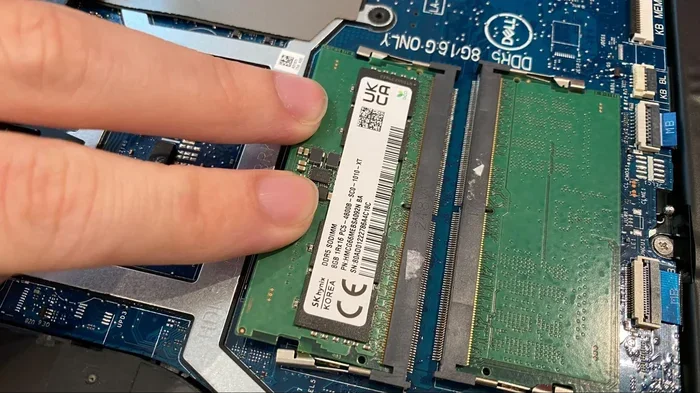
If you feel comfortable opening your laptop, you can physically check the slots. Turn off the machine, unplug it, and remove the battery if possible. Open the back panel and look for the memory slots. They are long, thin connectors with small clips on each end. Counting them gives you the total number of available slots. Just be careful and handle the components gently.
Steps to Verify Laptop RAM Compatibility Before Buying
Now that you understand the basics, let us walk through the actual verification process step by step. Following these steps ensures you buy the right memory the first time.
Step 1: Identify Your Laptop Model
Find the model number on the bottom of your laptop or in your system settings. Write it down. This is your starting point for everything else.
Step 2: Check the Current RAM Type
Determine whether your laptop uses DDR4 or DDR5. You can find this in Task Manager under the Performance tab or by using a tool like CPU-Z.
Step 3: Note the Maximum Capacity
Look up the maximum memory your laptop supports on the manufacturer’s website. Write this number down so you do not exceed it.
Step 4: Check Available Slots
Find out how many RAM slots your laptop has and whether any are free. This tells you if you can add memory or need to replace existing modules.
Step 5: Match the Speed and Voltage
Verify the supported RAM speed and voltage for your model. Choose a memory stick that matches these specifications exactly.
Step 6: Buy from a Trusted Source
Purchase your RAM from a reputable retailer or directly from the manufacturer. This ensures you get a genuine product with a warranty.
Following these six steps removes all the guesswork. Once you have confirmed laptop RAM compatibility, you can shop with confidence and know exactly what to buy.
What to Do After Installing New RAM
Once you have installed your new memory module, you should verify that everything is working correctly. Your laptop should recognize the full amount of new RAM immediately after booting up.
Open Task Manager and check the Memory section. It should show the updated total capacity. If the new memory is not showing up, try reseating the module. Sometimes the stick does not click fully into the slot. Restarting your laptop a couple of times can also help the system detect the new memory properly.
If you are planning a full upgrade, searching how to upgrade the RAM of a laptop for model-specific tips can help you avoid common installation pitfalls. A smooth installation ensures you get the full performance benefit from your new memory.
Expert Insights on Maximizing Laptop Memory
Experienced technicians recommend always buying memory in matching pairs. If your laptop has two slots, installing two identical sticks enables dual-channel mode. This can improve memory bandwidth by up to 20%. It is a simple trick that makes a noticeable difference in everyday performance.
Another pro tip is to keep your old RAM. If you are replacing modules, the old sticks can serve as spares or be used in another compatible device. Do not throw them away. Proper laptop RAM compatibility also means knowing when to stop upgrading. If your laptop already supports the maximum capacity, adding more memory will not improve performance further.
Common Myths About Laptop RAM
Let us clear up a few misconceptions. Some people believe that more RAM always means a faster laptop. In reality, once you have enough memory for your workload, adding more does not speed things up. Another myth is that all DDR4 RAM is the same. In truth, speeds, latencies, and voltages can vary significantly between modules.
Some users also think they can use desktop RAM in a laptop. This is simply not true. Laptop memory uses a different form factor called SODIMM. Desktop RAM will not fit into a laptop slot. Always purchase memory specifically designed for laptops to ensure proper laptop RAM compatibility.
Conclusion
Checking laptop RAM compatibility does not have to be complicated. By following the steps in this guide, you can confidently determine the right type, speed, and capacity of memory for your laptop. Start by identifying your model, checking the RAM type, and verifying your maximum capacity and available slots.
Take your time and match the specifications exactly. A small effort upfront saves you from buying the wrong part. Whether you are a casual user or a power user, getting the right RAM upgrade makes a real difference in how your laptop performs every day. Now you have everything you need to make the right choice.
Frequently Asked Questions
How do I know if my laptop RAM is compatible?
Check your laptop model number and look up the maximum memory, RAM type, and speed supported by your manufacturer. Matching these specifications exactly ensures full laptop RAM compatibility. You can also use free tools like CPU-Z to scan your system and recommend the right memory.
Can I mix DDR4 and DDR5 RAM in the same laptop?
No, you cannot. DDR4 and DDR5 have different physical slots and voltage requirements. Your laptop motherboard only supports one type. Always verify which generation your laptop uses before purchasing any memory module.
How much RAM does my laptop support?
The maximum capacity depends on your specific laptop model and motherboard. Check the manufacturer’s website or your system documentation for the exact limit. Most modern laptops support between 16 GB and 64 GB of total memory.
Do I need to install RAM in pairs?
It is not required, but installing matching pairs enables dual-channel mode, which improves memory performance. If your laptop has two slots, using two identical sticks gives you the best results for everyday tasks and demanding applications alike.
What happens if I install the wrong RAM in my laptop?
The wrong RAM will either not fit into the slot or your laptop will fail to boot. In some cases, the system may run unstable or crash frequently. Always verify laptop RAM compatibility before purchasing to avoid these problems entirely.
Is it hard to upgrade laptop RAM myself?
Not at all. Most laptops have an easy-access panel on the bottom. You simply unscrew the panel, locate the RAM slot, and gently press the new module in at an angle until it clicks. If you are unsure, searching how to check RAM on a laptop through built-in tools first helps you prepare properly.