How To Stress Test Ram Memtest86 And Fix Memory Errors
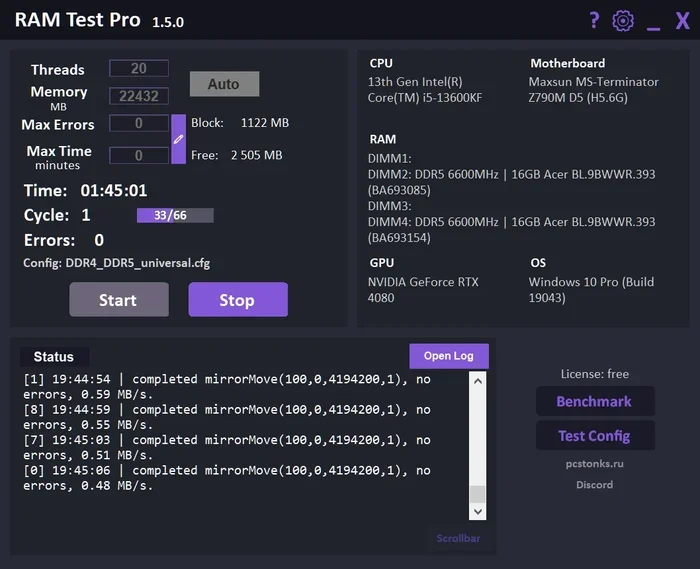
Memtest86 is the go-to tool for stress testing your RAM and catching memory errors before they cause big problems. This guide walks you through every step, from creating a bootable USB to understanding test results and fixing the issues. You will learn how to diagnose bad memory modules, prevent system crashes, and keep your PC running smoothly.
Key Takeaways
- Memtest86 is a free, powerful tool that thoroughly tests your computer memory for errors and instability.
- Running a full Memtest86 pass can take several hours, but it is essential for catching hidden memory problems.
- Blue screens, random reboots, and data corruption are common signs your RAM may be failing.
- Fixing memory errors often means reseating sticks, updating BIOS, or replacing faulty modules.
- Using Memtest86 alongside Windows Memory Diagnostic gives you a more complete picture of your system health.
- Knowing your RAM type and speed helps you choose compatible replacements when needed.
📑 Table of Contents
Why You Should Stress Test Your RAM With Memtest86
Your computer relies on RAM to handle everything you do. From opening a browser to running heavy software, memory is always at work. When RAM starts to fail, it can cause all kinds of frustrating problems. That is exactly why stress testing RAM with Memtest86 is so important.
Memtest86 is a free, standalone tool that checks your memory for errors. Unlike built-in Windows tools, it runs outside your operating system. This gives it full access to your hardware, making it far more thorough. Many users never run a memory test until something goes wrong. By then, they may have already lost data or dealt with repeated crashes.
Memory errors can sneak up on you. Sometimes they show up as a simple application crash. Other times, they cause the dreaded blue screen of death. Either way, catching these issues early saves you time and headaches. Let us walk through everything you need to know about Memtest86 stress testing and fixing any memory errors you find.
Who Should Use Memtest86?
Anyone who owns a computer should consider running a memory test. This includes PC builders, laptop users, and IT professionals. If you have recently added new RAM, it is especially important to verify it works correctly. RAM compatibility issues can cause subtle bugs that are hard to trace.
Gamers, video editors, and anyone running demanding workloads should test their memory regularly. Heavy use puts more stress on your modules. Over time, this can reveal weaknesses that were not visible at first. A quick memory diagnostics session can save you from unexpected downtime.
What Is Memtest86 And How Does It Work?
Memtest86 is a lightweight program designed to test your computer memory. It boots from a USB drive or CD, completely independent of your operating system. Once started, it writes and reads data to every section of your RAM. It checks for errors in memory patterns, addresses, and timings.
The tool uses a series of test patterns to find problems. Each pattern targets a different aspect of how memory stores data. If a module cannot correctly store or retrieve a pattern, Memtest86 flags it as an error. Even a single error is a sign that something is wrong with your hardware.
How Memtest86 Tests Your Memory
When you start Memtest86, it runs through a continuous loop of tests. Each pass checks every byte of your installed memory. The tool tests both DRAM modules and the memory controller on your CPU. It looks for bit failures, address errors, and timing issues.
A full pass can take anywhere from 30 minutes to over an hour, depending on your total RAM. For reliable results, you should run at least four full passes. This ensures that any intermittent errors get caught. Memory problems are not always consistent, so multiple passes increase your chances of finding them.
How To Prepare For A Memtest86 Test
Before you start, a little preparation goes a long way. You want to make sure the test runs smoothly and your results are accurate. Here is what you need to do before booting into Memtest86.
Step 1: Check Your Current RAM
First, find out how much RAM your system currently has. You can do this in Windows by opening Task Manager and going to the Performance tab. Knowing your current memory configuration helps you understand what the test results mean.
If you are unsure about your RAM type or speed, check your laptop or motherboard manual. You can also use a tool like CPU-Z to get detailed information. This is especially helpful if you plan to upgrade your laptop RAM after the test.
Step 2: Download Memtest86
Visit the official Memtest86 website and download the free version. The tool is available for both BIOS and UEFI systems. Make sure you download it from the official source to avoid malware or corrupted files.
The free version includes all the core testing features you need. There is also a paid Pro version with extra capabilities, but for most users, the free version is more than enough. Save the file to an easy-to-find location on your computer.
Step 3: Create A Bootable USB Drive
You will need a USB flash drive with at least 1GB of space. Plug it into your computer and use the Memtest86 USB image writer tool to flash the ISO file onto the drive. This process will erase everything on the USB, so back up any important files first.
Once the USB is ready, plug it into the computer you want to test. Make sure no other USB devices are connected. You want Memtest86 to have full control over the system during testing.
Step 4: Adjust Your BIOS Settings
Restart your computer and enter the BIOS or UEFI setup. This is usually done by pressing F2, Del, or Esc during startup. Look for the boot order settings and set the USB drive as the first boot device.
Some systems have a quick boot menu that lets you select the USB without entering BIOS. If your system supports this, it is the fastest way to get started. Save your changes and exit the BIOS to begin the test.
Running Memtest86 And Interpreting Results
Now that your USB is ready, boot from it and Memtest86 will start automatically. You do not need to install anything. The tool begins testing immediately. You will see a screen showing the current test number, pass count, and any errors found.
Understanding Test Patterns
Memtest86 runs through several different test patterns. Each one checks a different aspect of memory behavior. Here are the main patterns you will see:
- Test 0: Checks basic data integrity by writing and reading simple values.
- Test 1: Tests walking bit patterns to find individual bit failures.
- Test 5: Checks for address-bit flip errors, which are common in faulty modules.
- Test 7: Tests sequential memory access patterns for timing issues.
- Test 8: Checks for sequential address-bit tests to catch deeper hardware faults.
Each test pattern targets a different vulnerability in your RAM. If a module fails even one pattern, it is a sign of a problem. Do not ignore errors just because they appear in only one test. Memory failures can be intermittent, and one error is enough to cause system instability.
What Do Errors Look Like?
When Memtest86 finds an error, it displays a red error counter on the screen. The counter shows how many errors have been detected so far. You may also see the specific address and pattern that failed.
Errors can appear in different forms. Some show as incorrect data read back from memory. Others appear as timing failures where the module cannot respond fast enough. If you see any red errors, write them down or take a screenshot. This information helps you identify which specific memory module is failing.
How Long Should You Run The Test?
For the best results, run Memtest86 for at least four full passes. A single pass tests every byte of RAM once. Four passes give you much higher confidence that your memory is stable. If you have a lot of RAM, a full test can take several hours.
If you are in a hurry, running two passes is the minimum. However, keep in mind that some errors only show up under heavy or prolonged stress. The longer you test, the more reliable your results will be. Let the tool run overnight if you can.
Common Signs Of Faulty RAM
Not sure if your RAM is causing problems? There are several telltale signs. Recognizing these symptoms early can help you catch memory issues before they worsen.
Random System Crashes
If your computer crashes randomly without any clear reason, faulty RAM could be the culprit. Crashes that happen during heavy workloads are especially suspicious. Games, video editors, and other memory-intensive applications are the first to show problems.
Blue Screen Of Death
The blue screen of death is one of the most common symptoms of bad memory. If you see a BSOD with messages like MEMORY_MANAGEMENT or IRQL_NOT_LESS_OR_EQUAL, your RAM is a prime suspect. These errors often point directly to memory-related failures.
File Corruption
Memory errors can cause files to become corrupted. If you notice that saved documents are suddenly unreadable or programs refuse to open, your RAM may be at fault. This happens because corrupted data in memory gets written to your storage drive.
Slow Performance And Freezes
Sometimes bad RAM causes subtle performance issues instead of dramatic crashes. Your system may freeze for a few seconds at a time. Applications might lag or become unresponsive. These symptoms are easy to overlook but can indicate serious memory problems.
How To Fix Memory Errors Found By Memtest86
Finding errors in Memtest86 can feel alarming, but the good news is that most memory issues are fixable. Here is a step-by-step approach to resolving the problems.
Fix 1: Reseat Your RAM Sticks
The most common cause of memory errors is a loose or poorly seated module. Power off your computer and unplug it. Open the case and carefully remove each RAM stick. Check the gold contacts for dust or debris. Then firmly press each stick back into its slot until you hear a click.
After reseating, run Memtest86 again to see if the errors are gone. This simple step fixes a surprising number of memory issues. If you are working with a laptop, refer to your manufacturer guide for how to open laptop RAM access panels.
Fix 2: Test Each Module Individually
If reseating does not help, test each RAM stick one at a time. Remove all modules and insert only one. Run Memtest86 and check for errors. Then remove that stick and test the next one. This process helps you identify the specific faulty module.
Once you find the bad stick, replace it with a new one. Make sure the replacement matches your existing RAM in type, speed, and capacity. Check RAM compatibility with your motherboard before purchasing a new module. Mixing incompatible modules can cause the same errors you are trying to fix.
Fix 3: Update Your BIOS
Sometimes memory errors are caused by outdated BIOS firmware. Your motherboard manufacturer may have released an update that improves memory compatibility and stability. Visit the manufacturer website, find your motherboard model, and download the latest BIOS version.
Be careful when updating BIOS. Follow the manufacturer instructions exactly. A failed BIOS update can cause serious problems. If you are not comfortable doing this yourself, consider seeking professional help.
Fix 4: Adjust Memory Timings And Voltage
In some cases, memory errors occur because the timings or voltage settings are too aggressive. Enter your BIOS and look for the memory or DRAM settings. Try loosening the timings slightly or increasing the DRAM voltage by a small amount.
Do not increase voltage too much, as this can damage your modules. Make small adjustments and test each one. If you are not familiar with BIOS settings, it is safer to stick with the default values and replace the faulty module instead.
Fix 5: Replace Faulty Modules
If none of the above fixes work, the memory module itself is likely defective. Purchase a replacement that matches your system specifications. When buying new RAM, always verify what RAM is compatible with my laptop or desktop motherboard first.
After installing the new module, run Memtest86 one more time to confirm everything is stable. A clean test with zero errors means your memory is healthy and your system should run reliably.
Preventing Future Memory Problems
Once you have fixed your memory issues, take steps to prevent them from coming back. Regular maintenance and smart upgrades go a long way toward keeping your RAM in top shape.
- Keep your system clean: Dust can build up inside your computer and cause overheating, which affects memory stability.
- Avoid overheating: Make sure your fans are working and your system has proper airflow. High temperatures can degrade RAM over time.
- Use quality RAM: Stick with reputable brands when purchasing memory. Cheap or counterfeit RAM modules are more prone to failure.
- Run periodic tests: Make it a habit to run Memtest86 every few months, especially after any hardware changes.
- Check for BIOS updates: Manufacturers regularly release updates that improve memory compatibility and fix known issues.
If you are planning to add more memory, make sure you know how much RAM your laptop has before purchasing additional sticks. Upgrading beyond your motherboard’s maximum capacity will not help and could cause new problems.
Conclusion
Stress testing your RAM with Memtest86 is one of the best things you can do for your computer. It catches hidden memory errors before they cause data loss, crashes, or system instability. The process is straightforward and the tool is free, making it accessible to every user.
Start by creating a bootable USB and running at least four full passes. If you find errors, follow the fixes outlined in this guide. Reseating modules, testing individually, and replacing faulty sticks are the most effective solutions. Keep your system maintained and run periodic tests to stay ahead of potential problems.
Healthy memory means a stable, fast, and reliable computer. Take the time to test your RAM today. Your future self will thank you when your system runs without a single unexpected crash. Make Memtest86 stress testing a regular part of your PC maintenance routine and enjoy peace of mind knowing your hardware is working as it should.
Frequently Asked Questions
Is Memtest86 safe to use on my computer?
Yes, Memtest86 is completely safe. It is a well-known and widely used tool in the PC community. It does not modify your operating system or files. It only reads and tests your memory modules during the boot process.
How long does a full Memtest86 test take?
A full test depends on how much RAM you have and how many passes you run. For most systems, one pass takes 30 to 60 minutes. Running four passes can take 2 to 4 hours total. You can let it run overnight for the most thorough results.
Can I use Memtest86 on a laptop?
Absolutely. Memtest86 works on both desktops and laptops. You will need a USB drive and access to your laptop’s boot menu. Make sure your laptop is plugged in during the test to avoid power interruptions.
What should I do if Memtest86 finds errors on every stick?
If every module shows errors, the problem might be your motherboard or CPU memory controller. Try testing one stick at a time in different slots. If all sticks fail in all slots, you likely have a motherboard or processor issue that needs professional diagnosis.
Do I need to run Memtest86 if my computer is working fine?
It is a good idea to run a test periodically even if your system seems stable. Memory errors can be intermittent and may not cause obvious symptoms at first. Regular testing helps you catch problems early before they lead to data loss or crashes.
What is the difference between Memtest86 and Windows Memory Diagnostic?
Memtest86 runs outside your operating system, giving it full access to test all your memory thoroughly. Windows Memory Diagnostic runs inside Windows and is more limited in what it can check. Memtest86 is generally considered more reliable for finding hidden memory issues.
=== CONCLUSION ===
Stress testing your RAM with Memtest86 is an essential skill for any PC user. It takes just a few steps to set up and provides invaluable insight into your system’s health. By catching memory errors early, you can prevent crashes, data loss, and costly repairs. Use the tips and fixes in this guide to keep your memory running at its best.