Find Which App Is Using Your Webcam On Windows 1110
Finding which app is using your webcam on Windows 11 or Windows 10 is easier than you think. You can use Task Manager, Privacy Settings, or the Camera app to spot active camera usage. This guide walks you through every method step by step so you can take back your webcam privacy right now.
Key Takeaways
- Task Manager is the fastest way to see which apps are using your webcam on Windows 11 or Windows 10.
- Windows Privacy Settings let you view and manage which apps have camera access at any time.
- The camera indicator light on your laptop gives you a visual cue when your webcam is active.
- You can block apps from accessing your webcam through simple toggles in Settings.
- Regularly checking your running apps helps prevent unauthorized access to your camera.
- Windows Security offers additional tools to monitor app behavior and protect your system.
📑 Table of Contents
- How To Check Which App Is Using Your Webcam On Windows 11 and Windows 10
- Why Webcam Privacy Matters on Windows
- Methods To Find Which App Is Using Your Webcam
- Common Apps That Access Your Webcam
- How To Block Apps From Using Your Webcam
- Tips To Keep Your Webcam Secure
- Troubleshooting Common Webcam Issues
- Final Thoughts
How To Check Which App Is Using Your Webcam On Windows 11 and Windows 10
Have you ever wondered if someone or something is watching you through your laptop camera? It is a scary thought, but it happens more often than most people realize. Malware, rogue apps, and even legitimate software can access your webcam without you noticing. The good news is that Windows 11 and Windows 10 give you several built-in tools to check which app is using your webcam at any given moment.
Whether you are concerned about webcam privacy or just curious about what is accessing your camera, this guide has you covered. You do not need to be a tech expert to follow along. We will walk you through every method in simple, plain language. By the end, you will know exactly how to find, monitor, and block any app that tries to use your camera.
Your camera privacy matters. A lot of people leave their webcams exposed without even knowing it. Some apps request camera access during installation and you might not even notice. Taking a few minutes to review your settings can save you from serious privacy concerns down the road. Let us dive in.
Why Webcam Privacy Matters on Windows
Your webcam is one of the most sensitive devices on your laptop. When it is active, it can capture everything in front of it. That includes your face, your surroundings, and anything else within view. Unauthorized access to your webcam can lead to serious privacy violations, identity theft, and even blackmail.
Many people do not realize how often apps request camera access. Video calling apps like Microsoft Teams and Zoom need it, sure. But what about games, social media apps, or lesser-known utilities? Some of these quietly access your camera in the background. This is why regularly checking which app is using your webcam is so important.
Windows 11 and Windows 10 have improved their privacy controls compared to older versions. You now get better visibility into what is happening with your hardware. However, you still need to know where to look. The tools are there, but they are spread across different menus and settings. This guide will show you exactly where to go.
The Growing Threat of Unauthorized Webcam Access
Cybercriminals have long targeted webcams as a way to spy on users. The term “camfecting” refers to the practice of hijacking a webcam remotely. While this sounds like something from a movie, it is a real and ongoing threat. Even legitimate apps can become a risk if they are compromised or if you grant them more permissions than needed.
Some signs that your webcam might be in use without your knowledge include:
- The webcam indicator light turns on by itself.
- Your laptop fan runs harder than usual when you are not doing heavy tasks.
- You notice unfamiliar apps running in the system tray.
- Your lock screen camera activates unexpectedly.
If you notice any of these signs, it is time to investigate. The methods below will help you identify exactly what is going on.
Methods To Find Which App Is Using Your Webcam
There are several ways to check which app is using your webcam on Windows 11 and Windows 10. Each method has its own strengths. Some give you real-time info while others help you review past permissions. Let us go through them one by one.
Method 1: Use Task Manager
Task Manager is the quickest way to see what is running on your PC. It shows all active processes, including apps that might be using your camera. Here is how to use it:
- Press Ctrl + Shift + Esc to open Task Manager.
- Click on the Processes tab if you are not already there.
- Look for apps related to video calling, streaming, or camera functions.
- Check the Camera column to see which apps have active camera access.
Task Manager also lets you see how much CPU and memory each app is using. If you notice an app using unusual resources, it might be accessing your webcam without your knowledge. You can right-click on any suspicious process and select End Task to stop it immediately.
For a broader look at your system resources, you might also want to how to check ram in my laptop to make sure no background processes are hogging your memory.
Method 2: Check Windows Privacy Settings
Windows has a dedicated Privacy Settings menu that gives you full control over camera access. This is the best place to review which apps have permission to use your webcam.
Here is what to do:
- Open Settings by pressing Windows + I.
- Go to Privacy & Security.
- Click on Camera in the left sidebar.
- Scroll down to the “Let apps access your camera” section.
- Review the list of apps and toggle off any that should not have access.
Below that section, you will also see a list of apps that have recently accessed your camera. This is incredibly useful for spotting apps that you forgot you gave permission to. You can also toggle off access for apps running in the background, which is a common way apps secretly use your webcam.
Windows 11 has an even better feature called the Privacy Dashboard. It shows you a timeline of which apps accessed sensitive resources like your camera, microphone, and location. You can access it by going to Settings > Privacy & Security > Privacy Dashboard.
Method 3: Look for the Camera Indicator Light
Most modern laptops have a small LED light next to the webcam. When your camera is active, this light turns on. It is a simple but effective way to know if something is using your webcam without you noticing.
If you see the light on and you are not on a video call, something is using your camera. Here is what you should do:
- Check your system tray for any running video or camera apps.
- Open Task Manager and look for suspicious processes.
- Review your camera privacy settings to see which apps have access.
Some malware can actually disable the indicator light, so do not rely on it alone. However, in most cases, the light is a reliable signal that your camera is in use.
Method 4: Use the Camera App
The built-in Camera app in Windows 11 and Windows 10 can also help you identify camera usage. When you open the Camera app, it takes exclusive control of the webcam. If another app is currently using the camera, Windows will usually show you a notification or prevent the Camera app from launching.
Simply open the Camera app from your Start menu. If it opens without any issues, then no other app is actively using the camera. If you get a message saying the camera is in use by another app, Windows will usually tell you which one.
Common Apps That Access Your Webcam
Not all apps that use your webcam are threats. Many are perfectly legitimate and useful. Here are some common apps that regularly access your camera:
- Zoom – Needs camera access for video meetings and webinars.
- Microsoft Teams – Uses your webcam for work calls and conferences.
- Skype – Another popular video calling platform.
- Discord – Used for gaming calls and streaming.
- Snapchat and Instagram – Social media apps that use the front camera.
- Windows Hello – Uses the webcam for facial recognition login.
The key is to make sure only the apps you trust have camera access. If you see an app on this list that you rarely use, consider revoking its permission. You can always re-enable it when you need it.
How To Block Apps From Using Your Webcam
Blocking an app from accessing your webcam is straightforward. You can do it directly through Windows Privacy Settings or through individual app settings.
To block apps globally:
- Go to Settings > Privacy & Security > Camera.
- Toggle off Let apps access your camera at the top.
- This disables camera access for all apps on your system.
To block specific apps:
- In the same Camera settings menu, find the app you want to block.
- Toggle the switch next to that app to Off.
- The app will no longer be able to access your webcam.
Some apps, like video editors or screen recorders, also request camera access. Make sure you review these permissions regularly. If you are having issues with your mouse or other input devices while troubleshooting camera access, you can also check out how to fix mouse speed issues on Windows 11 since some system setting changes can affect peripheral behavior.
Tips To Keep Your Webcam Secure
Beyond just checking which app is using your camera, there are several steps you can take to improve your overall webcam security:
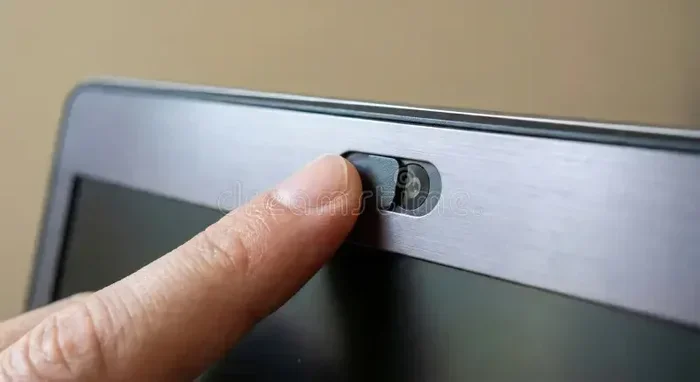
- Cover your webcam when you are not using it. A simple sliding cover or piece of tape works great.
- Keep Windows updated to ensure you have the latest security patches.
- Use antivirus software to detect and remove malware that might target your camera.
- Review app permissions every few weeks to make sure nothing unexpected has been added.
- Uninstall apps you no longer use to reduce your attack surface.
- Use a firewall to monitor incoming and outgoing network traffic.
These habits take just a few minutes each week but can make a huge difference in protecting your privacy. Think of it like locking your front door. It is a small effort that provides big peace of mind.
Troubleshooting Common Webcam Issues
Sometimes the problem is not about privacy but about your webcam not working at all. Here are a few quick fixes:
- If your webcam is not detected, open Device Manager and check for driver issues under “Cameras.”
- If the camera works in one app but not another, check that the second app has camera permission in Privacy Settings.
- If your Windows 10 webcam shows a black screen, try updating the camera driver through Device Manager.
- Restarting your PC often resolves temporary glitches with camera access.
For more help with laptop hardware and system checks, you can also explore how to check the ram in laptop to make sure your system resources are not bottlenecking your performance.
Final Thoughts
Your webcam is a powerful tool, but it can also be a serious privacy risk if you do not monitor it carefully. Learning how to check which app is using your webcam on Windows 11 or Windows 10 gives you control and peace of mind. You now know multiple methods, from Task Manager to Privacy Settings, that help you stay on top of camera usage.
Take a few minutes today to review your camera permissions. Toggle off access for apps you do not trust or no longer use. Cover your webcam when it is not in use. These small steps add up to strong protection for your personal privacy. Stay vigilant, stay safe, and enjoy the confidence that comes with knowing exactly who is watching through your lens.
Frequently Asked Questions
How do I know if an app is secretly using my webcam?
Check your webcam indicator light first. If it is on and you are not in a video call, something is using your camera. Open Task Manager and look at the Camera column to see which apps are active. You can also review your Privacy Settings for a list of apps that recently accessed your camera.
Can malware access my webcam without turning on the indicator light?
Yes, some advanced malware can disable the indicator light while still accessing your webcam. This is why it is important to use antivirus software and regularly check your Privacy Settings and Task Manager for suspicious activity.
How do I stop Zoom from accessing my webcam when I am not using it?
Go to Settings > Privacy & Security > Camera and toggle off Zoom’s access. You can also open Zoom’s own settings and disable the camera there. This ensures Zoom cannot use your webcam in the background.
Is it safe to allow all apps to access my webcam?
No, it is not safe. Granting camera access to every app increases your risk of unauthorized access. Only give camera permission to apps you trust and actually need it. Review your permissions regularly and revoke access for apps you no longer use.
What should I do if I find an unknown app using my webcam?
End the task immediately in Task Manager. Then go to Privacy Settings and revoke that app’s camera access. Run a full antivirus scan to check for malware. If the app keeps appearing, consider uninstalling it entirely.
Does Windows 11 have better webcam privacy controls than Windows 10?
Yes, Windows 11 includes the Privacy Dashboard, which gives you a timeline of camera, microphone, and location access by all apps. It also has improved permission prompts that make it clearer when an app wants to use your webcam.