How To Fix A Broken Wireless Mouse Without Replacing
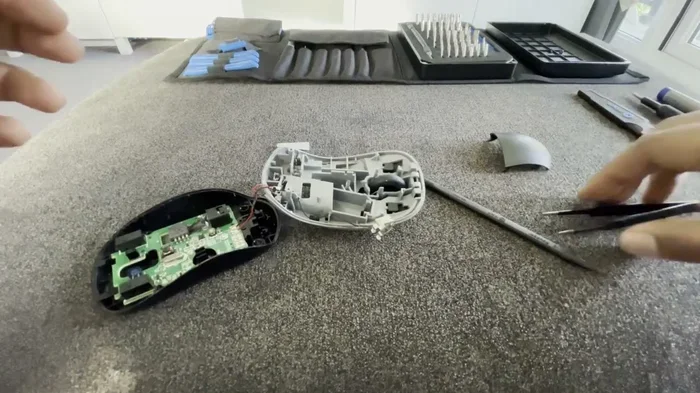
You don’t need to buy a new mouse when things go wrong. This guide shows you how to fix a broken wireless mouse using simple, proven methods you can do at home. From battery swaps to sensor cleaning, these steps can save you money and time.
There is nothing more frustrating than reaching for your mouse and finding it completely unresponsive. Whether the cursor freezes, clicks stop working, or the scroll wheel gets stuck, a broken wireless mouse can bring your productivity to a halt. The good news is that how to fix a broken wireless mouse is something you can handle without buying a new one. Most problems have simple solutions that take just a few minutes.
Before you head to the store or order a replacement, try these proven fixes. This guide covers everything from basic battery checks to driver updates and hardware repairs. You will learn practical steps that work for almost any brand, including Logitech, HP, Dell, and other popular models. Let us get your mouse working again.
Key Takeaways
- Most wireless mouse problems are easy to fix without replacing the device or spending extra money.
- Dead batteries and connectivity issues are the top reasons a wireless mouse stops working.
- Updating your wireless mouse driver can resolve many software-related problems quickly.
- Cleaning the sensor and scroll wheel removes dust and debris that cause common malfunctions.
- Resetting the mouse and receiver often fixes pairing and signal problems.
- Regular maintenance prevents most wireless mouse issues from happening again.
- Knowing when to seek professional help saves you from making costly mistakes.
📑 Table of Contents
Why Does a Wireless Mouse Break?
Understanding why your mouse stopped working is the first step toward fixing it. Wireless mice have fewer moving parts than wired ones, but they still face several common issues. Most problems fall into three categories: power issues, connectivity problems, and hardware wear.
Power issues happen when batteries run low or when the charging cable fails. Connectivity problems occur when the USB receiver loses its pairing with the mouse. Hardware wear builds up over time, especially on the scroll wheel and sensor. Dirt, dust, and crumbs can also sneak inside and cause serious damage. The good thing is that each of these problems has a clear solution.
Before you try any fix, it helps to identify what is actually wrong. Is the mouse not turning on at all? Is the cursor jumping around? Are clicks not registering? Once you narrow down the symptom, you can move to the right fix. Below, we walk you through the most effective ways to repair a wireless mouse step by step.
How To Fix A Broken Wireless Mouse: Step-by-Step Guide
Follow these steps in order. Start with the simplest fixes and work your way up. Most wireless mouse problems get resolved within the first few steps.
Step 1: Check the Batteries
This sounds obvious, but dead batteries cause more wireless mouse failures than anything else. If your mouse suddenly stops working, remove the old batteries first. Replace them with fresh, high-quality alkaline batteries. Make sure you insert them with the correct polarity.
For rechargeable wireless mice, plug the charging cable into a working USB port. Let it charge for at least thirty minutes before testing. A loose battery connection can also cause problems. Clean the battery contacts with a dry cloth before inserting new ones. Sometimes simply resetting the power connection brings the mouse back to life.
Step 2: Update or Reinstall the Wireless Mouse Driver
Your computer needs the right driver to communicate with the wireless mouse. When the driver becomes outdated or corrupted, the mouse may stop responding. Updating the driver often fixes this issue quickly.
Go to your Device Manager on Windows and look under “Mice and other pointing devices.” Right-click your wireless mouse and select “Update driver.” If that does not work, try uninstalling the driver and restarting your computer. Windows will automatically reinstall a fresh driver when it boots back up. You can also visit the mouse manufacturer’s website to download the latest driver directly. How to make the mouse work on a laptop often starts with a clean driver reinstall.
Step 3: Fix Connectivity Problems
Wireless mice use a small USB receiver to connect to your computer. If the connection drops, the mouse will stop working. Start by unplugging the receiver and plugging it into a different USB port. USB 2.0 ports tend to work better than USB 3.0 ports for wireless mouse receivers.
Try moving the receiver closer to the mouse. Walls, monitors, and other electronics can block the signal. If you use a USB hub, connect the receiver directly to the computer instead. Some wireless mice also need to be re-paired with the receiver. Check your mouse manual for the pairing process. In many cases, holding down a small button on both the mouse and the receiver resets the connection.
If you are dealing with a laptop, you might also want to check if Bluetooth is interfering. Some wireless mice use Bluetooth instead of a USB dongle. Turn off other Bluetooth devices temporarily and see if the mouse reconnects. How to connect a wireless mouse to laptop properly can prevent many of these signal issues from happening again.
Step 4: Clean the Mouse Sensor
Dust, crumbs, and grime build up under the sensor over time. This can cause the cursor to jump, freeze, or stop moving entirely. Cleaning the sensor is one of the easiest and most effective fixes.
Turn the mouse over and remove the battery cover. Use a soft, lint-free cloth to gently wipe the sensor lens. Do not use liquid cleaners. A dry cotton swab works well for removing stubborn dust. Blow gently into the sensor area to dislodge any particles. Also clean the feet pads on the bottom of the mouse. Smooth feet pads help the mouse glide better and track more accurately.
For mice that have been used on dirty surfaces, give the entire bottom a thorough cleaning. Pay special attention to the optical sensor, which is the small red or blue light on the underside. A clean sensor makes a huge difference in tracking performance.
Step 5: Repair the Scroll Wheel
A sticky or non-working scroll wheel is one of the most common wireless mouse problems. This usually happens when dust and debris get trapped around the scroll mechanism. Before you open the mouse, try a simple cleaning trick first.
Turn the mouse upside down and roll the scroll wheel back and forth several times. This can sometimes dislodge loose particles. Next, use a compressed air can to blow air around the edges of the scroll wheel. Hold the mouse at an angle so debris falls out instead of going deeper inside.
If the scroll wheel still feels sticky, apply a small drop of isopropyl alcohol around the base of the wheel. Let it sit for a minute, then roll the wheel gently. The alcohol dissolves the grime without damaging the internal parts. Let it dry completely before using the mouse again. In some cases, the scroll wheel encoder needs replacement. This is a more advanced fix and may require opening the mouse casing.
Step 6: Reset the Mouse and Receiver
Sometimes the simplest fix is also the best one. Resetting both the wireless mouse and its USB receiver can resolve many stubborn issues. Start by removing the batteries from the mouse. Unplug the USB receiver from the computer. Wait about thirty seconds.
Plug the receiver back into a USB port. Insert the batteries into the mouse. Most wireless mice have a small reset button on the bottom. Press and hold it for five seconds. The LED light on the mouse should flash, indicating a successful reset. Try moving the mouse and clicking to see if it responds.
If the reset does not work, try the pairing process again. Refer to your mouse brand’s instructions for the specific pairing method. How to reset the mouse on a laptop follows a similar process and can help you troubleshoot connection issues.
Common Wireless Mouse Problems and Solutions
Below is a quick reference table that matches the most common wireless mouse problems with their solutions. Keep this handy for future troubleshooting.
| Problem | Likely Cause | Fix |
|---|---|---|
| Mouse not turning on | Dead batteries or broken battery contacts | Replace batteries, clean contacts |
| Cursor jumping or moving randomly | Dirty sensor or surface interference | Clean sensor, change surface |
| Mouse not clicking | Worn-out microswitches or debris | Clean switches, replace if needed |
| Scroll wheel not working | Dust buildup or broken encoder | Clean with alcohol, replace encoder |
| Mouse disconnects frequently | Weak signal or outdated driver | Move receiver closer, update driver |
| Mouse works on one surface but not another | Sensor incompatibility with surface | Use a mouse pad, avoid glossy surfaces |
| Double clicking instead of single click | Worn microswitches | Replace switches or use software fix |
Use this table to quickly identify your problem and find the matching solution. Most fixes take less than five minutes and require no special tools.
Quick Tips to Prevent Wireless Mouse Problems
Prevention is always easier than repair. A few simple habits can extend the life of your wireless mouse significantly. Here are some quick tips to keep in mind.
- Always use a mouse pad. Glossy or reflective surfaces confuse optical sensors and cause tracking issues.
- Turn off the mouse when not in use. This saves battery life and reduces wear on internal components.
- Keep food and drinks away from your workspace. Crumbs and spills are the biggest enemies of any mouse.
- Replace batteries regularly. Do not wait until the mouse stops working. Low power can damage the internal circuitry.
- Clean your mouse monthly. A quick wipe-down with a dry cloth prevents dust buildup on the sensor and buttons.
- Store the mouse properly. When traveling, keep the mouse in a padded case to prevent physical damage.
These small habits add up over time. A well-maintained wireless mouse can last for years, even with daily use. How to use a mouse on a laptop correctly also plays a big role in preventing unnecessary wear and tear.
When to Seek Professional Help
Not every wireless mouse problem can be fixed at home. If you have tried all the steps above and the mouse still does not work, it may be time to consult a professional. Here are some signs that your issue needs expert attention.
- The mouse physically broke after a drop or impact. Cracked casings or bent internal components need professional repair.
- The USB receiver is damaged or not recognized by any computer. This could indicate a hardware failure beyond basic troubleshooting.
- You opened the mouse casing and accidentally damaged internal parts. Reassembling a wireless mouse correctly requires technical skill.
- The mouse works intermittently even after driver updates, resets, and battery replacements. This suggests a deeper electrical issue.
Before taking your mouse to a repair shop, check if it is still under warranty. Many manufacturers offer one to two years of warranty coverage. If your mouse is still under warranty, contact the manufacturer directly. They may replace it for free. How to fix my laptop mouse pad issues can sometimes overlap with mouse problems, so it is worth checking both if you are experiencing cursor issues.
Final Thoughts
How to fix a broken wireless mouse does not have to be complicated or expensive. Most problems come down to simple causes like dead batteries, dirty sensors, outdated drivers, or loose connections. By following the steps in this guide, you can breathe new life into your wireless mouse and avoid the cost of a replacement.
Start with the basics and work your way through each step. Be patient and gentle when cleaning or opening the mouse. If the problem persists after all fixes, do not force any repairs. Seek professional help or check your warranty coverage. A little knowledge goes a long way in keeping your wireless mouse in great shape for years to come.
Keep this guide bookmarked for future reference. The next time your wireless mouse stops working, you will know exactly what to do. Save money, reduce e-waste, and get back to work quickly with these simple troubleshooting methods.
Frequently Asked Questions
Why did my wireless mouse suddenly stop working?
The most common reason is dead or low batteries. Start by replacing the batteries with fresh ones. If that does not work, check the USB receiver connection and try resetting both the mouse and the receiver. Driver issues can also cause sudden failures, so updating your mouse driver through Device Manager is worth a try.
Can I fix a wireless mouse that is not clicking?
Yes, in most cases. A mouse that is not clicking usually has dirty microswitches or debris trapped under the buttons. Try cleaning around the click buttons with compressed air. If cleaning does not help, the microswitches may need replacement, which requires opening the mouse casing.
How do I know if my wireless mouse needs a new battery or a new mouse?
If replacing the batteries does not turn the mouse on, and the charging cable (for rechargeable models) also fails, the issue may be internal. Check for visible damage like cracks or loose parts. If the mouse looks fine inside, try resetting it and updating the driver before deciding to replace it entirely.
Is it safe to open a wireless mouse for repair?
It can be safe if you are careful. Always disconnect the mouse from the computer and remove the batteries first. Use the right tools, usually a small Phillips screwdriver. Be gentle with internal components. If you feel unsure, it is better to seek professional help to avoid causing further damage.
How can I improve my wireless mouse’s battery life?
Turn the mouse off when you are not using it. Use fresh, high-quality alkaline batteries for the best performance. Keep the receiver close to the mouse to maintain a strong signal, which reduces power consumption. Cleaning the mouse regularly also helps it run smoothly and use less energy.
What should I do if my wireless mouse keeps disconnecting?
Move the USB receiver to a port closer to the mouse and away from other wireless devices. Update the mouse driver through Device Manager. Try resetting both the mouse and the receiver. If the problem continues, interference from other Bluetooth devices or USB 3.0 ports may be the cause.